You need to fix the sdbus.sys Blue Screen error on Windows 11, as it usually points to problems with SD card drivers, corrupted system files, or incompatible hardware, which might hinder your work. The error often appears with messages like SYSTEM_THREAD_EXCEPTION_NOT_HANDLED or PAGE_FAULT_IN_NONPAGED_AREA and may occur when inserting an SD card, updating Windows, or resuming from sleep.

Page Contents
Fix Sdbus.sys Blue Screen Error on Windows 11
Fortunately, there are several proven fixes to help you resolve it. Try the following methods, restarting your PC after each one.
Fix 1: Reinstall or update the SD bus controller driver
Faulty SD bus or storage controller drivers are among the most common causes of the Sdbus.sys Blue Screen error.
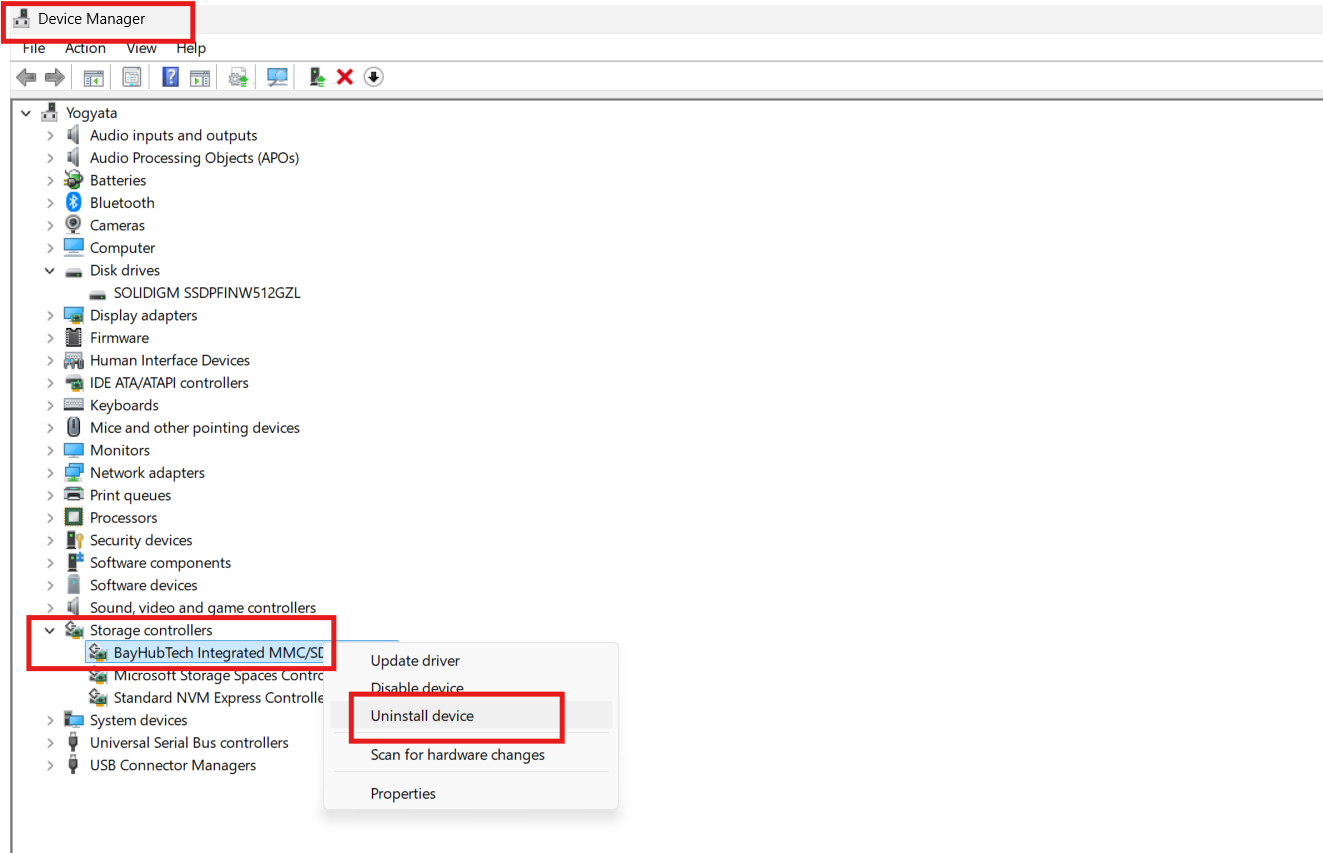
1. Open Device Manager.
2. Expand Storage controllers (on some PCs, expand System devices).
3. Locate your SD card reader entry, such as BayHubTech Integrated MMC/SD controller or Realtek PCIE card reader.
4. Right-click it and choose Uninstall device.
5. Restart your PC; Windows will reinstall the driver automatically.
6. If the issue persists, right-click the same entry again, choose Update driver, and select Search automatically for drivers.
Fix 2: Run the System File Checker (SFC) and DISM
Corrupted or missing system files can cause BSODs linked to sdbus.sys.
1.Open Command Prompt (Admin).
2. Type the following and press Enter: sfc /scannow.
3. Once it completes, run this command next: DISM /Online /Cleanup-Image /RestoreHealth.

4. Restart your system and check if the error reappears.
Fix 3: Roll back or uninstall recent Windows updates
Sometimes a new update introduces driver conflicts.
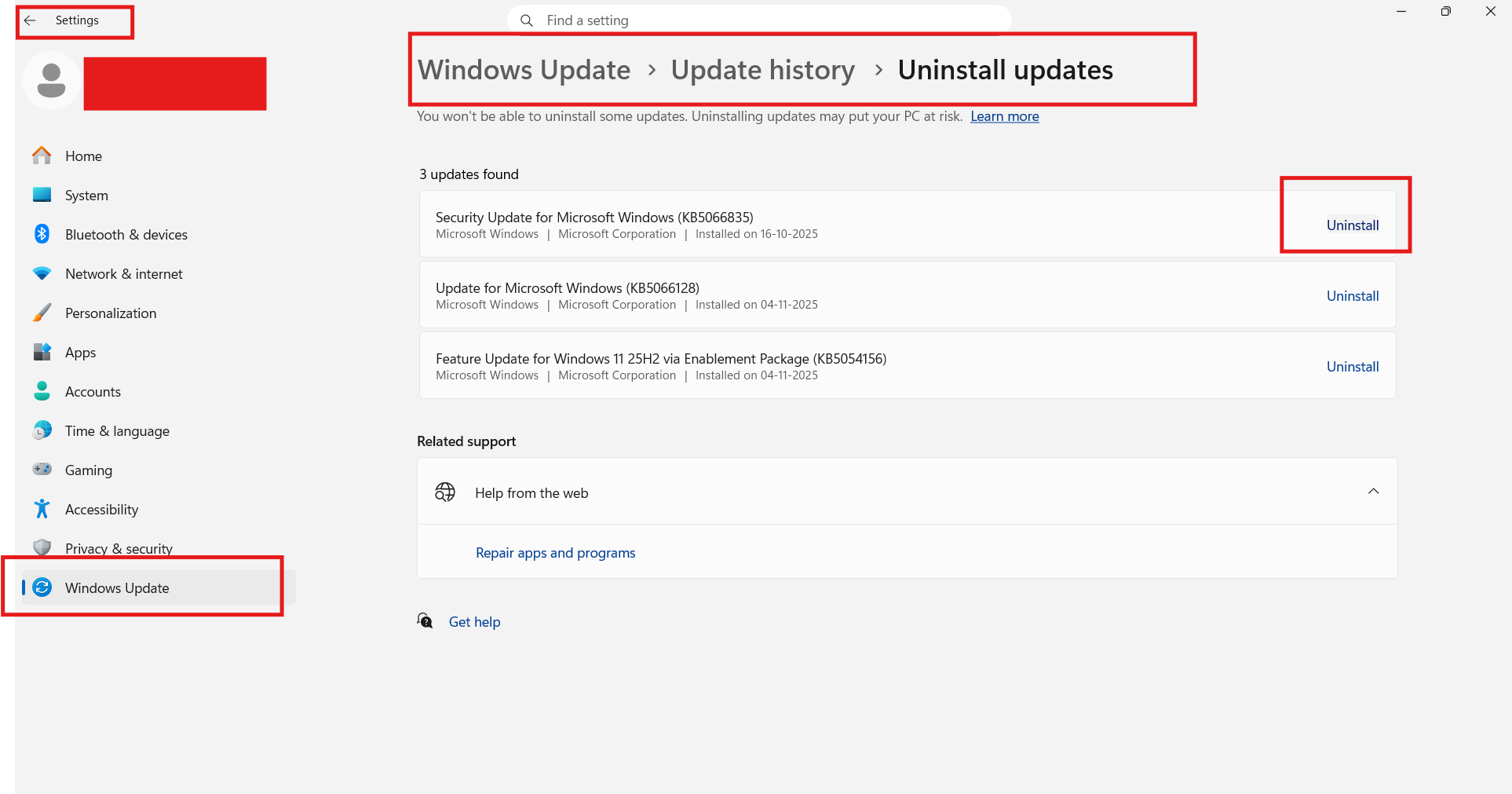
1. Open Settings, then Windows Update, and click on Update history.
2. Scroll to Uninstall updates.
3. Choose the latest installed patch and click Uninstall.
4. Restart and monitor your system for stability.
Fix 4: Check for disk or memory errors
Hardware faults can also trigger sdbus.sys failures.
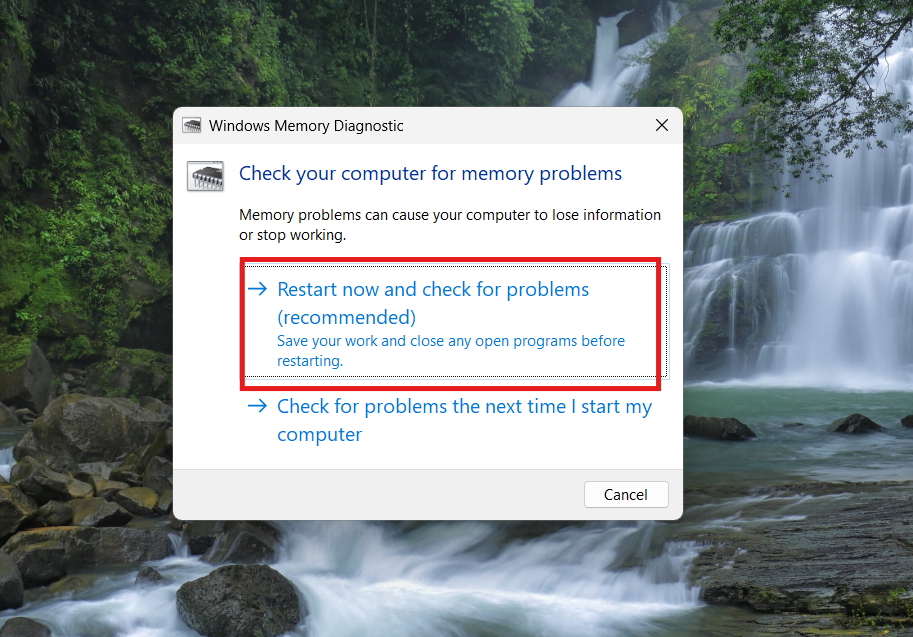
1. Press Windows + R, type mdsched.exe, and press Enter.
2. Choose Restart now and check for problems to test memory.
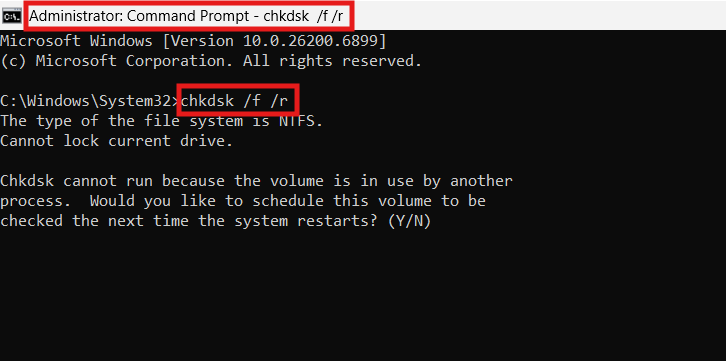
3. Afterwards, run Command Prompt (Admin) and type: chkdsk /f /r
4. Press Enter and schedule the check for the next restart.
Fix 5: Perform a clean boot to identify conflicting programs
A background service or third-party driver may be behind the crash.
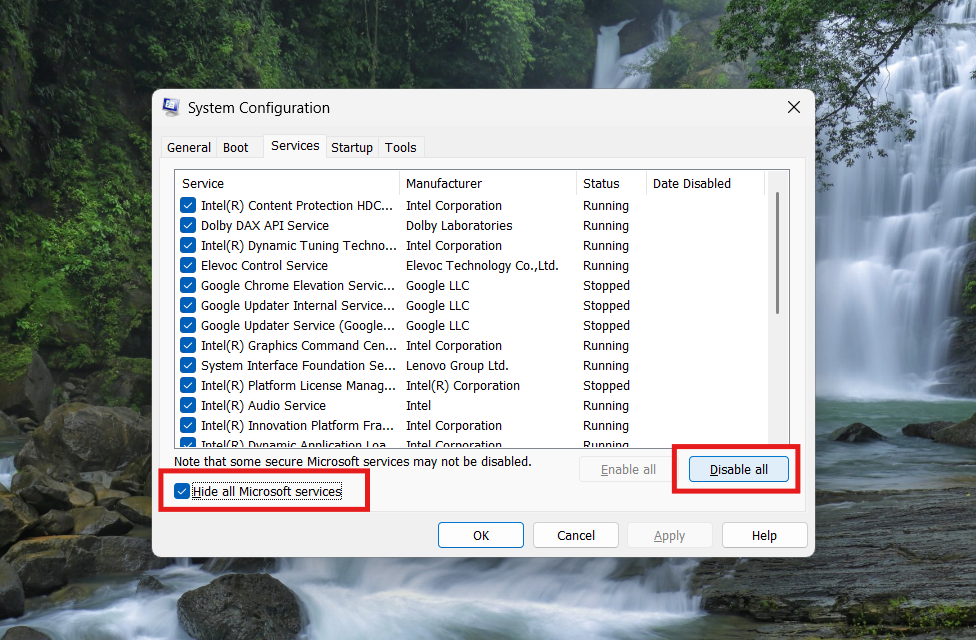
1. Press Windows + R, type msconfig, and press Enter.
2. Under the Services tab, check Hide all Microsoft services, then click Disable all.
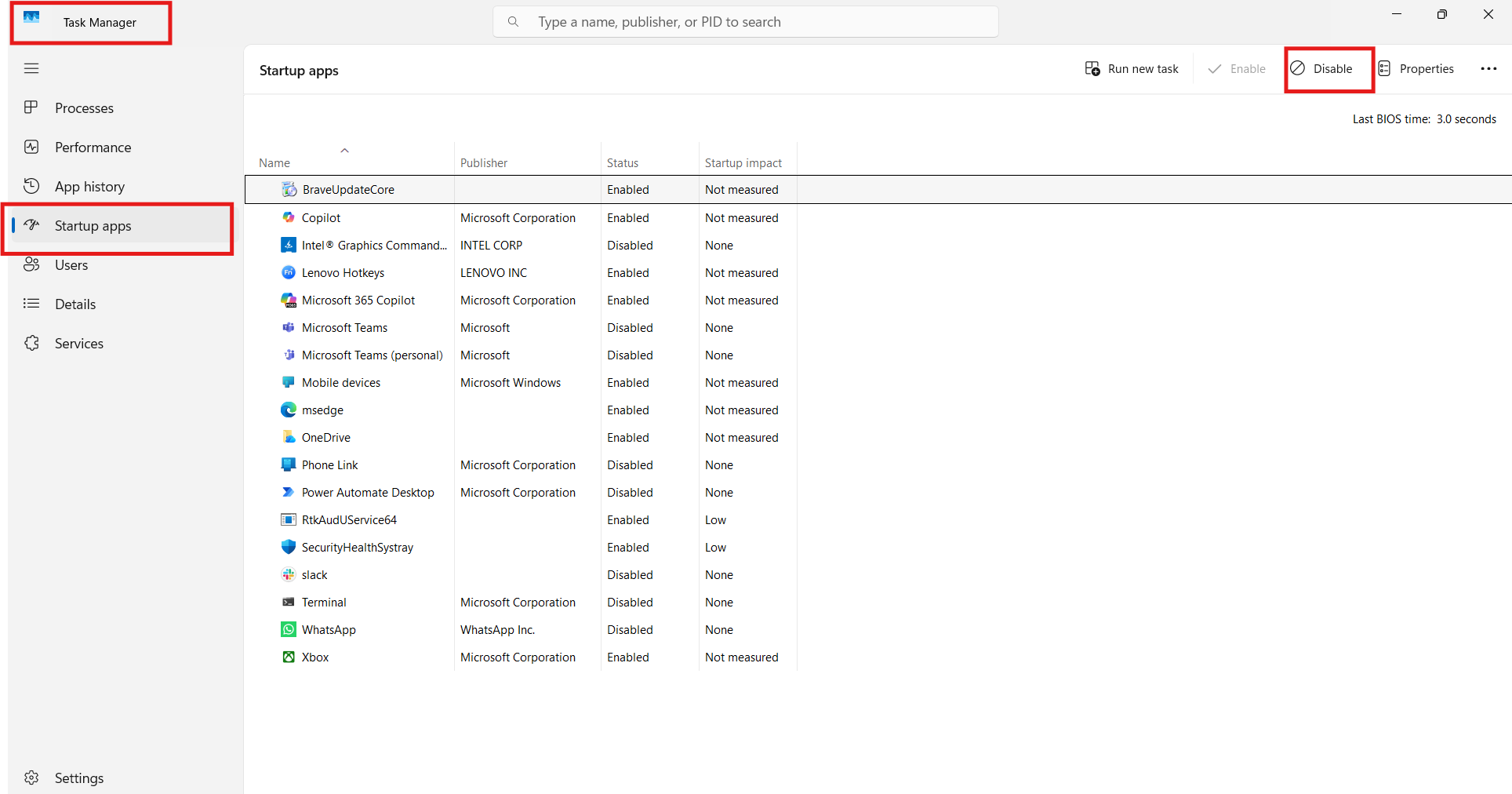
3. Open Task Manager, go to the Startup tab, and disable startup items.
4. Restart your PC and test. If the error disappears, re-enable services one at a time to locate the culprit.
Fix 6: Reinstall or repair Windows
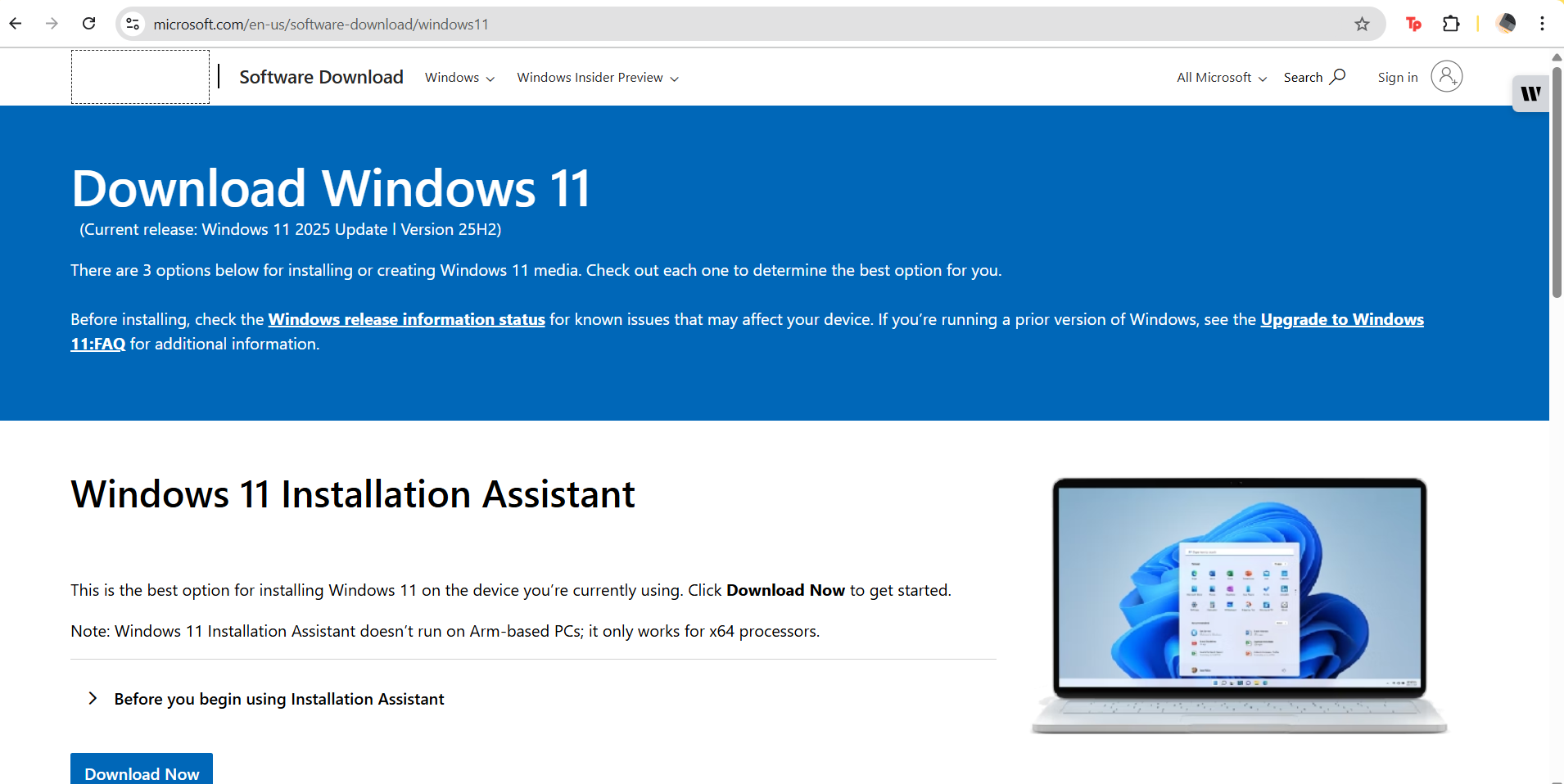
If nothing else helps, perform a Repair Install of Windows 11.
Download the latest Windows 11 ISO from Microsoft’s website, run the setup file, and choose Keep personal files and apps. This reinstalls system files while preserving your data.
Quick Final Tip
Before replacing hardware, test your SD card in another computer. If the card itself is faulty, replacing it is often the most straightforward solution.