

If you prefer to work more on your Windows 10 in night time, Night light feature might be useful for you. This feature helps you to reduce intensity of blue color emitted from system screen. As a result of this, the screen show warmers colors that are good for your eyes.
Page Contents
Configure Night Light Feature In Windows 10
Microsoft added Night light feature to Windows 10 with build 15019 (for Windows Insiders) and Version 1703 (for stable release users). You can configure this feature at Settings app > System > Display > Night light > Night light settings.
In case if you’re unable to configure Night light feature or if you already configured and the feature is not working, this article is for you.
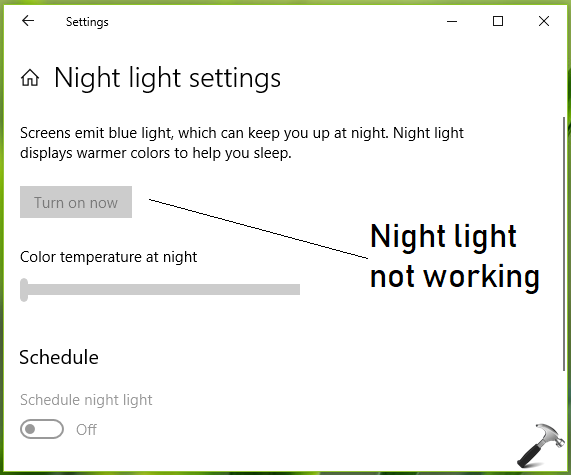
According to Microsoft, Night light feature depends on your system’s graphics driver to adjust the color temperature to reduce the blue light. If the video card driver isn’t compatible with your system, there’s a possibility that the feature will not work correctly.
Here is how you can fix this issue:
FIX: Night Light Not Working In Windows 10
FIX 1 – General Suggestions
1. Make sure you’re not using Basic Display Driver graphics drivers, because this feature won’t work on them.
2. Update your display drivers to latest one.
3. Install latest Windows Updates available to you.
If you still have the issue, try FIX 2 mentioned below to reset Night Light feature.
FIX 2 – Via Registry Editor
Registry Disclaimer: The further steps will involve registry manipulation. Making mistakes while manipulating registry could affect your system adversely. So be careful while editing registry entries and create a System Restore point first.
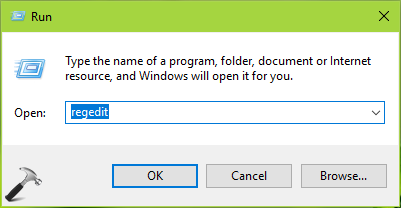
1. Press  + R and put regedit in Run dialog box to open Registry Editor (if you’re not familiar with Registry Editor, then click here). Click OK.
2. In left pane of Registry Editor window, navigate to following registry key:
HKEY_CURRENT_USER\SOFTWARE\Microsoft\Windows\CurrentVersion\CloudStore\Store\Cache\DefaultAccount
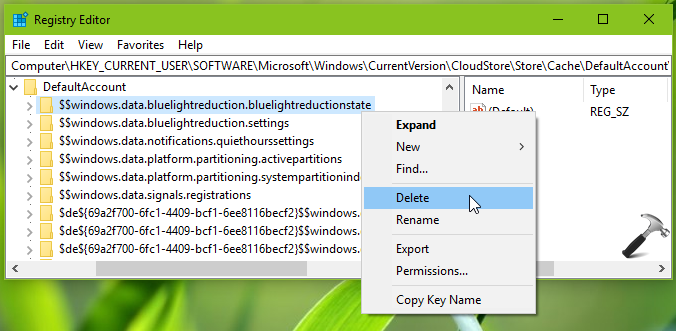
3. Under DefaultAccount registry key, right click over $$windows.data.bluelightreduction.bluelightreductionstate sub-key and select Export to backup it. Again do a right click on same sub-key and select Delete. In the below show confirmation prompt, select Yes.
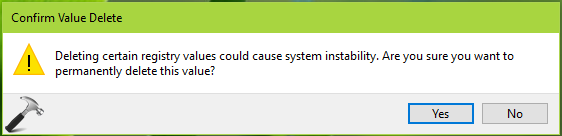
Close Registry Editor and reboot the machine to make changes effective.
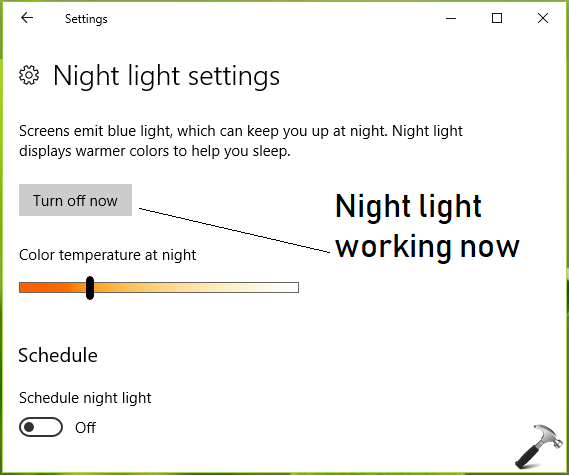
After restarting your system, you’ll find that Night light feature is working now:
Hope this helps!







This does not work! In fact absolutely none of the many methods suggested work to turn this off.
Not working for me, i can’t find $$windows.data.bluelightreduction.bluelightreductionstate
$$windows.data.bluelightreduction.bluelightreductionstate wasnt even in my file