

For security concerns, when users install apps from unknown publishers in Windows 10, they won’t be able to proceed ahead. This is because Windows 10 immediately blocks the installation of those apps, which it believe could harm your machine. So until you don’t have administrator privileges, you can no longer install the program/app due to this error:
Page Contents
This app has been blocked for your protection.
An administrator has blocked you from running this app. For more information, contact the administrator.
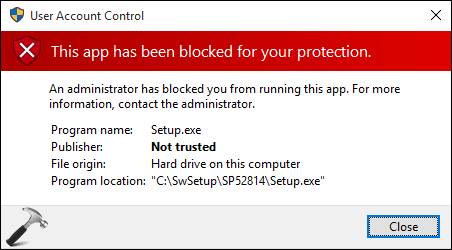
We came around this error recently on a Windows 10 Pro machine, where the user wasn’t able to install a new driver to the system. After investigating a bit on this, we believe that hidden administrator account in Windows has blocked the apps from being installed. Hence, if you enable that account, you can install the app. Please note that in this case, you can install the app only by signing in to administrator account. Before installing the application, you should confirm that it won’t harm your machine.
Here the fixes to resolve this problem:
FIX : This App Has Been Blocked For Your Protection Error In Windows 10
FIX 1 – Using Elevated Command Prompt
1. Open administrative Command Prompt.
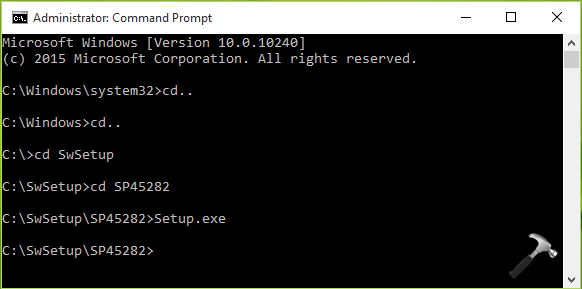
2. Navigate to the path where your application/program installation file is located and run the same. Follow on-screen instructions and complete the installation.
If there are no differences in situation, look forward to FIX 2.
FIX 2 – Enable Built-in Administrator Account In Registry
If FIX 1 doesn’t helps, you should follow steps to enable built-in administrator account and see if that could help you:
Steps to enable hidden/built-in administrator account in Windows 10
FIX 3 – Reset Built-in Administrator Account To Default
In case after following both the fixes mentioned above, if issue still persists then you can try to reset built-in admin account using steps mentioned here:
Steps to reset hidden/built-in administrator account in Windows 10
After resetting the admin account, install the app from the same account and then log out. Now sign-in to original account where you started facing the issue and you can use installed app without any problem.
Hope this helps!
Related: An administrator has blocked you from running this app while loading snap-ins in Windows 10.






UNABLE TO GET TO DOS COMMANDS ALL AVENUES APPEAR TO BE BLOCKED