

If you’re unable to complete installation of feature update, then this article may interest you. While installing a feature update in Windows 11/10, sometimes the installation may aborted midway and you receive a message like this:
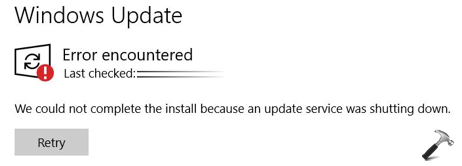
Due to the above shown message, you can’t update to a newer version from your existing version. Not everyone is facing this problem, but if you’re experiencing, you’re not alone as well. You may try below workarounds to get over this.
Page Contents
Fix: We could not complete the install because an update service was shutting down.
Fix 1: Using Services Snap-in
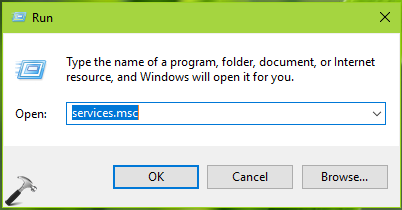
1. Press  + R and type
 services.msc in the Run dialog box, hit Enter key to open Services snap-in.
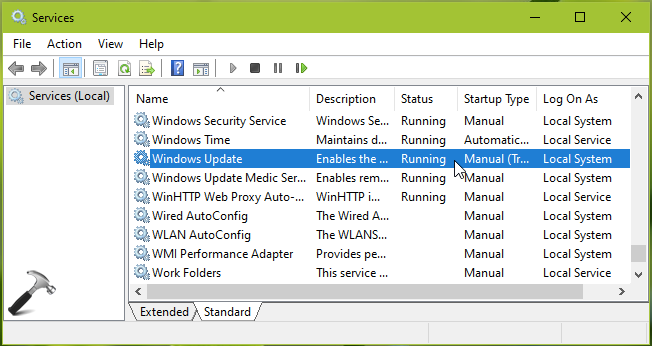
2. In Services snap-in window, locate the Windows Update service. You might spot it to set to Manual Startup Type. Double click on this service to modify its status.
3. On the service property sheet, change the Startup type to Automatic and click Apply, followed by OK.

4. Retry to install the update and it should not fail this time.
Fix 2: Other Suggestions
If you still continue to face the issue, refer these suggestions then:
1. Try temporarily stopping or disabling Windows Defender Service in Services snap-in.
2. Uninstall the third-party antivirus or security software present on your system, which may interrupt the update process.
3. Make sure to disconnect external devices (if any), while you’re performing the update.
4. Fix the corrupted Windows Update database or try resetting Windows Update components.
5. Try updating via ISO file, which is usually a good method over as compared to upgrading via Windows Update. As of this writing, Microsoft provides latest Windows 10 version ISO file, when the new version is out.
Video fix
Check this video to illustrate the fix:
Thanks to our reader matthew from comments, to make this possible.
Hope this helps!
Don’t forgot to read, how to manually download and install Windows Updates in Windows.






I had this error after updating to version 2004 (May 2020 update). What fixed it for me, was running disk cleanup on my system drive, and removing everything. Most people probably don’t need to check all the boxes (I doubt thumbnails were causing the issue), but I did anyway.
^^ Thanks for adding this!
Thanks Kapil Arya, this fixed it for me
^^ Glad to help Nate!
i had to stop and start the service for it to work again after switching it to automatic
^^ Thanks matthew for adding this!
Same as Matthew above, start and stop then try
thanks matthew
thank u, the first method worked, i keep on retrying 10 times and it didnt work, and i tried your first solution, it solves everything! I appreciated it for helping me.
^^ Glad we could help mark!
thank you, that fixed it for me too!
^^ Happy to help!
Thanks a lot. It works..
^^ Glad it helped!
Thanks. It works
^^ Glad to help.
Had the same problem. Started Services as Administrator and did the fix you mentioned. Worked! Thanks Kapil!
^^ Glad to help you!
@Kapil Arya…I can’t delete defaultuser0 …I tried all ur ways but still failed ….what would I do ?? Would u plz help me in it ..?
^^ Refer: https://www.kapilarya.com/what-is-defaultuser0-account-in-windows-10-and-how-to-remove-it.