

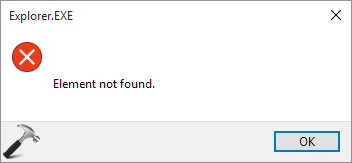
Windows 10 users are constantly reporting this Element not found error, since the days when the operating system (OS) was under development. Today, even after few months of Windows 10 release, the condition has not changed and now users are reporting same error for different features. That is, some says that they get this error message with title Explorer.EXE, while others says they experience this issue with Store App or other Universal Apps. A typical error message screenshot is given here:
Page Contents
Element not found.
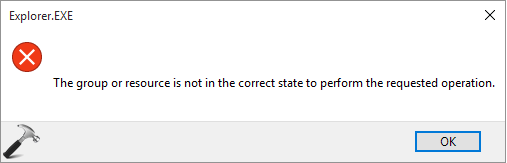
Along with the above shown screenshot, users experiencing this problem with Explorer.EXE also came across this message:
The group or resource is not in the correct state to perform the requested operation.
Since there is neither any hint about what is causing the issue nor any help / support link along with error message, there may exist different solutions for this problem. Plus this dilemma is being faced with various components of the OS, so different treatment may solve it. The elementary fix to solve this problem is to open Task Manager and restart File Explorer. In this article, we’re sharing some general fixes, which has dominated till now in order to suppress the issue.
FIX : Windows 10 Element Not Found Error
FIX 1 – General Troubleshooting Approaches
There may be following possibilities which can cause this issue:
- Your Windows 10 installation missed something
- Third-party software you’ve installed might have modified your native system files
- User account got corrupted
Above mentioned points may affect your system independently or in conjugation. In such case, uninstall all the third-party software and run System File Checker utility using steps mentioned here:
How To Use System File Checker To Repair Windows 10
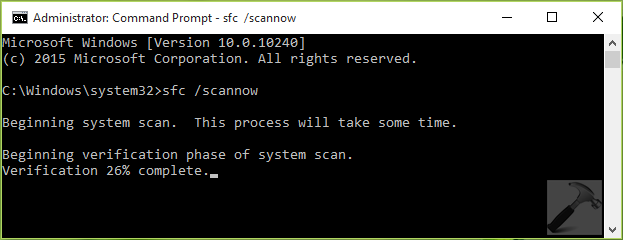
If you found that SFC can’t help you, try the DISM commands instead:
Steps To Repair Your Windows 10 Using DISM Commands
I would also suggest to boot into Safe Mode, restore your system to earlier date and create a new user account to check – if either of these could solve the problem.
FIX 2 – Use Built-in Troubleshooters
Windows 10 comes with more than 20 built-in troubleshooters for finding and fixing issues on various built-in features. In this case, you can take advantage of those troubleshooters and run them one-by-one.
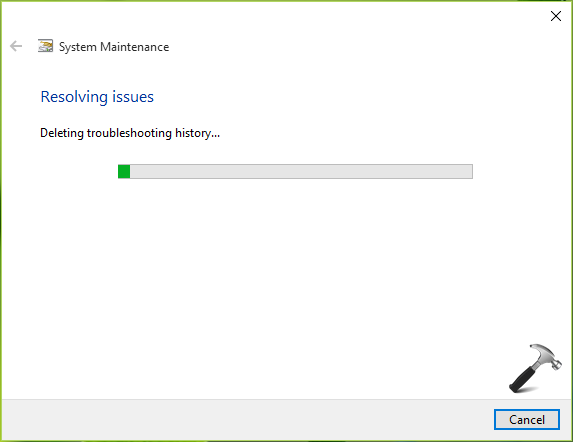
Here is the guide, which will provide you more details about using troubleshooters:
How To Use Built-in Troubleshooters In Windows 10
FIX 3 – Reinstall Windows 10 Without Affecting Your Data
In case if FIX 1 and FIX 2 collectively didn’t solved the problem, you still have a very good option left in your hand. That way is to reinstall the whole OS, without affecting your personal files and apps.
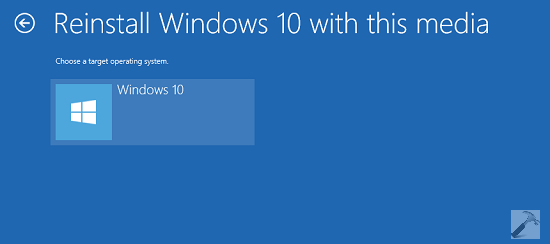
Checkout this article for complete steps:
How To Reinstall Windows 10 Without Affecting Personal Files
After reinstalling Windows 10, we’re pretty sure that you won’t have the issue appearing then.
Hope something helps, Good luck!




SFC helped me thanks.
^^ Glad we could help :)
I like this information because is excellent and may with this information I can fix
the issue in my computer very good service and good job