

Earlier, we told you how to cast your content from Windows 10 to another screen such as TV, projector etc. See, with Windows 10 Action Center, it is really handy to project or mirror your Desktop to another screen with the click of a single button. All you need to do is to click on Project button and Windows 10 will take care of remaining.
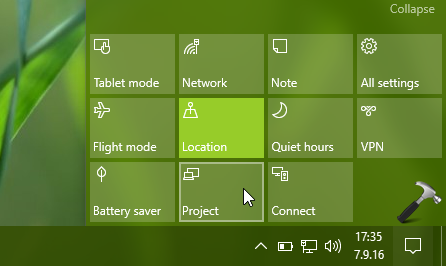
But recently we found that some of Windows 10 machines in our environment were unable to project. Whenever we hit Project button in Action Center, we get following message:
Page Contents
Your PC can’t project to another screen. Try re-installing the driver or using a different video card.

Remember that this problem may also be faced by Windows 8 and 8.1 users. If you’re the victim of this issue, the fixes mentioned below may help you to get rid of this error.
FIX : Your PC Can’t Project To Another Screen In Windows 10/8.1/8
FIX 1 – Using Built-in Troubleshooters
To solve this issue, you can take advantage of built-in troubleshooters available in Windows 10 for checking hardware and drivers compatibility issues. Please perform the steps of following tutorial and run Video Playback and Hardware and Devices troubleshooters:
How to use built-in troubleshooters in Windows 10
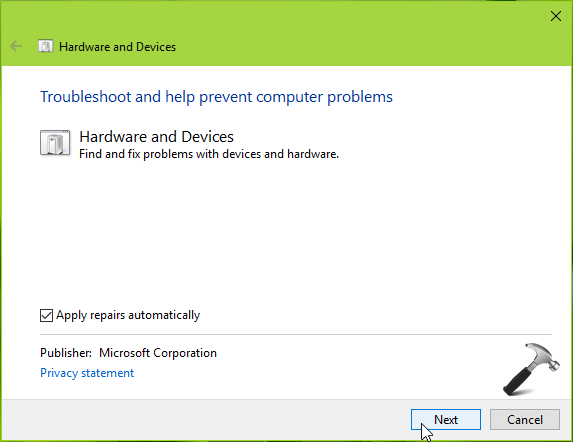
These troubleshooters may automatically detect issues and try to fix them. If troubleshooter found and fixes the issue in your case, you’re good to go. Else try FIX 2.
FIX 2 – Using Device Manager
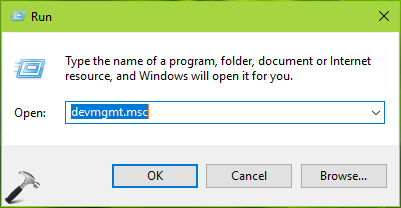
1. Press  + R and type devmgmt.msc in the Run, hit Enter key to open Device Manager snap-in.
2. In the Device Manager window, expand Display adapters, right click on available devices in this section and click Uninstall.
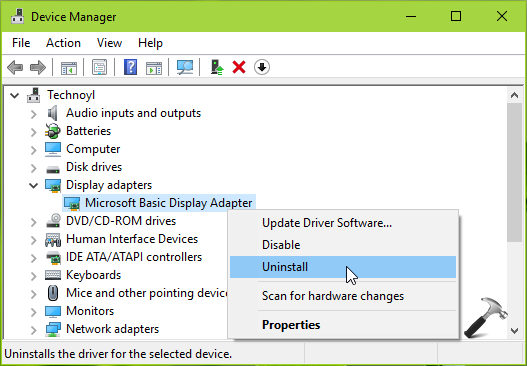
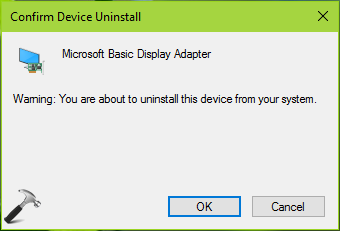
3. In the confirmation prompt, click OK.
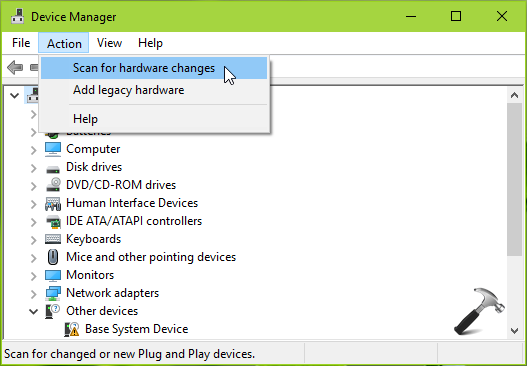
4. Now again in Device Manager window, click Action > Scan for hardware changes.
5. Check the status of issue, if it is resolved, you can close Device Manager. Else, update the display driver to latest one using this guide:
Steps to update display drivers in Windows 10
Hope this helps!





WOW, IT REALLY WORKED FOR MY PC LONOVO WINDOWS 10. THANKS SO MUCH.
^^ Glad we could help 😎
This still didn’t fix the problem.
I tried solution one and once I restarted the laptop everything loaded onto my second monitor, but my laptop monitor went black ( it never turned on).
solution 2 didn’t work.
I’m running windows 10 on a Toshiba laptop.
^^ Have you tried updating display drivers?
yes i had tried it both sol’n 1 &2 .but still didn’t work!!!!please help me!
Ye, please help me to, I want to feel like my £180 I spent on my copy of windows was not a waist of money.
Updating the Driver actually works, especially if you have a good internet connection, thanks for the help
^^ Glad it helped 😊
Kapil Arya, thank you have made my day!
^^ Awesome 😎
It worked, but not quite like your instructions. I followed the instructions to uninstall the monitor. Then it prompted me to restart my computer. Upon restart, it connected to my external monitor without doing anything futher.
Thanks.
^^ Thanks a lot for your feedback!
Hi Kapil- I tried above fix and is showing as “VGA controller (VGA Comparible) has driver problem” not fixed.
Do you know how to resolve it.
Thank you very much. It is very useful.
^^ Glad to hear that 😎
Bravooooo CAREEEEEEE :)
Thanks very much. FIX 2- USING DEVICE MANAGER actually solved my problem. My system now project on a second screen.
^^ Thanks a lot for awesome feedback 😎
This didn’t work for me, but here is what DID work! I downloaded the Intel Driver Update utility, installed it, ran it, and updated my Intel Graphics drivers. This did the trick! Not only can I project again, but I can also put my computer in sleep mode again as well. Such relief!
downloadcenter.intel.com/download/24345/Intel-Driver-Update-Utility
^^ Thanks for adding this 😊
None of the above worked, but not surprised as these are same instructions regurgitated all over the place. Checking/updating/disabling/enabling drivers were first steps, but it seems that none of the experts seem to dive deeper into the issue.
What was worse is this occurred immediately after finally giving in to the daily message from Microsoft to install an important update. When done, I tried to connect to external monitor through HDMI, but acted like cable wasn’t even there. In any form of the display setings screens, only monitor 1 shows up now.
“Your PC cant project to another screen…Try installing the driver or using a different video card”..
I have a this problem..Does this fix work for Windows 8.1
Wow …..worked like a magic
^^ Happy to help 😊
Works perfect for Surface Pro 3! Thanks
^^ Glad to help Julian 😊
I have AMD rednon Adaper in display adapter should I uninstall it
^^ Create System Restore point and see if uninstalling the driver resolves the issue. If it doesn’t restore back or reinstall the driver.
thanks alot
be blessed all the time
^^ Cool!
It didnt work for me.
Thanks, that’s work.
^^ Glad to help chris!
Thank you so much send tip really fixed my issue, and immediately after restart it displayed on the desired monitor
^^ Glad it helped 😎