If you’re using Microsoft Edge as your primary web browser, you should manage the browser data for smooth functioning of the browser. Users facing trouble with Microsoft Edge are often advised to clear browsing data and to check if that resolves their issue.
So in this article, we’ll share you detailed information for deleting the browsing data in Microsoft Edge. You can refer below mentioned steps to clear data for your Edge browser.
Page Contents
How To Clear Browsing Data In Microsoft Edge
1. Open Microsoft Edge, click on triple dots ( · · · ) at top right corner or press Alt+X, and select Settings.
2. Then switch to Privacy & security section.
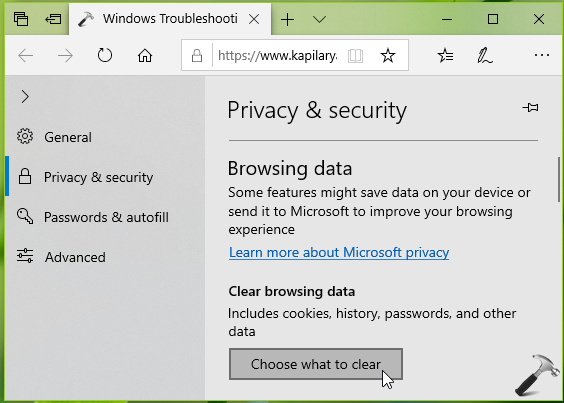
3. Under Privacy & security, you’ll find Browsing data heading. Under Clear browsing data, click on Choose what to clear button.
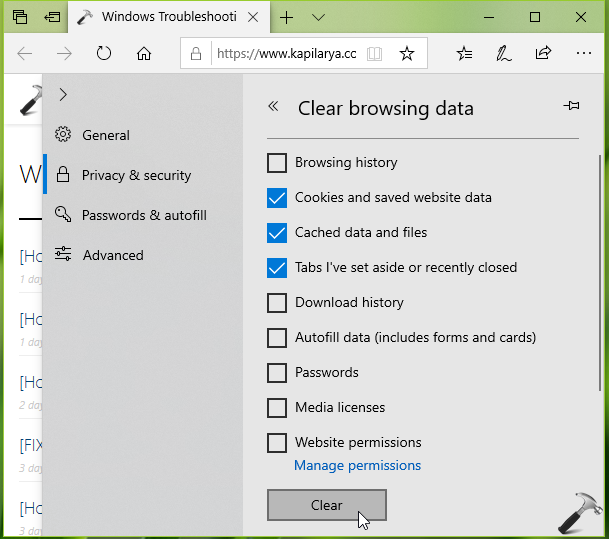
4. Next, you’ll can select the type of content (based on below information provided by Microsoft) you want to delete from browsing data and hit Clear.
| Content type | Delete impact | Storage |
|---|---|---|
| Browsing history | All the sites along with their address, you’ve visited till date | Device, Cloud |
| Cookies and saved website data | Cookies and login information stored by websites on your system | Device |
| Cached data and files | Cached content store on Edge for faster access to websites | Device |
| Tabs I’ve set aside or recently closed | Tabs information stored on Edge | Device |
| Download history | List of files you’ve downloaded (actual files won’t be deleted if you check this option) | Device |
| Autofill data | Saved data entries on forms, if you’ve Autofill enabled | Device |
| Passwords | Passwords you’ve saved, if Microsoft Edge is allowed to do so | Device |
| Media licenses | Content licenses | Device |
| Website permissions | Permissions for individual websites such as flash, media autoplay, pop-ups etc. | Device |
It may take few seconds to minutes to clear the browsing data, depending upon how much data to be cleared.
Once the browsing data is cleared, you can restart Microsoft Edge.
That’s it!