Millions of smartphones are lost every year all over the world. Reports show that over 70 million phones are lost or stolen every year, and the worst part is that most of them are not recovered. When your Android device is stolen, the actual meltdown is that you lose not only your own photos, valuable work files, WhatsApp messages, address book, and even the SMS text containing banking details, but also your personal information.
However, here is the good news – your data is not necessarily to be lost forever. This guide will take you step by step through the process of restoring data onto a stolen Android phone, whether that data consists of photos, videos, contacts, call history, documents, or WhatsApp messages. Ok, breathe deeply as you might have lost your phone, but you have not lost the data yet. Let’s recover data from Android in Windows 11.
Page Contents
Quick Action Checklist Recover data from Android (Do This First)
- Contact your network/service provider and report loss/theft. Request them to block your SIM and, where available, blacklist the IMEI.
- File a complaint with the police so that there is a written record (assists with legal formalities, banking, and insurance).
- You should change your Google password and turn on 2-Step Verification.
Use Find My Device (if enabled)
1. On any browser, visit Find My Device through Google (https://myaccount.google.com/find-your-phone).
2. Attempt to Locate, Secure/Lock, and, only as a last resort, Erase Device (factory reset).
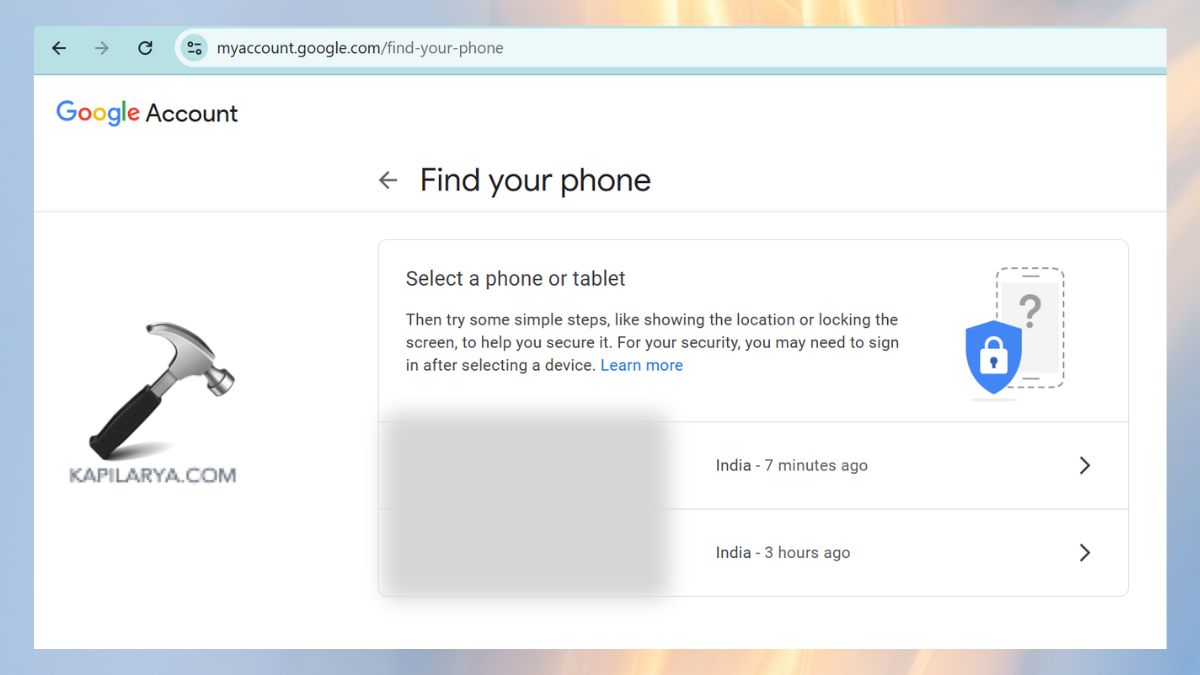
Note: You can still recover any data that has already been backed up to the cloud, but not on the phone alone.
Security and Privacy Recover data from Android (Can’t Afford to Miss) Tips
- Change email, banking, social media, and shopping application passwords.
- Turn off WhatsApp Web, Facebook, Instagram, and streaming service access.
- Turn on notification of logins and suspicious activity.
- Keep track of bank accounts; bring your police report in case of dispute.
- Enhance 2-Factor Authentication on important services. And delete your stolen Android phone from the authentication login.
How to Recover Data from Stolen Android Phone
Step 1: Export Google Contacts to your computer.
1. Go to “contacts.google.com” (same Google account). Here are all the synced contacts.

2. Export (top right) to download as .csv or .vcf. Need to undo recent changes? Click on Settings Undo changes (time-limited).
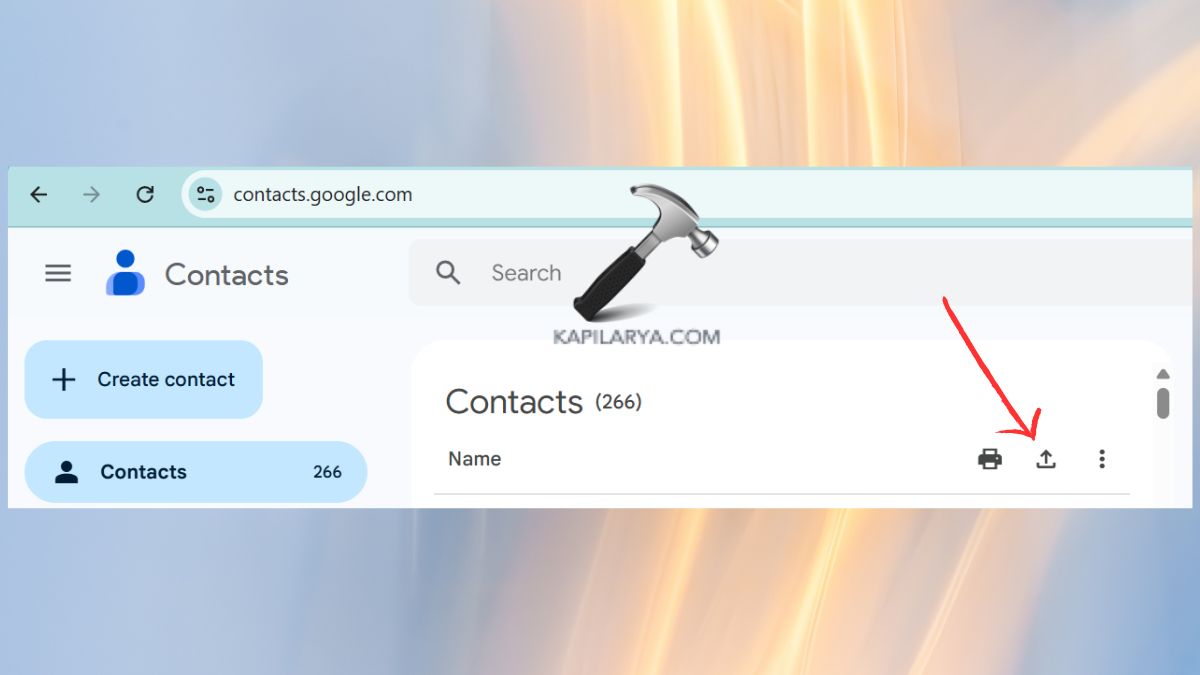
3. To move them to a new Android: Sign in with the same Google account and turn Contacts sync on.
Step 2: Recover Your Photos & Videos from a Stolen Android Device
A. From Google Photos Backup
1. On a computer/second phone, visit “photos.google.com” and log in with the same Google account as on the stolen phone.
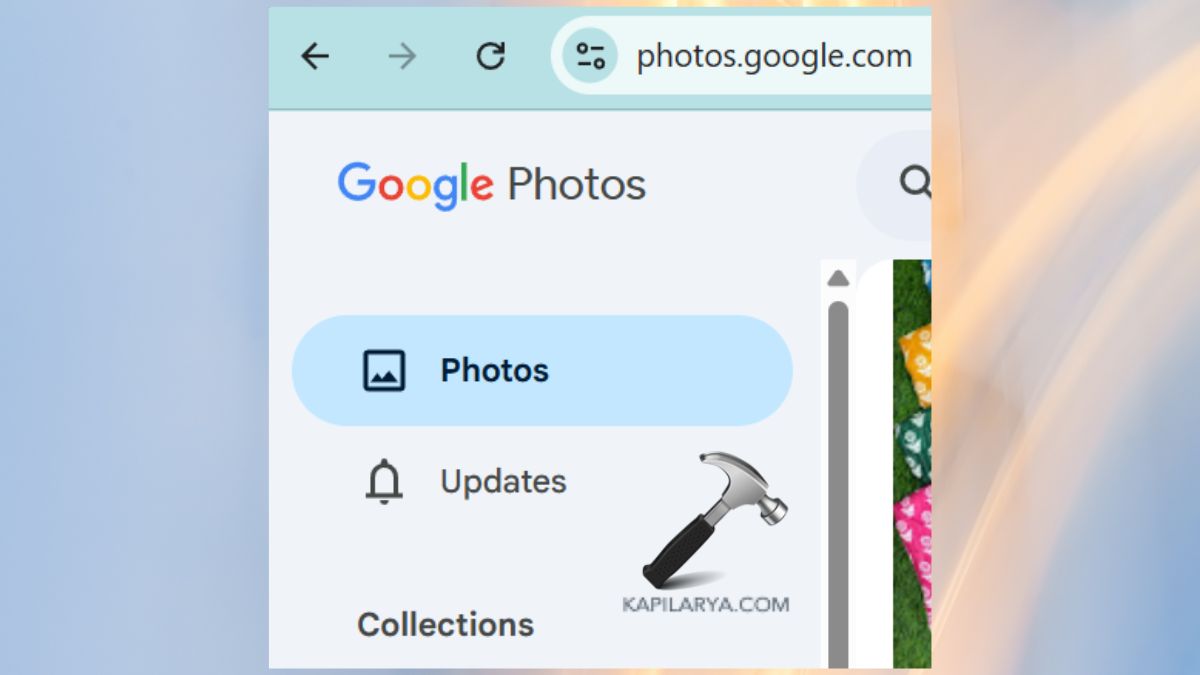
2. Check Photos, Albums, and Library. Choose Utilities > Archive/Trash (Trash puts files away in the meantime). Choose pictures/video > download.
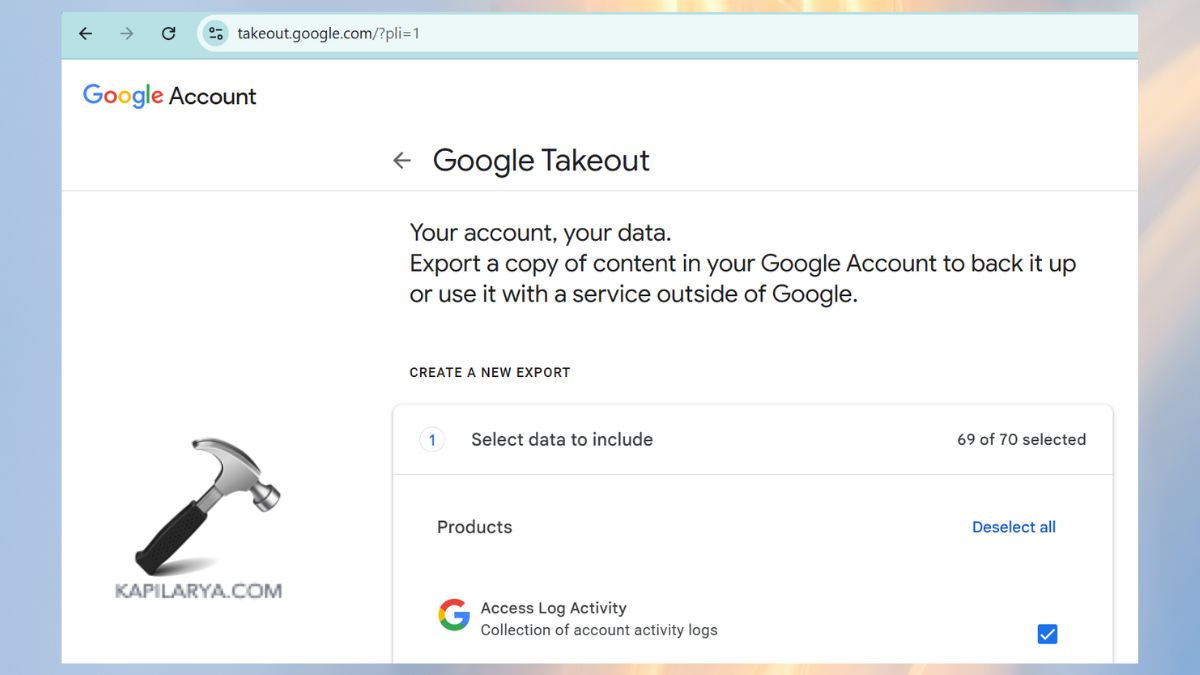
3. Trick: To export everything in Photos, Google Takeout can download the whole library (https://takeout.google.com).
B. From Google Drive
1. Go to Google Drive or simply type in “https://drive.google.com” and sign in.
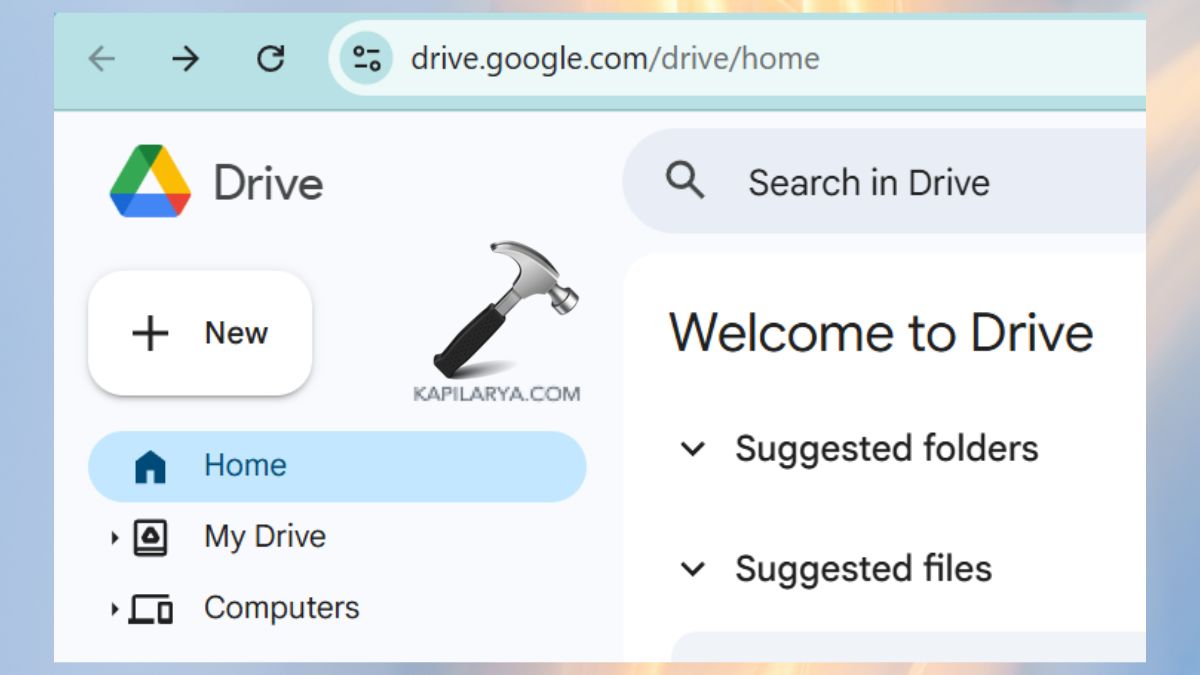
2. Search by video and image files, or by a folder such as Camera Uploads or DCIM (when you uploaded them manually). Select files > Download.
C. Export out of Dropbox or Microsoft OneDrive
1. Come to “dropbox.com” or “onedrive.com”.
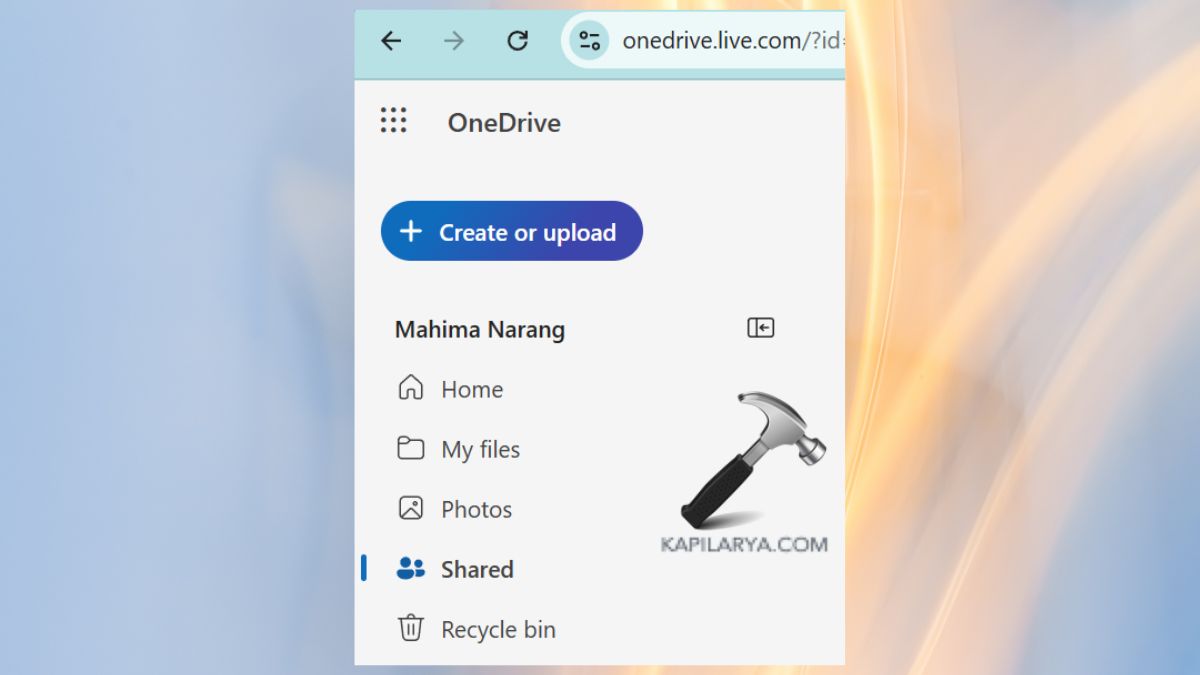
2. Check Camera Uploads, Photos, or any synced folders. Select items > Download.
Step 3: Restore Documents (PDF, DOCX, Sheets, PPT)
A. Google Drive / Google Docs
1. Open Google Drive (drive.google.com) and search (Type = Documents/Spreadsheets/Presentations).
2. Open files > File > Download in the format of your choice.
B. Email Attachments
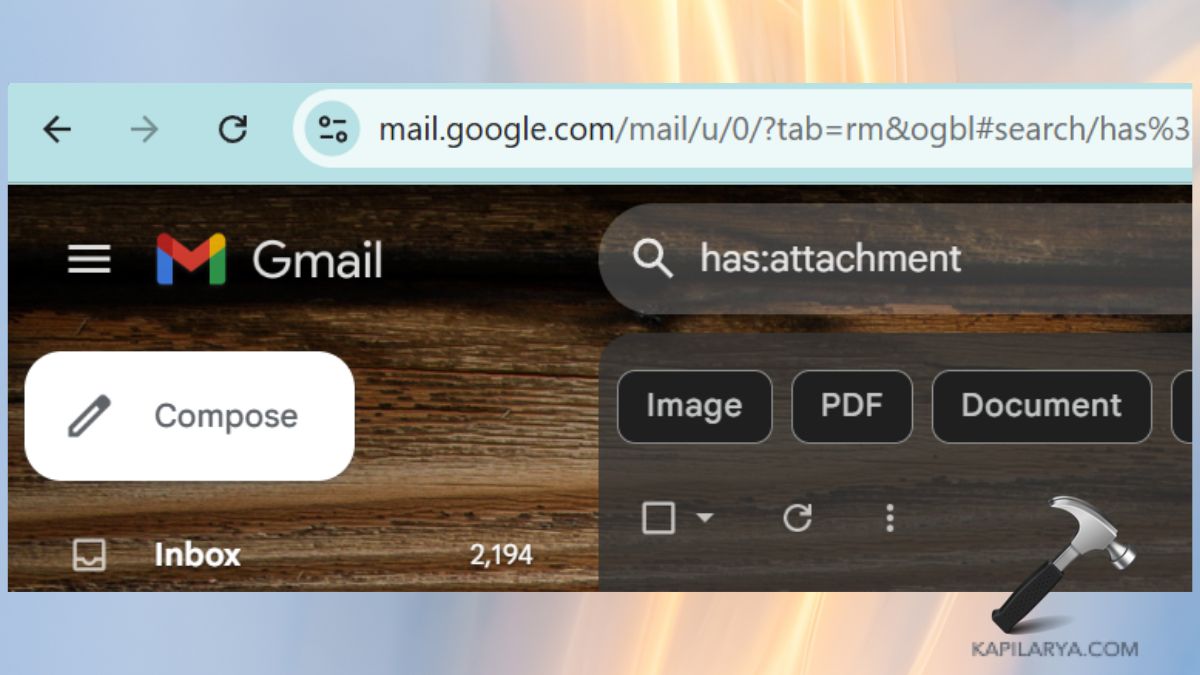
In Gmail, search queries like-
has:attachment filename:pdf
filename:docx
filename:pptx
Get the attachments you require.
Step 4: Restore WhatsApp chat and Media with Google Drive
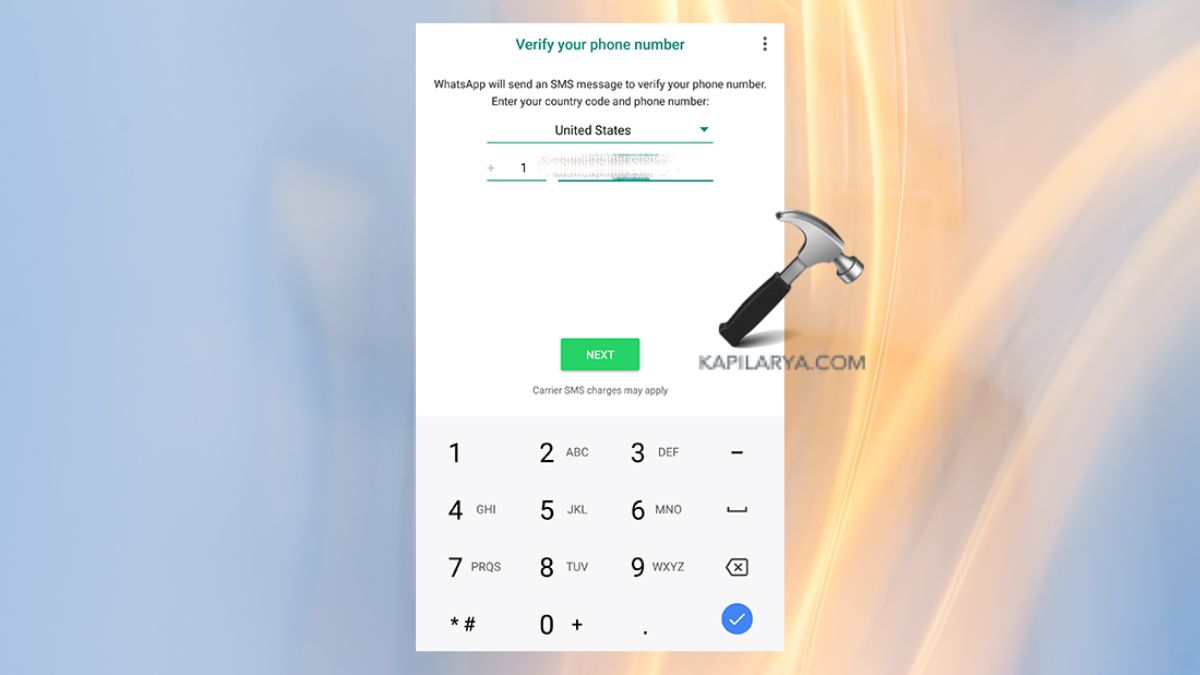
1. Whenever you get the new SIM with the same phone number, use it on your new phone. Install WhatsApp, and provide a number.
2. Upon prompting, you need to select Restore from Google Drive and then select the appropriate Google account.
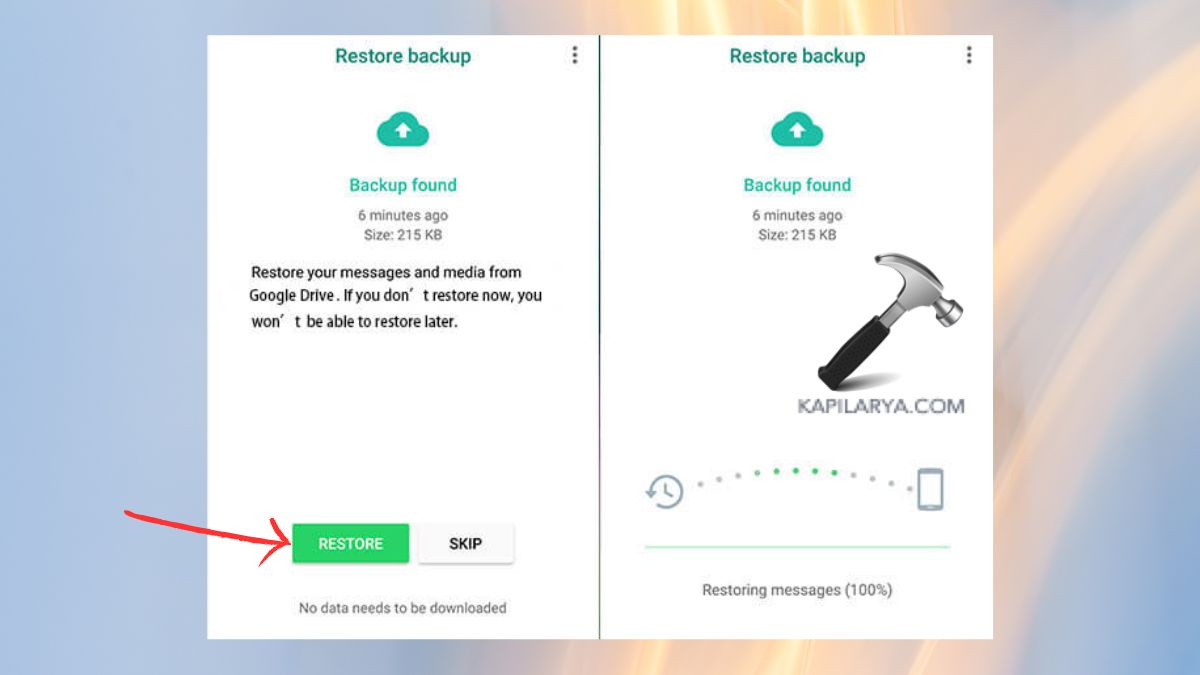
Once chats are brought back, media (photos/videos/docs) still downloads in the background. This would require that storage, should you only have local backups (SD/internal storage), in which case you would want to use cloud restore.
Step 5: Recover audio files (Voice Notes, Recordings, Music)
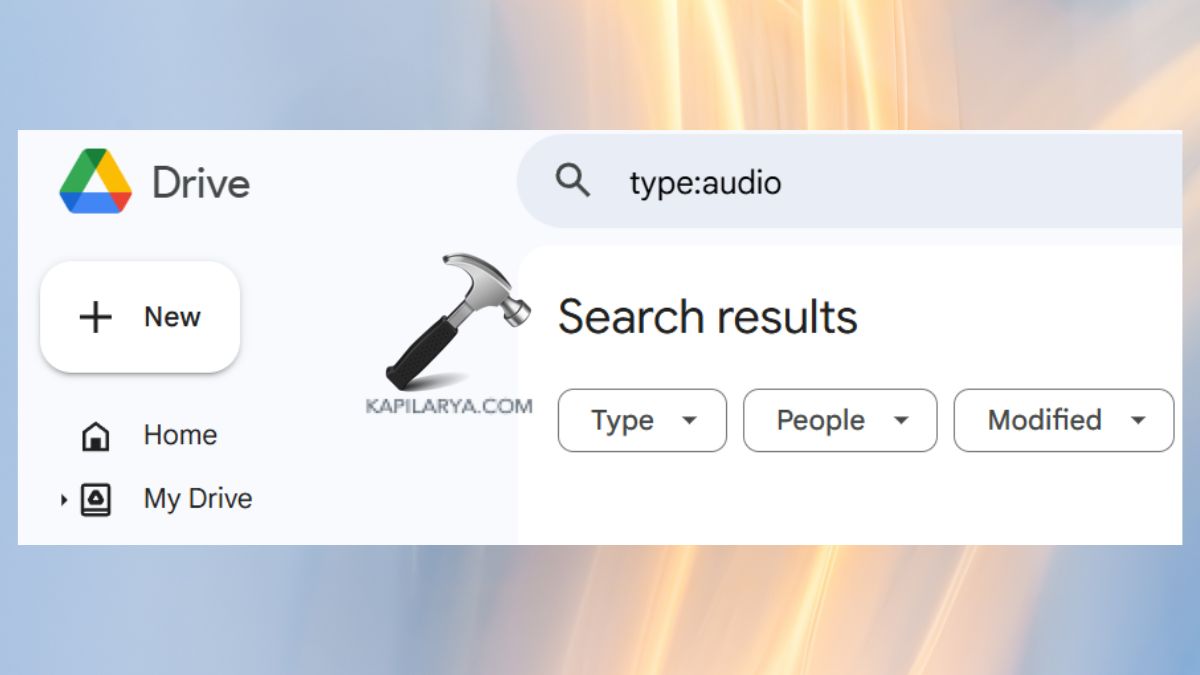
1. Search in Google Drive with this command or file names such as .m4a, .mp3, .aac. Download.
type:audio
2. In Dropbox/OneDrive, search through the audio extensions.
3. WhatsApp backup allows restoring the WhatsApp voice notes.
Step 6: Restore Messages (SMS/MMS) in Google Account Backup
1. Use the same Google account and the same phone number (no problem replacing your SIM card with one issued by your carrier).
2. In the Setup process > Recovery Restore, use your Google backup that includes SMS (part of Google One backup on most devices).

Otherwise, messages can be restored in the destination, at least where it is possible: in Settings, go to Google and then Backup, and follow the on-screen instructions. SMS is not recoverable server-side if you have not turned on SMS backup previously before the loss occurred.
Step 7: Check Other Cloud Services You May Have Used
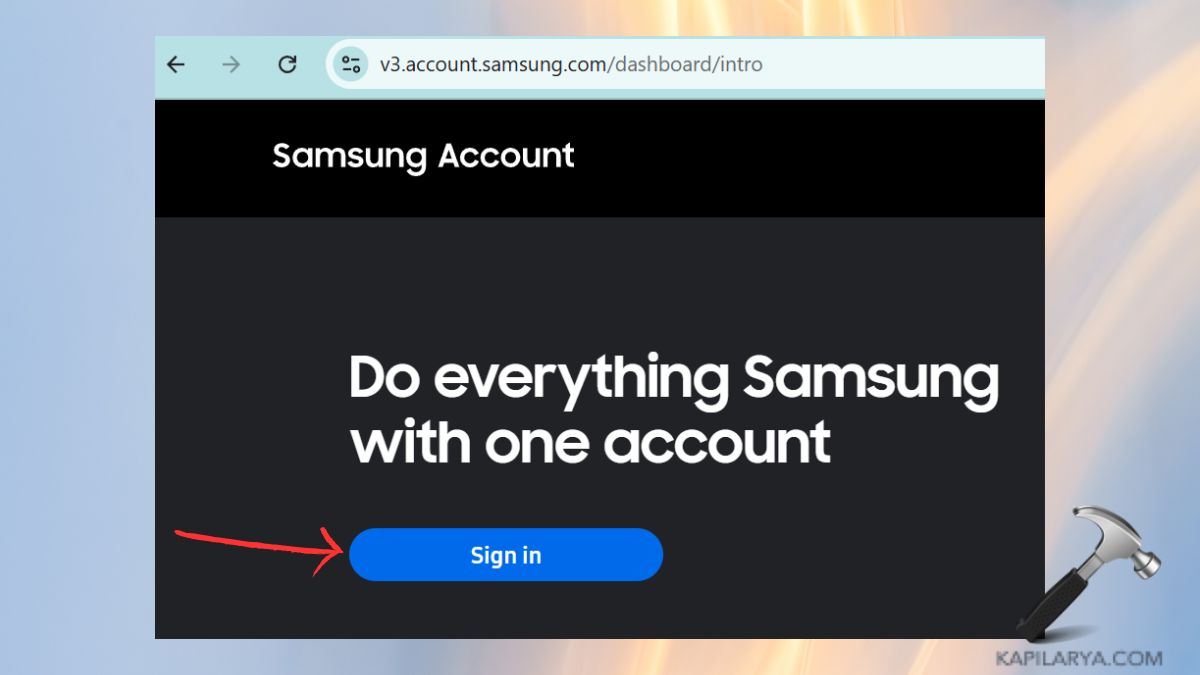
- Samsung Account (same press of a button): one can check account notes, calendar, synced contacts, and gallery can be synced to OneDrive on newer phones at “https://account.samsung.com”.
- Evernote/Notion/Keep: notes are stored on the cloud-computer-based system, to be accessed and necessarily exported.
- Password Manager (such as Google Password Manager): crack the calculable computer, and reverse very crucial passwords.
Step 8: Find My Device: Keep your new phone safe, safeguard your accounts
- See the exact last location (when online).
- Change a message/number on the lock screen; sign out of Google on the device.
- In case of risk on sensitive data, delete. You can still restore anything that has already been backed up (Photos, Drive, Contacts, WhatsApp backup, etc.).
Best Software to Recover Data in an Android phone: What works?
Truth of the matter: You cannot install recovery software on the stolen device. Storage scanning tools (e.g., desktop utilities) need to have physical access, and may need USB debugging, neither of which is possible now.
What you can make good use of now:-
- Google Photos / Drive / Contacts / Google One backup (built-in ecosystem = optimum outcomes).
- WhatsApp Backup to Google Drive (official).
- Dropbox / OneDrive (built this or turned on camera uploads or connected folders).
- Email (read a sent/received email attachment).
- SD card (assuming it is not lost): Scan the SD card itself (e.g., with Recuva, DiskDigger) using reputable desktop tools. This does not need USB debugging, as you are not scanning the phone, but the card.
The generic Android Recovery Software comes in handy when needed-
Once the phone is recovered, you can unlock it, allow it to be debugged (or through a different authorized method available in the app). After this, you can reclaim any deleted data that you have on any physical device using any application that can assist. At the time, the best thing to use is cloud restores.
Frequently Asked Questions (FAQs)
That’s it!