Wish to know how to install and use Android apps with Play Games Beta in Windows 11? This is one of the hottest questions PC users are puzzled about at the moment. With the new Google Play Games Beta, you do not have to use complex emulators and additional software to have fun with Android apps on your computer.
All it takes is a few simple steps to be able to play your favorite Android games, continue to play on your phone where you left it, and feel the smoother performance on a larger screen. In this guide, we will step you through all you require to install Play Games Beta and begin executing Android applications on your Windows 11 PC.
Page Contents
Why Use Google Play Games Beta on Windows 11?
The feature is a game-changer for the following reasons:-
- No emulators such as Bluestacks are necessary.
- Play your game on PC and Android.
- Fast, fast, fast – run Android applications faster, with more graphics and controls.
- Install apps directly under Google Play Games Beta.
How to install and run Android Apps on Windows 11
Step 1: Check System Requirements
We suggest the following minimum requirements to join Play Games Beta on your PC:
- Windows 10 (v2004) or Windows 11
- Solid State Drive (SSD) with a minimum storage of 10GB.
- 8GB RAM or more (16GB recommended)
- Intel UHD Graphics 630 or higher graphics card.
- 4 physical or virtual cores.
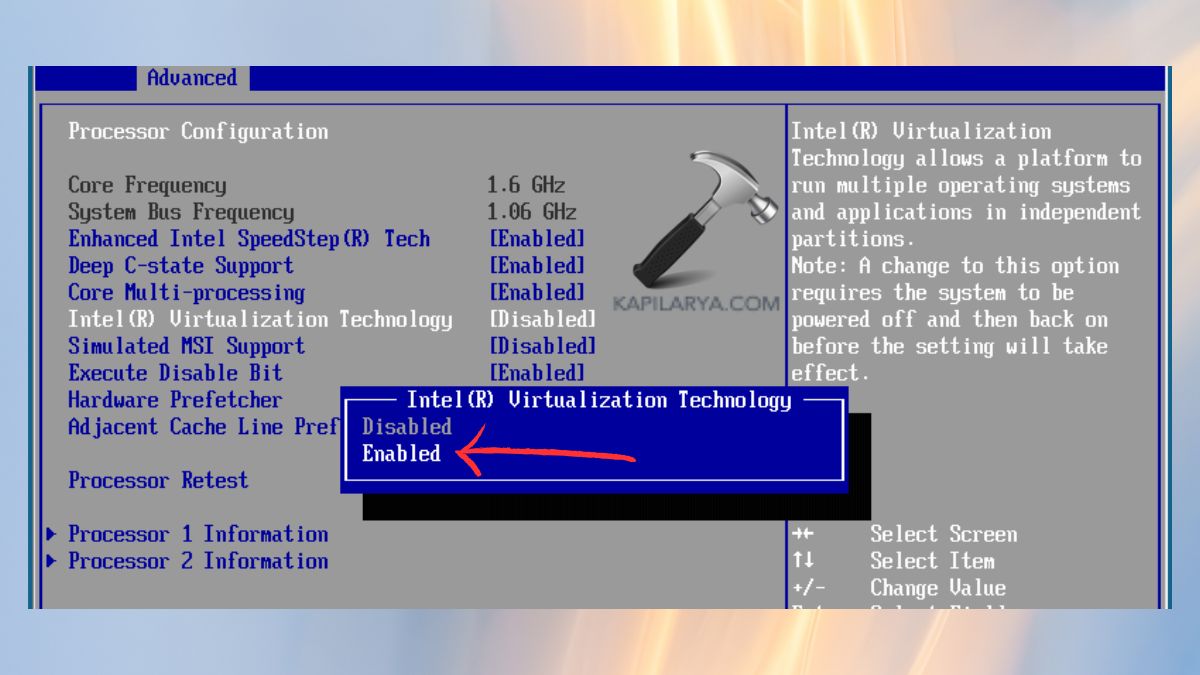
- BIOS Virtualization is enabled.
Step 2: Enable Virtualization
1. Reboot your PC and get into BIOS/UEFI (press F2, Delete, or Esc on your PC).
2. Enable Virtualization Technology (Intel VT-x / AMD-V). Re-save and reboot your computer.
Step 3: Download Google Play Games Beta
1. Visit the Google Play Games Beta site – “https://play.google.com/googleplaygames”. Click Download Beta.

2. Install the installer and go through the instructions on the screen.

Step 4: Set Up Google Play Games
1. Open Google Play Games Beta from your Start Menu. Then, Sign up with Google.

2. Proceed with “Looks Good” option and then, accept the terms and conditions. Then, get ahead with accepting privacy terms.

Step 5: Android Apps (Games) installation
Go through the Play Games Beta Android applications and games. Click Install on the app of your choice.

After it has been installed, you can open it via Play Games Beta or the Start Menu. Use Android applications with full-screen PC features and keyboard/mouse functionality.
Also, Google Play Games Beta allows you to save your progress automatically to your Google account. Your Android phone or tablet will not lose the progress made when playing.
Frequently Asked Questions (FAQs)
#1 Can I install any Android app using Play Games Beta?
At this point, Play Games Beta supports Android games in particular, and not everything. In the case of other apps, you still might require the Amazon Appstore or sideloading.
#2 Is Play Games Beta free to use on Windows 11?
Yes, it is totally free to download and play Play Games Beta.
#3 Do I need an emulator to run Play Games Beta?
No, Play Games Beta is a native Google app, and thus, it can run without the use of emulators.
#4 Does Play Games Beta work on Windows 10?
Indeed, it supports Windows 10 (v2004 or later) and Windows 11, provided that the system requirements are satisfied.
That’s it!