

System File Checker (SFC) has been a great tool for Windows users to fix various issues just using some simple commands. You can read all about running SFC commands and analyzing results in various scenarios, in following article:
How to use System File Checker to repair Windows
If you try to run SFC scan on Command Prompt at boot, sometimes it won’t run. I tried to run it on a Windows 10 machine, for which startup repair has failed. Thus as I said, SFC didn’t initiated, and instead gives following error:
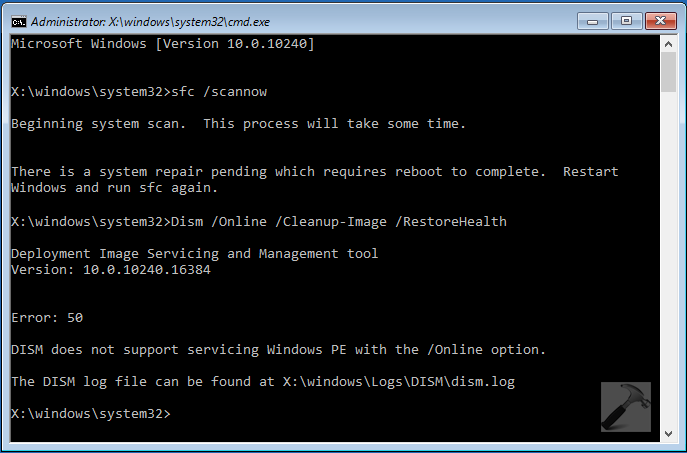
On the other hand, if I try to give a shot to DISM (Deployment Image Servicing and Management) restore health command, then it doesn’t works as well with Error 50:
Thus in such a case when the startup repair is not working, SFC is not operating and your system can’t boot at all, the last option we have is to reinstall Windows 10 without affecting personal files and apps. But hang on, if you’re really going for re-installation, why not try some options which can still resolve this issue in few simple steps. Those options are mentioned here, do try them as per your convenience.
Page Contents
FIX : There Is System Repair Pending Which Requires Reboot To Complete. Restart Windows And Run SFC Again
FIX 1 : Using DISM command
Although the DISM restore health command didn’t worked, but there is another DISM command which will help us here. Actually, the system checks for pending system repair files when initiated SFC. Thus, if we could delete that/those pending file(s), SFC would work.
Here is how you delete pending system repair file.
1. Open Command Prompt at boot.
2. Type following command and hit Enter key:
dism.exe /image:c:\ /cleanup-image /revertpendingactions
*Substitute C: with your system root drive.

You’ll see The operation completed successfully message when execution finishes. You can now try to run SFC scan and repair your system using it, no issues will be countered. In case if problem still persists, try FIX 2.
FIX 2 : Using registry manipulation
There is a registry key for pending system repair, which Windows always checks when you initiate SFC at boot. So you need to delete that key as well, if deleting only the pending files not works for you. Try these steps for that:
1. Open Command Prompt at boot (refer steps 1-4.d of this article)
2. Type regedit command and hit Enter key to open Registry Editor at boot.
3. Navigate to following registry key:
HKEY_LOCAL_MACHINE\SOFTWARE\Microsoft\Windows\CurrentVersion\RebootPending
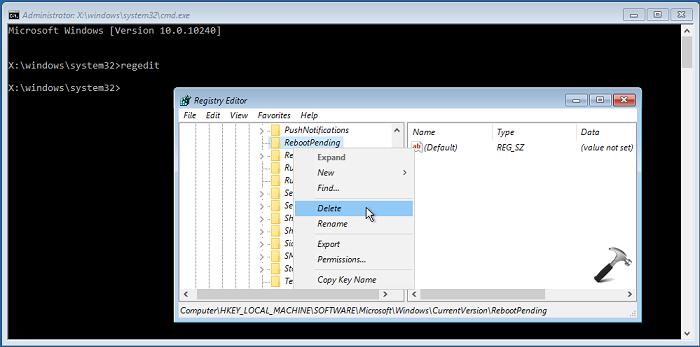
4. Right click on RebootPending key and select Delete. Provide your confirmation with Yes here:
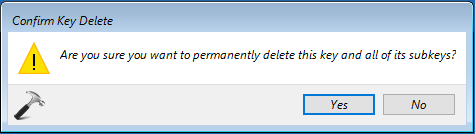
Minimize Registry Editor and now try to run SFC scan, it should propagate as expected.
Hope this helps! Checkout this article if you’re trapped into Automatic repair loop on your Windows system.






hi,
I managed to solve the missing boot config data file problem, but after I wanted to do a backup of my system Win 8.1 said I need to do a repair with restart. This resulted in another blue window: “needs to be repaired….the required file is missing or contains errors: BOOTVID.dll Error code 0xc000007b” I tried my installation DVD’s all “repair” options, finally ended up with this article because I get this “system repair pending” message when I want to start “sfc /scannow”. I follow the above instructions but I get the following:
“the scratch directory size might be insufficient…..” and then “the operation completed. ….revert will be attempted after the reboot”
I also checked the registry but there were no “reboot pending” and now I can not run SFC when booted from DVD and still get the blue picture with BOOTVID problem when starting from HDD
^^ Hey adam, in that case, you need to run following command from recovery environment:
DISM /Image:C:\ /Scartch-Dir:C\ /Cleanup-Image /RevertPendingActionsChange C: to whatever your system drive is. You can run it using X: as well. Do try this and see if it helps, Good luck :)
DISM command doesn’t works any other ideas?
It works like magic.I’m very grateful. Thanks kapil
^^ Glad we could help :)
After the Image Version I got a message that reads “The scratch directory size might be insufficient to perform this operation. This can cause unexpected behavior. Use the /ScratchDir option to point to a folder with sufficient scratch space. The recommended size is at least 1024 MB.” Underneath that it has “Reverting pending actions from the image…” and that’s been going for a while.
After trying Fix 1, DISM gave me this error message: “Error 87 The /Image option that is specified points to a running Windows installation. To service the running operating system, use the /Online option. For more information, refer to the help by running DISM.exe /Online /?.” What to do next?
^^ Can you try running SFC and check if it’s working? You may try deleting these registry keys after backup, see if that helps:
HLKM\Components\AdvancedInstallersNeedResolving
HKLM\ComponentsOf\PendingXmlIdentifier
Done all that and I have to the error 87 and it says the scratch_dir option is unknown. For more information refer to the help by running dism.exe
The dism log file can BE found at x:\Windows \logs \DISM \dism. Log
I tried running the DISM command and it gives me error 1017. “An error occurred while attempting to access the image.” I tried the registry key and there was no instance of RebootPending on the registry, though after running sfc /scannow it still says “There is a system repair pending which requires a reboot to complete.” If you reboot the machine and try again, it says the same thing.
Here’s a log of DISM, if anyone is interested:
2016-12-16 13:34:21, Info DISM DISM.EXE:
2016-12-16 13:34:21, Info DISM DISM.EXE:
2016-12-16 13:34:21, Info DISM DISM.EXE: Host machine information: OS Version=6.1.7601, Running architecture=amd64, Number of processors=4
2016-12-16 13:34:21, Info DISM DISM.EXE: Executing command line: dism
2016-12-16 13:34:21, Info DISM DISM Provider Store: PID=892 Getting the collection of providers from a local provider store type. – CDISMProviderStore::GetProviderCollection
2016-12-16 13:34:21, Info DISM DISM Provider Store: PID=892 Provider has not previously been encountered. Attempting to initialize the provider. – CDISMProviderStore::Internal_GetProvider
2016-12-16 13:34:21, Info DISM DISM Provider Store: PID=892 Loading Provider from location X:\windows\System32\Dism\WimProvider.dll – CDISMProviderStore::Internal_GetProvider
2016-12-16 13:34:21, Info DISM DISM Provider Store: PID=892 Connecting to the provider located at X:\windows\System32\Dism\WimProvider.dll. – CDISMProviderStore::Internal_LoadProvider
2016-12-16 13:34:21, Info DISM DISM Provider Store: PID=892 Provider has not previously been encountered. Attempting to initialize the provider. – CDISMProviderStore::Internal_GetProvider
2016-12-16 13:34:21, Info DISM DISM Provider Store: PID=892 Loading Provider from location X:\windows\System32\Dism\FolderProvider.dll – CDISMProviderStore::Internal_GetProvider
2016-12-16 13:34:21, Info DISM DISM Provider Store: PID=892 Connecting to the provider located at X:\windows\System32\Dism\FolderProvider.dll. – CDISMProviderStore::Internal_LoadProvider
2016-12-16 13:34:21, Info DISM DISM Provider Store: PID=892 Provider has not previously been encountered. Attempting to initialize the provider. – CDISMProviderStore::Internal_GetProvider
2016-12-16 13:34:21, Info DISM DISM Provider Store: PID=892 Loading Provider from location X:\windows\System32\Dism\CompatProvider.dll – CDISMProviderStore::Internal_GetProvider
2016-12-16 13:34:21, Info DISM DISM Provider Store: PID=892 Connecting to the provider located at X:\windows\System32\Dism\CompatProvider.dll. – CDISMProviderStore::Internal_LoadProvider
2016-12-16 13:34:21, Info DISM DISM.EXE: Got the collection of providers. Now enumerating them to build the command table.
2016-12-16 13:34:21, Info DISM DISM.EXE: Attempting to add the commands from provider: WimManager
2016-12-16 13:34:21, Info DISM DISM.EXE: Getting the help information collection for the provider: WimManager.
2016-12-16 13:34:21, Info DISM DISM.EXE: Registering information from the help collection from provider: WimManager.
2016-12-16 13:34:21, Info DISM DISM.EXE: Succesfully registered the Help Item with topic(wimcommands) and category(localtoplevelhelp) for the provider(WimManager).
2016-12-16 13:34:21, Info DISM DISM.EXE: Succesfully registered the Help Item with topic(cleanup-wim) and category(wimcommands) for the provider(WimManager).
2016-12-16 13:34:21, Info DISM DISM.EXE: Succesfully registered the Help Item with topic(remount-wim) and category(wimcommands) for the provider(WimManager).
2016-12-16 13:34:21, Info DISM DISM.EXE: Succesfully registered the Help Item with topic(mount-wim) and category(wimcommands) for the provider(WimManager).
2016-12-16 13:34:21, Info DISM DISM.EXE: Succesfully registered the Help Item with topic(unmount-wim) and category(wimcommands) for the provider(WimManager).
2016-12-16 13:34:21, Info DISM DISM.EXE: Succesfully registered the Help Item with topic(commit-wim) and category(wimcommands) for the provider(WimManager).
2016-12-16 13:34:21, Info DISM DISM.EXE: Succesfully registered the Help Item with topic(get-wiminfo) and category(wimcommands) for the provider(WimManager).
2016-12-16 13:34:21, Info DISM DISM.EXE: Succesfully registered the Help Item with topic(get-mountedwiminfo) and category(wimcommands) for the provider(WimManager).
2016-12-16 13:34:21, Info DISM DISM.EXE: Attempting to add the commands from provider: FolderManager
2016-12-16 13:34:21, Info DISM DISM.EXE: Attempting to add the commands from provider: DISM Log Provider
2016-12-16 13:34:21, Info DISM DISM.EXE: Attempting to add the commands from provider: Compatibility Manager
2016-12-16 13:34:21, Info DISM DISM.EXE: Getting the help information collection for the provider: Compatibility Manager.
2016-12-16 13:34:22, Info DISM DISM.EXE: Image session has been closed. Reboot required=no.
2016-12-16 13:34:22, Info DISM DISM.EXE:
2016-12-16 13:34:22, Info DISM DISM.EXE:
2016-12-16 13:34:22, Info DISM DISM.EXE:
2016-12-16 13:34:22, Info DISM DISM Image Session: PID=892 Disconnecting the provider store – CDISMImageSession::Final_OnDisconnect
2016-12-16 13:34:22, Info DISM DISM Provider Store: PID=892 Disconnecting Provider: WimManager – CDISMProviderStore::Internal_DisconnectProvider
2016-12-16 13:34:22, Info DISM DISM Provider Store: PID=892 Disconnecting Provider: FolderManager – CDISMProviderStore::Internal_DisconnectProvider
2016-12-16 13:34:22, Info DISM DISM Provider Store: PID=892 Found the OSServices. Waiting to finalize it until all other providers are unloaded. – CDISMProviderStore::Final_OnDisconnect
2016-12-16 13:34:22, Info DISM DISM Provider Store: PID=892 Disconnecting Provider: Compatibility Manager – CDISMProviderStore::Internal_DisconnectProvider
2016-12-16 13:34:22, Info DISM DISM Provider Store: PID=892 Releasing the local reference to DISMLogger. Stop logging. – CDISMProviderStore::Internal_DisconnectProvider
^^ Make sure you’ve substituted correct system root drive letter in FIX 1, step 2 command.
Hey I don’t found bootpending in regedit