

Microsoft recently released Office 2016 to end users. If you can’t make clean install of Office 2016, then see this fix. Well, if you’re on Click-to-Run based installation of Office 2013, you can directly upgrade your installation to Office 2016 by checking for new updates. However, as usual, users who’re are upgrading have some issues thereafter update is done. There is a known issue which has been reported by many users and it’s related to previewing one Office application file in another application.
For example, when you try to preview Excel files from Outlook 2016, you get following warning:
This file cannot be previewed because there is no previewer installed for it.
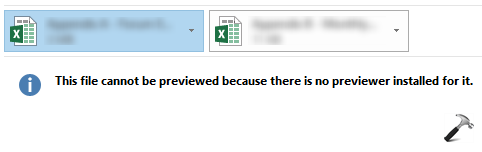
For you, this problem may that Word previewer is not working from PowerPoint or vice versa. The root cause of this problem is mainly damaged registry configuration. During upgrade, it may possible that registry keys maintaining this functionality of Office apps have became corrupted. So in order to fix this problem, we have to correctly align those registry keys. You can try these steps for that:
FIX : This File Cannot Be Previewed Because There Is No Previewer Installed For It
Registry Disclaimer: The further steps will involve registry manipulation. Making mistakes while manipulating registry could affect your system adversely. So be careful while editing registry entries and create a System Restore point first.
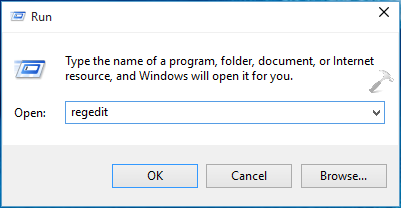
1. Press  + R and put regedit in Run dialog box to open Registry Editor (if you’re not familiar with Registry Editor, then click here). Click OK.
2. In the left pane of Registry Editor, navigate to following registry keys based upon the way you’ve installed Office.
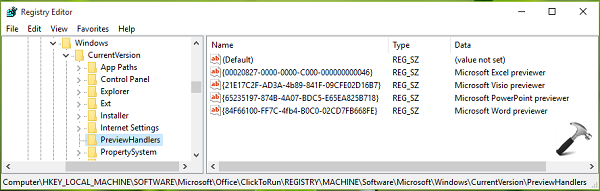
If you’re on Click-to-Run based installation, go to this registry key:
HKEY_LOCAL_MACHINE\SOFTWARE\Microsoft\Office\ClickToRun\REGISTRY\ MACHINE\Software\Microsoft\Windows\CurrentVersion\PreviewHandlers
If you’re on Volume license/MSI/setup based installation, and using 32-bit Office on 64-bit Windows, go here:
HKEY_LOCAL_MACHINE\SOFTWARE\Wow6432Node\Microsoft\Windows\CurrentVersion\PreviewHandlers
If you’re on Volume license/MSI/setup based installation, and using 32-bit Office on 32-bit Windows, locate this registry key:
HKEY_LOCAL_MACHINE\SOFTWARE\Microsoft\Windows\CurrentVersion\PreviewHandlers
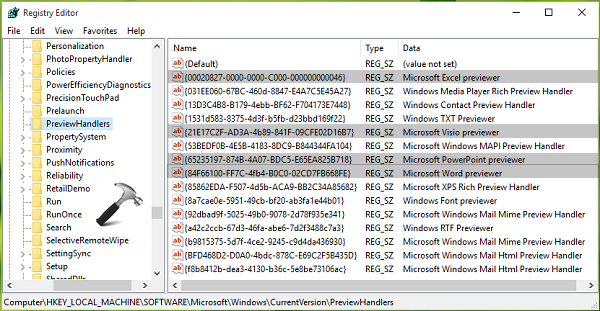
3. In the right pane of registry location adopted in step 2, look for the following registry strings and make sure that they have the correct corresponding Value data:
Registry string: {21E17C2F-AD3A-4b89-841F-09CFE02D16B7}
Value data: Microsoft Visio previewer
Registry string: {65235197-874B-4A07-BDC5-E65EA825B718}
Value data : Microsoft PowerPoint previewer
Registry string: {84F66100-FF7C-4fb4-B0C0-02CD7FB668FE}
Value data: Microsoft Word previewer
Registry string: {00020827-0000-0000-C000-000000000046}
Value data: Microsoft Excel previewer
If any of the registry string don’t have the same data as mentioned above, do a double click on the string and modify its Value data and set correct one:
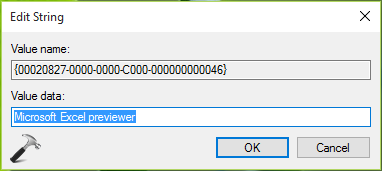
4. Once you corrected and verified all the registry strings mentioned in previous step, close Registry Editor and reboot. After restarting the machine, problem would be resolved.
Hope this helps! Go here to review new features of Office 2016.


Two Thumbs Up guys !! This tutorial working perfectly for me :D :y
^^ Glad it worked :D
I tried this fix, I verified that all Registry String values matched what you have there and my previewers still do not work for any office poduct. The Outlook pdf previewer works just fine. Only Microsoft office files will not preview.
I’m running Office 365 Current version on a company subscription. We have over 30 licenses on our account. I ‘m the admin for this account.
^^ Be careful, there are different registry keys for MSI and CTR based installations! Make sure you’re tweaking correct registry key :)
I used the MSI version of this as we download the installer from this link: portal.office.com/OLS/MySoftware.aspx
The Regedit location that I verified was :
HKEY_LOCAL_MACHINE\SOFTWARE\Microsoft\Windows\CurrentVersion\PreviewHandlers
I did mislead you on the previous post as Excel does not preview but Word & Visio documents do. I have not tried Power Point or any other Microsoft files as I rarely view them.
Works perfectly!
^^ Glad we could help :)
Thanks my string was not there I added it and it worked…Thanks alot.
^^ Awesome :)
Good day. I verified all the strings as you advised, regrettably, the problem persists.
I have Office 2016 Home & Business and Win 10. Neither of them are upgrades.
Your advice would be most appreciated
Regards – Malcolm
^^ Suggest you to repair Office, offline using this approach: https://www.kapilarya.com/how-to-repair-office-2013-offline
all settings are correct but not working windows 7 outlook 2013. Do you have other solution for this issue?
i am not able to preview PDF attached file in mail box itself ms-office 2013
^^ Try the steps mentioned here, write back if issue persists.
All settings are correct but I still can not preview Excel and Word files. I’m working on windows 7 and outlook 2013. Do you have any other solution for this issue?
Verified all settings and preview still are not working for Office files only. I did try a quick repair, but that did not work either.
Hi Kapil,
I tried the fix still getting the same in error on windows 10 Desktop system. Any other fix you could suggest.
^^ Try repairing Office installation (refer my previous comments above).