How do I add Gmail account to Outlook? You have found the right place in case you have been searching to find a step-by-step guide.
Millions of Windows 11/10 users use both Gmail and Outlook on a daily basis, so the combination of the two may simplify the process of managing emails significantly. Avoid the hassle of using two applications when you need to check, send, and manage your Gmail mail using the Outlook application.
The best part? It is very easy, safe, and compatible with all the updated editions of Outlook. Here, we will explain in this step-by-step tutorial how to easily add Gmail to Outlook and ensure that your emails are flawlessly in sync.
Page Contents
Why Should You Add Gmail to Outlook?
When you have a number of email accounts, it can feel like switching between Gmail and Outlook is daunting. That is where integration is involved! The integration of Gmail into Outlook is useful because you can unite all your activities under a single roof, and your work process will become easier and more productive.
These are some of the good reasons to associate Gmail and Outlook.
- No separate logging in; check Gmail and Outlook mail all in one place.
- Use emails, contacts, and calendar events simultaneously without having to switch every time.
- Compose, write, and sort out your emails on Gmail even when you do not feel like being online.
- Offers advanced features of Outlook to users who need to use it in business and work, and the flexibility of Gmail.
- Be productive, less distracted, and multitask on various accounts with ease.
Steps on How to Add Gmail Account to Outlook
The process of adding Gmail to Outlook can be discussed as a very technical one; yet, it can be accomplished rather simply by following each and every step. Here’s the complete guide.
Turn on IMAP in Gmail Settings
IMAP protocol should be enabled to enable Gmail to connect to Outlook. With the IMAP, Outlook will easily fetch and synchronize your Gmail e-mails.
1. On your browser, you should log in using your Gmail account. Select “See all settings” by clicking the gear icon in the upper-right corner.

2. Click the Forwarding and POP/IMAP Tab. Under IMAP Access, choose Enable IMAP.
If you can’t see “Enable IMAP” option, that simply means IMAP is already enabled for your Gmail account. You can proceed to the next steps.
3. For “When I mark a message in IMAP as deleted”, choose “Auto-Expunge off (recommended)”. Then, under “When a message is marked as deleted and expunged”, select “Archive the message”. This helps keep your emails organized instead of permanently deleting them. At the bottom, click Save Changes.

Tip: Outlook would not be able to connect to Gmail without setting up IMAP.
Add Gmail Account to Outlook
1. To begin with, open Outlook. Click on Settings > Account > Your accounts > Add Account.

2. Type your Gmail address. Tap “Continue”.

3. A Google login screen will be displayed. Enter your Gmail account and fill in 2-Step code > Outlook is connected automatically.
Verify Gmail Account Sync in Outlook
After the setup, it is worth checking whether everything is syncing or not. Open Outlook and check the left-hand panel. You are supposed to have your Gmail inbox, sent items, and folders. Attempt to use Outlook to send a test email to verify that your Gmail account is functioning properly. Once it all goes well, congrats, you have integrated Gmail into Outlook.
Adding Gmail to Outlook Through the Control Panel (Advanced Method)
Outlook can also be configured through the Control Panel in Windows for advanced users.
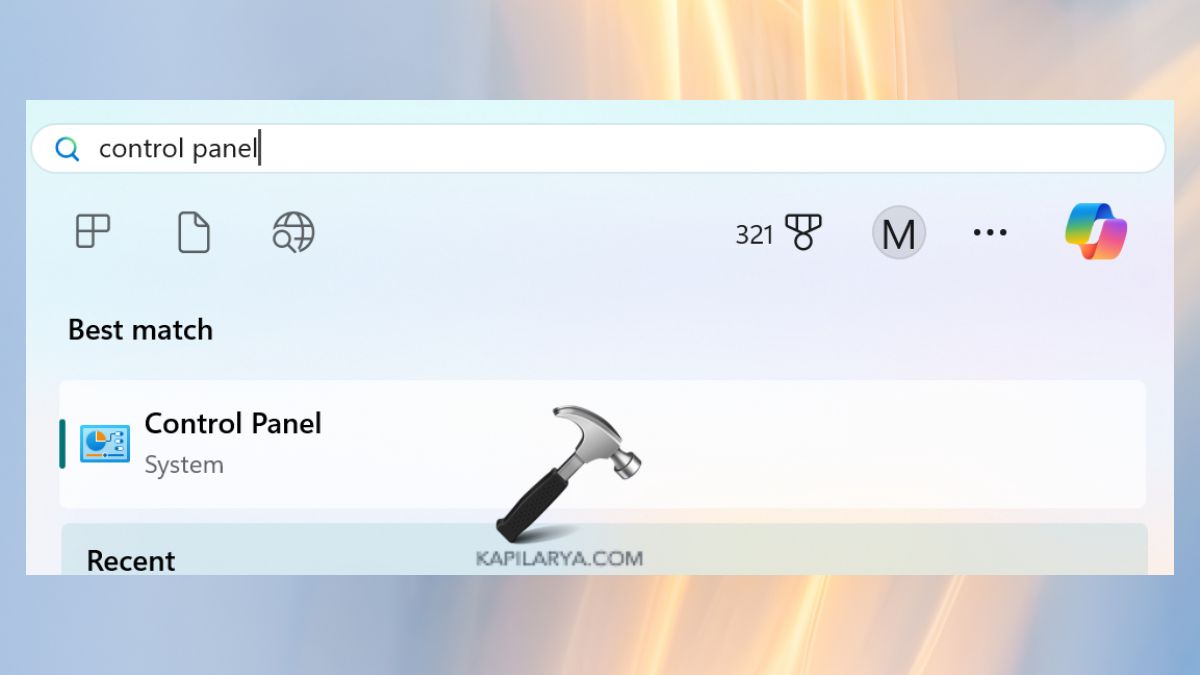
1. Click on Control Panel in the Start menu.
2. Select Mail (Microsoft Outlook).

3. Click Email Accounts > New.

4. Select “Manual setup” and fill in your Gmail information with the IMAP/SMTP settings above.

Save and restart Outlook. This approach comes in handy when the in-app configuration does not work or when you desire additional control over server configurations.
Tips for a Smooth Gmail to Outlook Integration
Would you like your Gmail and Outlook to integrate without hiccups? These are some basic suggestions on how to keep things running well.
- This is important to ensure that you are always updating to the latest version of Outlook. Bugs are also frequently corrected through updates and made more compatible with Gmail.
- Check the security features of your account frequently to prevent difficulties in connection.
- When logging into Outlook, you should enter a Google App Password instead of your primary Gmail password. It’s safer and more reliable.
- Occasionally, it is good to empty the cache and temp files of Outlook to accelerate the process, as well as avoid sync errors.
Frequently Asked Questions (FAQs)
That’s it!