“You don’t have sufficient permissions to open the Mail” – does the same error appear to you? This Outlook bug in Windows 11 has been on the rise, particularly among Microsoft 365 subscribers and corporate accounts.
It can be a very imposing error, though most frequently due to the much less serious issue of an out-of-date cache, a corrupted or invalid license, a failed Microsoft authentication session, or even an email wrongly encrypted by the sender. We will take you through these steps, which are the most efficient and simple to use.
Page Contents
How Outlook Protects Your Mailbox Behind the Scenes
Not a lot of people know that Outlook has background checks, which it continuously performs to verify such.
- Your identity
- Your license
- Your mailbox permissions
- Encryption levels
- Sync connections
This is the way that Outlook can keep your emails safe on all devices, platforms, and networks. This built-in security might be inconvenient, but it is what stops unauthorized access, even by accidental log-in or unforeseen device syncing failures.
Reasons behind this error
When Outlook comes up with the message You do not have the necessary permissions to open the mail, it is not stating that your account is insecure or someone is locking you out. Rather, this will normally be displayed when Outlook notices a suspicious activity regarding the way your email, settings, or account information is being accessed.
Outlook is telling you – “There is something in this email or the settings of your account that does not align with our security policies, and hence, we are preventing you because of it to open this email before we resolve it.”
Actual Meaning of the “You don’t have sufficient permissions to open the Mail” Outlook Error
1. There are times when your Microsoft log is time-limited or goes off track. The Outlook then believes that you are not correctly authenticated, even when you are a logged-in user.
2. There is a high viewing policy of protected or encrypted emails. In case the sender applied the template that is restrictive, Outlook blocks it.
3. Permission can be bypassed by a corrupted local file that masquerades as the owner being not authorized by Outlook.
4. In case Outlook is unable to identify your account with your license, it thinks that you do not need to see some of your emails.
5. The same mailbox sent to more than one client may cause sync conflicts with Outlook raising the suspicion that there is a permission problem.
Fix: You don’t have sufficient permissions to open the Mail – Outlook error
Fix 1: Clear the Local Outlook Cache
Outlook permission errors are common when using corrupted cache files. Caching Outlook obliterates new data that it has to recreate. Clear Outlook cache steps are as follows.
1. Close Microsoft Outlook entirely.
2. Press “Windows + R”, type this and hit Enter.
%localappdata%\Microsoft\Outlook

3. Find and delete the “.OST” cache files (it is alright, they are built after the next restart of the program).
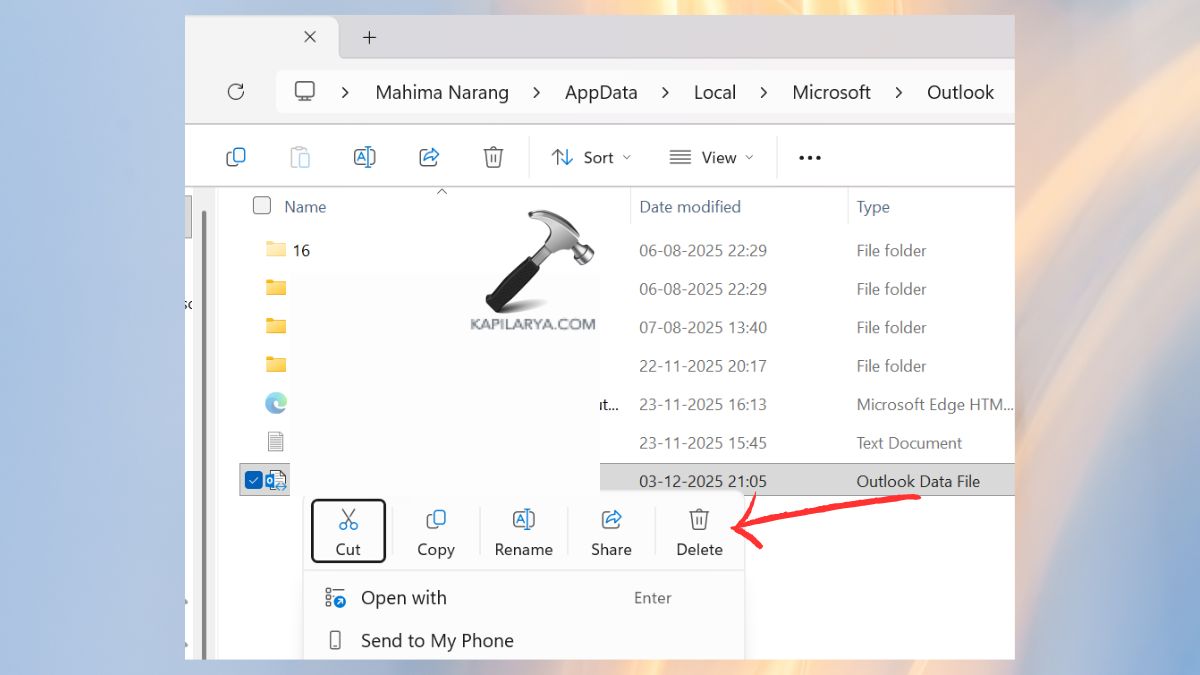
Restart Outlook and give it some time before it appears on the server.
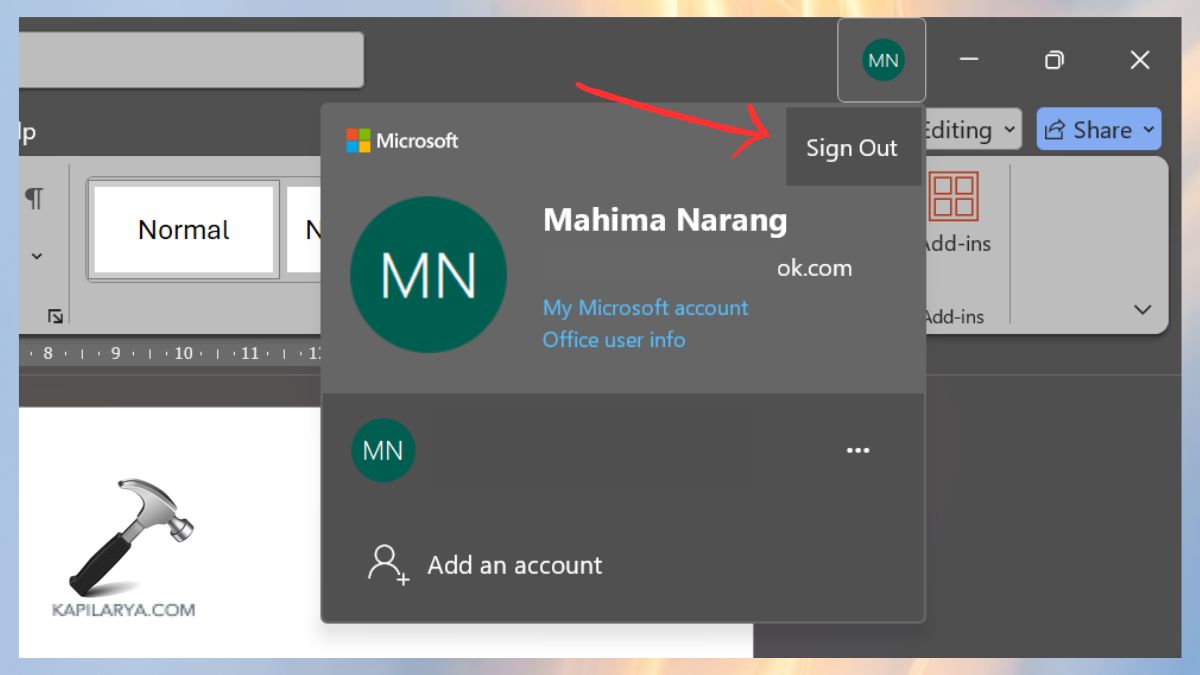
Fix 2: Sign Out and Sign Back Into Your Microsoft Account
Outlook errors related to do with permissions can be fixed instantly by a simple authentication refresh. The process of Re-authentication of your Microsoft Account-
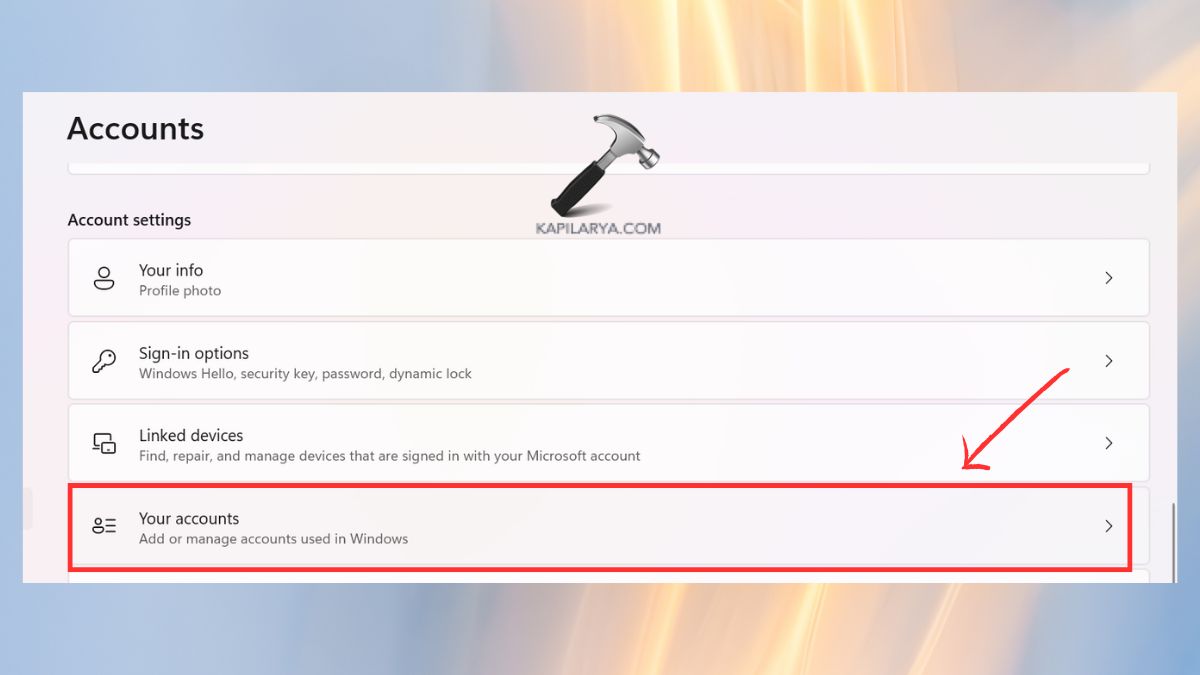
1. Open the Settings > choose Accounts > then Your Accounts.
2. Choose your Microsoft account and click on “Manage”.
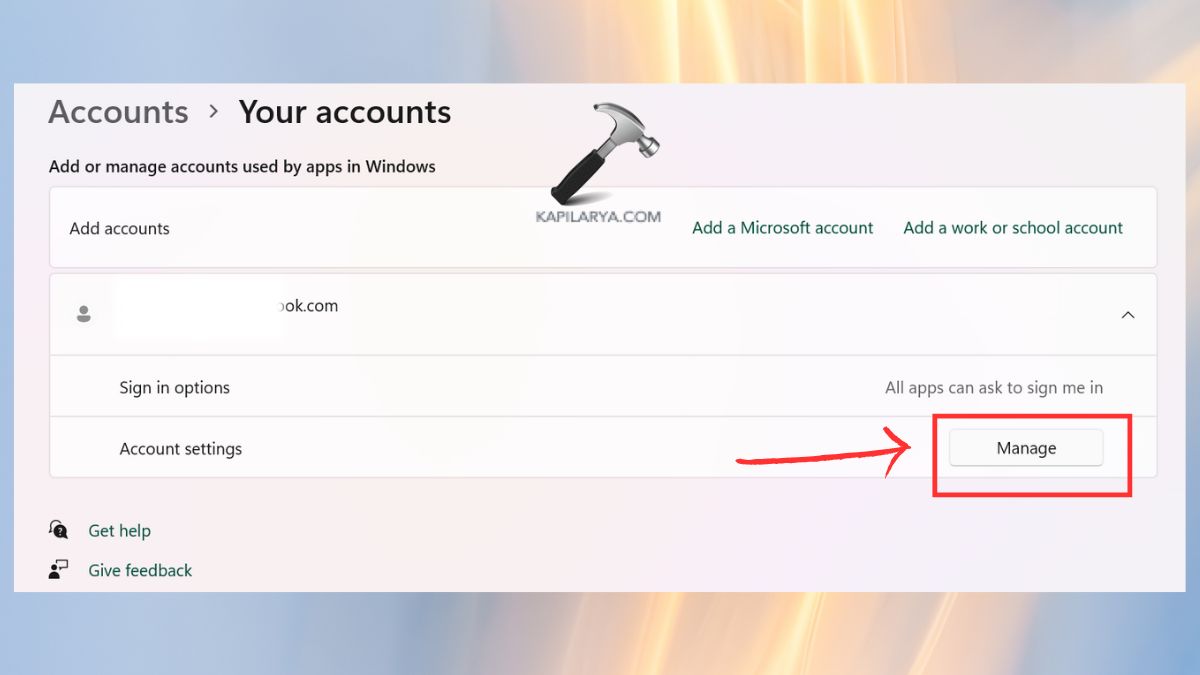
3. Sign out completely. Restart the computer. Re-open Outlook and sign in once again.
Fix 3: Configure License Eligibility (Microsoft 365 / Outlook Subscription)
Outlook can also block access to mail due to security reasons in case of an expired or inappropriately assigned license. Check Your License- here is how to check it.
1. Go to “portal.office.com” and log in with your credentials.
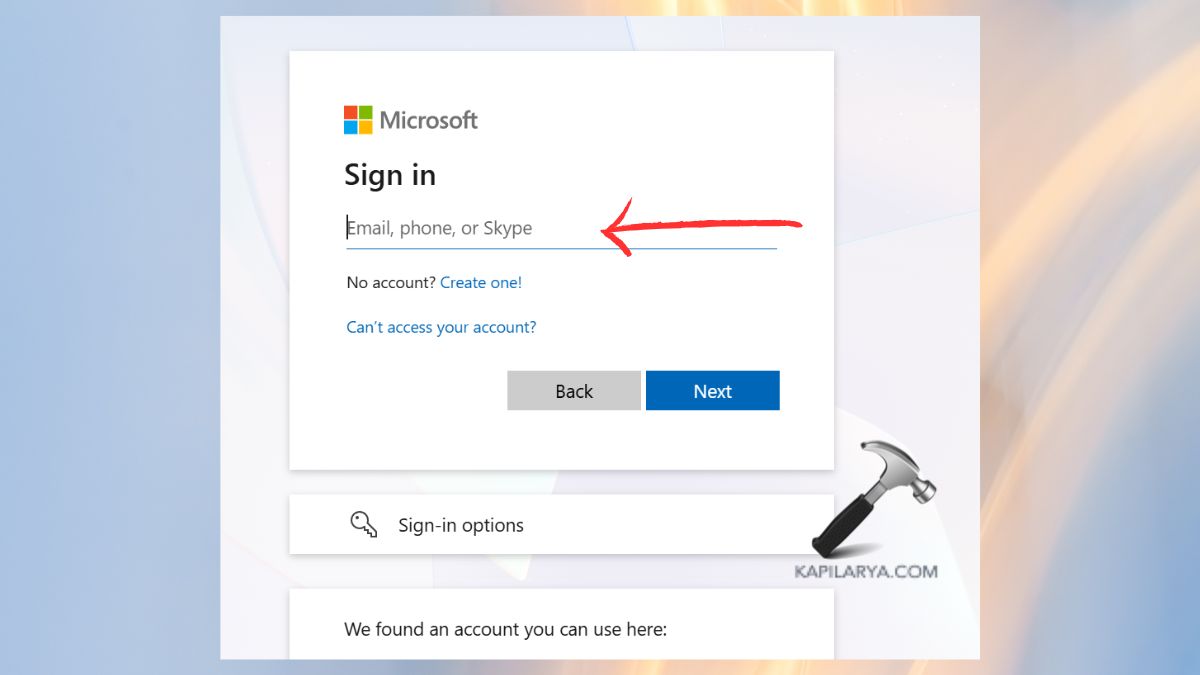
2. Click View Account Subscriptions.
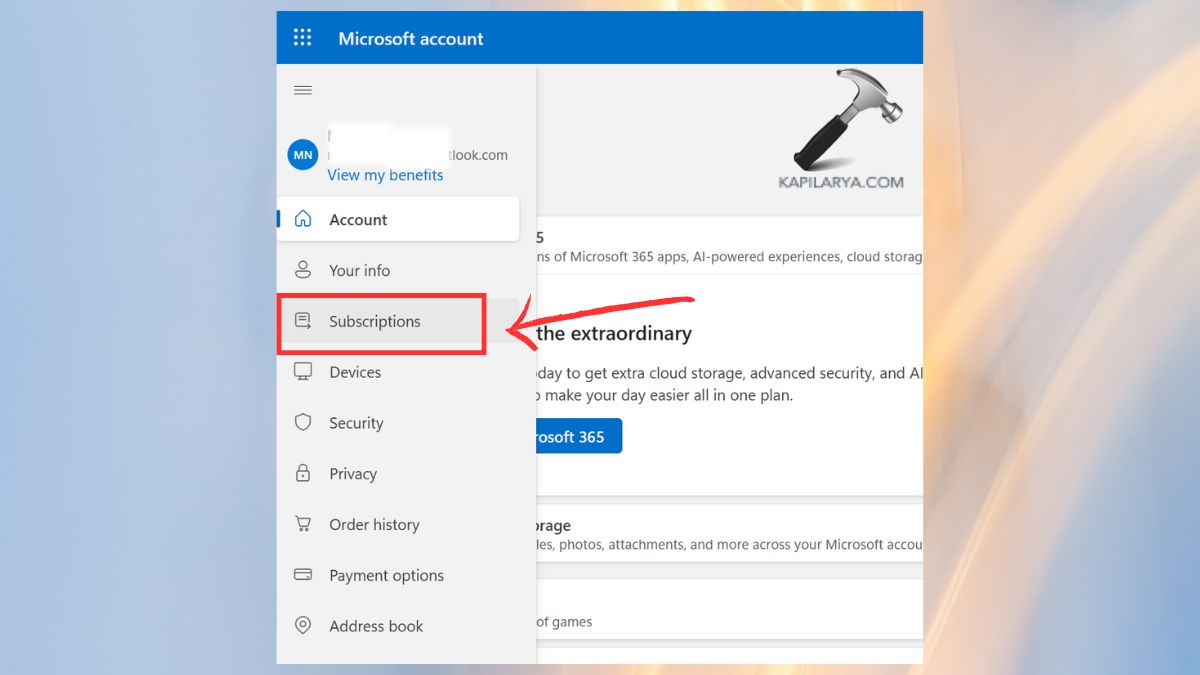
3. Make sure that Microsoft 365 Apps or Outlook is on the list of active apps. In case of absence, you may buy the license again.
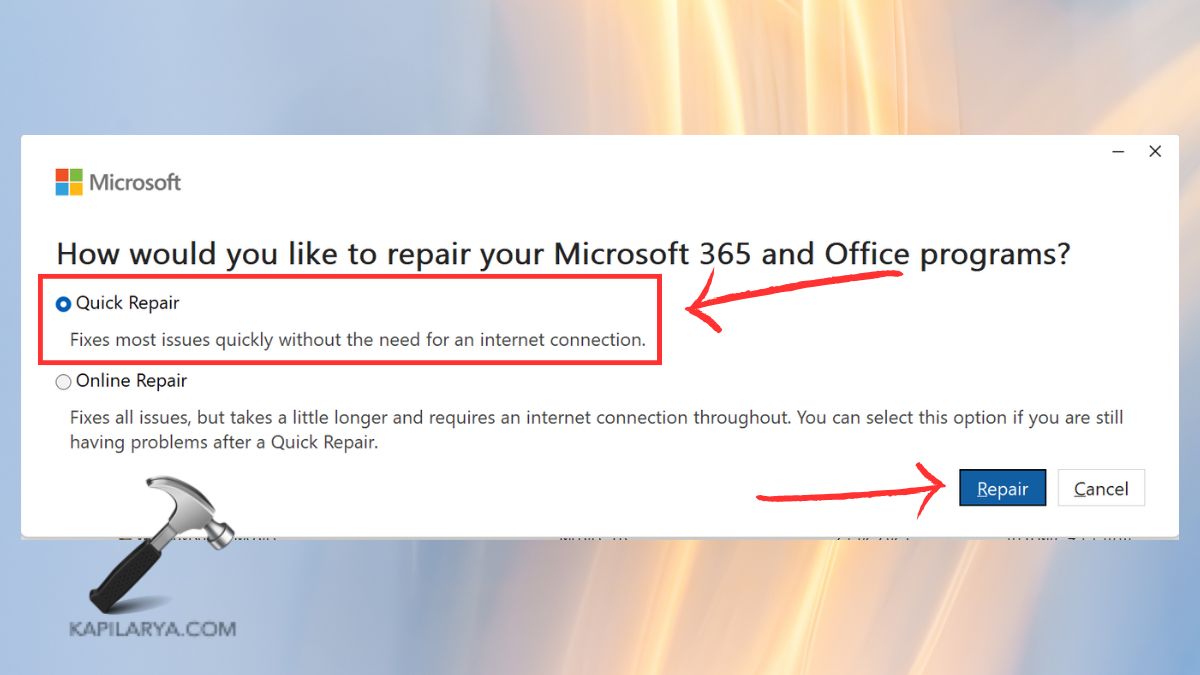
4. Restart Outlook and repair it. For that, go to Control panel > programs > Office > Modify > Quick Repair.
Fix 4: Configure Outlook Encoding
In some cases, the email message you are reading has an incompatible or encrypted format of encoding- Outlook gets the idea that you are unauthenticated.
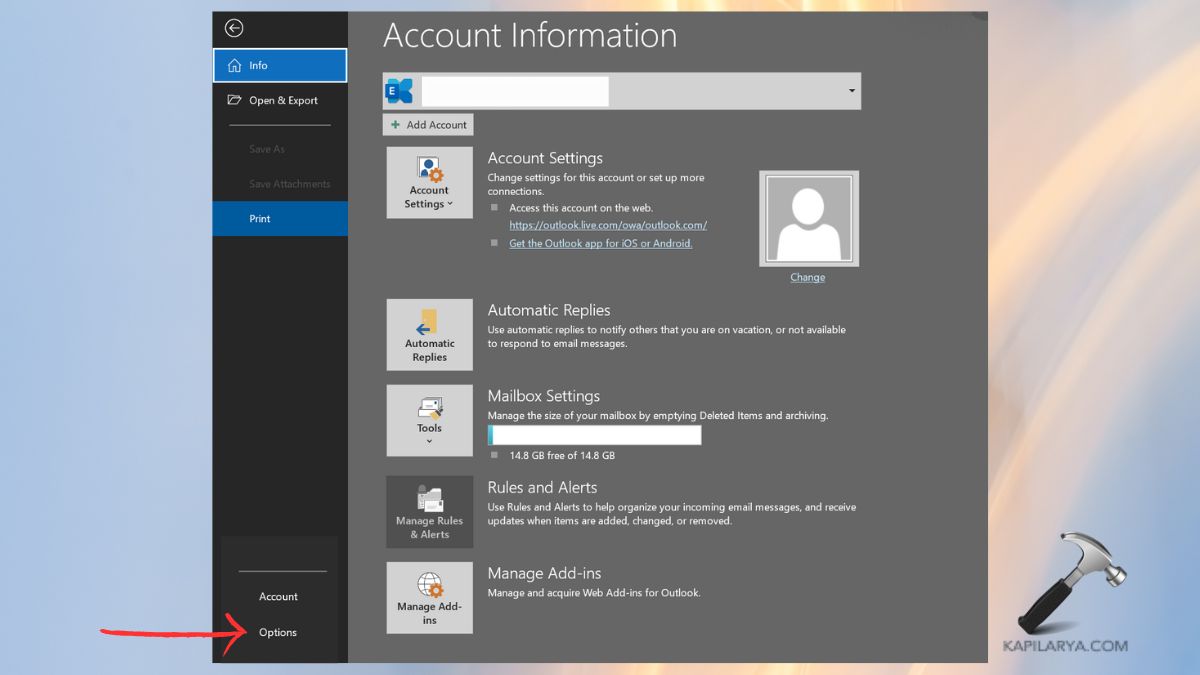
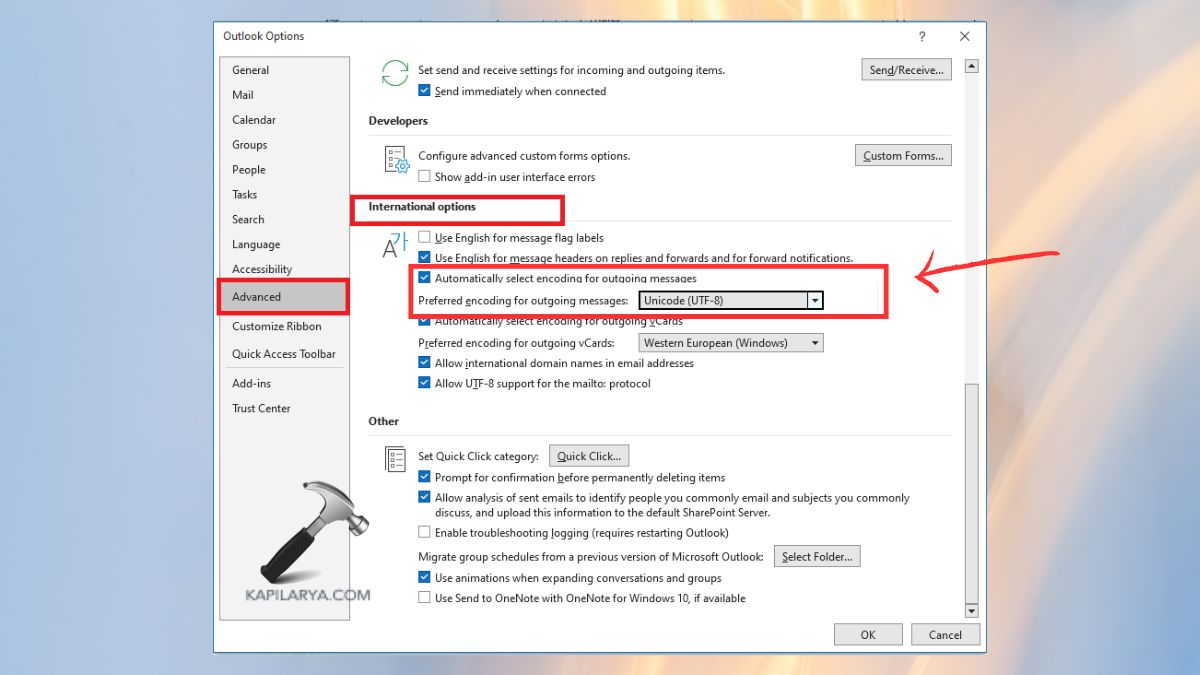
1. Open up Outlook and select File > Options > Advanced. Scroll down to International Options.
2. Activate the option to Auto-select encoding for outgoing and incoming messages.
Use UTF-8 as the default encoding.
Close then restart the Outlook application, again.
Fix 5: Check the Sender’s Encryption Template
When you are the sender, it could be a problem with the encryption template used on the email. Limited access may lead to viewing of the Outlook error by the recipients.
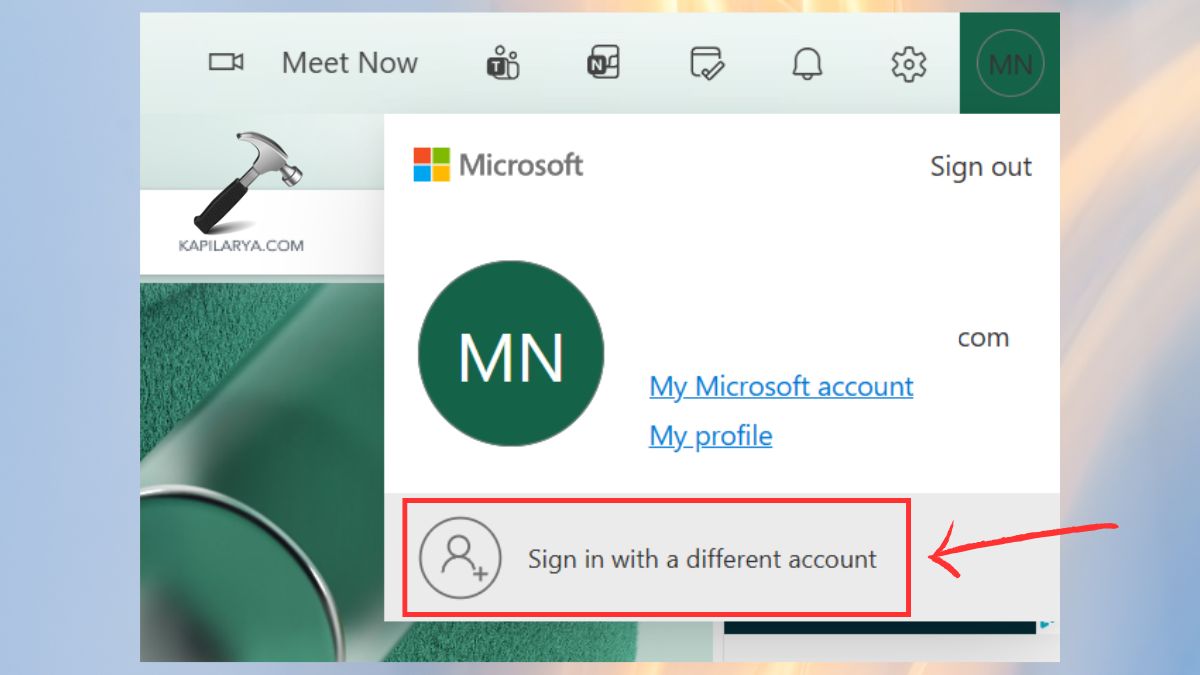
1. Create a new email in Outlook. Or sign in with a different account.
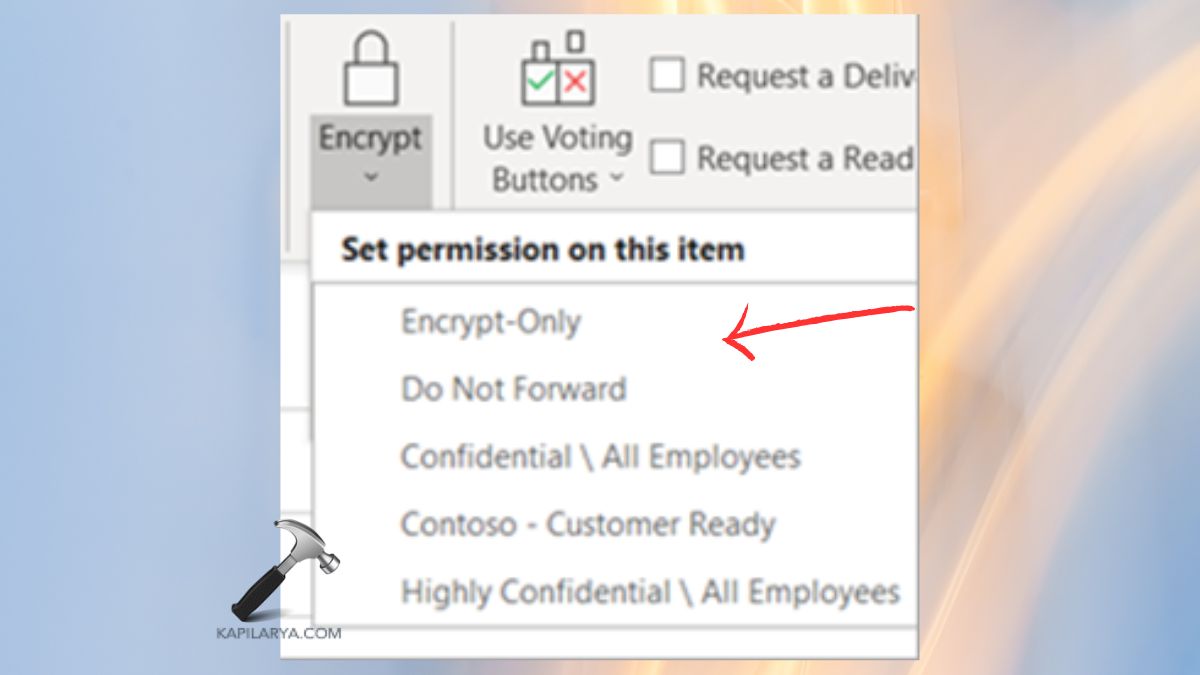
2. Go to Options > Encrypt. Select an alternative template –
- Encrypt Only
- Do Not Forward
3. Re-mail and ensure that the mail is received by the recipient.
Frequently Asked Questions (FAQs)
Why does Outlook say I don’t have sufficient permissions to open the email?
This occurs because of corrupted cache, account authentication, lapsed licenses, or encryption. The Outlook error is normally fixed and resolved within a short span of time.
Will deleting the OST cache file delete my emails?
No. The OST file is a local but temporary copy. Outlook will recreate it by being synced with the server.
Does this error affect both Windows and Mac?
Yes, however, the reasons are the same, but the actions can be slightly different. The majority of the solutions, e.g., signing out, clearing cache, and checking licenses, work in either system.
Is this error related to my organization’s security policy?
Sometimes. In case the sender applied restrictive encryption or your Microsoft 365 license is mis-configured, this error may happen in Outlook permissions.
That’s it!