The Outlook message has been changed error appears as – The operation cannot be performed because the message has been changed. You have hit Send, but instead of sending the email, this error is flashed by the Outlook.
This is one of the most frequent Microsoft Outlook errors in Windows 11 is when one intends to reply, forward, or delete an email. And if you are having trouble with this Outlook message-change error, you need not worry, because you have come to the right place!
These are the easy-going means that fix Outlook message has been changed, make it perform well and avoids potential future message failures.
Page Contents
Why Does This Outlook message has been changed Error Happen
To put it simply, the Outlook error the operation cannot be performed because the message has been changed occurs when the Outlook feels that something changes your email in the background.
This “something” can be:
- Auto-save is running in the background.
- An anti-virus is going through your mail.
- An add-in in the Outlook application is faulty and attempts to update the message.
- Understanding a garbled PST file.
- Even crashing or freezing of Outlook.
- Clean-Up Conversation trying to eliminate duplication.
Fix Outlook message has been changed Error
These are seven potent solutions that are provided in a renewed, shuffled sequence with steps provided.
Fix 1: Remove Faulty Add-ins
Broken or old Outlook add-ins may conflict with your message editor and this will result in the error.
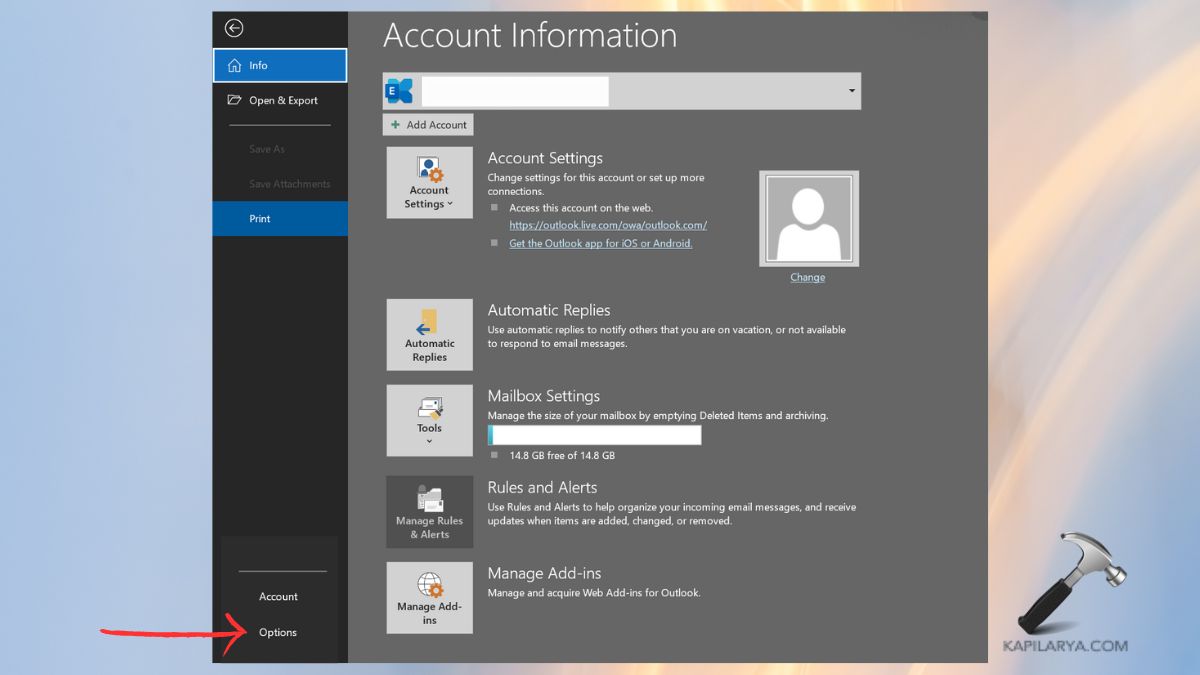
1. Open Outlook. Go to File > Options.
2. The left pane requires the selection of Add-ins. Towards the bottom, select the option of COM Add-ins and use the Go button.
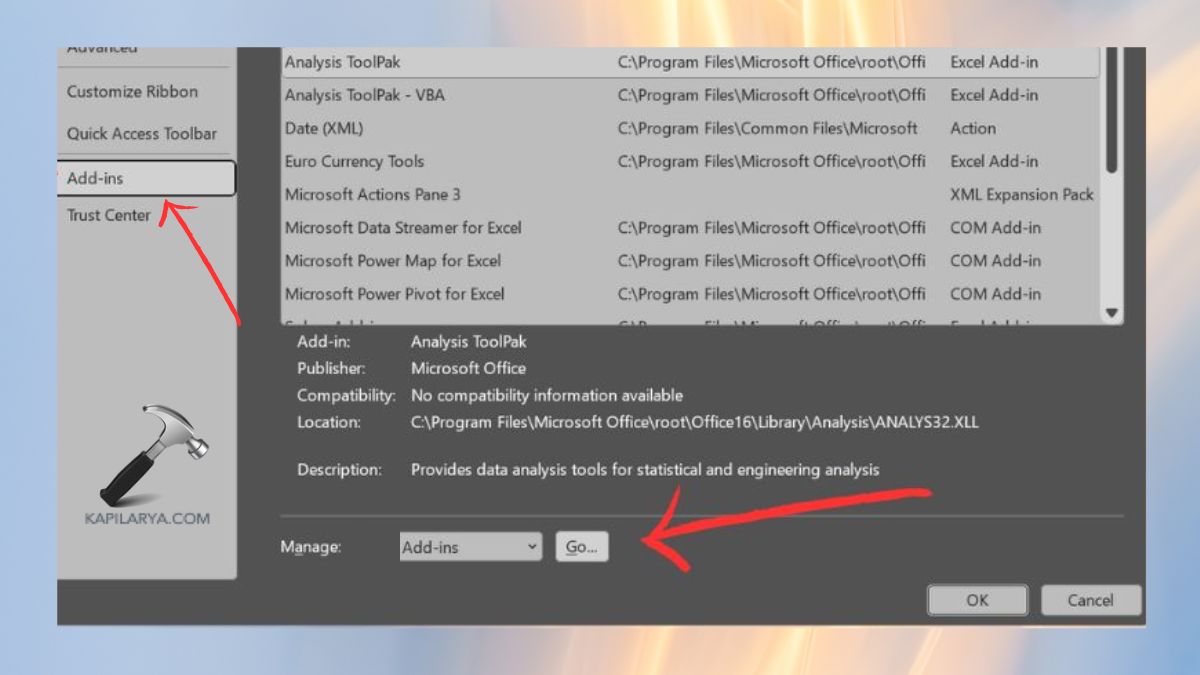
3. Then, select all the add-ins and press the OK button.
Restart Outlook. activate third-party applications one at a time in order to learn which one is problematic.
Fix 2: Change the Save Messages Settings
In Outlook, the draft messages are on auto-save setting, and it is possible that such auto-saving activity may disrupt your current email editing session. The following is an instruction on how to Adjust Settings.
1. Go to File > Options.
2. Select Mail. Go to the bottom of the Save messages column. Now, turn-off “Automatically save items that have not been sent after X min”.
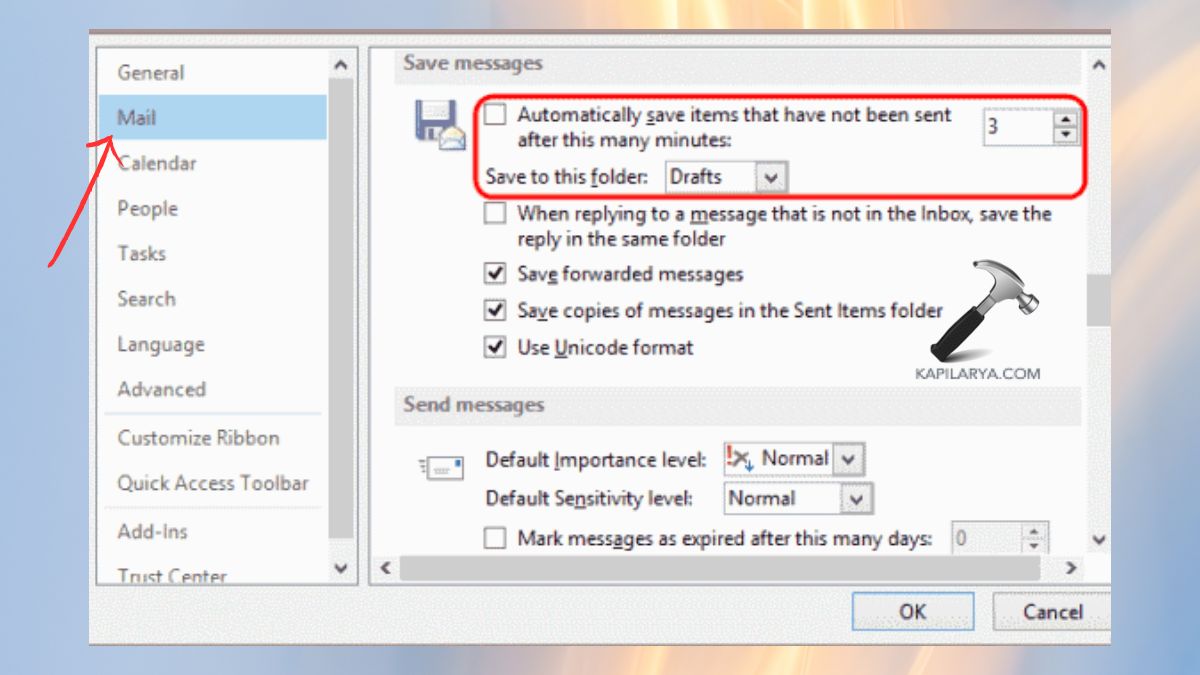
3. Click OK. This eliminates the need to have unwanted auto-saves, and it eliminates the abrupt change of messages.
Fix 3: Repair the Outlook Data File (PST Repair Method)
Some of the problems associated with corrupted PST files are the message-changed Outlook error. A damaged PST file tends to remove the error immediately.
1. First, close Outlook.
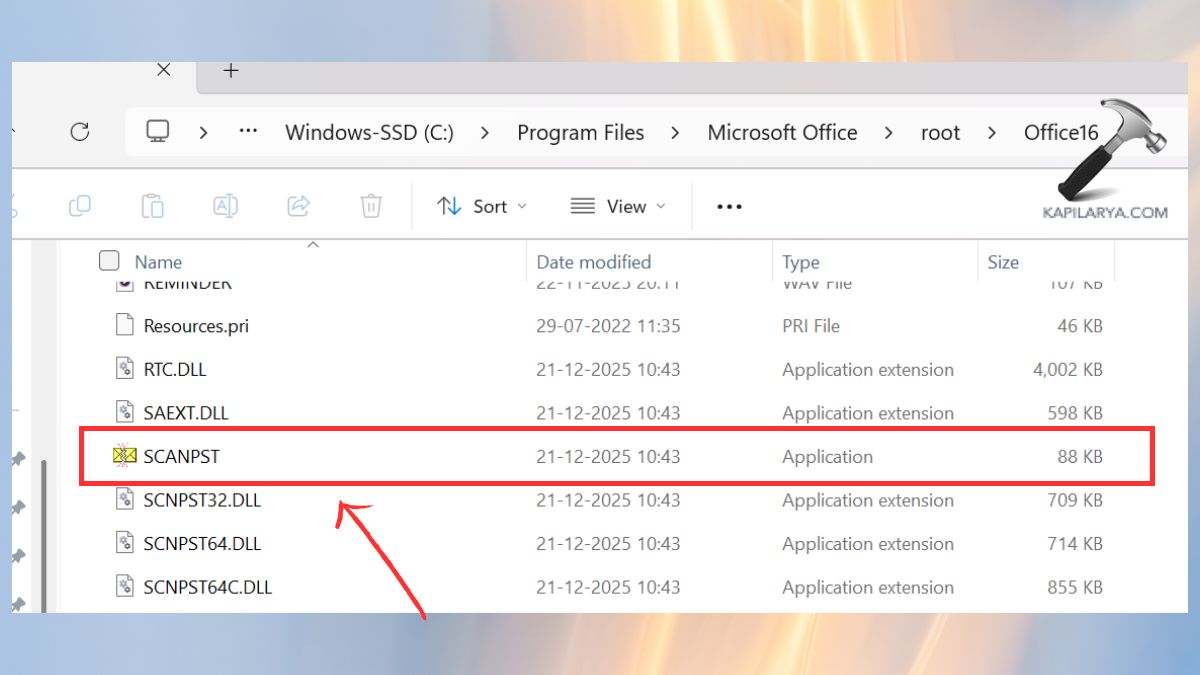
2. In the File Explorer, go to the following direction.
(The XX will change depending on the version at your disposal)
C:\Program Files\Microsoft Office\root\OfficeXX\
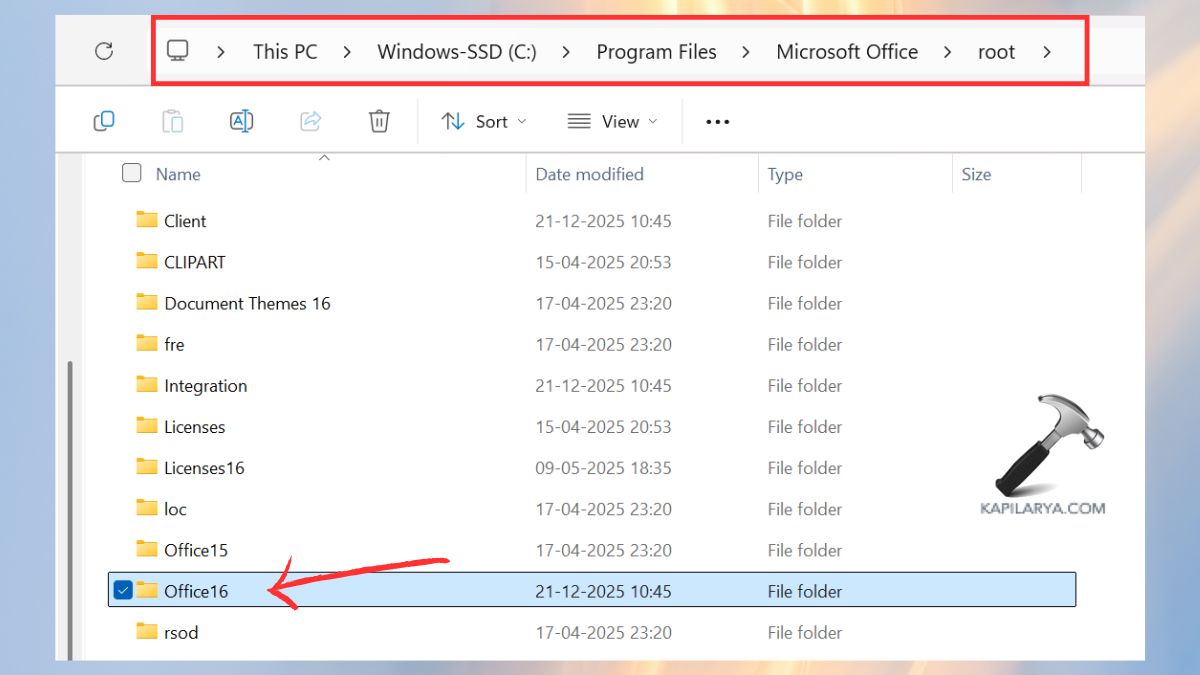
3. Run “SCANPST.EXE” file.
4. Locate and choose your PST file. Choose Start and initiate the process of the repair.
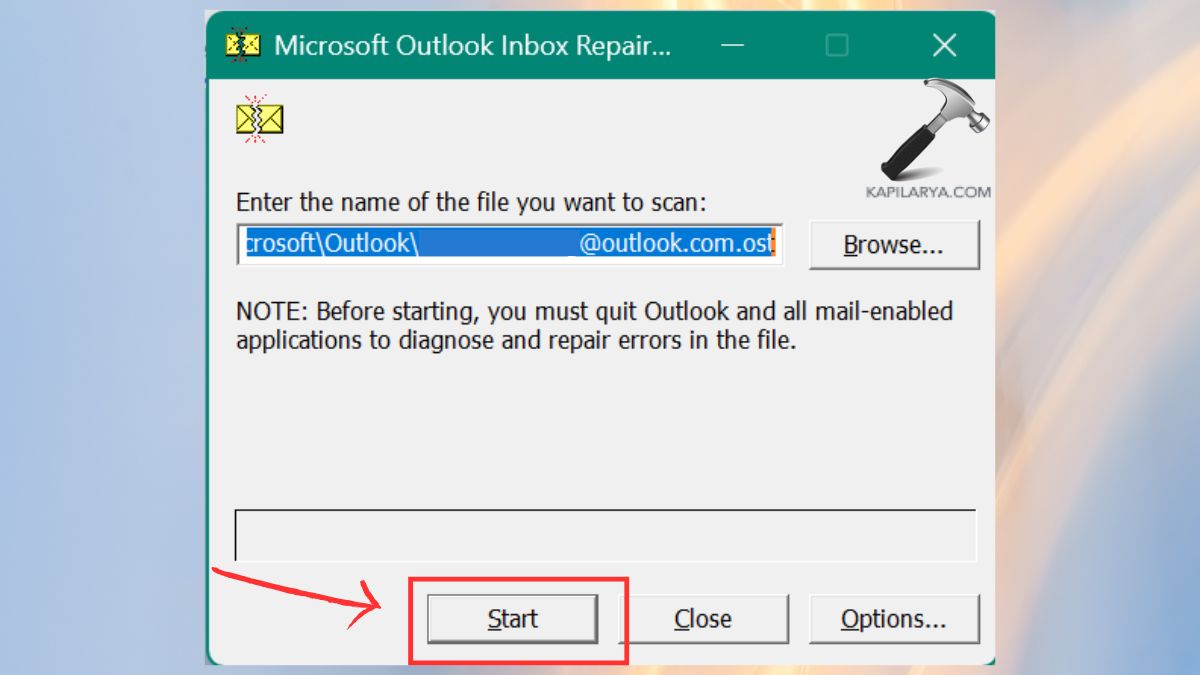
Restart Outlook.
Fix 4: Change the Conversation Clean Up Features
The Conversation Clean-Up tool also automatically deletes dulicate email messages and sends, and this feature can affect the editing of the message. These environments are used to avoid the chances of Outlook modifying the contents of messages in the background.
1. Open File > Options. Click Mail.
2. Drag down to the point of Cleaning up Conversation. Uncheck options that have the capacity to delete or alter messages automatically.

Save the changes.
Fix 5: Create a New Outlook Profile
In case of a corrupt Outlook profile, then it can lead to problems with sending or editing of messages. Also, the new profile will guarantee a clean and conflict-free environment.
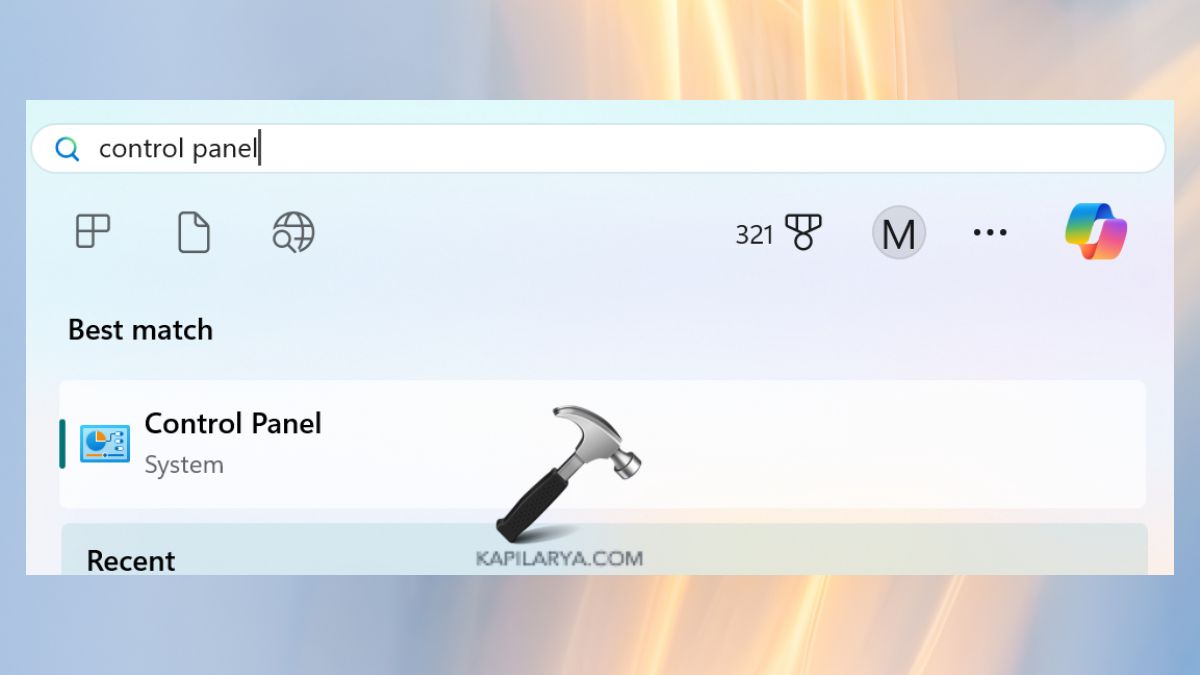
1. Open Control Panel.
2. Search for Mail and open it.

3. Click “Show Profiles”.
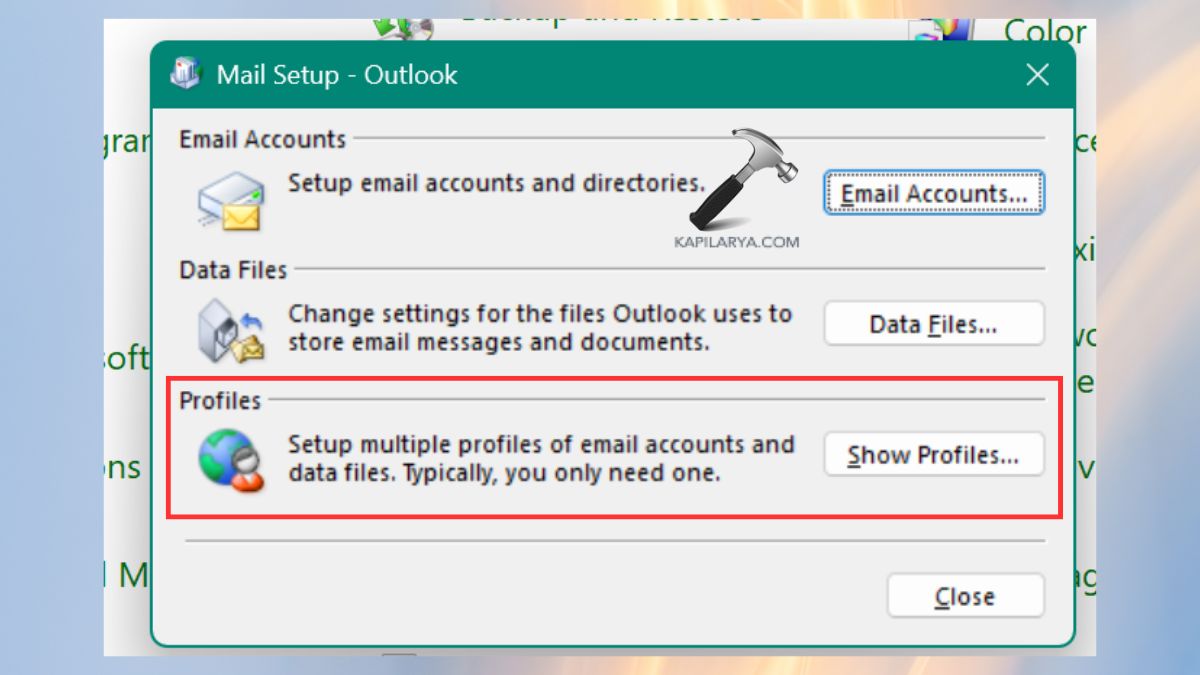
4. Select Add. Being a new user, enter a new profile name and customize your email account. Choose the option of always using this profile.

Restart Outlook.
Fix 6: Disable Security Applications Temporarily for Outlook message has been changed
Often described as interfering with message sending and editing to result in the Outlook error, antivirus tools can cause this.
- Turn off scanning of mail in virus programs.
- Stop real-time protection.
- Determine whether the error still occurs within Outlook.
- After testing, turn your antivirus back on.
Fix 7: Repair the Outlook / MS Office Program
In case your Office installation is corrupt, then you can expect Outlook to malfunction and present any error at any time. This will refresh the entire components of Outlook and fixes some system-level problems.
1. Access Control Panel > Programs and Features.

2. Locate Microsoft Office. Click Modify.

3. Choose Quick Repair.
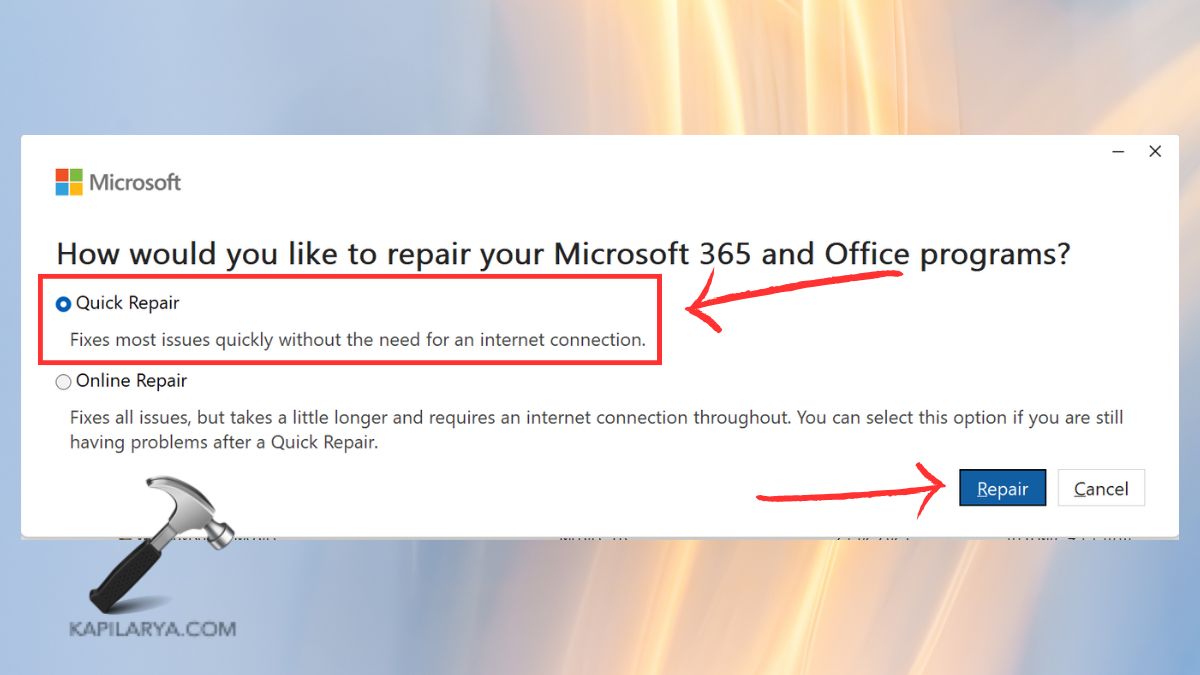
4. In case of a more serious problem, go with Online Repair.
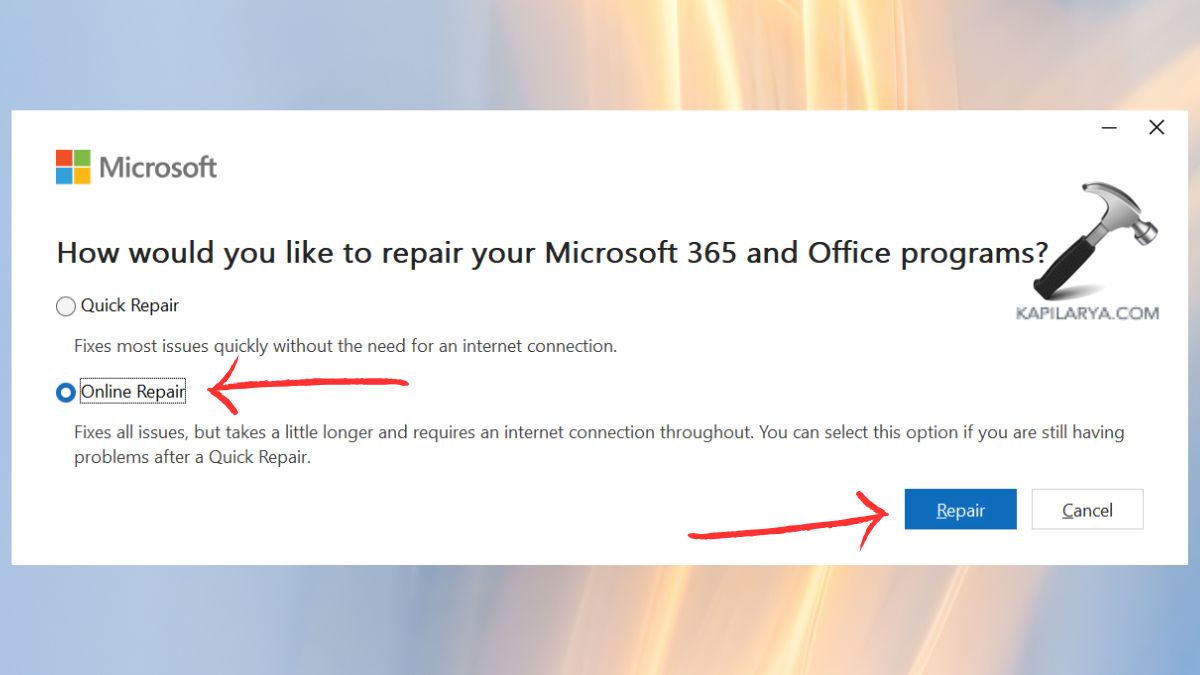
Restart your PC.
Frequently Asked Questions (FAQs)
That’s it!