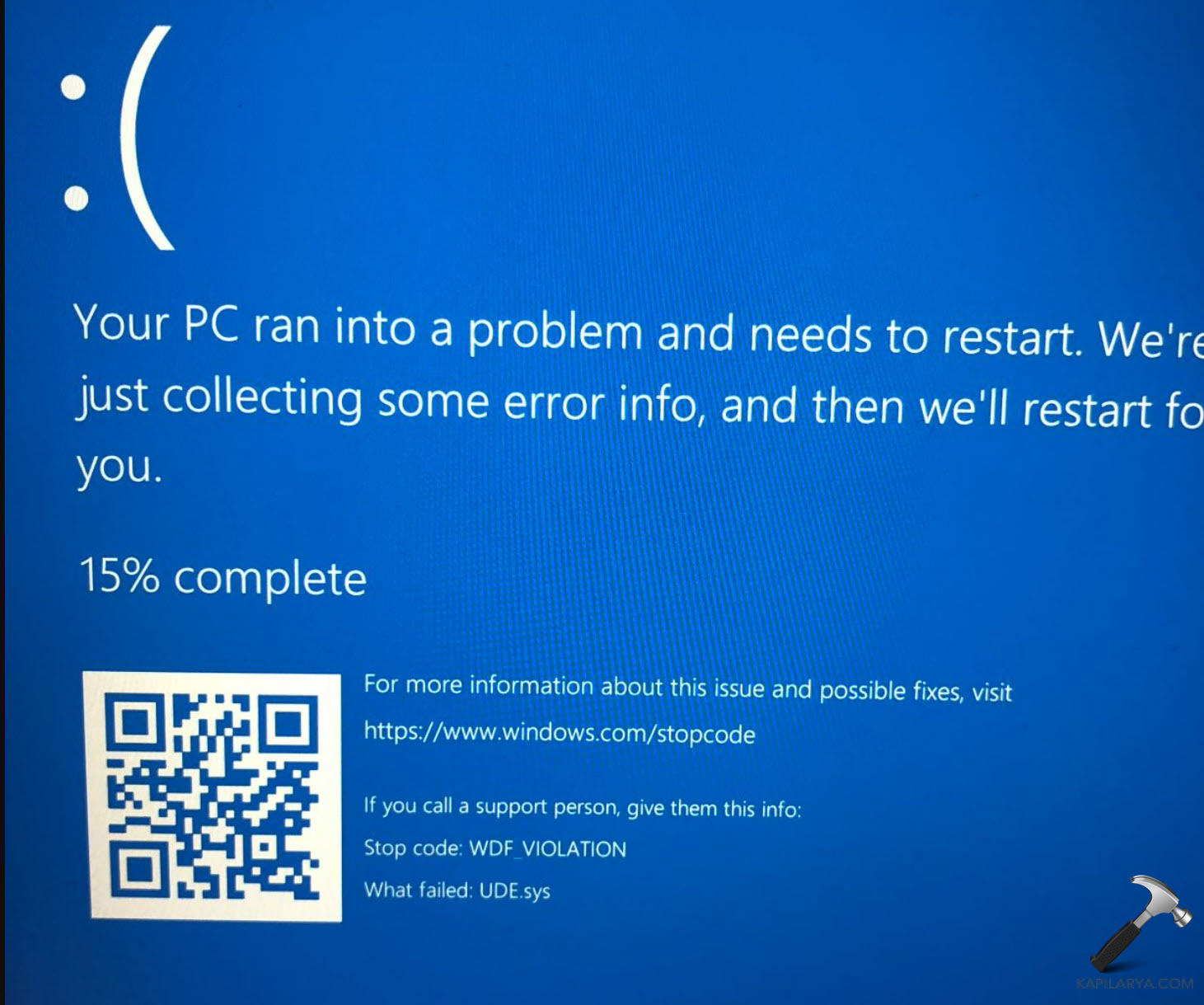
If you need to fix the WDF_Violation BSOD on Windows 11, this guide lists five reliable solutions. This stop code is typically caused by faulty drivers, corrupted system files, USB conflicts, or issues introduced after a recent update. The device may restart unexpectedly, freeze on the blue screen, or fail to reach the desktop.
Page Contents
Fix WDF_Violation BSOD on Windows 11
Fortunately, there are several safe methods you can use to fix the problem and restore stability to your system. Try each fix one at a time and restart your PC to check the results.
Fix 1: Disconnect external USB devices and check for problematic hardware
Faulty or incompatible USB devices can trigger the WDF_Violation error, especially if a USB driver stops responding at startup. Before applying advanced fixes, it is important to rule out hardware issues.
1. Shut down your PC completely.
2. Disconnect all USB devices such as printers, hubs, cameras, keyboards, or storage drives.
3. Turn the system back on and check if Windows boots normally.
4. Connect devices one at a time to identify which one triggers the BSOD.
5. If a particular device consistently causes the crash, update its drivers or replace the hardware.
Fix 2: Update or reinstall drivers in Safe Mode
Corrupt or outdated drivers can easily lead to WDF_Violation BSODs. Since the system may crash before you reach the desktop, Safe Mode helps you load only basic drivers.
1. Start your PC and interrupt the boot process three times to enter the Windows Recovery Environment.
2. Choose Troubleshoot, then Advanced Options, and select Startup Settings.
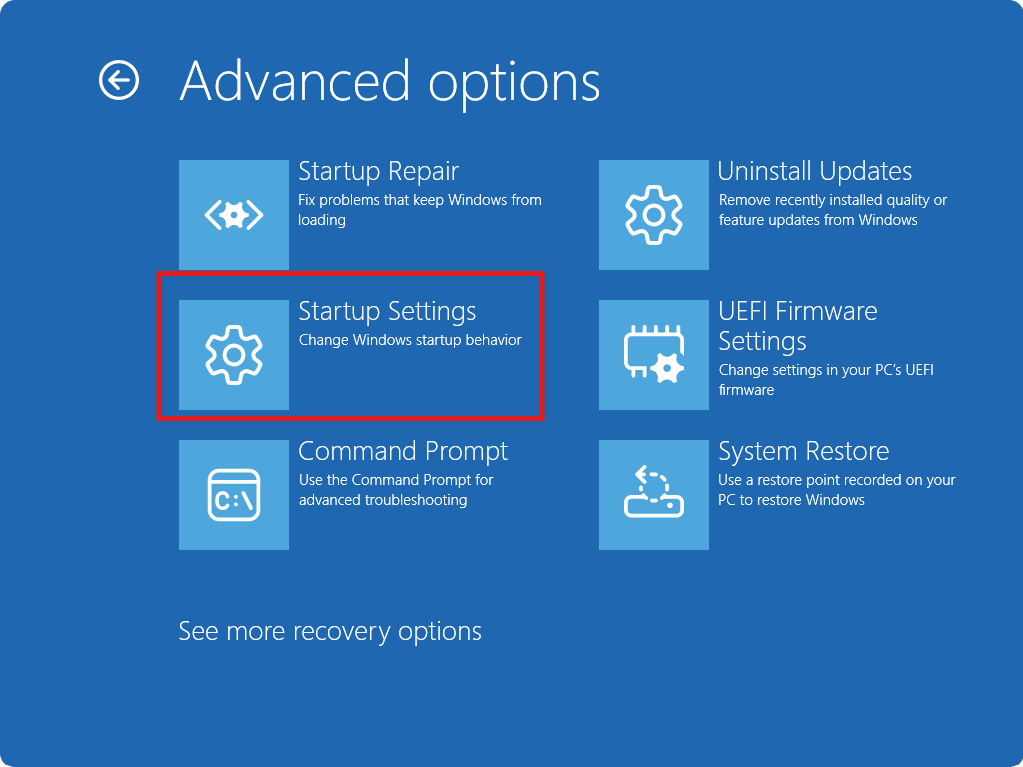
3. Restart and press the number key for Safe Mode with Networking.
4. Open Device Manager and expand key sections such as USB controllers, System devices, and Display adapters.
5. Right-click devices with warning signs and choose Update driver.
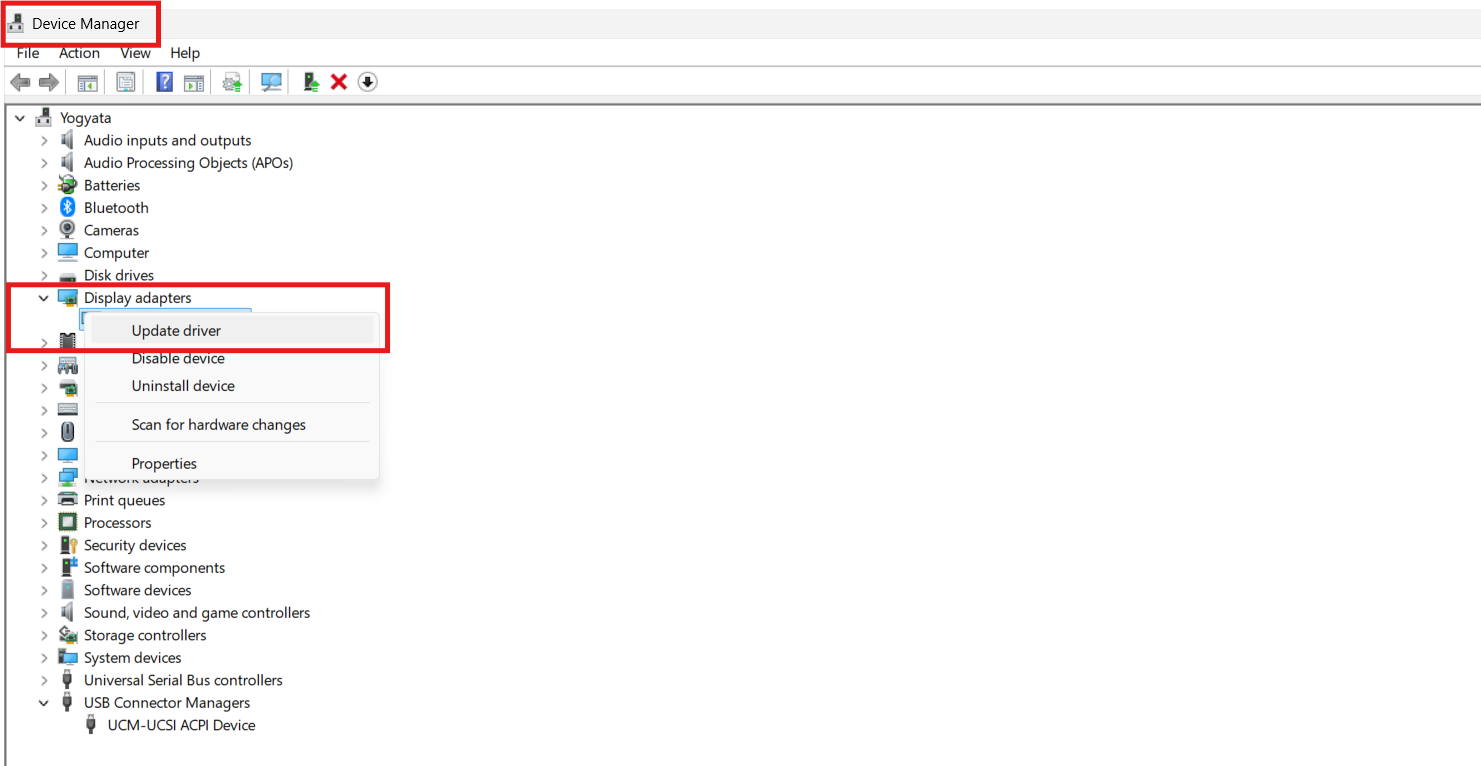
6. If updating does not help, uninstall the problematic driver and restart the PC.
Fix 3: Run SFC and DISM to repair damaged system files
Corrupted Windows system files may trigger the WDF_Violation error, especially driver-related components. Using built-in repair tools often resolves this.
1. Open Command Prompt as administrator.
2. Run the System File Checker by typing: sfc /scannow
3. Wait for the verification to complete.
4. Next, run the DISM repair tool by typing:
DISM /Online /Cleanup-Image /RestoreHealth
5. Restart your system and check if the BSOD reappears.
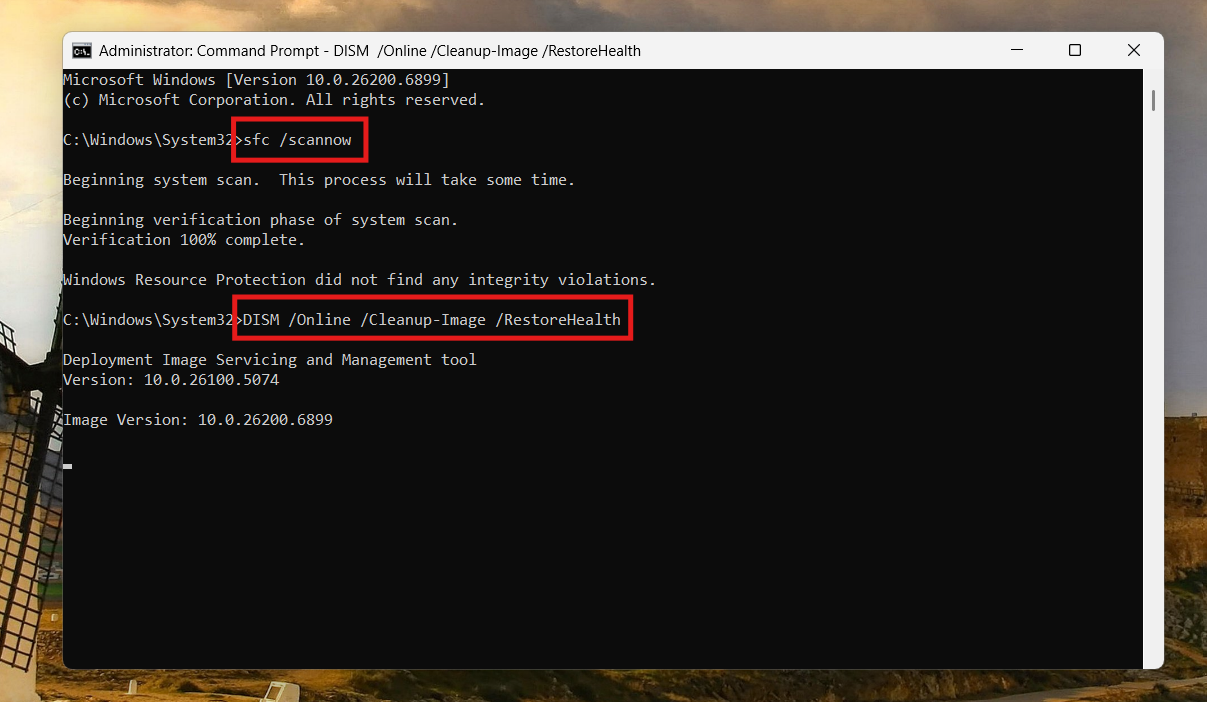
SFC fixes corrupt files locally, while DISM repairs deeper issues using Windows Update.
Fix 4: Uninstall recent Windows updates that may have triggered the crash
If the WDF_Violation error started appearing after installing updates, rolling them back can provide an immediate fix. Some updates may conflict with drivers or introduce instability.
1. Open Settings and go to Windows Update.
2. Select Update history.
3. Scroll down and choose Uninstall updates.
4. Review recent updates and remove the one installed right before the BSOD began.
5. Restart your computer to apply changes.
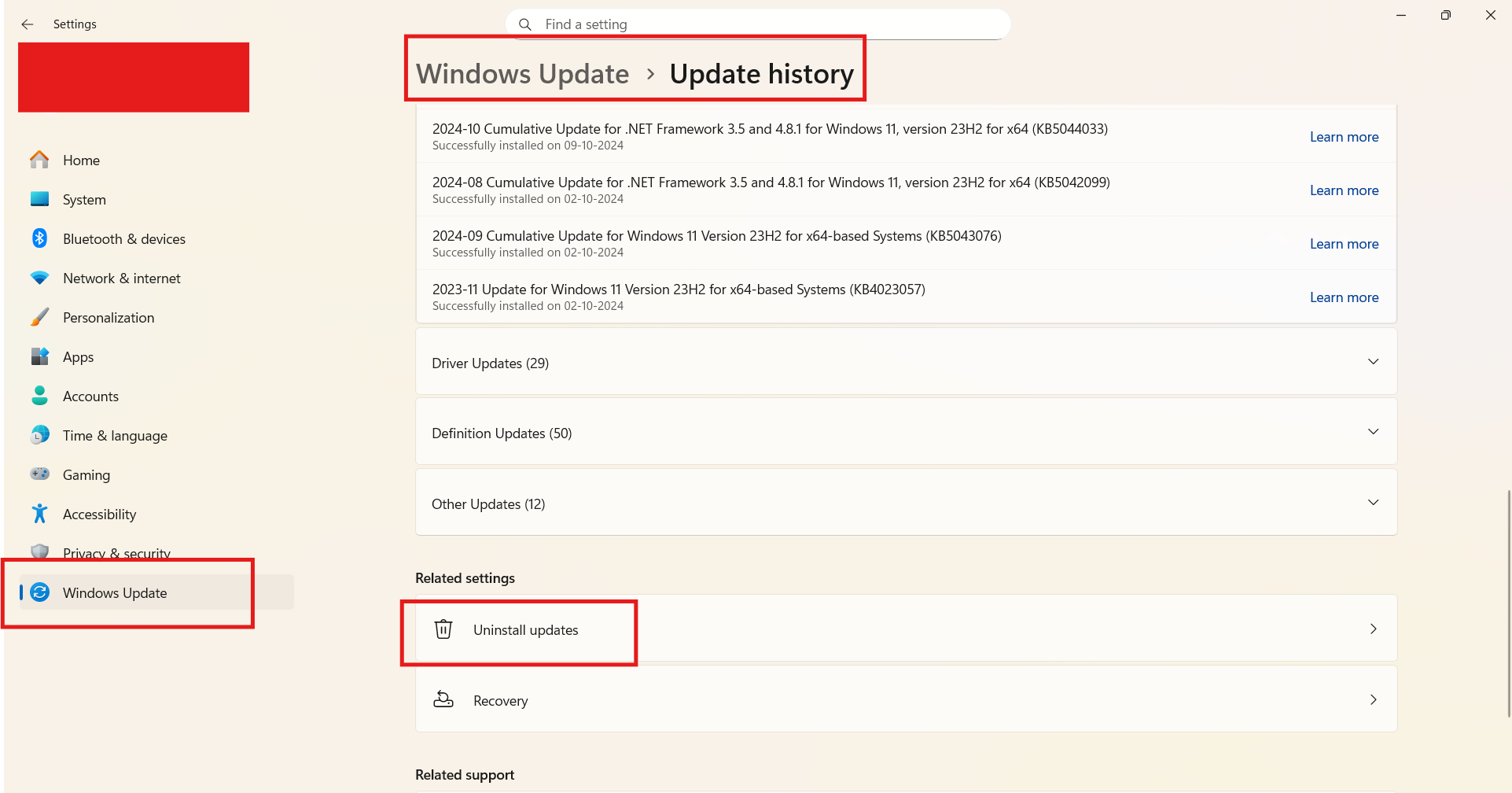
This method helps if the issue started only after a cumulative or driver update.
Fix 5: Use System Restore to roll back system changes
System Restore helps revert your system to a time before the BSOD occurred, without affecting your personal files. This is especially helpful when the cause is unclear.
1. Search for ‘Create a restore point’ and open it.
2. In the System Protection tab, click System Restore.
3. Choose a restore point created before the WDF_Violation errors began.
4. Follow the restore wizard and restart the system once completed.
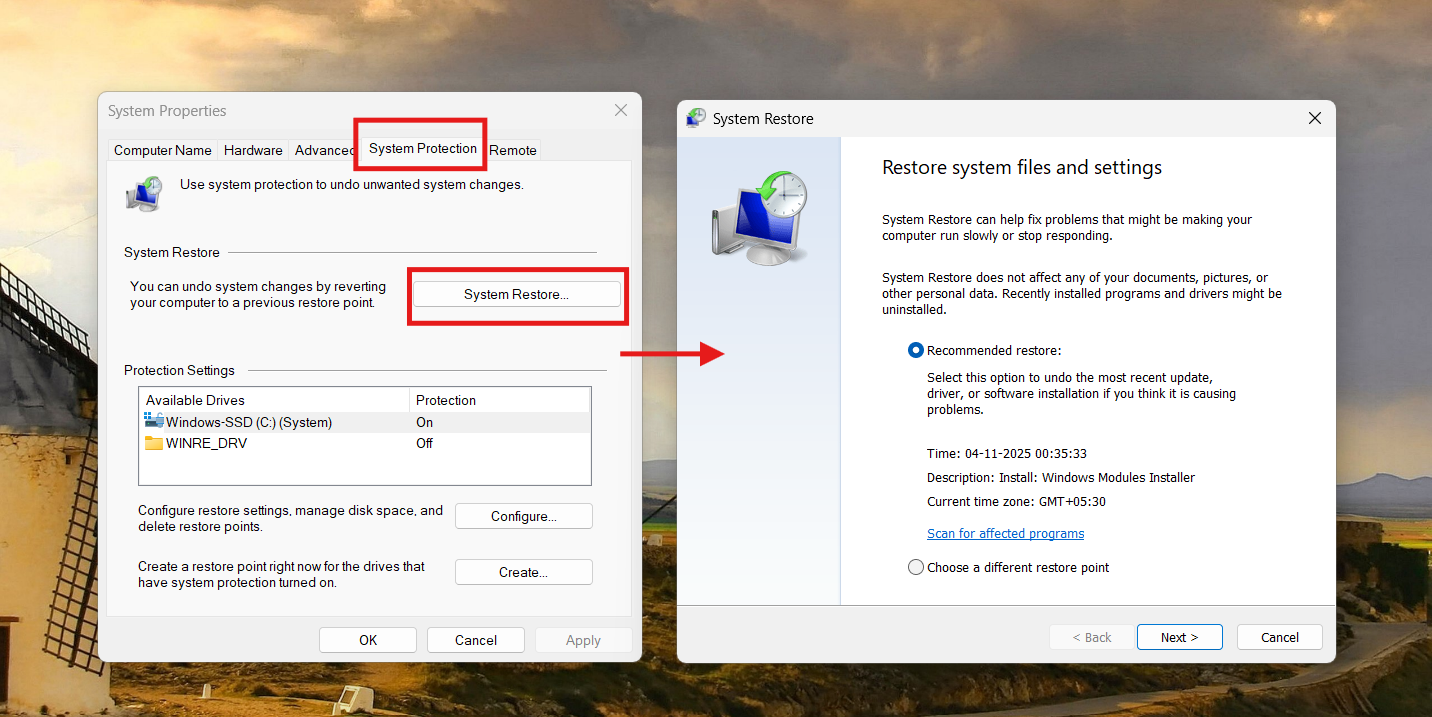
After restoring, Windows loads the older driver and system settings, often resolving the error.
Quick tips
- Keep your firmware, BIOS, and chipset drivers up to date.
- Remove untrusted USB hubs, outdated devices, or cables.
- Avoid installing multiple driver management tools at the same time.
- If your PC still crashes frequently, run hardware diagnostics through your manufacturer’s support tools.