

Need to fix error code 0x80070032 on Windows 11 and Windows 10 is important because it frequently interrupts the Windows Update process.
This error typically indicates that the request is not supported, often due to corrupted system files, disabled services, or conflicts with installed software. It may appear while installing cumulative updates or security patches, or when launching components like the Windows Subsystem for Linux (WSL).

Page Contents
Fix Error Code 0x80070032 on Windows 11/10
Fixing this error requires checking the update system, repairing essential files, and ensuring key services are running properly. The solutions below follow a systematic approach to help restore normal update functionality.
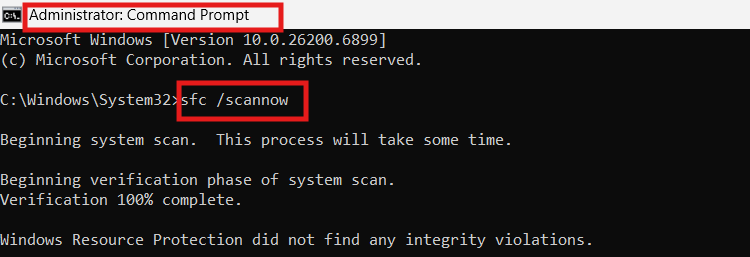
Fix 1: Repair System Files with SFC
Corrupted or missing system files often cause this error.
1. Open Command Prompt as administrator.
2. Type the command:
sfc /scannow
3. Wait for the scan to complete and restart your PC.
Fix 2: Reset Windows Update Components
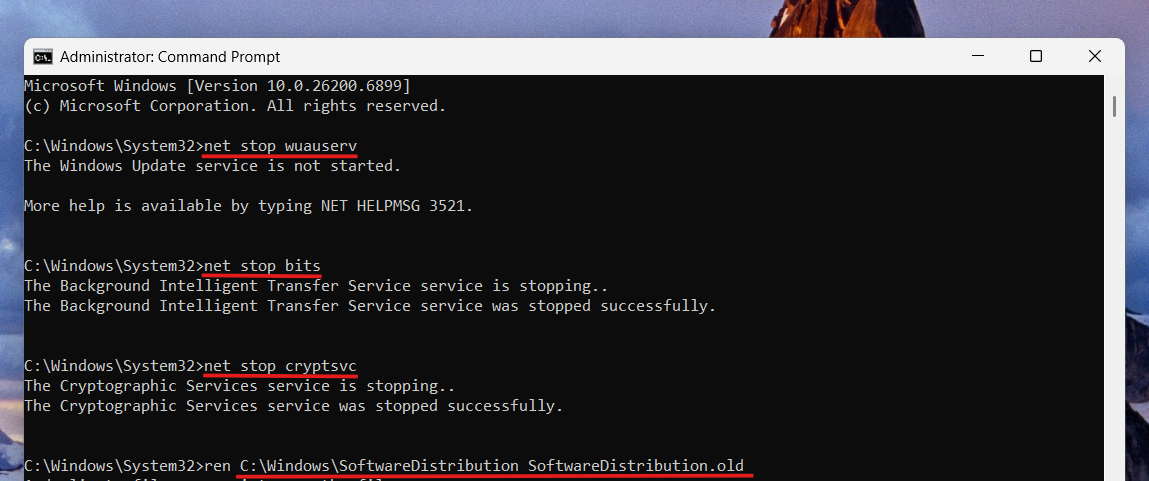
Refreshing the update cache removes corrupted or stuck files.
1. Open Command Prompt as administrator.
2. Run these commands one at a time:
net stop wuauserv

net stop bits

net stop cryptsvc

ren C:\Windows\SoftwareDistribution SoftwareDistribution.old

ren C:\Windows\System32\Catroot2 Catroot2.old

net start wuauserv

net start bits

net start cryptsvc
3. Restart the computer and try updating again.
Fix 3: Restart Important Update Services to fix error code 0x80070032 on Windows 11/10
Essential Windows services must be active for updates to install correctly.
1. Press Windows + R, type services.msc and press Enter.
2. Locate Windows Update, Background Intelligent Transfer Service (BITS), and Cryptographic Services.
3. Restart each service.
4. Set Startup type to Automatic if any service is disabled.

Fix 4: Use the Windows Update Troubleshooter
The troubleshooter can detect and fix configuration problems automatically.
1. Open Settings and go to System.
2. Select Troubleshoot and then choose Other troubleshooters.
3. Find Windows Update and click Run.
4. Apply the suggested fixes and restart your device.

Fix 5: Repair Windows Image with DISM to fix error code 0x80070032 on Windows 11/10
If SFC does not resolve the issue, DISM can repair deeper system image problems.
1. Open Command Prompt as administrator.
2. Enter the following command:
DISM /Online /Cleanup-Image /RestoreHealth
3. Restart Windows when the process completes.

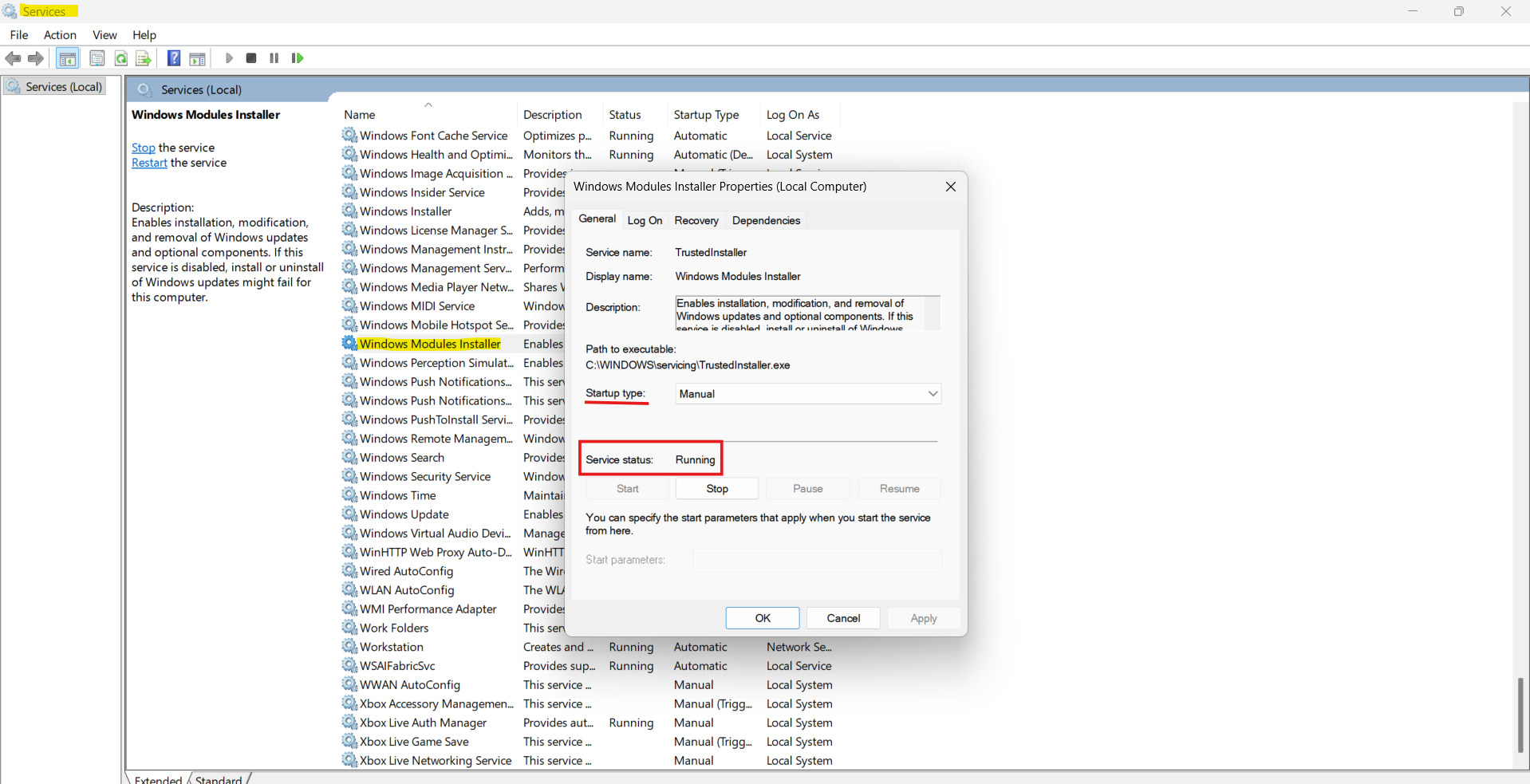
Fix 6: Enable the Windows Modules Installer
This service is required for installing updates and optional features.
1. Open the Services window.
2. Find Windows Modules Installer and open its properties.
3. Ensure the service is running and the Startup type is set correctly.
Fix 7: Perform a Clean Boot
A clean boot helps identify software conflicts that might disrupt the update process.
1. Search for msconfig and open System Configuration.
2. Go to the Services tab and select Hide all Microsoft services.
3. Click Disable all and restart your PC.
4. Try installing updates again.

Fix 8: Install the Update Manually
Manual installation can bypass temporary issues with the update system.
1. Note the KB number of the failed update from Windows Update history.
2. Visit the Microsoft Update Catalog website (https://catalog.update.microsoft.com).
3. Search for the KB number and download the correct update file for your system.
4. Run the installer and reboot.

Quick Tips
1. Make sure your internet connection is stable before running updates.
2. Disable VPN or proxy tools during troubleshooting.
3. Keep enough free disk space available for the update installation.
4. Restart your PC after applying each fix.




