

SMB1 (Server Message Block version 1) is a network protocol originally designed in the 1980s for sharing files, printers, and other resources between computers on a local network. It enables basic file and printer sharing by allowing one system to access shared folders or devices on another PC over the network. Over the years, SMB evolved into newer, more secure versions such as SMB2 and SMB3, which are now the standard in Windows networking.
Page Contents
What is SMB1 and Why You Must Disable It in Windows 11?
Although once widely used, SMB1 is obsolete and insecure, and modern Windows systems like Windows 11 no longer install it by default. Microsoft fully deprecated SMB1 due to serious security weaknesses and has encouraged users and administrators to disable it if still present.
Why SMB1 Is Risky?
SMB1 was created long before modern network security practices existed, meaning it lacks key protections such as strong encryption, integrity checks, and secure authentication. These shortcomings expose systems to a range of threats, including remote code execution and worm-style malware attacks that spread across networks. Historic incidents like the WannaCry ransomware outbreak took advantage of SMB1 vulnerabilities to infect large numbers of machines quickly.
Malware and attackers often exploit the legacy design of SMB1 to bypass security measures or move laterally within a network. For these reasons, continuing to use SMB1, especially on devices connected to the internet or broader networks, increases your exposure to cyberattacks and compromises data safety.
Why You Should Disable SMB1 in Windows 11?
Windows 11 supports newer SMB versions such as SMB2 and SMB3, which provide improved performance and strong security features. These include encryption, better authentication, reduced network chatter, and protection against modern attack techniques.
Because SMB1 is obsolete, Microsoft does not enable it by default, and in most cases, it should remain disabled unless absolutely required for legacy devices. Disabling SMB1 reduces your security risk and ensures your system relies on up-to-date and supported network protocols.
How to Disable SMB1 in Windows 11
You can remove, disable or turn off SMB1 using Windows Features or PowerShell:
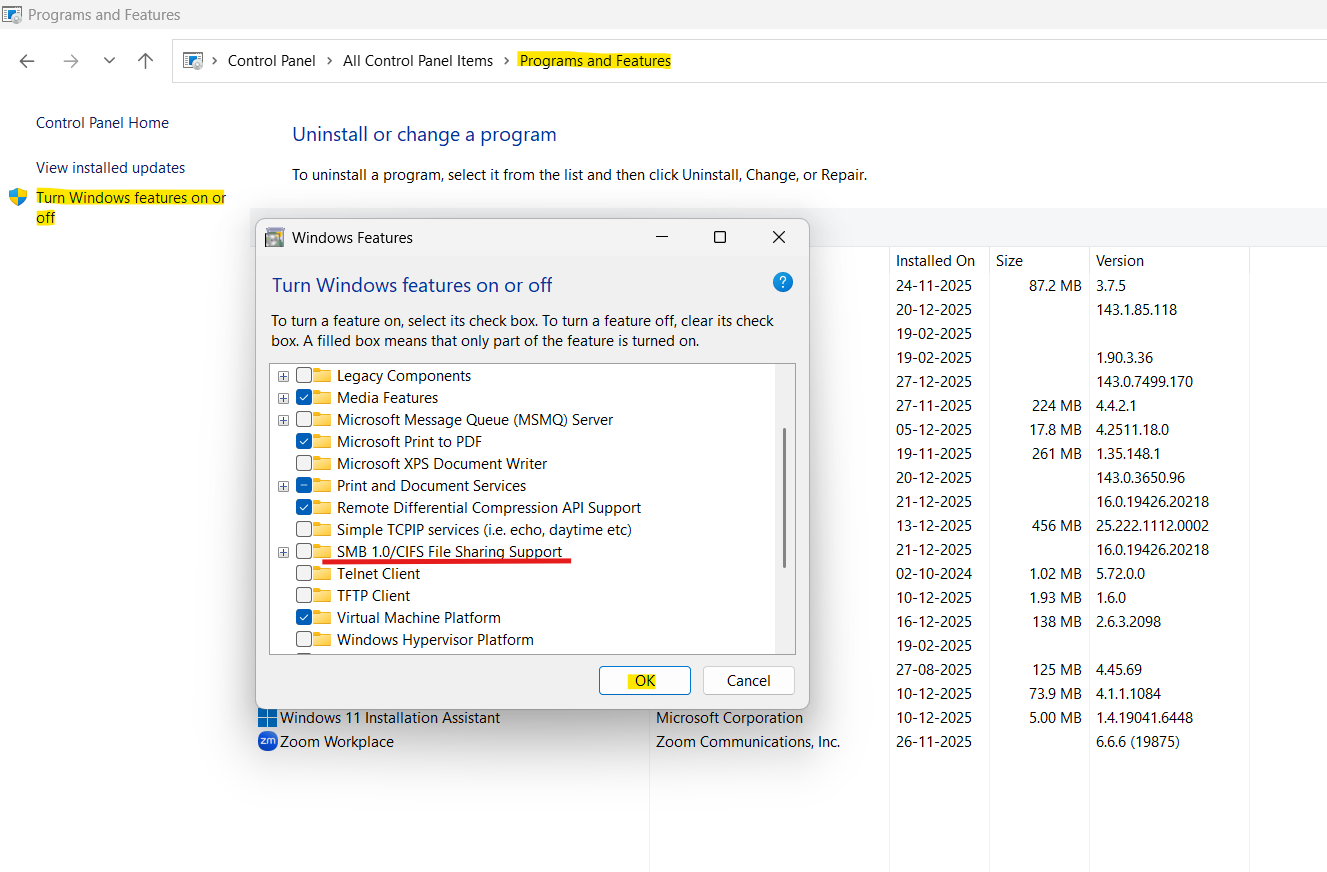
1. Open Control Panel, choose Programs and Features, and click Turn Windows features on or off.
2. Find SMB 1.0/CIFS File Sharing Support and uncheck its box.
3. Click OK, then restart your PC.
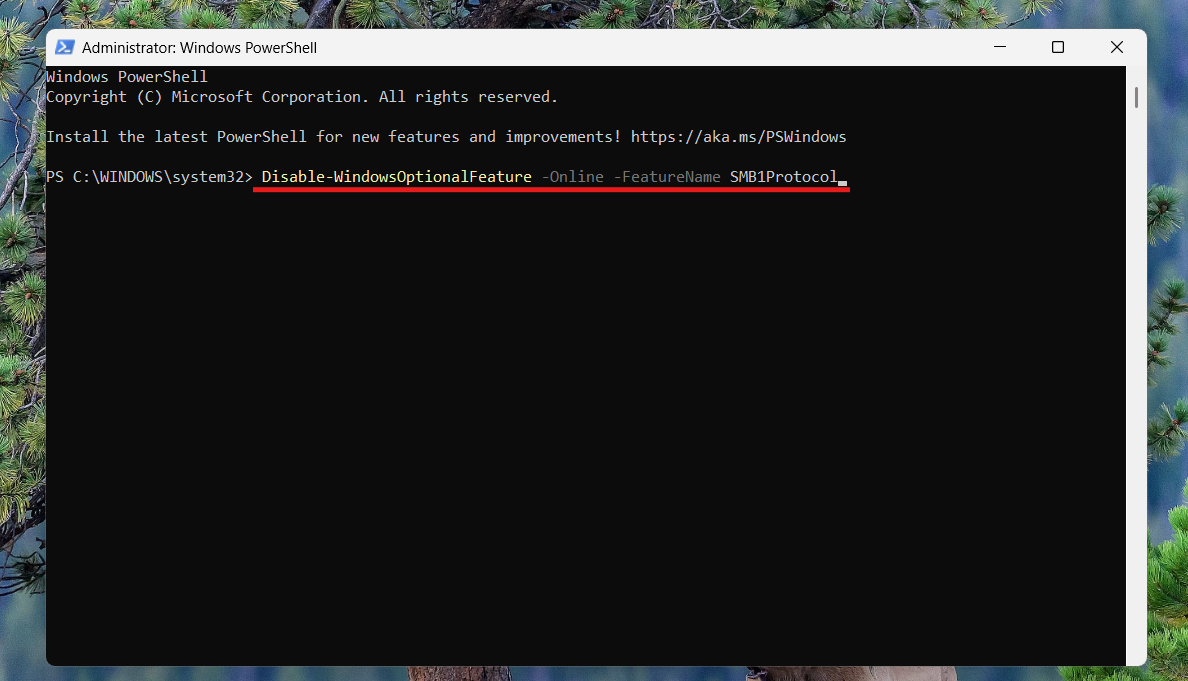
4. Alternatively, run PowerShell as administrator and use:
Disable-WindowsOptionalFeature -Online -FeatureName SMB1Protocol
5. Restart afterwards so the change takes effect.
Quick Tips
1. Consider upgrading legacy hardware or firmware that depends on SMB1 to use SMB2 or SMB3.
2. Disabling SMB1 helps protect your PC and network from known malware and exploitation techniques.





