

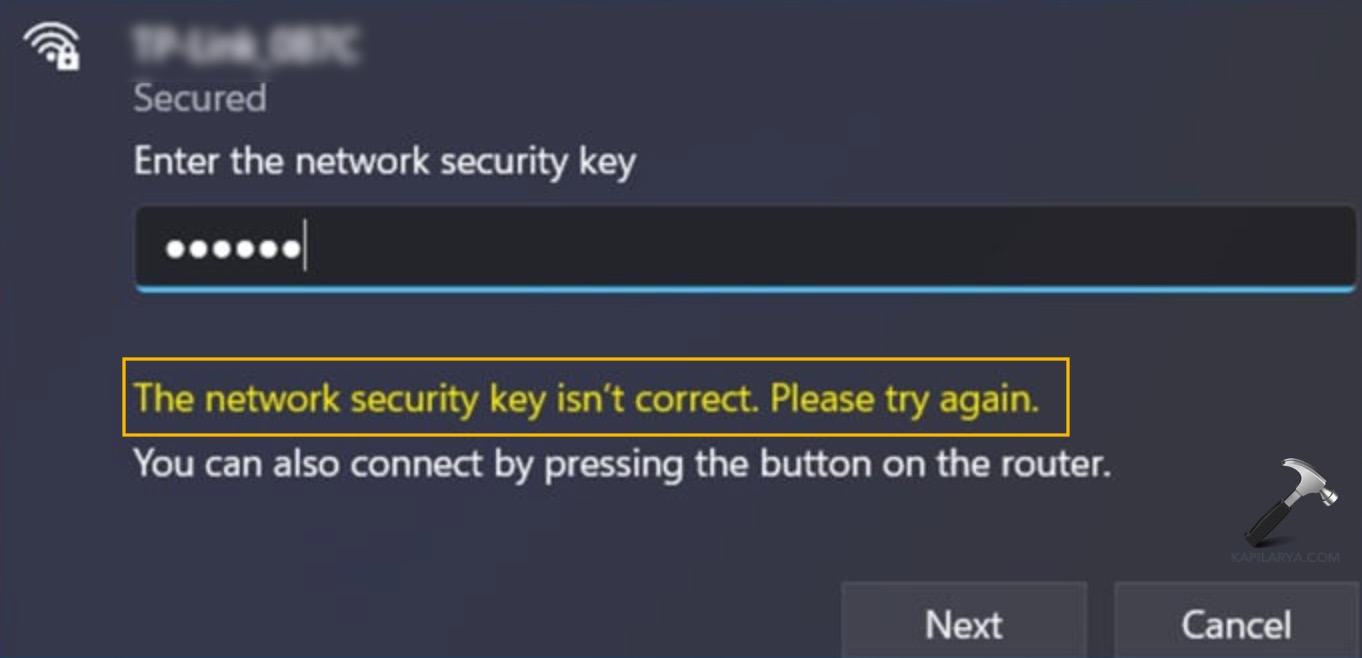
When Windows 11 prompts The network security key isn’t correct while trying to connect to a Wi-Fi network, it usually means your PC cannot successfully authenticate with the router. This can happen even if you are certain the password you entered is right.
Page Contents
Fix: The Network Security Key Isn’t Correct in Windows 11
The issue commonly arises due to outdated network profiles, corrupted settings stored in Windows, router glitches, or driver problems. Below are reliable methods to fix this error step by step.
Fix 1: Forget and Reconnect to the Network
Your PC may be storing an old or incorrect password profile.
1. Open Settings and go to Network & Internet, then choose Wi-Fi.
2. Tap Manage known networks.
3. Find your Wi-Fi network and click Forget.
4. Restart your PC, select the same network again, and enter the correct network security key when prompted.
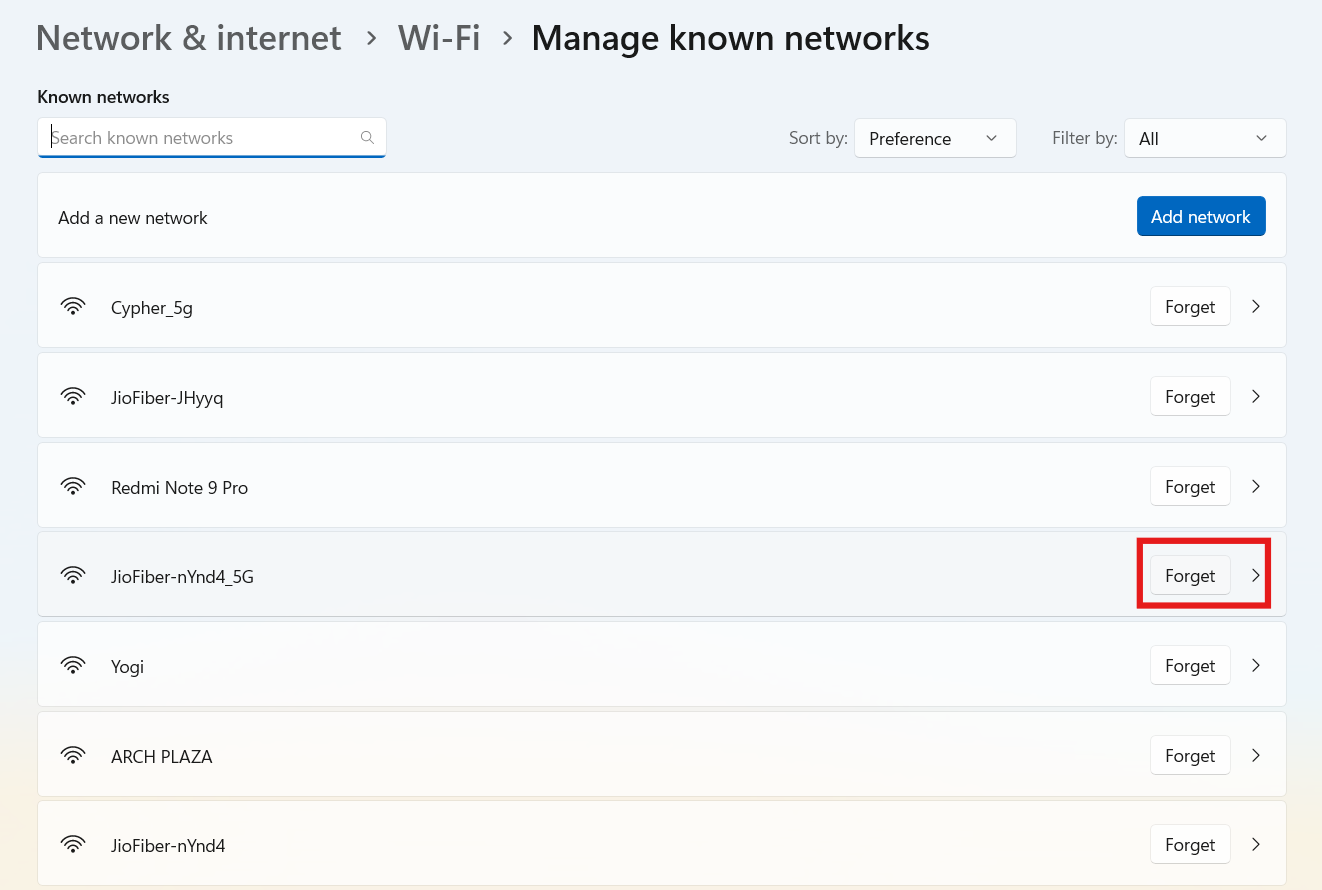
This removes the old profile, allowing Windows to establish a new connection with the correct information.
Fix 2: Restart Your Router
Temporary glitches in your router can disrupt authentication.
1. Turn off your wireless router and modem.
2. Wait about 30 seconds.
3. Power them back on and wait for the network lights to stabilize.
4. Try connecting again from your PC and re-enter the security key.
A router reboot refreshes its internal settings and resolves many connection hiccups.
Fix 3: Update or Reinstall Network Drivers
Outdated or corrupted network drivers can block Wi-Fi connections.
1. Open Device Manager and expand Network adapters.
2. Right-click your wireless adapter and choose Uninstall device.
3. Restart your PC so Windows reinstalls the driver automatically.
4. After reboot, try connecting to Wi-Fi again with the correct key.

This ensures the driver is clean and up to date.
Fix 4: Reset Network Settings
Windows network settings may become corrupt over time.
1. Open Settings and go to Network & Internet.
2. Select Advanced network settings, then Network reset.
3. Click Reset now and let Windows complete the process.
4. Reconnect to your Wi-Fi network with the correct security key.

This clears all network configurations and often fixes stubborn connection errors.
Fix 5: Check Router Security Mode and Password
Sometimes the router’s security settings are incompatible with your PC.
1. Log into your router’s web interface using its IP address in a browser.
2. Navigate to Wireless or Security settings.
3. Verify the security mode is set to WPA2-Personal (AES) or WPA3 if supported.
4. Make sure the password matches what you enter on your PC.
5. Save changes, then reconnect from Windows.
Matching security modes and correct keys resolves most authentication errors.
Quick Tips
1. Always double-check the network security key you type, watching for case sensitivity and characters like O vs 0.
2. Use a stable network frequency (try switching between 2.4 GHz and 5 GHz if both are available).
3. Keep your PC and router firmware updated to prevent compatibility issues.





