Windows was unable to boot the Microsoft Defender Antivirus service – in case this error message is preventing you to use your device safely, follow this article. This problem occurs to many Windows 11/10 users when Microsoft Defender does not start, breaks down, or simply vanishes.
Because the Microsoft Defender Antivirus service is the built-in protection of your system against viruses, malware, and ransomware, this issue is an emergency to the security of your device.
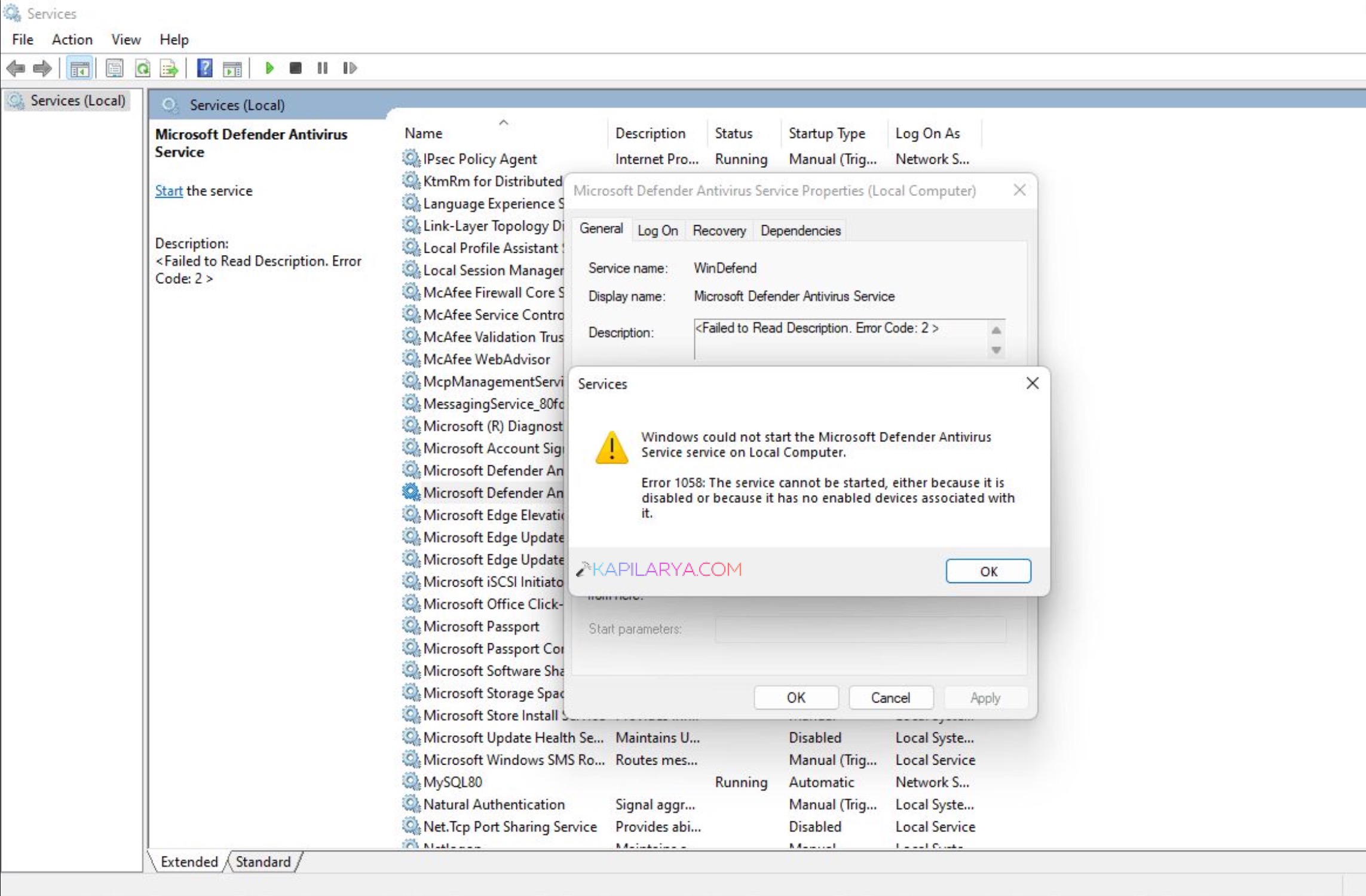
Hence, this guide will take you through the step-by-step troubleshooting and practical solutions to start Windows Defender and resolve this problem.
Page Contents
Important Note
- Having two antivirus software running simultaneously may result in the complete shutdown of Windows Defender. This is not a bug; it is a Windows security rule.
- To ensure that Microsoft Defender runs well, you should first disable or uninstall your third-party antivirus.
Fix Windows could not start the Microsoft Defender Antivirus service
The error of Windows not starting the Microsoft Defender Antivirus service is not new and can be easily resolved by taking the correct troubleshooting steps.
Fix 1: Use DISM Commands to Repair System Image
When Windows Defender services fail because of corrupted system image files, then DISM is normally used to resolve the problem.
1. Press Win + S, and type in cmd. Click on the right-hand menu Command Prompt and choose Run as administrator.

2. Execute them one after another:-
DISM /Online /Cleanup-Image /ScanHealth
DISM /Online /Cleanup-Image /RestoreHealth

Restart the computer/laptop. This is a solution to broken Windows components that usually frees the Windows error of could not start the Microsoft Defender Antivirus service.
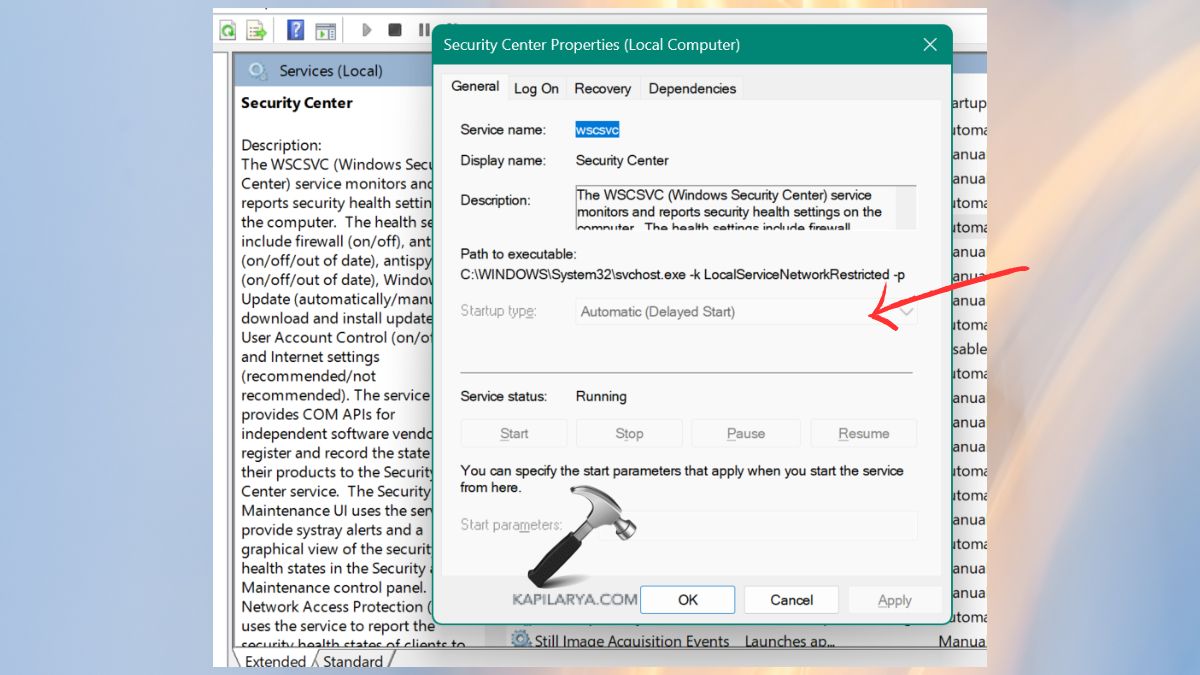
Fix 2: Restart the Security Center Service
Windows Defender is the service that is dependent on Security Center. Defender will not open or start in case it is disabled.
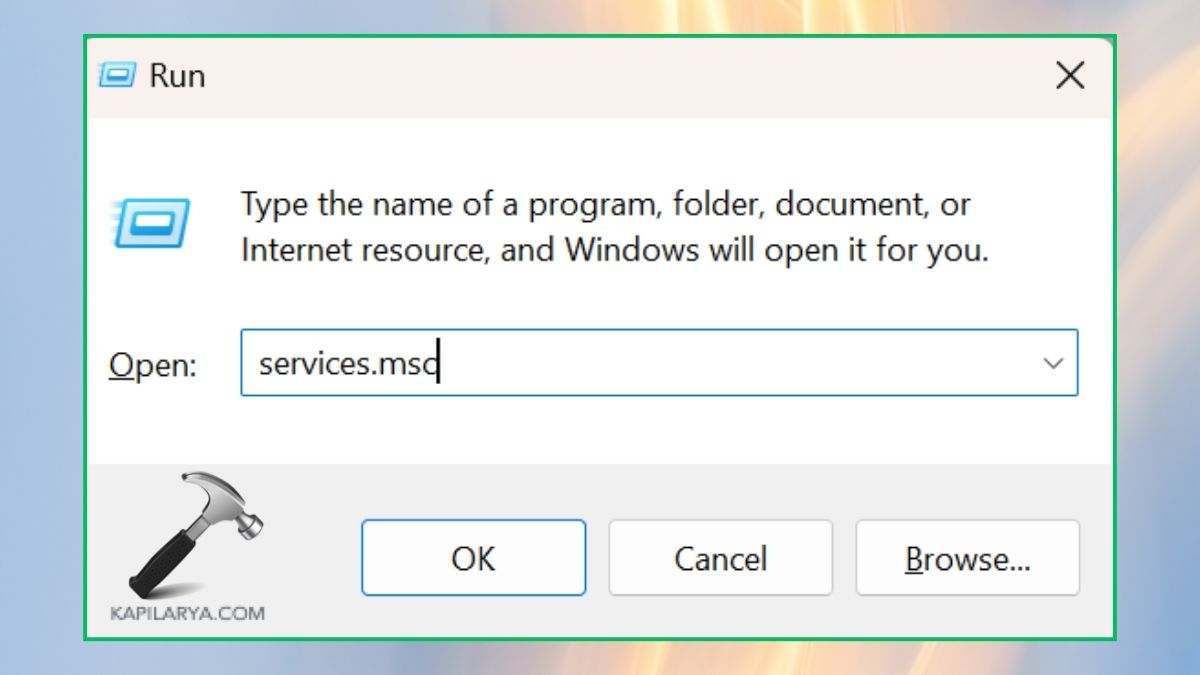
1. “Win + R” – press this command on the keyboard and enter:-
services.msc
2. Find Security Center. Double-click it.

3. To set up the Startup type as Automatic. Click Start > Apply > OK.
Reboot your PC and use Microsoft Defender again.
Fix 3: Turn On Real-Time Protection
Occasionally real-time protection option is switched off because of glitches in the system.
1. Open the Windows Security.
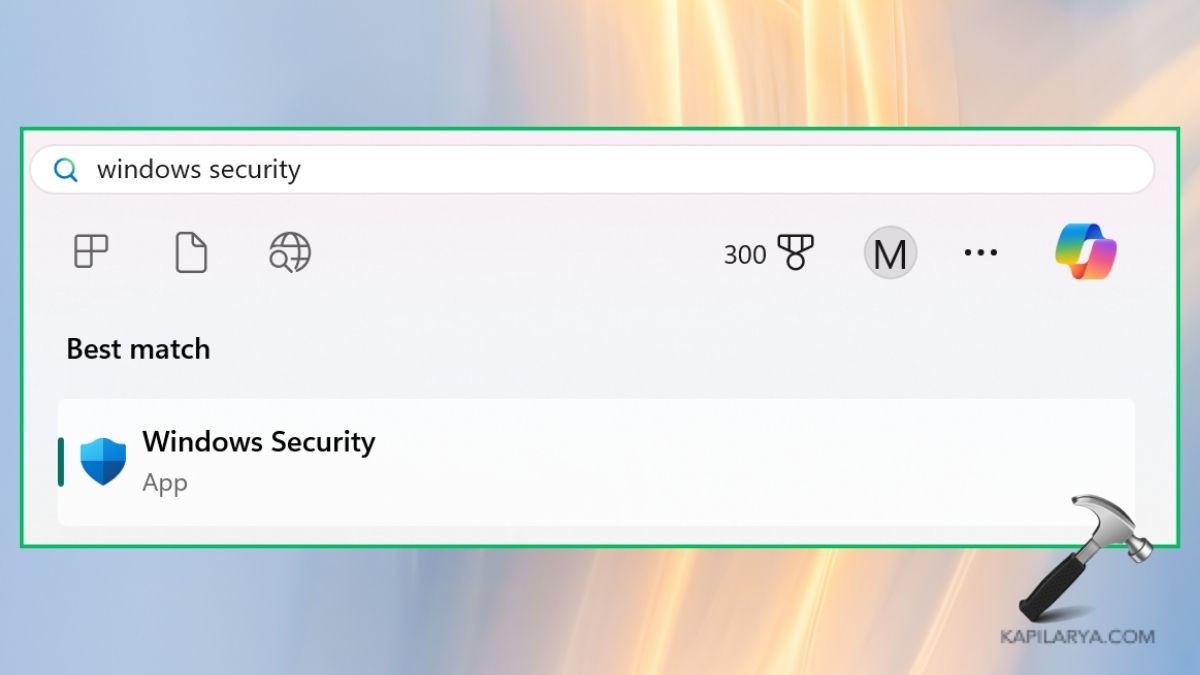
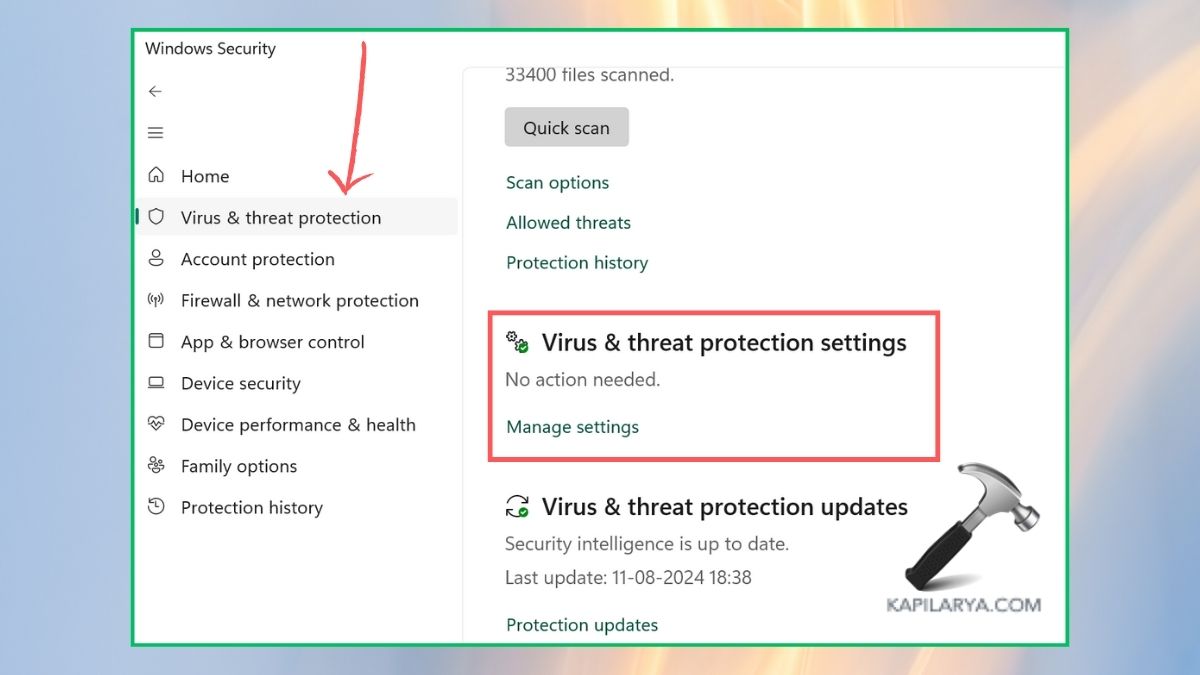
2. Choose the Virus & threat protection.

3. Click Manage settings.
4. Click “ON” for Enable Real-time protection.
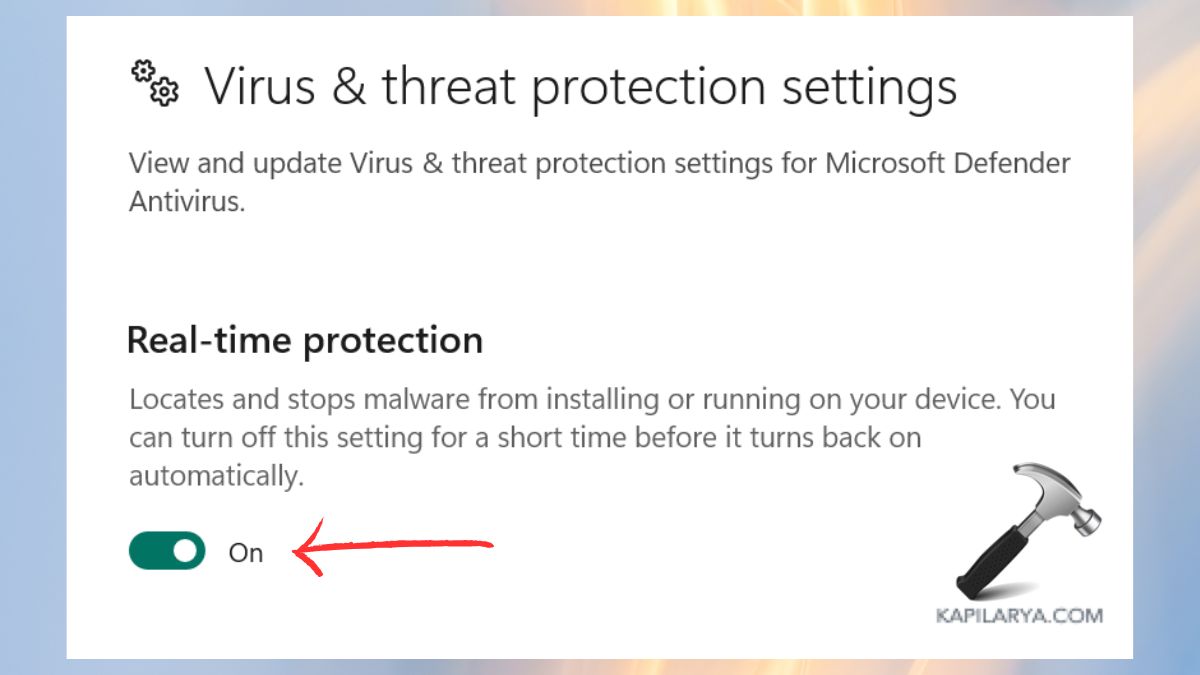
Restart your system. This is a simple fix of an error when using this setting.
Fix 4: Restore Corrupted System Files Using SFC
Defective Windows files would render Microsoft Defender useless.
1. Open Command Prompt as Administrator once again.
2. Run this command:-
sfc /scannow

Allow time to pass until the scan is complete.
Restart your device. SFC scan recovery recovers valuable system files needed by the Defender Antivirus service.
Fix 5: Update Windows to the Latest Version
When using an older build, then Microsoft Defender may not work properly.
1. Click to open settings and then Windows Update.
2. Select Check for updates.

Install all possible updates. Restart your PC. This works to update the definitions of Defender and addresses bugs.
Frequently Asked Questions (FAQs)
Why is Microsoft Defender Antivirus not starting?
This can be caused by corrupt system files, third-party antivirus software interference, services disabled or by broken Group Policy/Registry settings.
Is Microsoft Defender enough to protect my PC?
Yes, to the majority of the users, Microsoft Defender offers good protection, particularly when real-time protection and cloud-based protection are turned on.
Should I uninstall my third-party antivirus to use Microsoft Defender?
You can reboot your computer and see if your antivirus has rendered Defender useless, or in that case, you may have to remove or temporarily disable it to get Microsoft Defender running again.
What if none of the methods works?
You may attempt to run a Windows Repair Upgrade, reinstall Windows components, or use a professional troubleshooting utility.
In case you continue getting the error, Microsoft Defender Antivirus Service won’t start, copy and paste your error message verbatim in the comments section, as we get back to you as soon as possible and can fix it specifically.
That’s it!