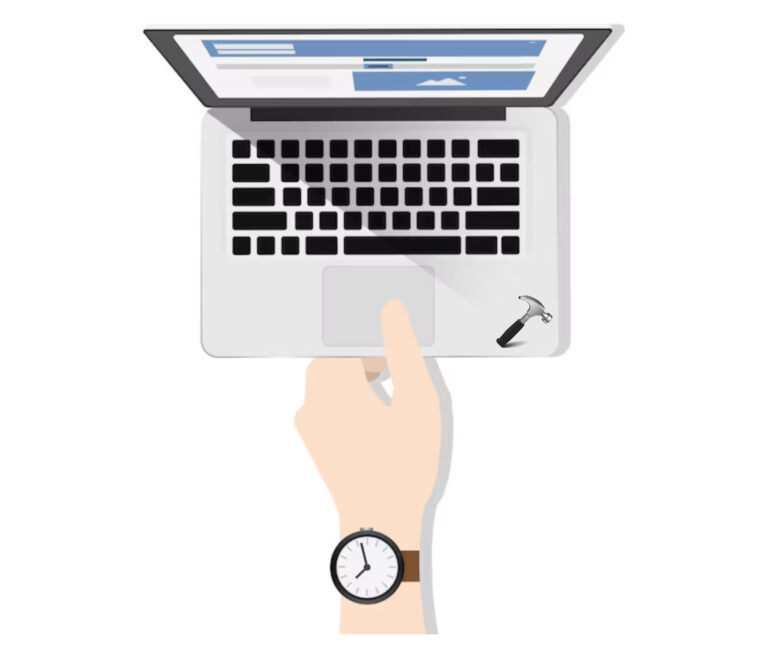
If your ASUS laptop touchpad is not working or responding in Windows 11, the problem is often due to settings, driver issues, or accidental disablement. It is rarely a hardware fault.
Page Contents
Fix ASUS Laptop Touchpad Not Working
Try the following five solutions in order, one by one, until your touchpad works again.
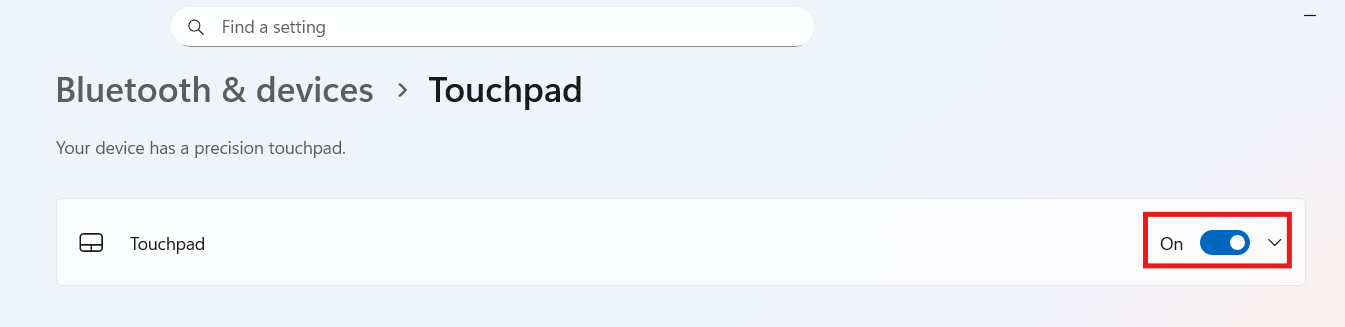
Fix 1: Make sure the touchpad is enabled in Settings
1. Open Settings and go to Bluetooth & devices, then Touchpad.
2. Ensure the Touchpad toggle is switched On.
3. If you use an external mouse, also check the option Leave touchpad on when a mouse is connected.
4. Restart the laptop and test the touchpad.
Fix 2: Update or reinstall the touchpad driver
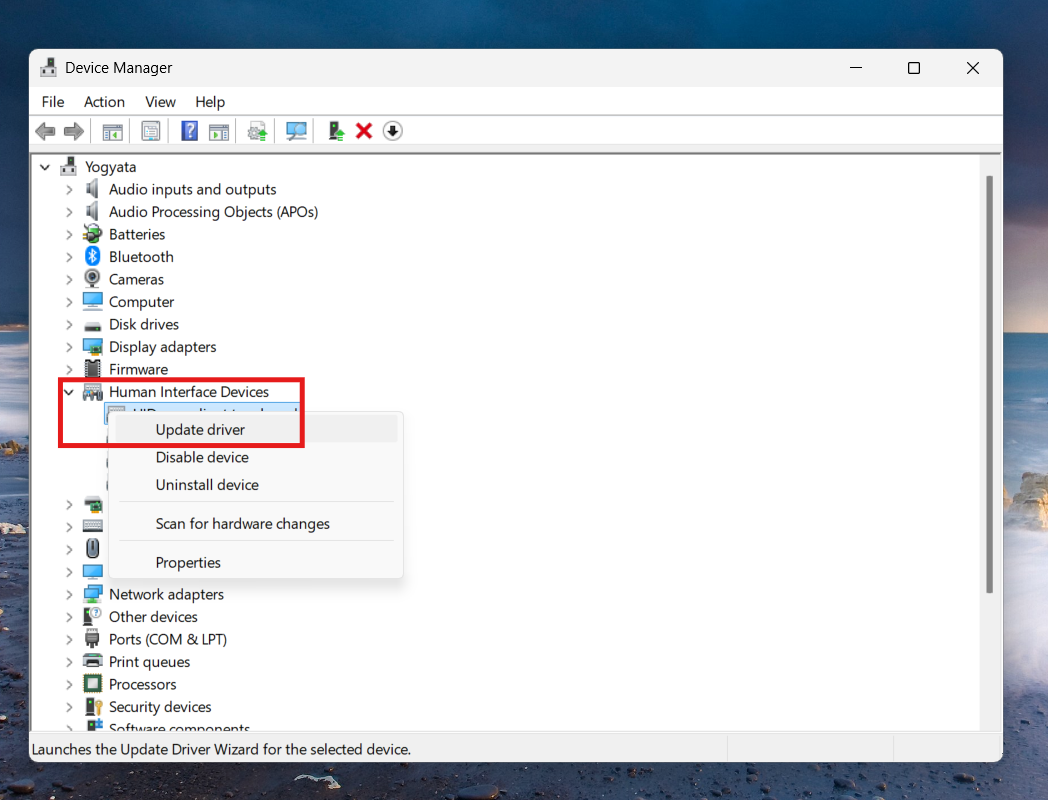
1. Open Device Manager.
2. Expand either Human Interface Devices or Mice and other pointing devices (depending on your model).
2. Right-click the touchpad driver (for example, ASUS Precision Touchpad) and choose Update driver, then Search automatically.
3. If the update does not help, right-click and select Uninstall device, then reboot. Windows will reinstall the driver.
Fix 3: Unlock the touchpad in the MyASUS app or using hotkey
Open the MyASUS app (pre-installed or available via Microsoft Store).
1. Go to Device Settings, then Touchpad, and make sure the touchpad is not locked/disabled.
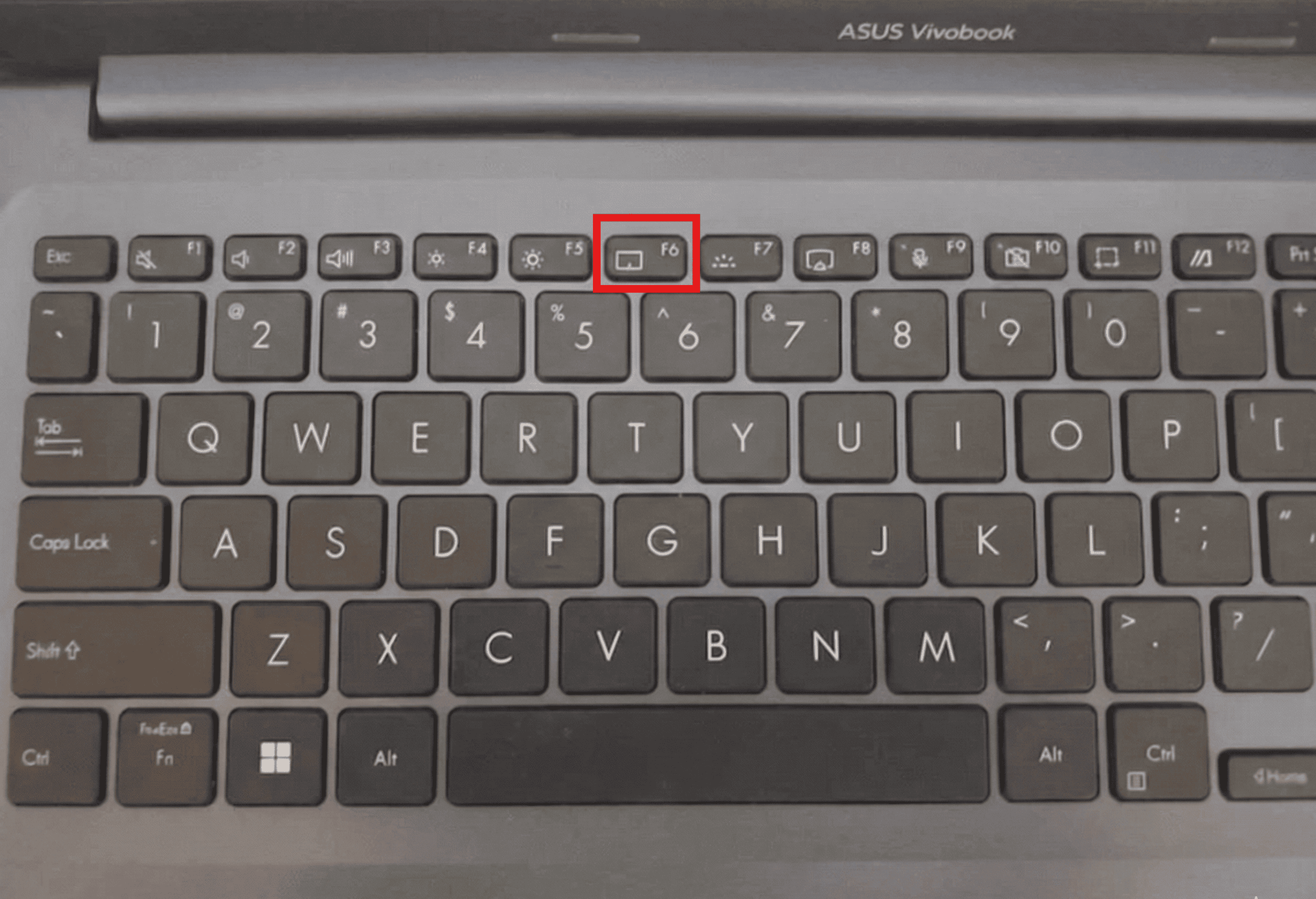
2. Some ASUS laptops include a function (Fn) key for toggling the touchpad. Look for a touchpad icon and press that key.
3. Once unlocked, test the touchpad again.
Note: The Hotkey is usually F6 on ASUS devices.
Fix 4: Reset BIOS or firmware settings
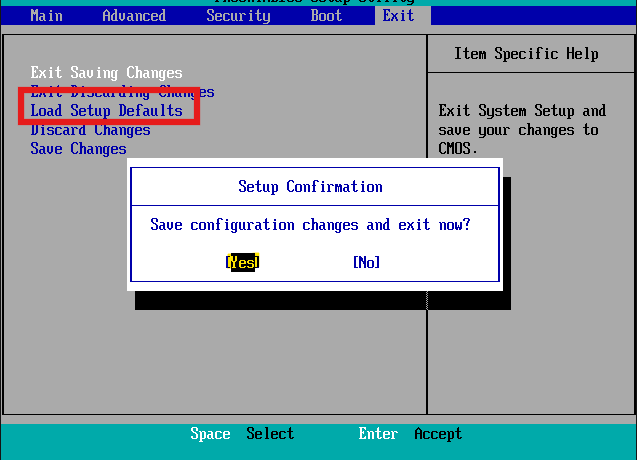
If touchpad issues began after a BIOS change, resetting the BIOS to the defaults may help.
1. Restart your laptop and enter BIOS setup (usually by pressing Esc, F2, F10, or Delete depending on model).
2. Choose to Load Setup Defaults (or equivalent), save and exit.
2. Let Windows boot and check whether the touchpad works again.
Fix 5: Remove interfering apps or software conflicts
Third-party software, especially utilities that alter input behaviour or gesture control, sometimes conflicts with ASUS touchpad drivers.
1. Check installed applications (Settings, then Apps) for recently added software around the time the problem started.
2. Uninstall any suspect tool, restart your PC, then test the touchpad.
Quick tips
1. Always reboot after applying a fix before retesting.
2. If you have an external mouse connected, disconnect it to ensure the touchpad is not automatically disabled.
3. Keep Windows updated. Sometimes, Microsoft patches can restore driver compatibility.