

Earlier, we’ve seen how to make clean installation of Windows 10 in our following guide:
How to make clean install of Windows 10
If you’re making clean install, the most important step is to select the edition you want to install. In past, we can download Windows ISO files or setup for specific editions. Hence there was no need to choose Windows edition during clean install.
But nowadays Microsoft provides single ISO file containing multiple Windows 10 editions. Hence it is quite important that Windows edition selection screen shown below should appear:
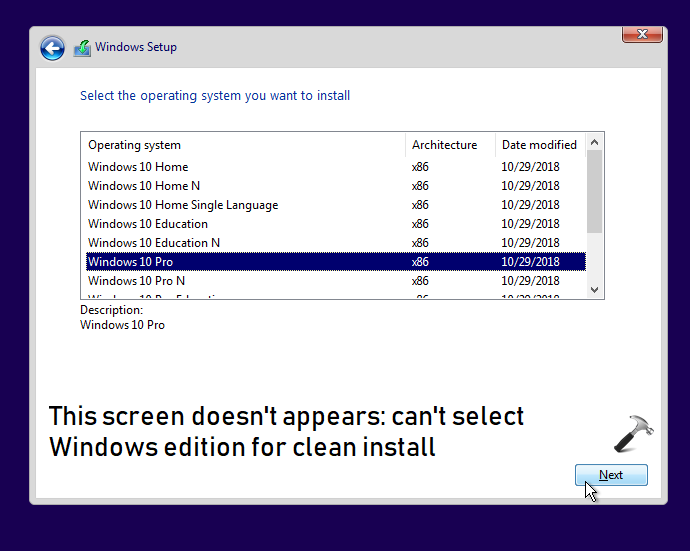
In case if you’ve a machine which came with Windows 10 pre-installed, the above shown screen won’t appear on it, if you’re making clean install of Windows 10 on the machine. This is because the machine has Original Equipment Manufacturer (OEM) license installed, which is tied to the motherboard. This OEM license is usually for single Windows edition (for example, Home edition). Hence when you make clean install, setup use OEM license information and directly install the pre-installed edition and never asks you to select Windows edition.
To allow choosing Windows 10 edition during clean install, you need to perform below mentioned workaround.
FIX: Can’t Select Windows 10 Edition During Clean Installation
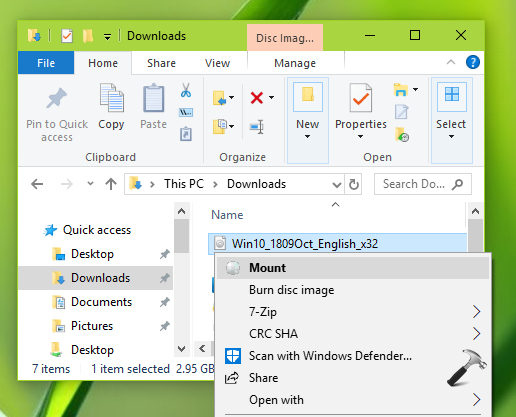
1. Go to any working Windows computer and open File Explorer, locate your Windows 10 ISO file and right click on it, select Mount.
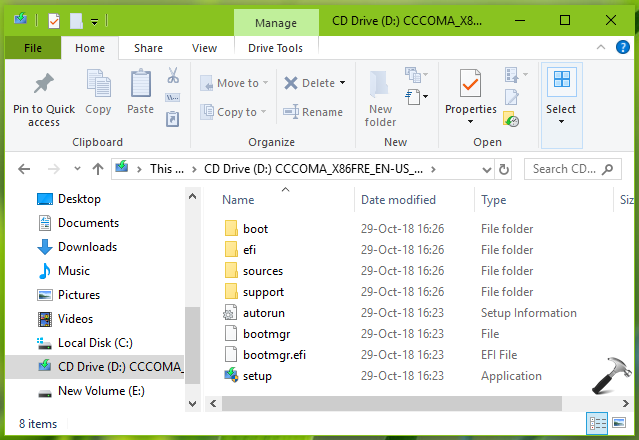
2. You should now see DVD/CD drive labelled entry under This PC. This drive actually contains your ISO file in decompressed form.
3. Close/minimize File Explorer and Notepad application (run notepad command).
4. In Notepad window, type following:
Retail
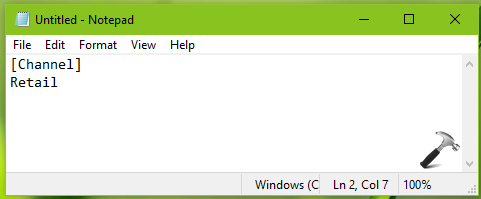
5. Click File > Save As and browse to DVD/CD drive where your Windows 10 ISO file is mounted. Open sources folder and then save Notepad file with "ei.cfg" name. Select All File for Save as type and click Save.
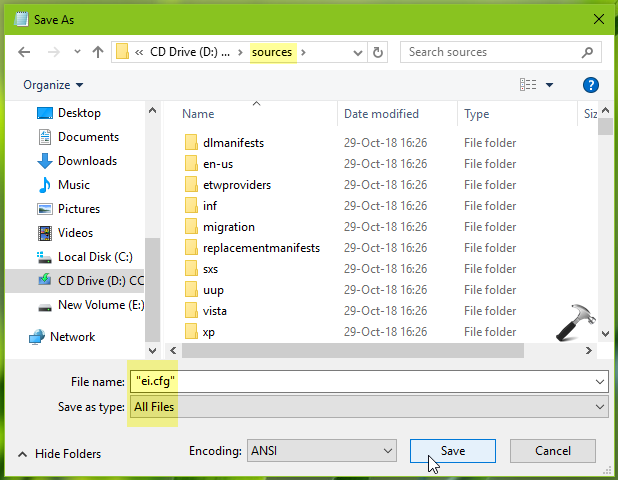
6. You can now directly create a bootable USB with mounted ISO file contents using this guide. Once your bootable USB drive is ready, you can go ahead with clean install. This time you’ll be able to select your desired Windows edition and install it.
Here’s the video illustration for this fix:
Hope this helps!




says I can’t save in mounted drive?
^^ Save it to Desktop and then move file to ‘sources’ folder.
My problem is:
I bought a product key online. I followed the instructions, downloaded win 10. Toshiba Satellite laptop, original win 7 home. When installing from either ISO or USB, I get the following error:
0x800700B7-0x2000E
Installation failed during SAFE OS phase, error occurred during SET_PRODUCT_KEY operation
How do I upgrade my laptop?
^^ This might occur due to bad media. Please download Windows 10 from official Microsoft site as mentioned here: https://www.kapilarya.com/download-latest-windows-10-iso-files. Also make sure BIOS is up-to-date and your system supports Windows 10 requirements:
I did everything as you asked. It does not give the choice of home or pro during installation. It restarts several times during configuration. An error message is then given in each case:
0x800700B7-0x2000E
Installation failed during SAFE OS phase, error occurred during SET_PRODUCT_KEY operation.
Bios version updated. The problem persists.
The problem is,don’t have to enter a license key. The installation does not even get there.
https://www.kapilarya.com/how-to-upgrade-to-windows-10-using-iso-file
7. After reboot, you will see the Upgrading Windows. Here there are three sections and after completing each section, PC will restart. When this screen reaches to 100%, system will finally reboot.
In all cases, this error occurs at this point after the first reboot.
Then everything is cleared and windows 7 home premium restarts.
It didn’t work for me either. I still haven’t try step 7 thought
Thanks Kapil.
Worked will a Dell Precision T3420 and WIndows 10 home OEM.
^^ Glad to help Adam!
Hi. I did everything you explained, and created the usb boot, but when I get the menu “where do you want to install windows, all the places are allocated to a drive partition that is already part of the GPT partition style, or it has to be installed to a partition formatted as NTFS. There is no drive not allocated as you show in your example. Even more, the menu choices win professional is not shown. :(
This method as outlined did not work for me. Windows would not let me paste the “ei.cfg” file into the Sources folder of the mounted ISO. So I pasted it to the desktop as someone else suggested, which removes the quote marks of course. When I went to paste it into the mounted ISO file I was told that there wasn’t enough room in the Sources folder. So, on a whim I pasted it into the x64/Sources and also the x86/Sources folder on the USB installer I had already made up with Media Creation tool. I was told the file already existed so I opted to replace it. Guess what? It worked! A much simpler solution than that outlined by Kapil Arya. His contribution, though was appreciated in the creation of the ei.cfg file using Notepad.
^^ Glad the issue was sorted for you, Harry 😊
i try to install win 10 from win 7 but the code i enter is not recognized
^^ Free upgrade no longer works.
It works… Using ‘save as’. Thanks 👍
^^ Glat to help Edo 😎
if you are having trouble saving the file inside the .iso, save the .cfg file somewhere and then use 7zip to open the .iso and drag the file to the Sources folder inside.
^^ Thanks for adding this rodney!
And if 7Zip doesn’t allow you to insert the file, try ANYBURN (“Edit Image File”) and then add the ei.cfg file to the Sources folder and resave the ISO.
^^ Thanks for adding this 😎
Worked like a charm
^^ Glad it helped 😎
Worked a treat, many thanks :-)
^^ Glad it worked 😊