

We all know that Windows Spotlight feature displays beautiful wallpapers on your lock screen and changes with new wallpaper everyday. If you’re on Windows 10 Version 1511 or later, you can enable this feature from Settings app > Personalization > Lock Screen.
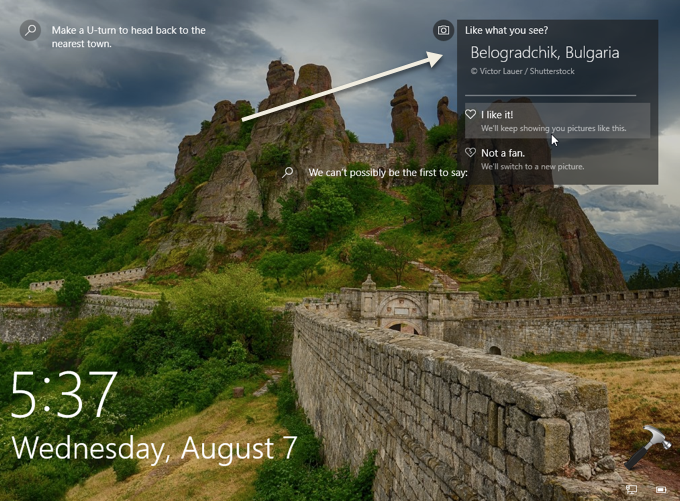
When you see Windows Spotlight wallpaper on lock screen and hover cursor over this wallpaper, you’ll spot ‘Like what you see‘ option. Clicking this option provides you the pathway to receive similar kind of wallpaper or deny, if you don’t like the wallpaper. In case if ‘Like what you see’ option is missing for you, here is how to restore it back.
Page Contents
FIX: ‘Like What You See’ Missing For Windows Spotlight
FIX 1 – Via Lock Screen Options
1. Right click Start Button or press  + X keys and select Settings.
2. In the Settings app, navigate to Personalization > Lock screen.
3. Now in right pane of Lock screen, under Background, set the option to Picture. Then restore back this option to Windows Spotlight again.
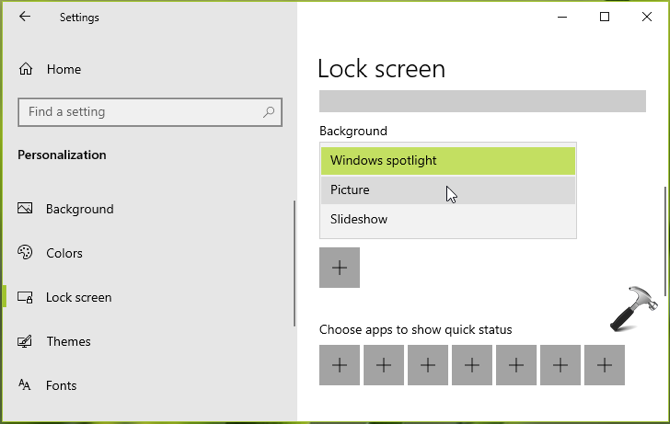
4. Press + L keys and check if ‘Like what you see’ option is restored now.
If issue still persists, see FIX 2 below.
FIX 2 – Via Registry
It is strongly recommended that you create a System Restore point first before editing registry.
1. Press + R and put regedit in Run dialog box to open Registry Editor (if you’re not familiar with Registry Editor, then click here). Click OK.
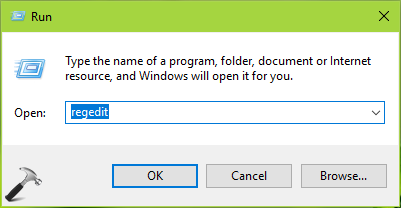
2. In left pane of Registry Editor window, navigate to following registry key:
HKEY_CURRENT_USER\SOFTWARE\Microsoft\Windows\CurrentVersion\Lock Screen\Creative
3. In the right pane of Creative registry key, double click on LockImageFlags registry DWORD (REG_DWORD) to modify its Value data.
4. Now change the Value data from 1 to 0 and click OK. Close Registry Editor and reboot.
After restarting your system, the issue must be resolved.
FIX 3 – Re-register Windows Spotlight
In case if FIX 1 & 2 can’t solve your problem, you can then try to re-register Windows Spotlight feature. Refer this guide:
How to re-register Windows Spotlight in Windows 10
We hope after re-registering Windows Spotlight, finally ‘Like what you see’ option will be restored.
Let us know via your comments, if you still have this issue present on your system!


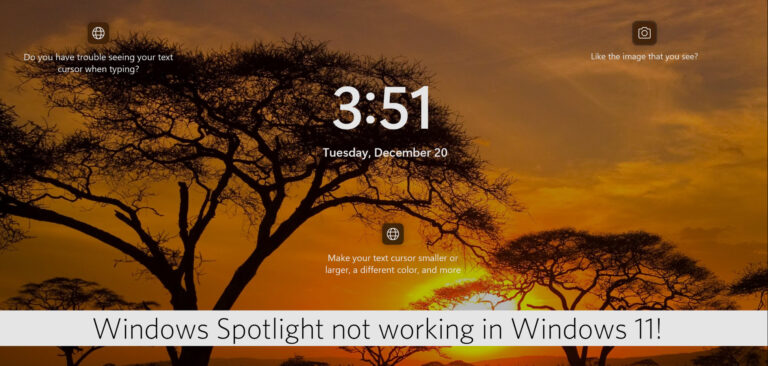



Neither of these have worked for me. I get the change of pictures but no Like What You See’
^^ Have you also tried solutions at https://www.kapilarya.com/fix-windows-spotlight-not-working-in-windows-10?
Non of the above worked for me. Nor How to re-register Windows Spotlight in Windows 10 or https://www.kapilarya.com/fix-windows-spotlight-not-working-in-windows-10… The Pictures are changing. The “Like what you see?” and the info about the picture is still missing…
^^ Try in-place upgrade and see if it helps: https://www.kapilarya.com/how-to-repair-windows-10-using-in-place-upgrade.