

All of a sudden, the Left click not working or ceases to perform any action with Windows 11 when you are tasked with an important step to complete. It is as though your entire PC has frozen, not that the system is slow, but rather that it is just that one single click does not respond. When a person realizes that the mouse stops working, most of them immediately suppose that it is dead.
The reality is, however, 90 percent of the time the problem is within Windows and not within the hardware. This is the very reason we have drawn up this step-by-step, easy to follow, guide to enable you correct the problem, without having to replace a component that is not required.
Page Contents
Fix Left click not working in Windows 11
It is so annoying when you are scrolling your way, playing a game, or doing serious business and you cannot even use the left-hand click. These are the eight ways to correct the problem.
Fix 1: Check for Corrupted Windows Data
In some cases windows system files may be corrupted, resulting in unusual glitches, such as the Windows 11 left click being inactive.
1. Click Windows + S, type and locate the command. Right- Mouse Command Prompt > use the option Run as administrator.

2. Type the following command and bring out the Enter key. Wait till the System File Checker repairs files.
sfc /scannow

Reboot your computer and check the mouse. This normally helps fix the problem in case it arises due to the destruction of the system files.
Fix 2: Update Your Mouse Drivers
The number of failures to have the left click Working on Windows 11 is one of the largest because of outdated or faulty drivers.
1. Click on Windows + X and select Device Manager.

2. Enlarge the Mice and other pointing devices. Click on your mouse on the right-hand side > Update driver.
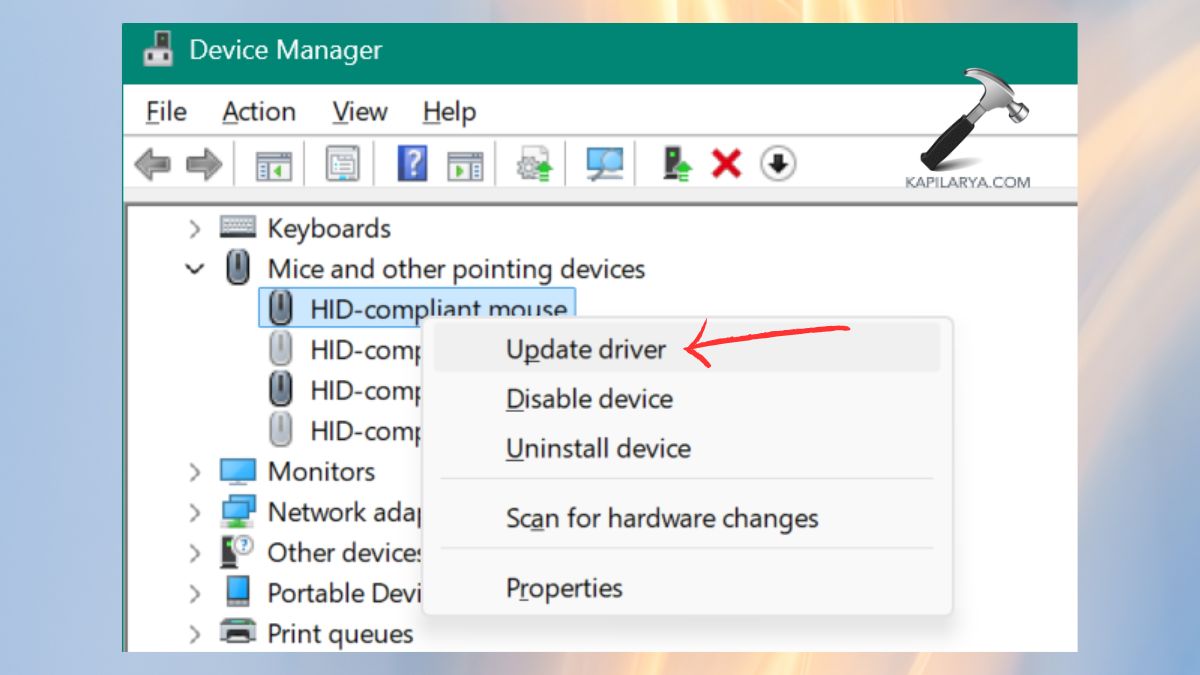
3. Select an option of Search automatically drivers.
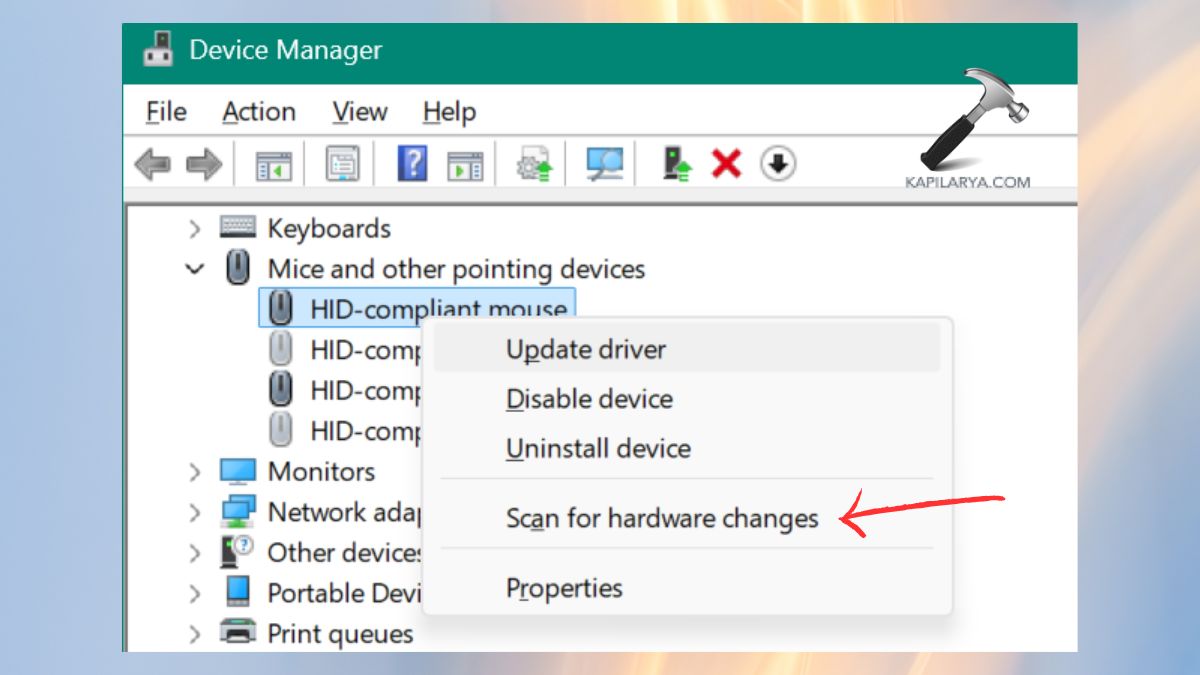
Restart your system. In case the driver was old or broken, then your click now should work.
Fix 3: Enable ClickLock
Probably your mouse will be unresponsive when ClickLock is turned off.
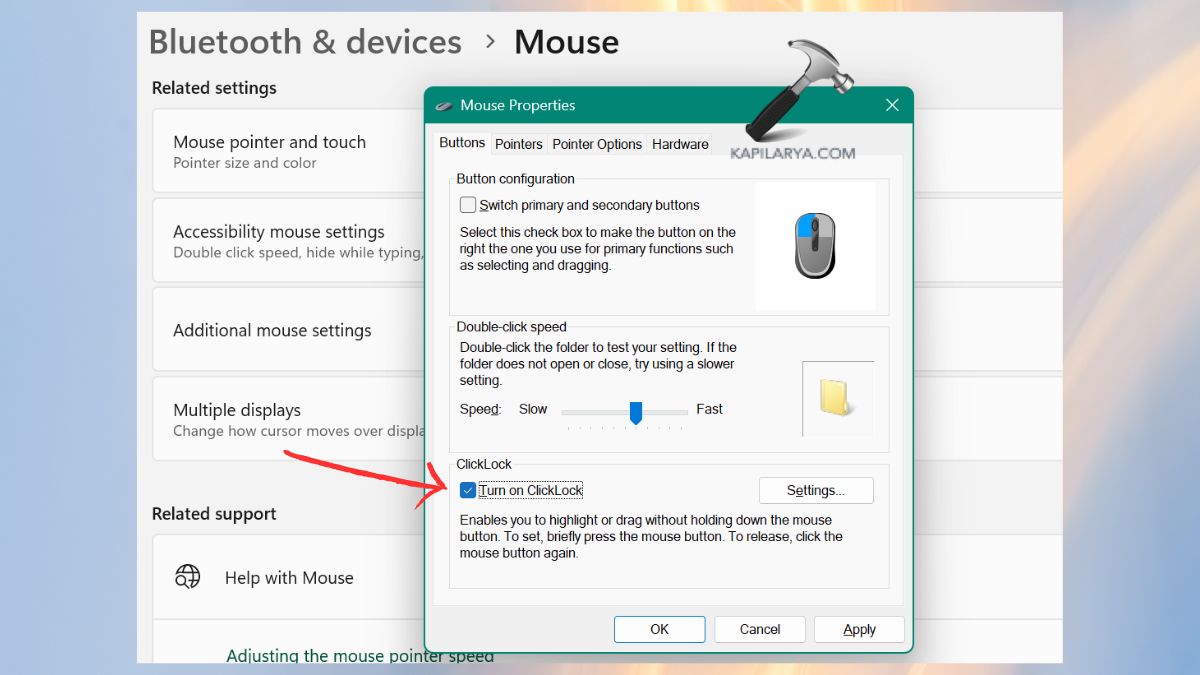
1. Open Settings > Bluetooth and Devices > Mouse.
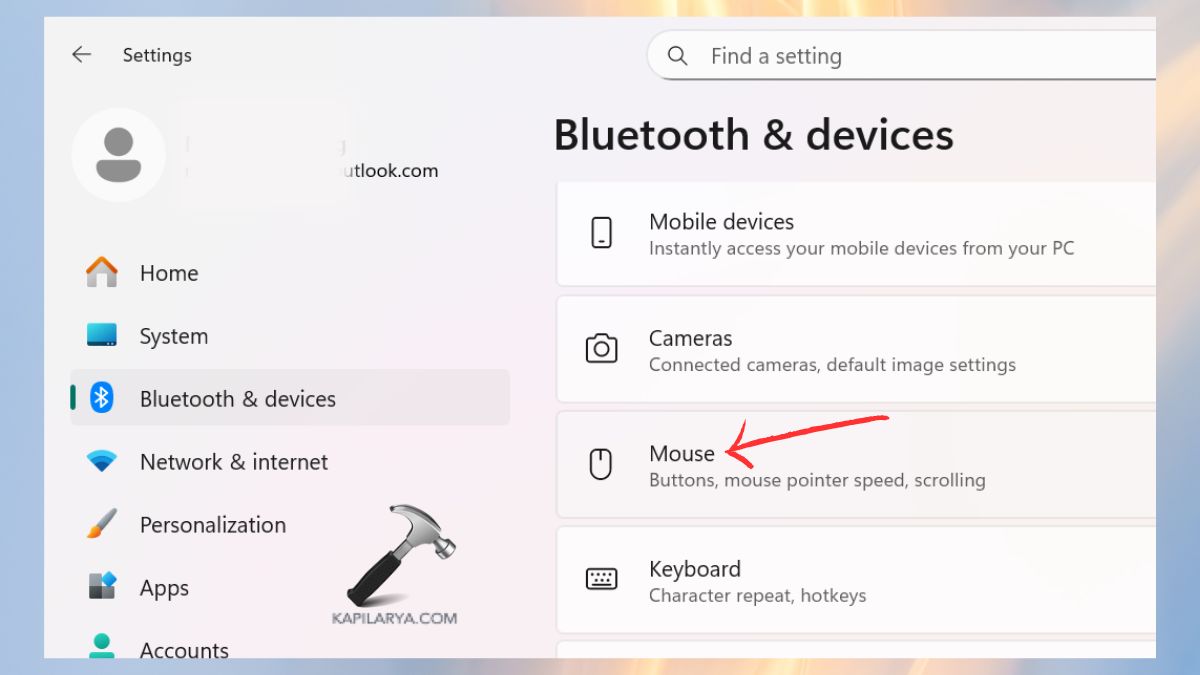
2. Click on Additional mouse settings.
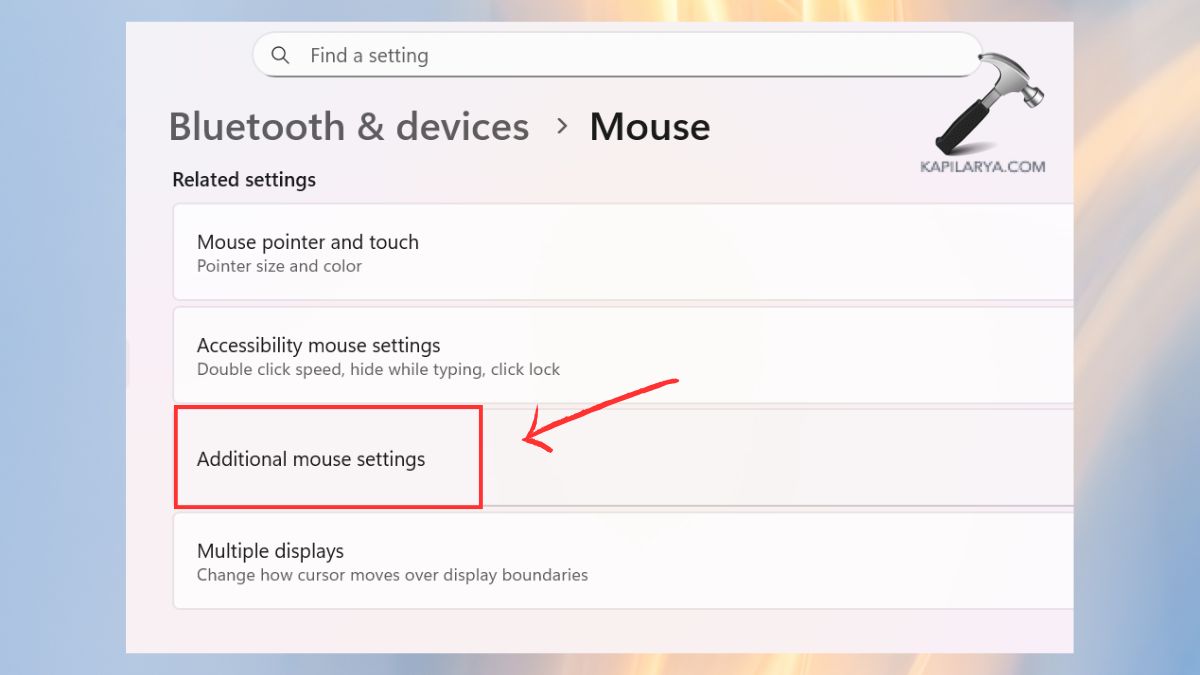
3. On the Buttons tab, make sure you have turned on the box below Turn on ClickLock. Or change timing as required >OK. Enabling this option enables Windows to identify better the action of click-and-drag.
Fix 4: Clean Your Mouse
Left mouse button not working could be a result of dust, dirt or some internal mechanical obstruction.
1. Unplug the mouse. Wipe out the area around the left button with a cotton swab.
2. Around the switches blow compressed air.
3. Removing the batteries and cleaning in the battery area, in case of a wireless mouse. You will be amazed at the frequency with which this in itself solves the issue.
Fix 5: Fix a Corrupted User Profile
Any broken profile of a user can disrupt numerous operations of the system, such as mouse clicks.
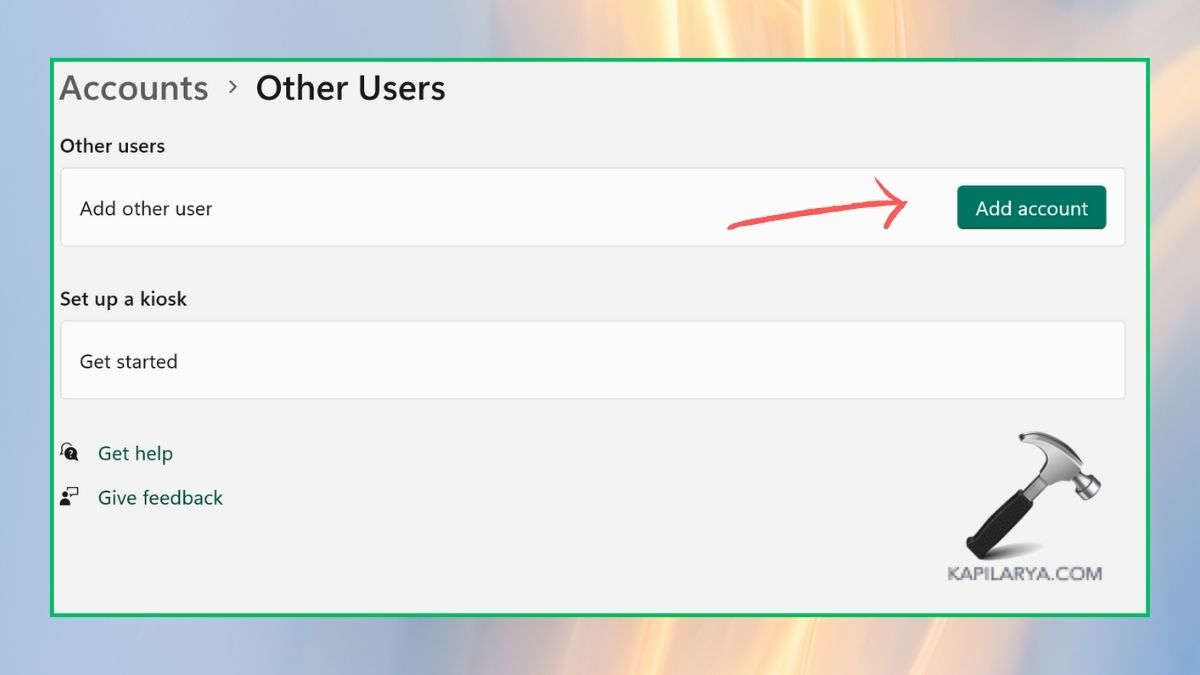
1. Open Settings > Accounts. Select “Family” or “Other users”.

2. Click Add account > choose I do not have the sign-in details of this person.
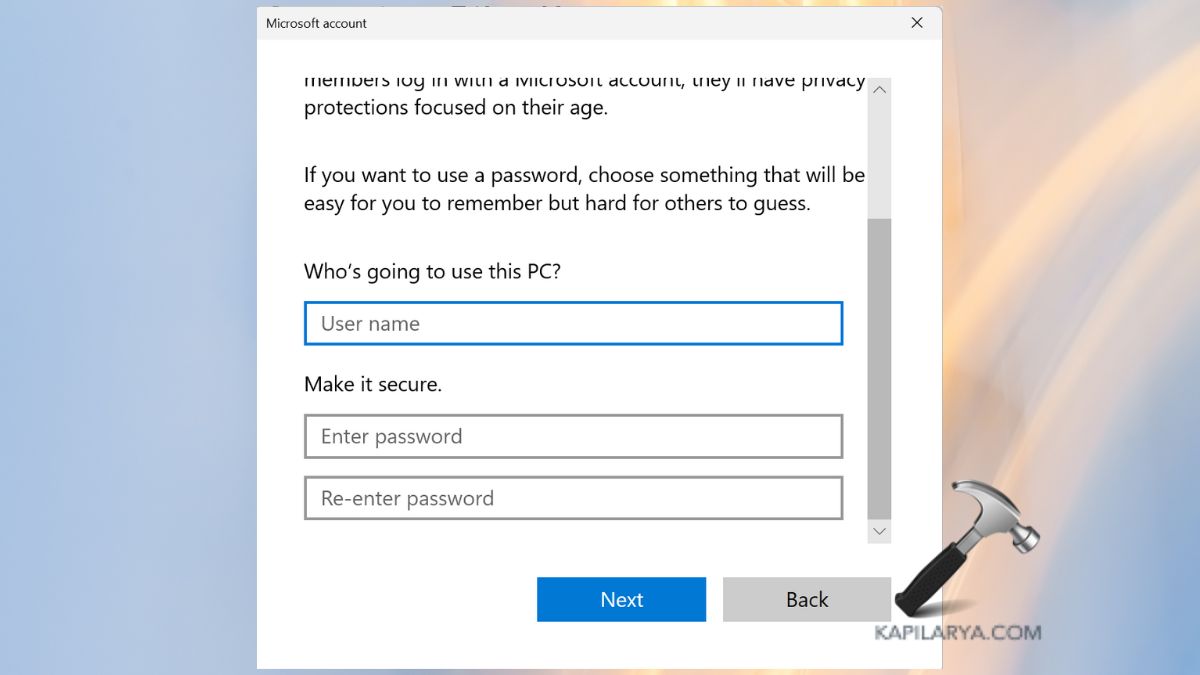
3. Select the option of adding a user without a Microsoft account.

4. Establish a user name and a password. Log in to the new account. In the event that the mouse functions here, then it must have been your previous profile that had the problem.
Fix 6: Hard Reset Your Computer
Hard reset changes system components and cleanses temporary glitches.
1. Shut down your PC completely.
2. Disconnect power cable (laptops: disconnect charger and press powerbutton, 10sec). Wait for 1 minute.
3. Install the power back on and boot up. This re-boot can easily be used to fix mouse-clicks immediately.
Fix 7: Delete Recently Installed Apps or Drivers
In case your left click has stopped working since you have installed something, the software is possibly interfering with the settings of the mouse.
1. Click on the Settings menu > Apps, then the Installed apps menu.
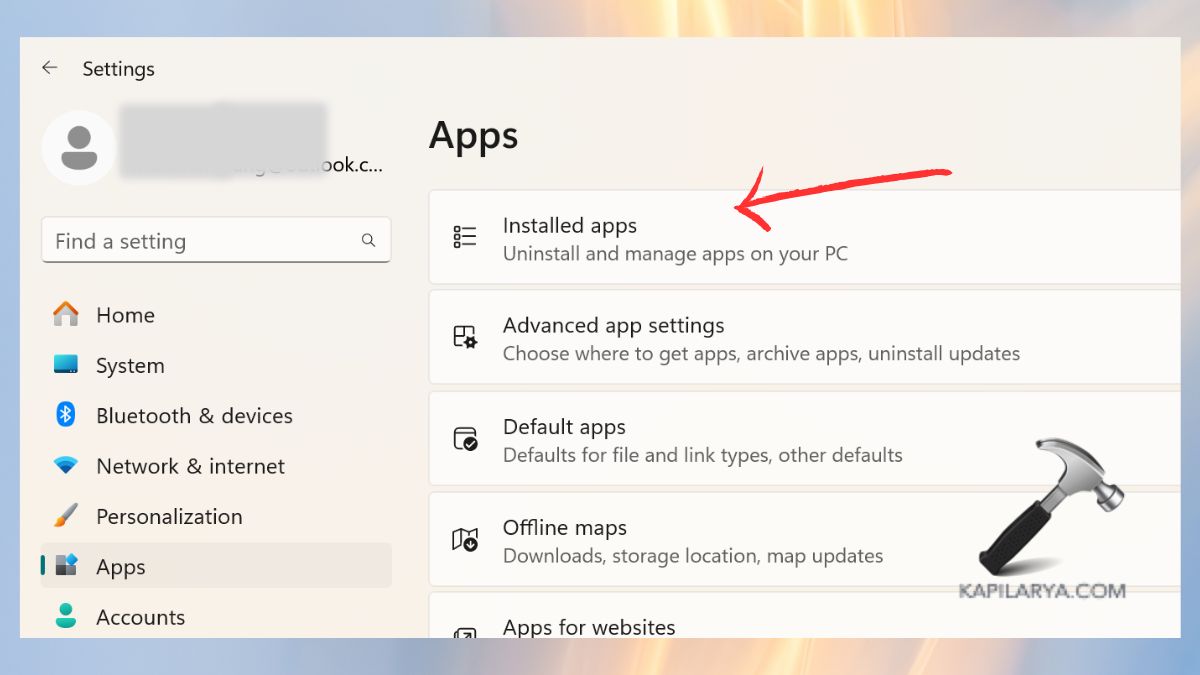
2. Sort by Recently installed. Install apps that are suspicious, or that one does not need.
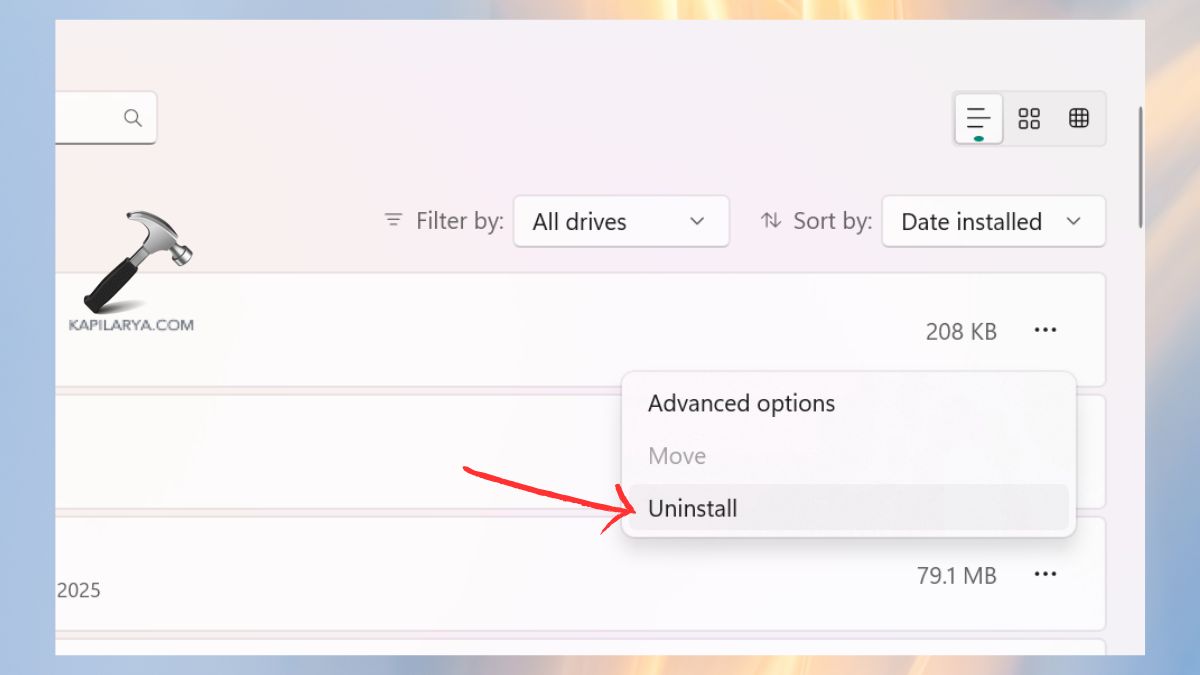
Restart your computer. This proves useful mostly when the issue began soon.
Fix 8: Delete and Reinstall Your Antivirus
Antivirus packages show over-protection or system file reading of some antivirus packages, which interfere with the mouse controls.
1. Turn off your antivirus software.
2. Restart the PC. Removing and re-checking of the mouse click is important.
Frequently Asked Questions (FAQs)
Why is my left click not working in Windows 11?
Most reasons are broken system files, broken drivers, dust in the mouse, damaged software, antivirus intrusion, or a corrupt user profile.
How do I fix left click not working without a mouse?
Navigation can be done by use of Tab, Enter, and Arrow keys or Mouse Keys can be activated in the Accessibility settings.
Can outdated drivers cause mouse click issues?
Yes. One of the leading causes of the left click not working in Windows 11 includes faulty or old drivers.
Should I replace my mouse?
Only after-
- Testing it on another PC.
- Cleaning it.
- Updating drivers.
- In case it is not started, the switch can be damaged physically as well.
That’s it!
