Microsoft introduced Metered Connection feature in Windows 8 and it has been continued with Windows 10 as well. As the name suggests, Metered Connection limits the data limit by applying relevant constraints. In this article, you’ll read how to configure Metered Connections in Windows 10.
Generally, if you connect your Windows 10 machine to cellular mobile data, the connection is automatically treated as Metered Connection. However, WiFi and Ethernet connections may require user’s consent to become Metered Connection. Metered Connection feature simply prevents huge data bandwidth wastage and helps you to save money on data bills.
Page Contents
How Metered Connection Affects Windows 10 Features?
When you set a network connection as Metered one, some of the features in Windows 10 will stop working, such as:
- Some of the apps you downloaded from Store may not work on Metered Connection.
- Store apps no longer updated automatically.
- Start Menu/Screen live tiles won’t update in real-time.
- In case if you’re on Windows 8.1, you can prevent OneDrive (formerly SkyDrive) sync over Metered Connection. Unfortunately, this is not possible with Windows 10.
- VPN will fail to work, if it is not allowed over Metered connection
- Microsoft Edge (Chromium) will not download updates on metered connection, if configured to do so
So you should wisely set a connection as Metered Connection otherwise it will break above mentioned features.
How To Configure Metered Connections In Windows 10
To set a currently active data connection as Metered, follow these steps:
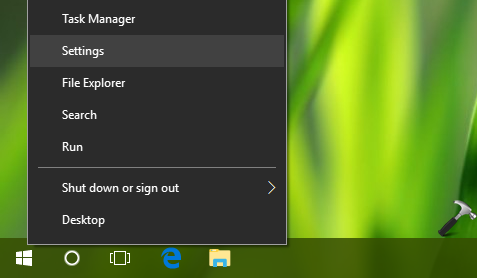
1. Right click Start Button or press  + X keys and click Settings.
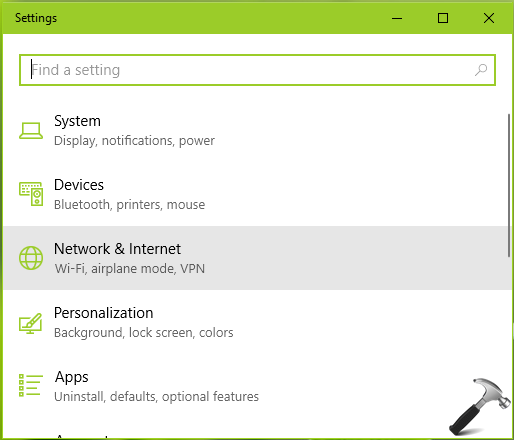
2. In Settings app, select Network & Internet entry.
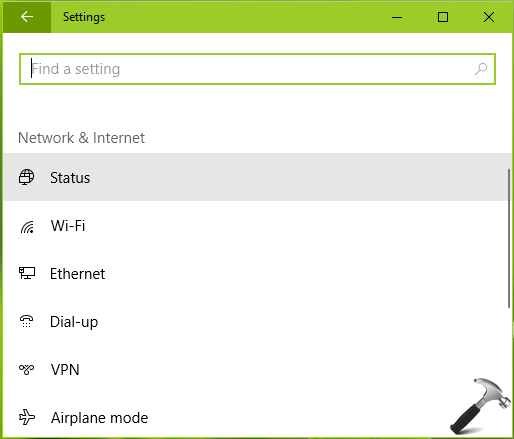
3. Then click Status option under Network & Internet.
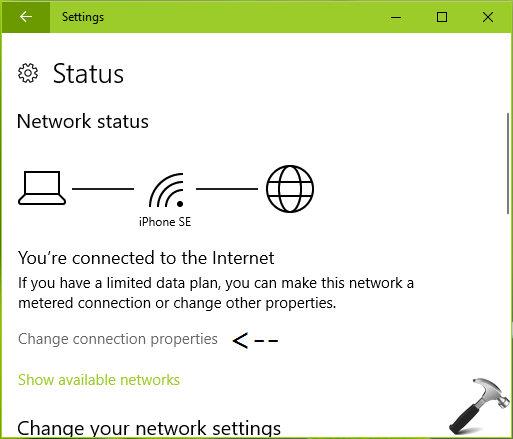
4. Moving on, click Change connection properties link on next screen.
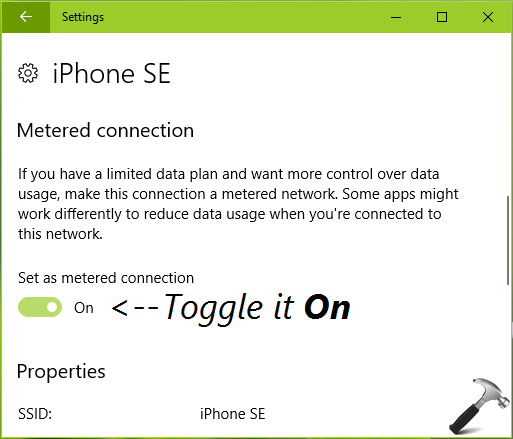
5. Finally, toggle the Set as metered connection option to On. This should set the connection as Metered one.
So this is all about how you configure Metered Connection in Windows 10. Similar approach is applicable to Windows 8 and 8.1.
Hope you find the post helpful!
Also see: How To Set Data Limit For Network Connection In Windows 10.