In Windows, you can easily encrypt a drive or operating system drive using BitLocker. But when it comes to single file or folder, you can’t use BitLocker to encrypt. For this case, Windows has yet another useful option. You can use the Encrypting File System (EFS) feature which is used for encryption in NTFS file system. Once the file is encrypted, only the person having access to it can decrypt it using password. This will make file/folder secure as the unauthorized person can’t access/modify it. Always remember, when you encrypt file/folders you must backup its recovery key, else may lose access to the content.
So if you’re looking forward to encrypt a file/folder, try the below mentioned simple steps.
How To Encrypt Files And Folders In Windows 10/8/7
NOTE: Encrypting File System (EFS) feature is not available in basic Windows editions such Home edition. For Windows 10, the feature is included in Pro, Education and Enterprise editions only.
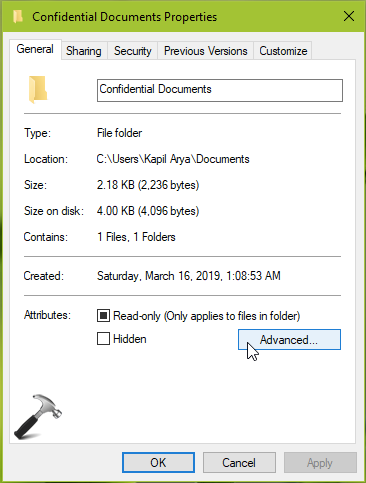
1. Right click on the file or folder you want to encrypt and select Properties.
2. In the property sheet, switch to General tab. Then click on Advanced button there.
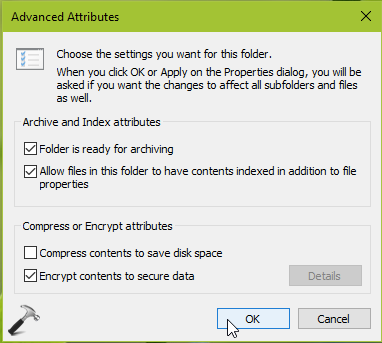
3. Under Advanced Attributes, check the Encrypt contents to secure data and click OK.
FYI: If Encrypt contents to secure data option is greyed out and you’re running Pro/Enterprise/Education edition of Windows 10, please refer this fix.
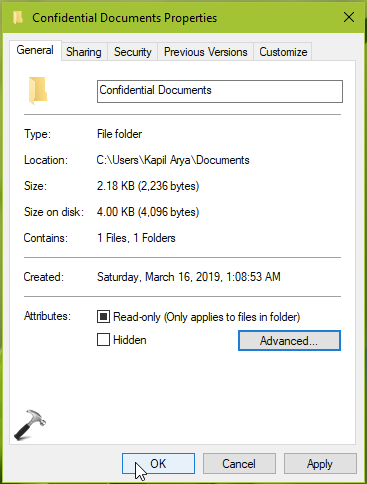
4. Then back in property sheet, click Apply, followed by OK.
5. In the Confirm Attribute Changes, select your choice and hit OK. This should finally encrypt the folder.
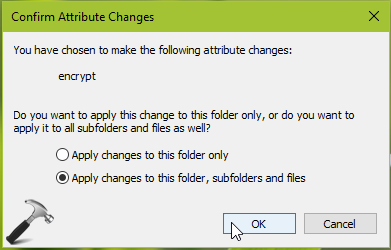
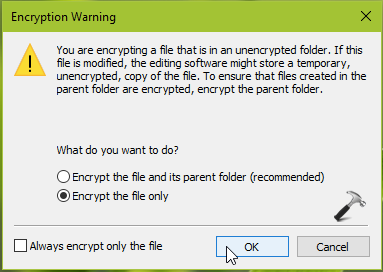
Note that when you’re encrypting file, you’ll get Encryption Warning instead of above shown image. Here also, you can make your choice and click OK to let the file encryption complete.
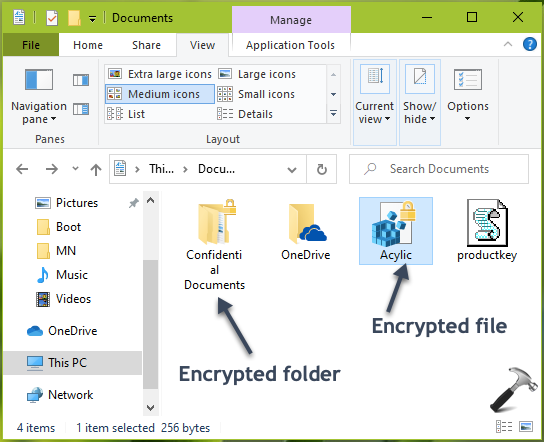
In this way, you can encrypt files and folders in Windows. When files/folder are encrypted, you can see a lock is included in their icon.
That’s it!