

Many Windows 11 users face problems where their system either cannot detect a 5GHz WiFi network or repeatedly fails to connect to it. Sometimes the network appears for a few seconds and disappears, while in other cases, users get frequent disconnections, limited internet access, or extremely unstable speeds.

Page Contents
Windows 11 Cannot Connect to 5GHz WiFi Network
This issue is commonly caused by outdated wireless drivers, unsupported network adapters, incorrect adapter settings, router configuration problems, or corrupted network profiles. The good news is that most of these problems can be fixed with a few simple troubleshooting methods.
Fix 1: Check if Your PC Supports 5GHz WiFi
Many older laptops and budget wireless adapters only support 2.4GHz networks, which means they simply cannot connect to 5GHz WiFi, regardless of the settings. Checking compatibility first helps avoid wasting time on unnecessary troubleshooting.
1. Press Windows + S and search for Command Prompt.
2. Open it as administrator.
3. Type the following command and press Enter:
netsh wlan show drivers
4. Look for Supported Radio Types in the results.
5. If you see 802.11a, 802.11ac, or 802.11ax listed, your adapter supports 5GHz WiFi.
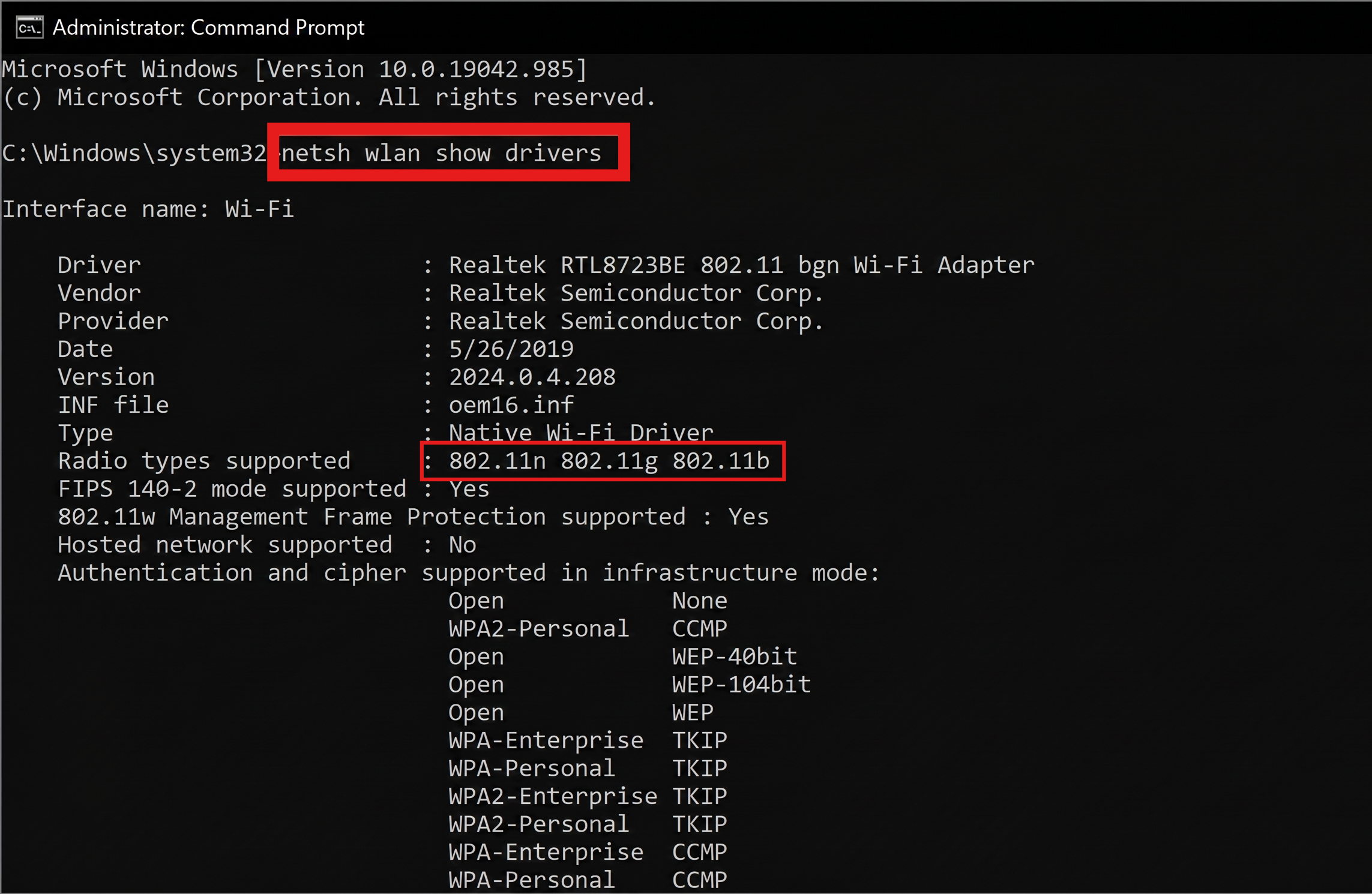
If your device does not support modern wireless standards, upgrading the WiFi adapter or using an external dual-band USB adapter may be necessary.
Fix 2: Update the WiFi Driver
Outdated or corrupted drivers are one of the most common reasons behind 5GHz connectivity problems in Windows 11. A faulty driver may prevent your adapter from properly detecting dual-band networks or maintaining a stable connection.
1. Press Windows + X and open Device Manager.
2. Expand Network adapters.
3. Right-click your wireless adapter and select Update driver.
4. Choose Search automatically for drivers.
5. Restart your PC after the installation finishes.
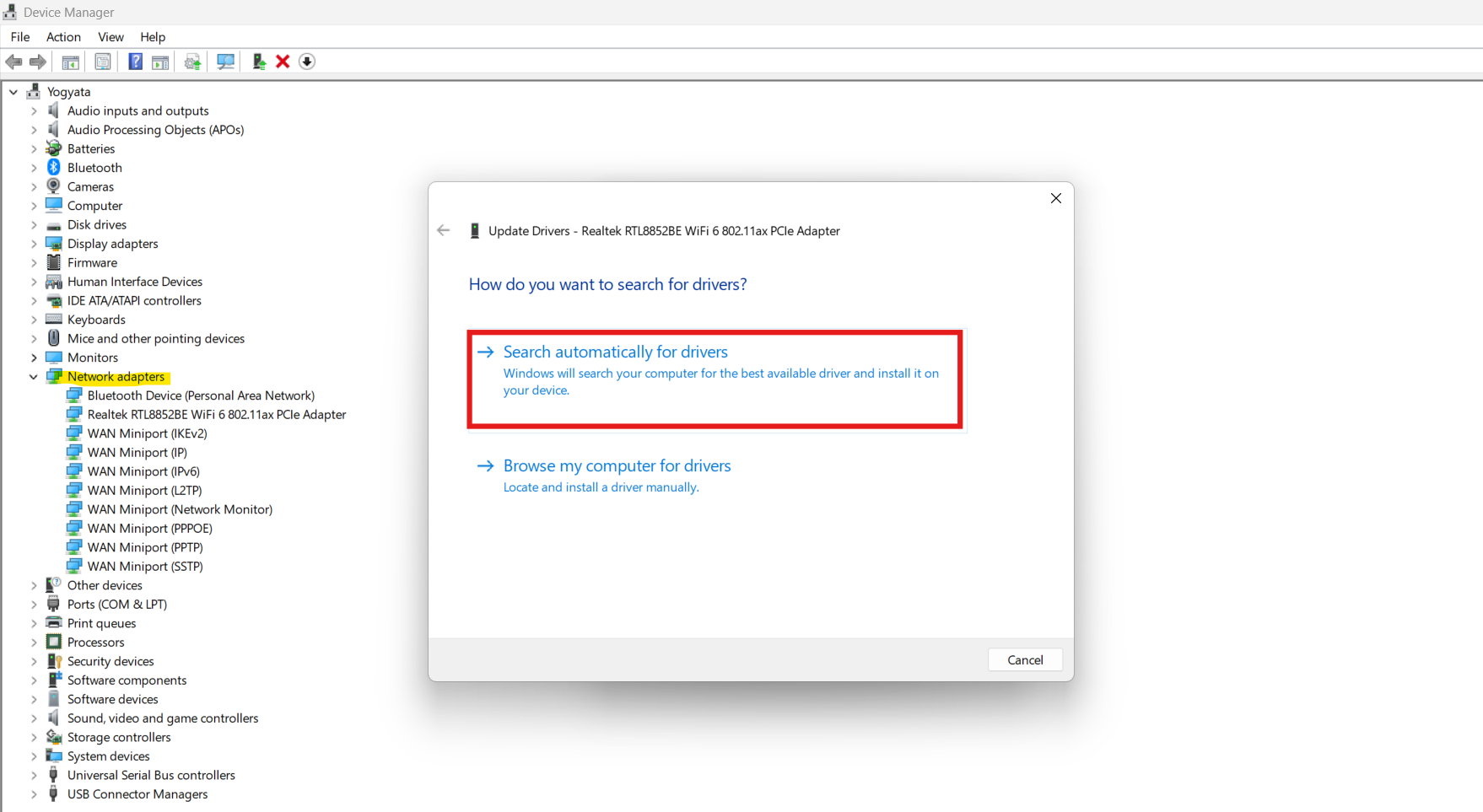
Updating the driver installs newer compatibility fixes and improves communication between Windows and the wireless hardware. In many cases, this alone restores proper 5GHz connectivity.
Fix 3: Change Wireless Adapter Mode
Sometimes Windows automatically prioritizes 2.4 GHz networks due to incorrect adapter settings. This can make the 5GHz network invisible or unstable, even though your router is working properly.
1. Open Device Manager and access your wireless adapter properties.
2. Switch to the Advanced tab.
3. Look for settings like Preferred Band, Wireless Mode, or 802.11 Mode.
4. Set the preferred option to 5GHz or Auto.
5. Save the changes and restart your computer.
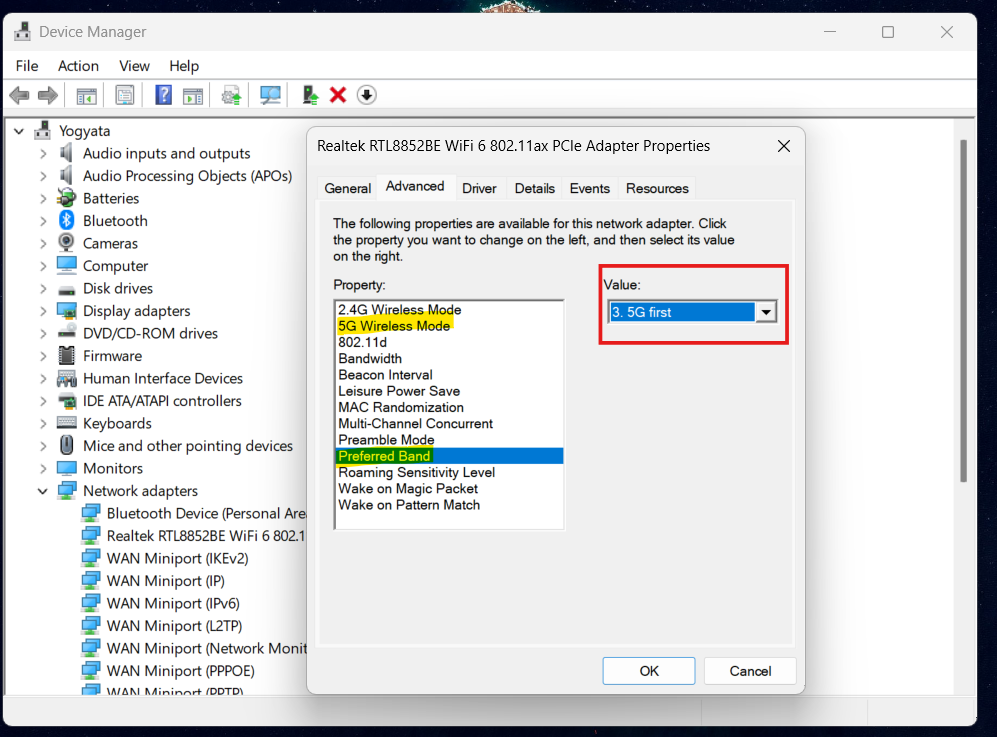
Changing the preferred band forces the adapter to search for and prioritize faster 5GHz connections. It can also improve speed, reduce interference, and provide a more stable network experience.
Fix 4: Restart the Router
Routers can sometimes experience temporary glitches that affect only the 5GHz band while the 2.4GHz network continues to work normally. Restarting the router refreshes wireless services and clears temporary memory errors.
1. Turn off the router completely.
2. Disconnect the power cable for around 30 seconds.
3. Plug it back in and wait for all network lights to stabilize.
4. Reconnect your Windows 11 PC to the 5GHz network.
This process also forces the router to re-establish communication with connected devices, which can resolve detection issues and unstable WiFi performance.
Fix 5: Forget and Reconnect to the Network
Saved WiFi profiles can become corrupted over time, especially after router updates or password changes. This may prevent Windows from authenticating properly with the network.
1. Open Settings and go to Network & Internet and select WiFi.
2. Select Manage known networks.
3. Choose the 5GHz network and click Forget.
4. Search for available networks again.
5. Reconnect using the correct WiFi password.
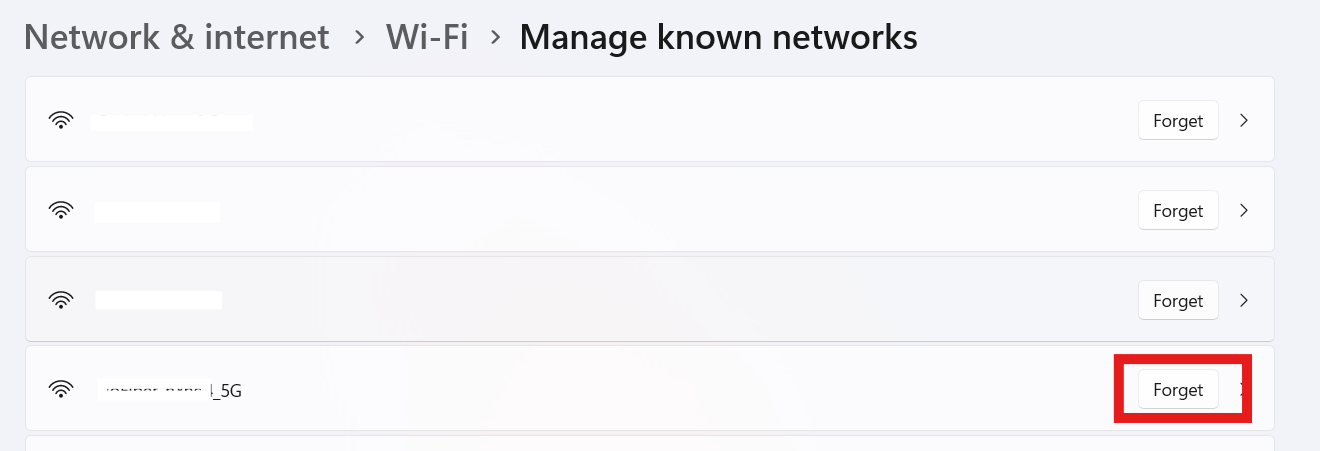
Removing the saved profile forces Windows to create a fresh connection configuration, which often fixes repeated connection failures and random disconnections.
Fix 6: Enable 802.11n/ac Wireless Mode
Modern 5GHz routers rely on advanced wireless standards like 802.11ac and 802.11ax for faster communication. If these modes are disabled, your system may fail to detect or connect to the network properly.
1. Open Device Manager and access your WiFi adapter properties.
2. Go to the Advanced tab.
3. Find options related to 802.11n/ac/ax mode.
4. Enable these settings if they are disabled.
5. Restart your PC afterward.
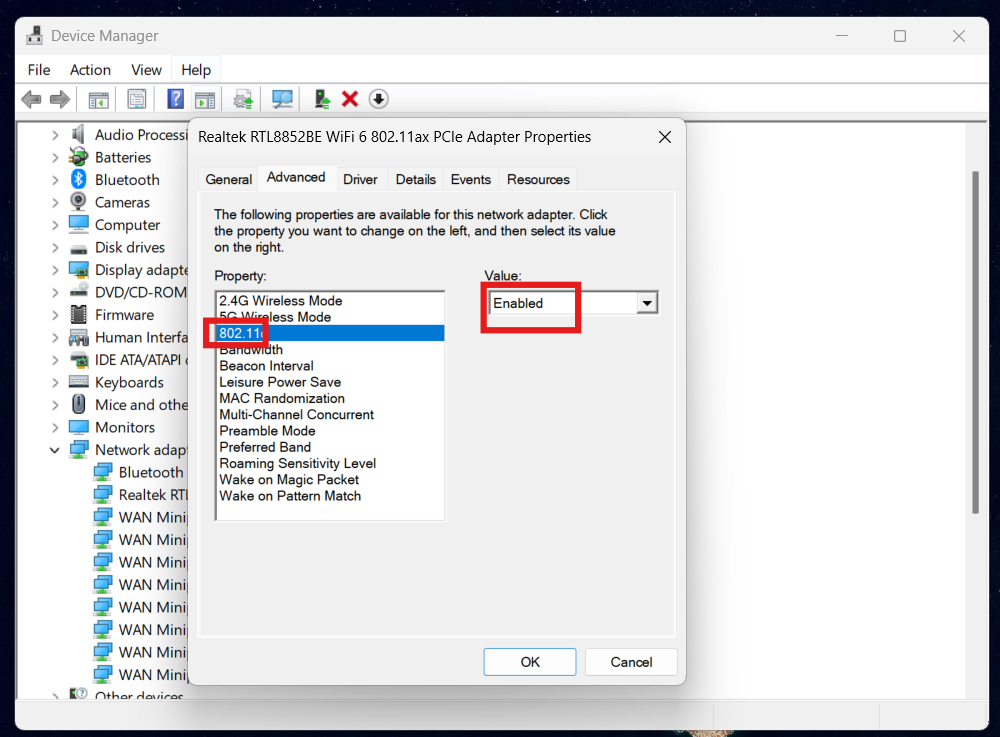
Enabling these wireless standards improves compatibility with dual-band routers and can significantly enhance speed and signal stability.
Fix 7: Reset Network Settings
Network settings can become corrupted due to failed updates, incorrect configurations, VPN software, or driver conflicts. A network reset restores all networking components to their default state.
1. Open Settings and go to Network & Internet. Choose Advanced network settings.
2. Scroll down and select Network reset.
3. Click Reset now.
4. Restart your PC once the process completes.
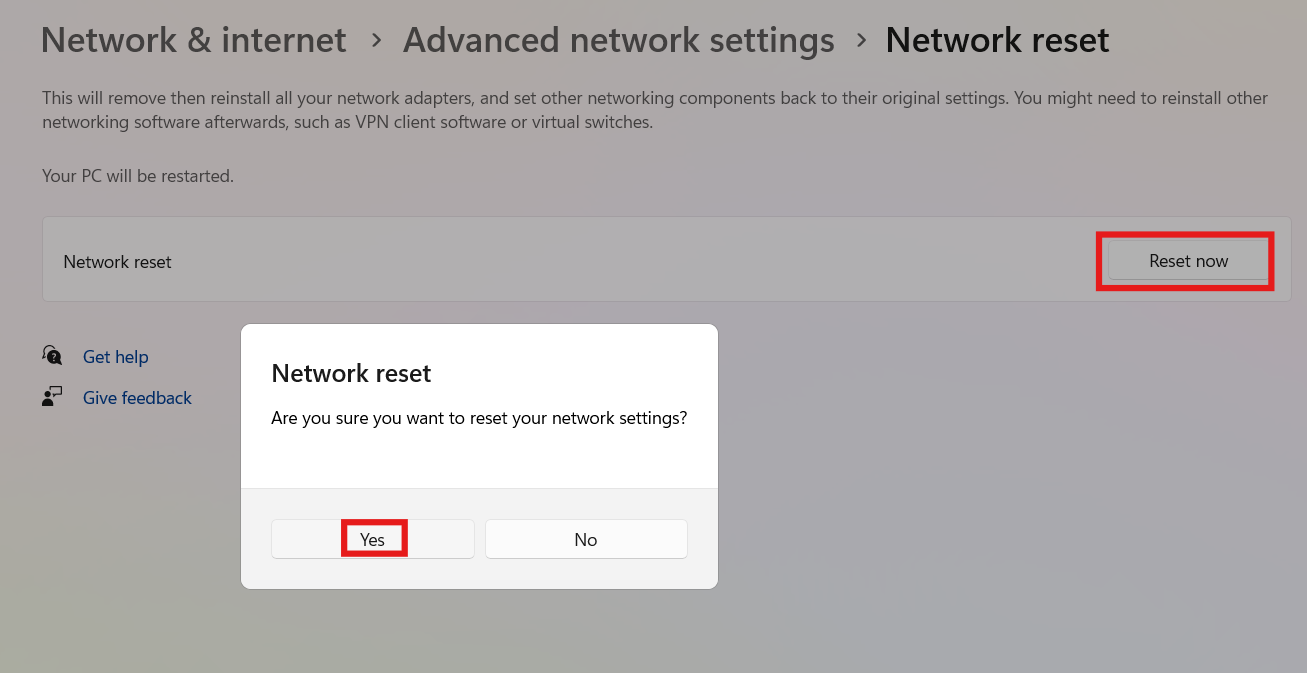
This process reinstalls network adapters, clears saved configurations, and removes problematic settings that may be preventing Windows 11 from connecting to the 5GHz WiFi network properly.
Final Thoughts
5GHz WiFi provides faster speeds, lower latency, and better performance compared to traditional 2.4GHz networks. However, Windows 11 may sometimes struggle to detect or connect to it because of driver issues, adapter settings, or router-related problems.
By following the solutions above, you can usually restore stable 5GHz connectivity and improve your overall wireless network performance.




![The mapped network drive could not be created [Detailed fix]](https://www.kapilarya.com/assets/Network-Drive-768x511.jpg)
