A Windows 11 sign-in error can be frustrating, especially when they block access to your files and apps. Users commonly encounter issues like, We can’t sign in to your account, User profile service failed the sign-in, PIN not working, or verification failures.

These problems usually occur due to corrupted user profiles, damaged system files, antivirus interference, or account syncing issues.
Page Contents
Easy Fix: Windows 11 Sign-in Error
The good news is that most of these errors can be fixed with a few simple steps.
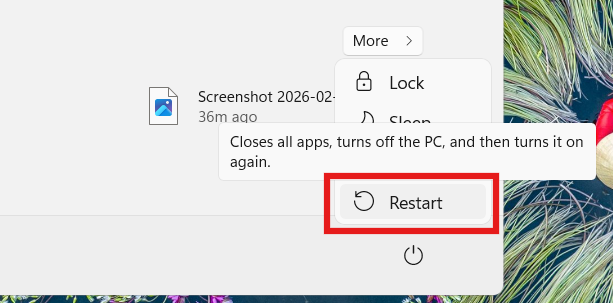
Method 1: Restart Your PC
Restarting clears temporary glitches and reloads system services properly. Minor system bugs cause many login issues, and a reboot often resolves them instantly.
1) Save all your work and close any open applications.
2) Click the Power icon and select Shut down or Restart.
3) Wait a few seconds, then turn your PC back on and try signing in again.
Method 2: Run System File Checker (SFC Scan)
Running a System file checker scan detects and repairs corrupted system files that may prevent Windows from loading your user profile correctly.
1) Press Windows + S, type CMD, and select Run as administrator.
2) Type the command:
sfc /scannow
3) Press Enter and wait for the scan to complete.
4) Restart your PC and try signing in again.

Method 3: Disable Antivirus Temporarily
Some antivirus programs can interfere with login processes or block profile loading. Disabling them briefly helps confirm if they are the cause and resolve the issue.
1) Locate your antivirus icon in the system tray.
2) Right-click it and choose Disable or turn off protection temporarily.
3) Try signing in again to your account.
4) Re-enable the antivirus after testing.

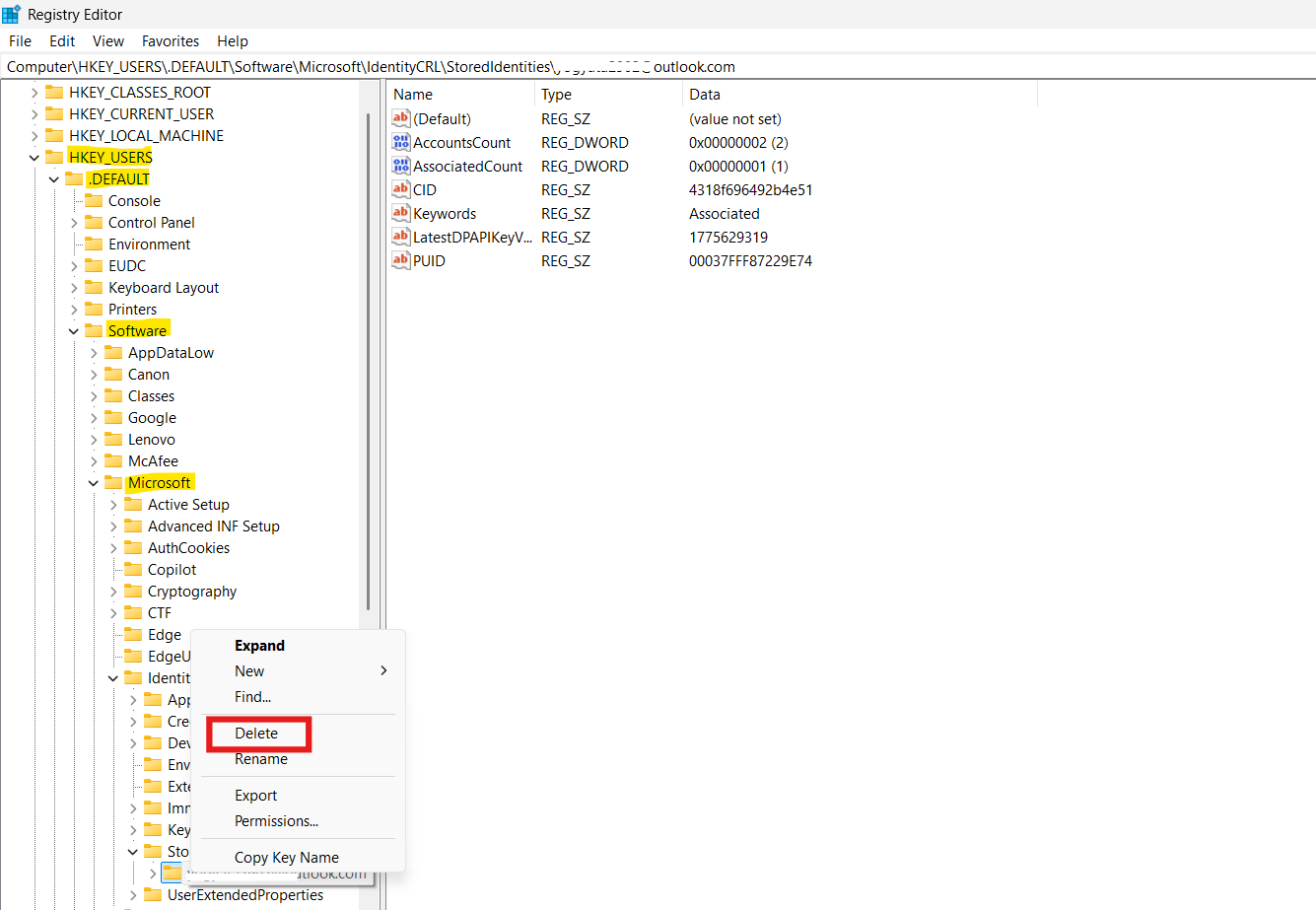
Method 4: Fix via Registry Editor
Corrupted stored identity data may prevent sign-in and cause errors. Deleting it prompts Windows to recreate a new profile connection.
1) Press Windows + S, type Registry Editor, and open it.
2) Navigate to:
HKEY_USERS\.DEFAULT\Software\Microsoft\IdentityCRL\StoredIdentities
3) Find and delete the folder matching your email/account.
4) Restart your PC and try logging in again.
Method 5: Create a New User Profile via Command Prompt
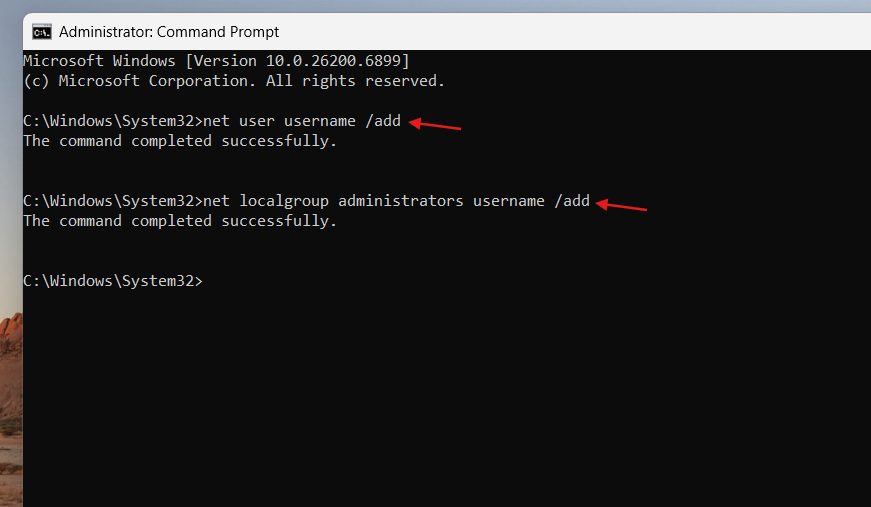
If your original profile becomes corrupted, creating a new admin account allows you to regain access and safely transfer your files.
1) Press Windows + S, search CMD, and run as administrator.
2) Enter the following commands one by one:
net user username /add
net localgroup administrators username /add
3) Restart your PC.
4) Sign in using the newly created account.
Final Thoughts
Windows 11 sign-in errors may seem serious, but they often result from fixable issues like corrupted files or profile data. By following these step-by-step solutions, you can quickly restore access to your system without requiring advanced technical skills.
![Windows needs your current credentials [Fix]](https://www.kapilarya.com/assets/password_icon_1783831080.jpg)