

If you see the error message “The modem (or other connecting device) has reported an error” in Windows 11 (Error 651), it means your PC cannot establish a network connection, and the networking subsystem has flagged a failure often related to PPPoE, driver mismatch, or corrupted network components.

Page Contents
Fix: The modem or other connecting device has reported an error in Windows 11
This error mostly shows when you’re using a broadband connection that uses PPPoE or similar protocols, or when the network adapter is misconfigured or outdated. Below are seven reliable fixes. Try each one in turn and restart your PC after each fix.
Fix 1: Reset TCP/IP stack and renew network configuration
A corrupted TCP/IP stack or invalid network configuration can trigger Error 651.
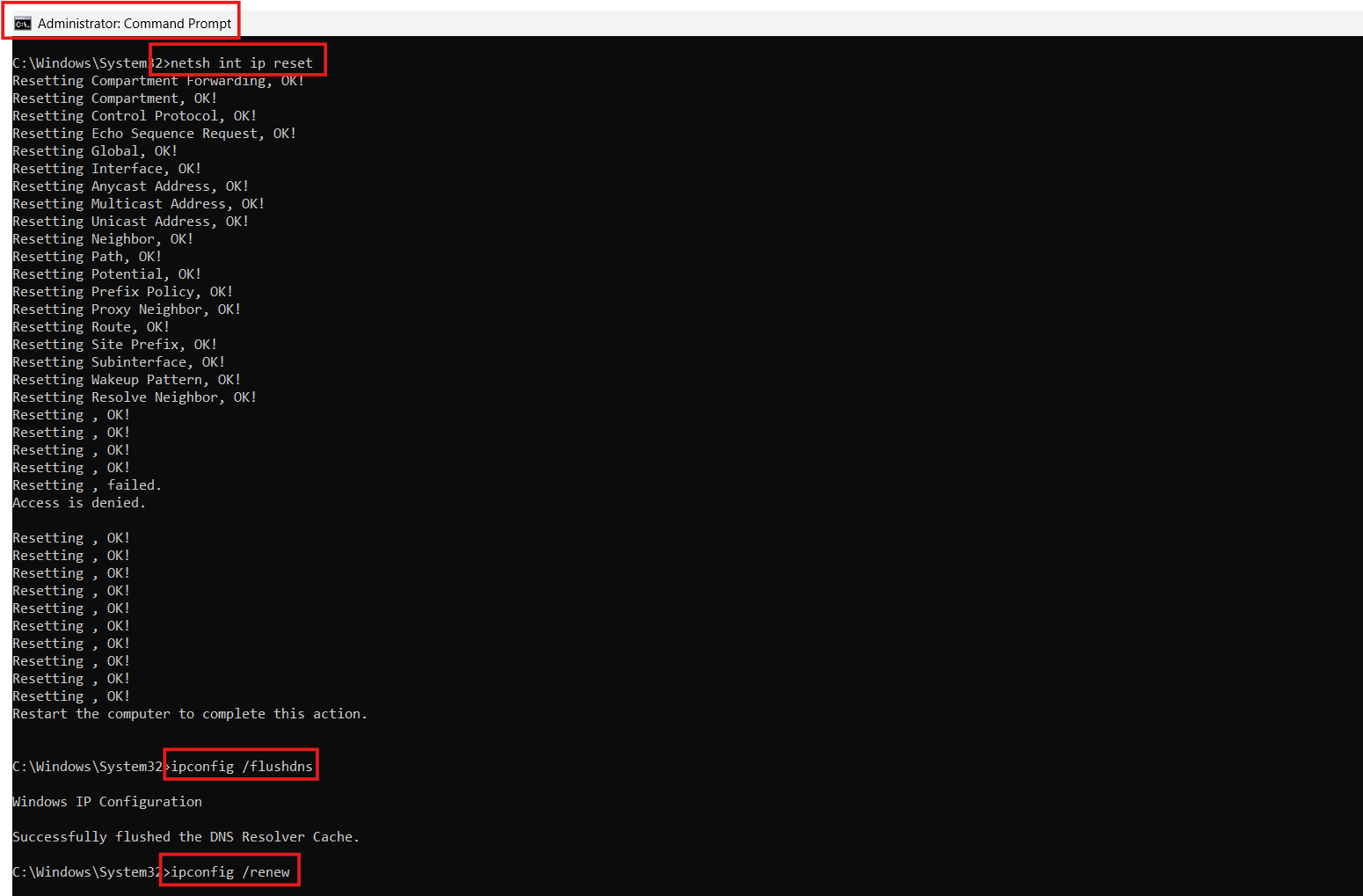
1. Open Command Prompt as administrator.
Type the following commands one by one:
netsh int ip reset
ipconfig /flushdns
ipconfig /renew
2. Restart the PC and attempt the connection again.
Fix 2: Update or reinstall network adapter drivers
Out-of-date or incompatible network drivers are a common cause of this error.
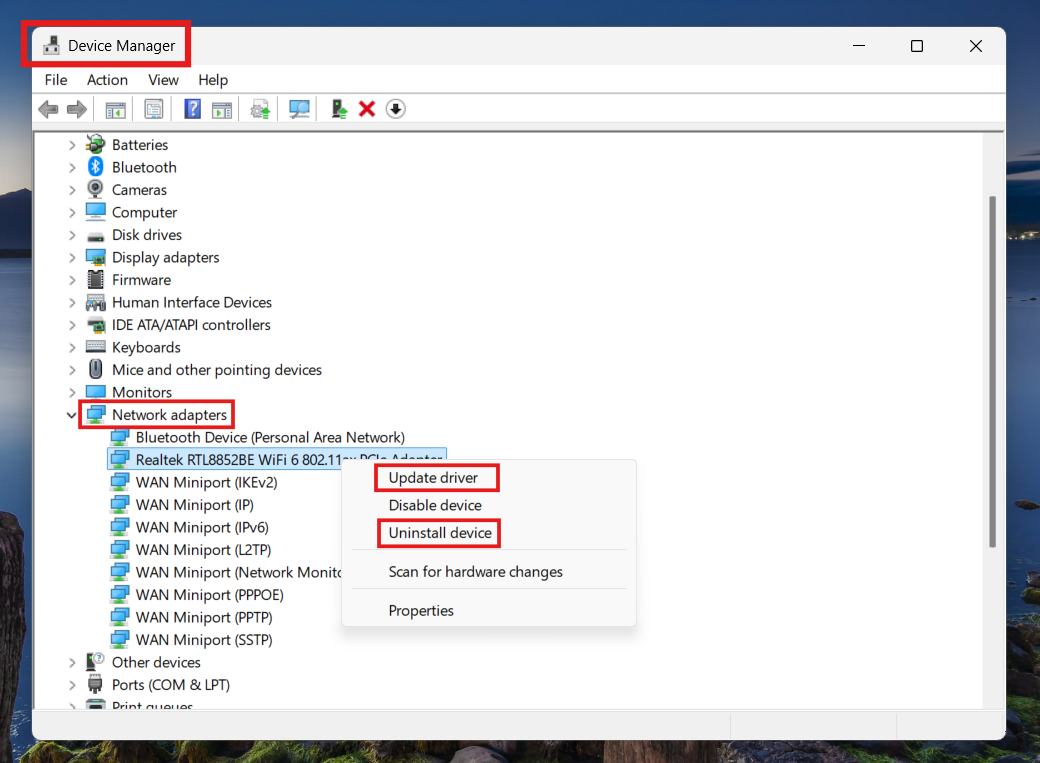
1. Press Windows + X and select Device Manager.
2. Expand Network adapters, right-click your adapter, and choose Update driver.
3. If no update works, select Uninstall device and reboot. Windows will reinstall the driver.
Fix 3: Use a different connection or router/modem
Temporary issues with the modem or router often result in Error 651.
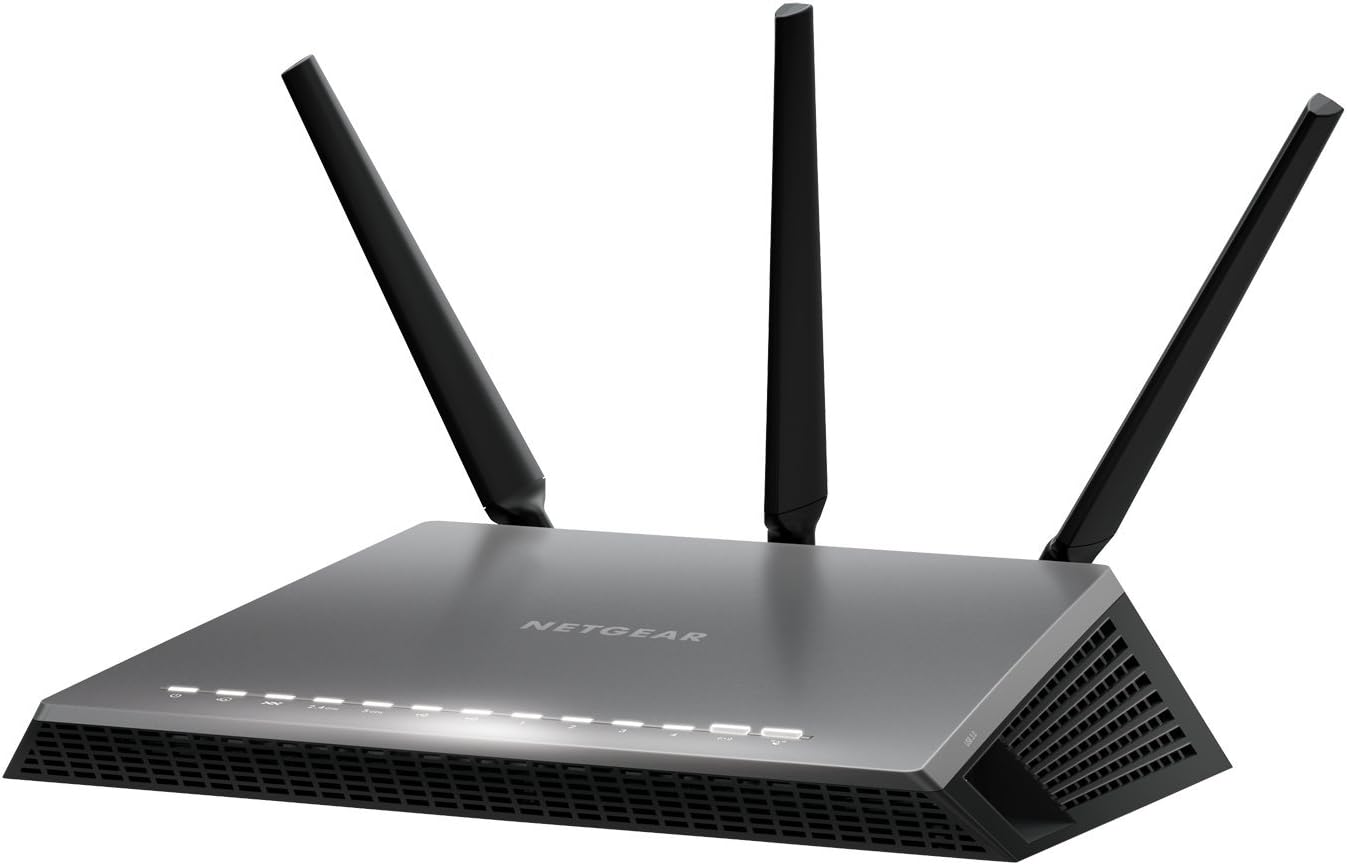
1. Disconnect your router and modem, wait 30 seconds, then reconnect.
2. Try connecting via another device or network to rule out hardware issues.
3. If the connection works elsewhere, update the firmware on your router/modem.
Fix 4: Disable any third-party firewall or antivirus temporarily
Security software may block network services, causing Error 651 when network drivers attempt to initialize.
1. Open your antivirus or firewall program and disable protection temporarily.
2. Restart the PC and attempt to reconnect.
3. If it works, re-enable the security software and make sure network-related services are allowed.

Fix 5: Reinstall WAN Miniport Adapters
Reinstalling forces Windows to generate fresh, uncorrupted driver instances upon the next reboot.
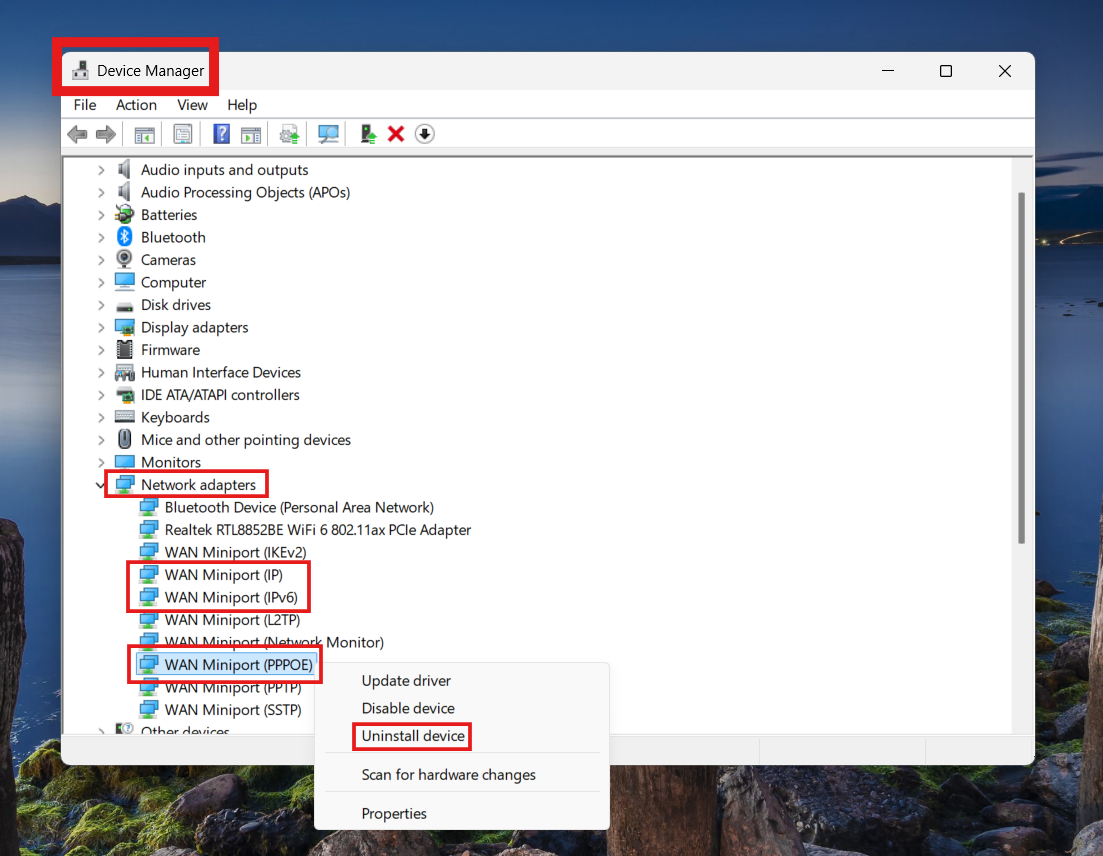
1. Press Windows + X and select Device Manager.
2. Expand the Network adapters section.
3. Right-click on WAN Miniport (PPPoE) and select Uninstall device.
4. Repeat this process for WAN Miniport (IP) and WAN Miniport (IPv6) if you see them.
5. Restart your PC. Windows will automatically detect the missing adapters and reinstall them with default settings.
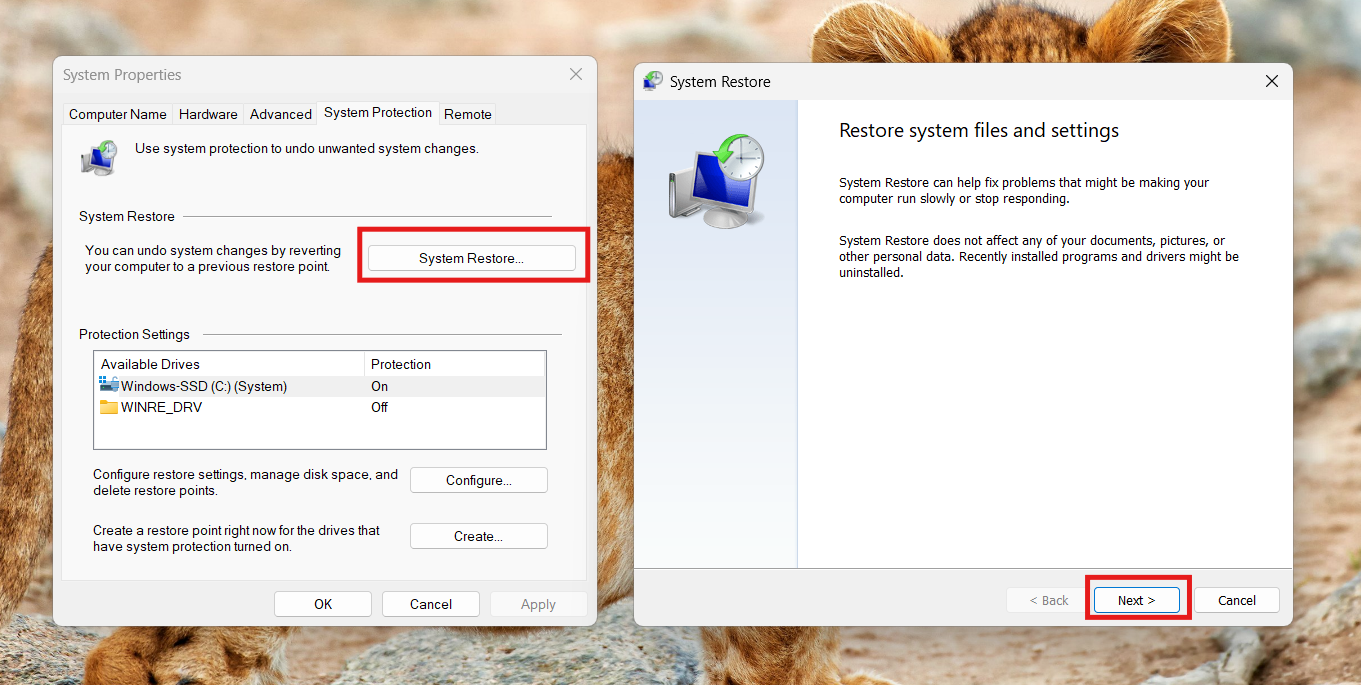
Fix 6: Use System Restore to revert to a working configuration
If the error started after a recent update or driver change, restoring your system to a prior point may resolve it.
1. Search for Create a restore point and open it.
2. Click System Restore, choose a point before the error began, and follow the prompts.
3. After restart, test the network connection.
Fix 7: Repair Corrupted System Files (SFC Scan)
For PPPoE connections, the driver file raspppoe.sys is sometimes corrupted. Use the built-in System File Checker to repair it safely.
1. Press Windows + S, type cmd, right-click Command Prompt, and select Run as administrator.
2. Type the following command and press Enter:
sfc /scannow
3. Wait for the scan to reach 100%. If Windows finds corrupted files including raspppoe.sys, it will automatically replace them with the correct versions.
4. Restart your PC and test the connection.

Quick tips
1. Always restart your PC after applying a fix before checking again.
2. Ensure both the modem and router are powered down and restarted during troubleshooting.
3. Verify that no other device on the same network reports the same error. This may signal ISP or hardware issues.





