

The File Explorer navigation pane is not merely a sidebar, and it is also one of the most fundamental components of Windows 11. But what then, though, if it simply vanishes? That is when so many Windows 11 users experienced panic. And since the navigation pane is something that we use on a daily basis, the fact that it is gone immediately will interrupt the working mechanism.
This weird Windows 11 bug occurs to users post-updates, random system glitches, setting changes accidentally, and sometimes, without a distinct reason why. We shall also take you through the simple stepwise procedures of repairing the navigational pane that is missing in this guide.
Page Contents
Why File Explorer Navigation Pane Missing
Windows 11 is sleek and clean; however, it is also characterized by glitches. The pane related to navigation can be hidden due to:
- A disabled view setting.
- Contaminated File Explorer Cache.
- A buggy Windows update.
- Broken registry entries.
- Polluted system files (SFC /DISM errors).
- Components (DLL files) of the type Explorer which are not registered.
Fix File Explorer navigation pane missing in Windows 11
With the solutions following, you can restore your Windows 11 navigation pane within a few minutes and have the pleasant experience to manage your files in a smooth and well-organized way.
Method 1: Enable Navigation Pane From View Options
The navigation pane is disabled sometimes by accident. Here’s how to restore it:
1. Open File Explorer.

2. Click the View menu at the top. Select Show. Click the Navigation Pane and make sure it is ticked.
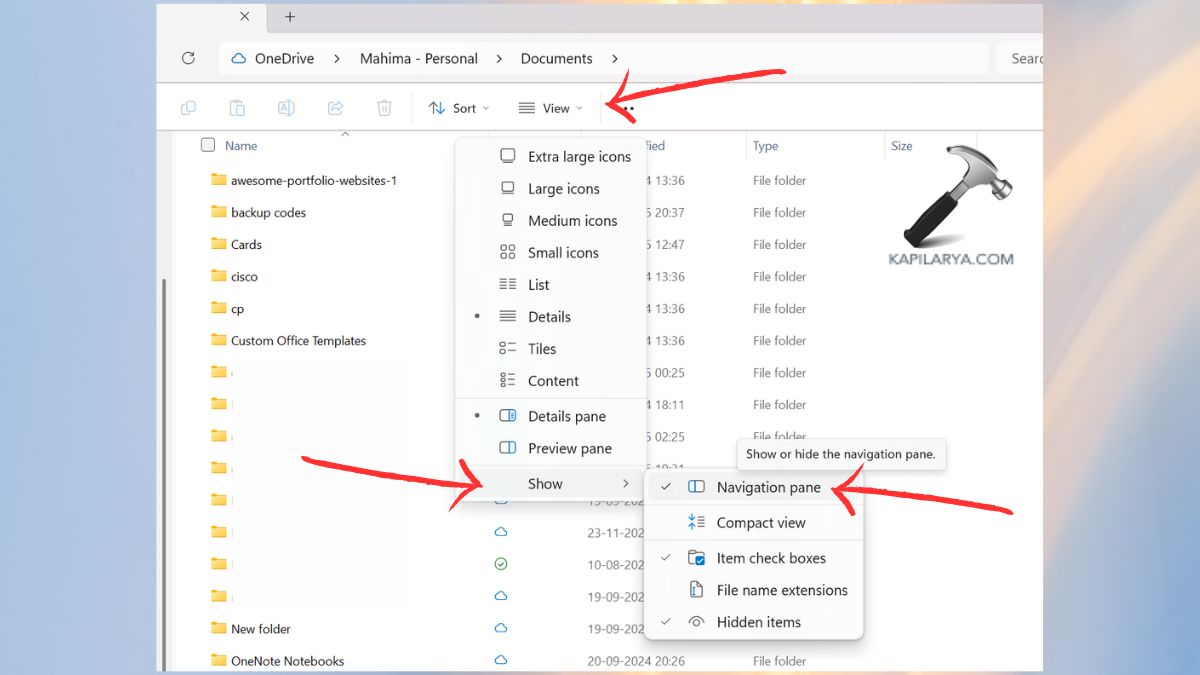
Open Explorer back up and see whether there is a pane. This will give an immediate solution to the problem in case the pane was merely concealed.
Method 2: Reset Folder Options to Default
The wrong Folder options may conceal valuable factors such as the navigation pane.
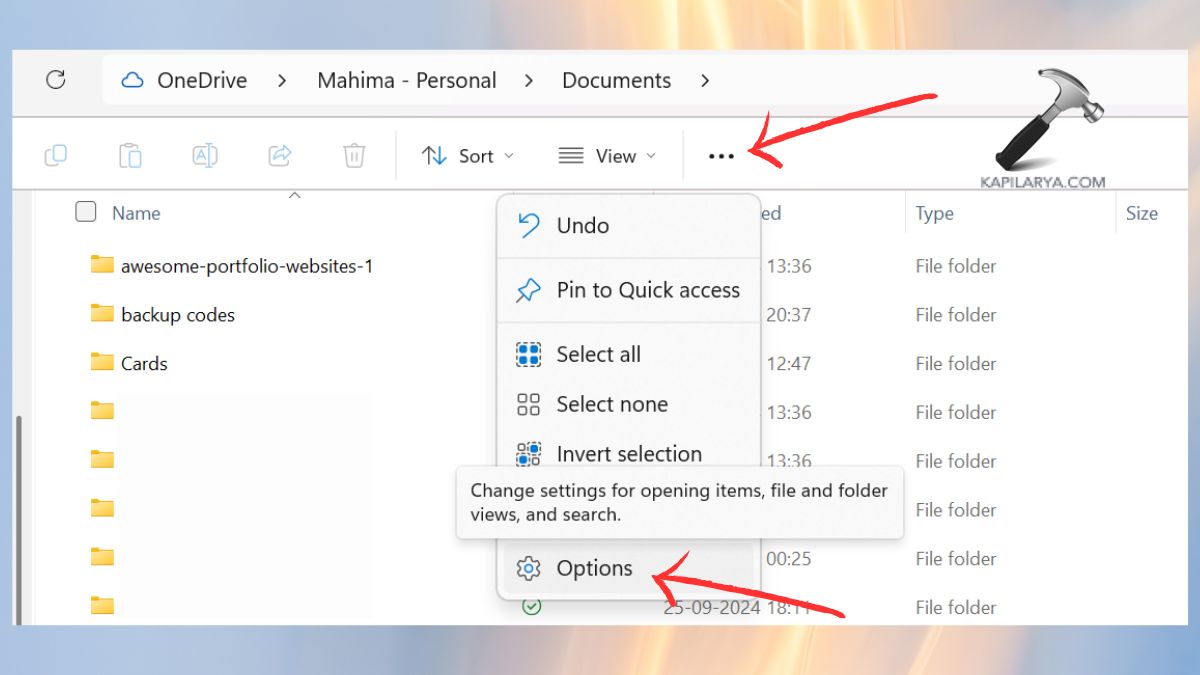
1. Open File Explorer. Click the three dots ( … ) menu. Select Options.
2. Click the Restore defaults in the window Folder Options.
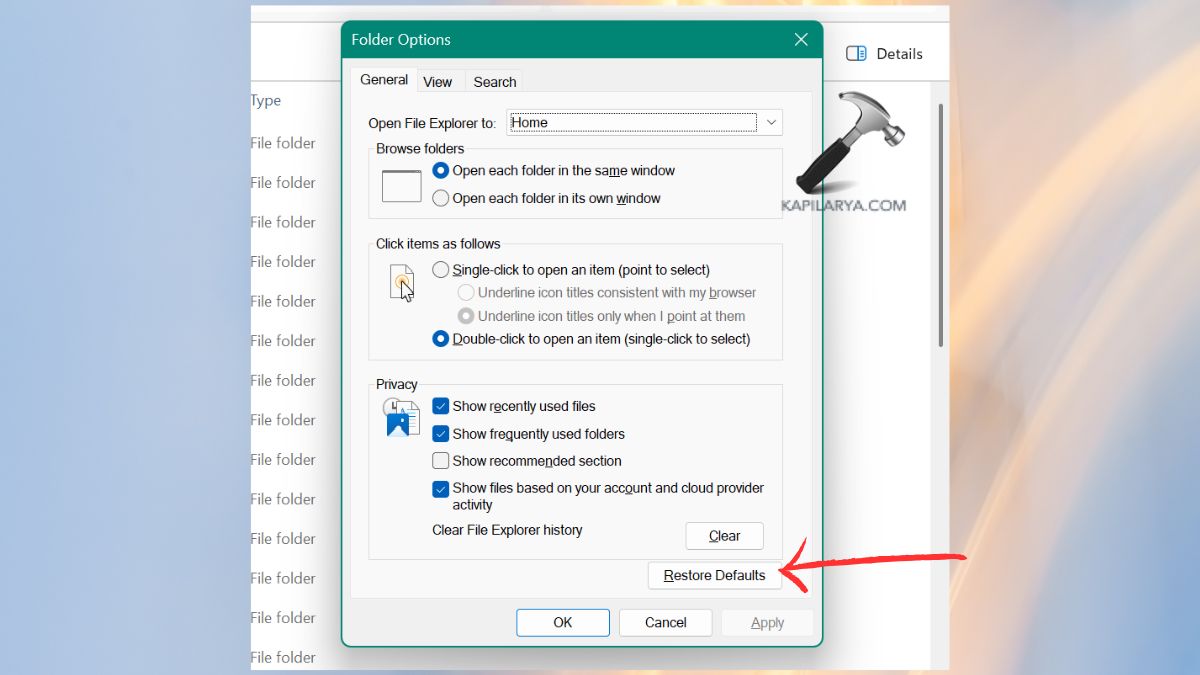
Click Apply, then OK. This reinstates all the settings of the File Explorer and can restore lost panels.
Method 3: Restart the Windows Explorer Process
The taskbar, desktop, and File Explorer are loaded by the Windows Explorer process. The restart of it usually corrects display glitches.
1. Open Task Manager from the Start menu.
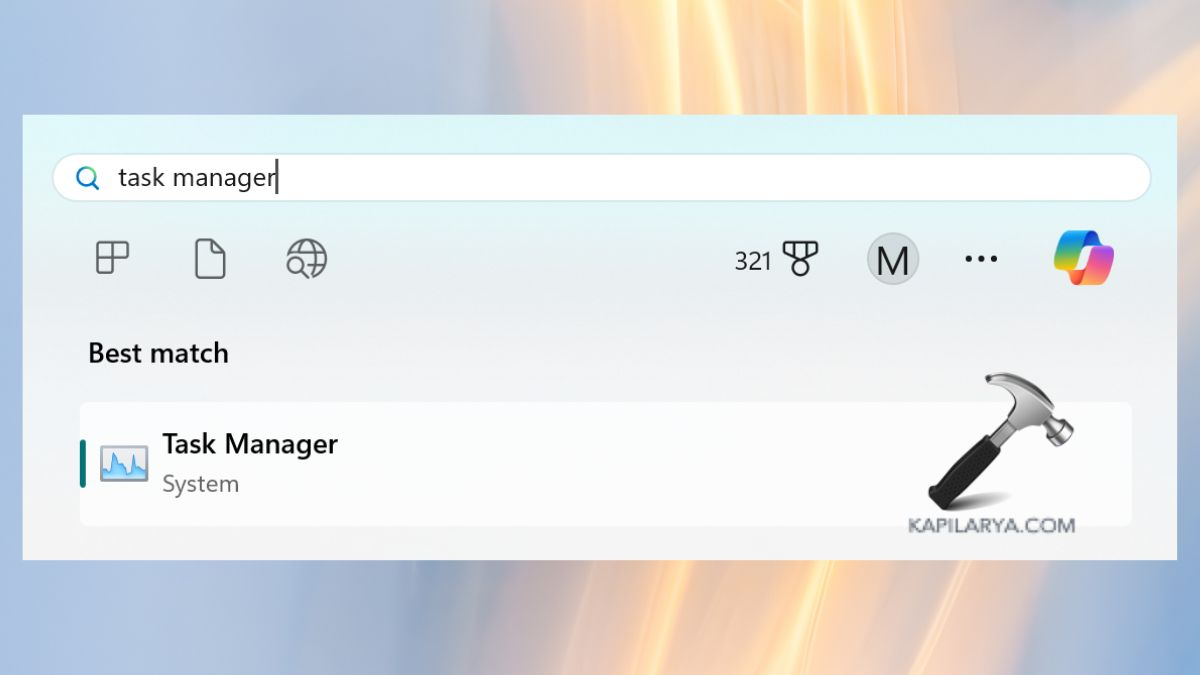
2. Scroll to Windows File Explorer. Click the right-hand side and select Restart.
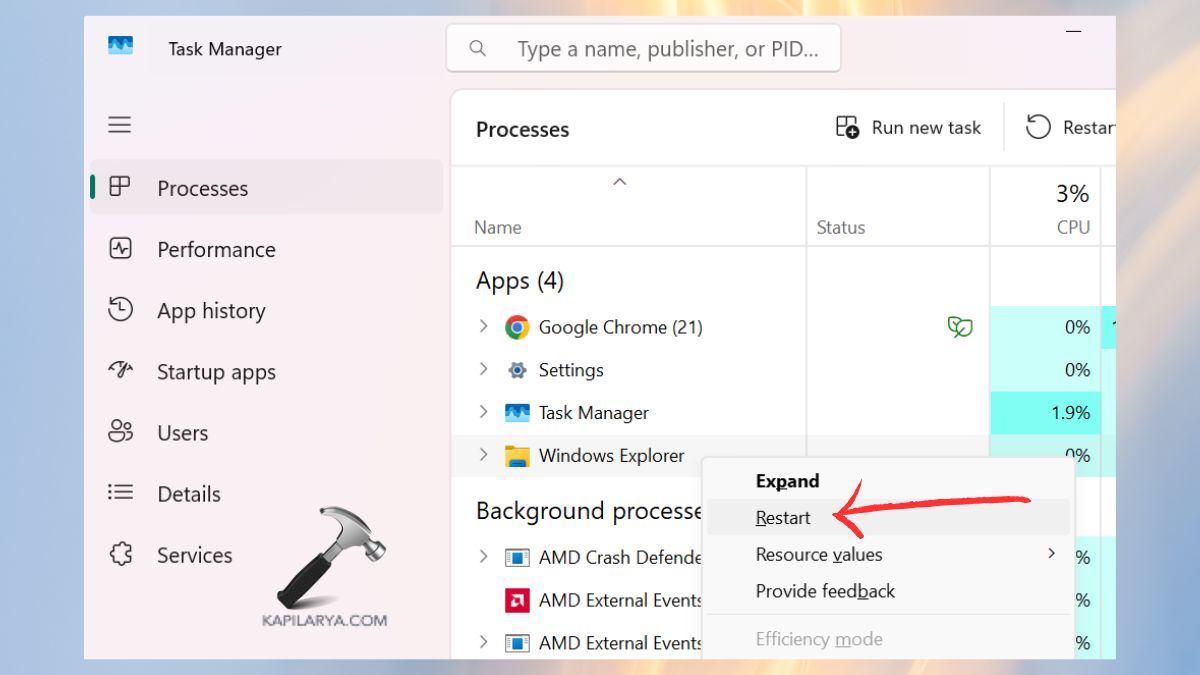
The file explorer will restart, and the navigation pane frequently reappears automatically as well.
Method 4: Clear File Explorer History
The components, such as the navigation pane, may disappear due to a corrupted Explorer cache.
1. In Start menu, open File Explorer > … (three dots) > Options.
2. In the General tab under the Explorer, locate Clear file Explorer history. Click Clear.
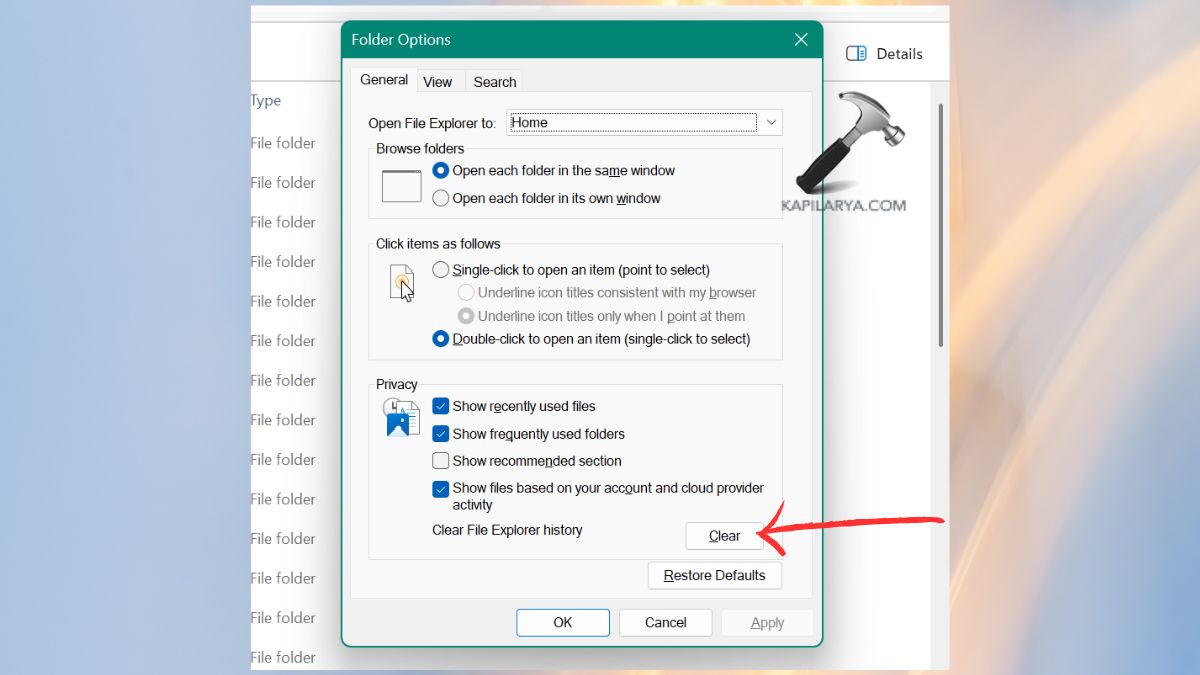
Restart File Explorer. This will eliminate previously saved information that can be the source of the layout problems.
Method 5: Run SFC and DISM to Repair System Files
In case the navigation pane disappeared as a result of corrupted Windows files, one can repair it through the use of system repair tools.
1. Press “Win + S”, type “cmd”. Right-click Command Prompt> Run as administrator.

2. Enter the command.
sfc /scannow

Wait for the scan to complete.
3. Run these commands one by one.
DISM /Online /Cleanup-Image /CheckHealth
DISM /Online /Cleanup-Image /ScanHealth
DISM /Online /Cleanup-Image /RestoreHealth

Once this is done, re-boot your PC. System repair programs would frequently remake concealed or absent parts of File Explorer.
Method 6: Re-Register the shdocvw.dll File
File Explorer is dependent on some DLL files. In case shdocvw.dll is unregistered, the interface elements can be missing.
1. Open Command Prompt using Administrator.
2. Enter the command. Press Enter.
regsvr32 /i shdocvw.dll
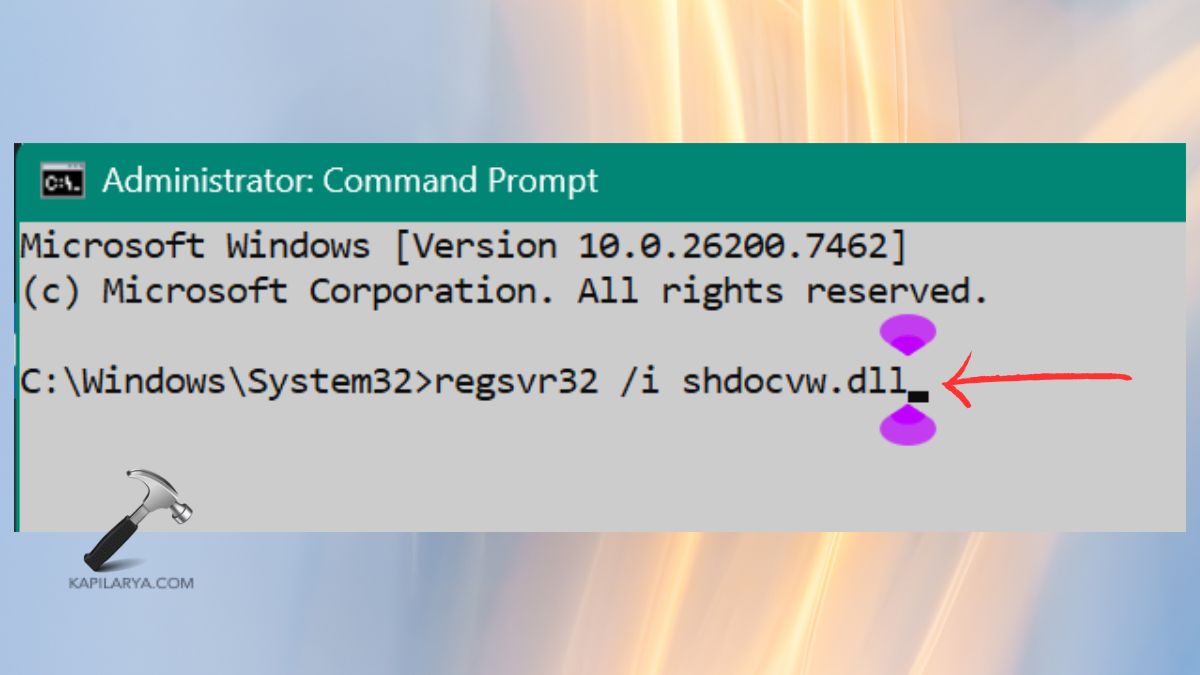
Restart your system. This re-registers the library which is responsible for the shell and the Explorer components.
Frequently Asked Questions(FAQs)
Why is the File Explorer navigation pane missing in Windows 11?
It can vanish owing to broken system files, corrupted cache, broken view settings, or the glitches of the Windows Explorer.
Does resetting Folder Options delete my files?
No. It does not restart personal files, but File Explorer settings only.
Is running SFC and DISM safe?
These are, yes, in-built Windows tools that restore damaged system files in a safe manner.
That’s it!



![Quick Access Crashes File Explorer in Windows 11 [6 Fixes]](https://www.kapilarya.com/assets/File-Explorer-1-768x552.png)
