SecurityHealthSystray.exe is usually a legitimate Windows 11 component that displays the Windows Security (Defender) status icon in the system tray. It does not perform security scans itself; rather, it provides quick access and status alerts for features like antivirus, firewall, and device health.
Page Contents
SecurityHealthSystray.exe High CPU / Disk / Memory Usage in Windows 11 [Fixes]
Normally, this process uses very little CPU, memory, or disk. If you see it consistently consuming high resources, it usually points to corrupted app data, issues with the Windows Security app, or underlying system file problems, rather than just a stuck service.
Fix 1: Re-register or Repair the Windows Security App
Because this process is part of the Windows Security app, repairing it often fixes resource spikes:
1. Press Win + X and choose Windows Terminal (Admin).
2. In the elevated prompt, run this PowerShell command:
Get-AppXPackage -AllUsers -Name Microsoft.SecHealthUI | Foreach { Add-AppxPackage -DisableDevelopmentMode -Register "$($_.InstallLocation)\AppXManifest.xml" }
3. Wait for the command to finish, then restart your PC.
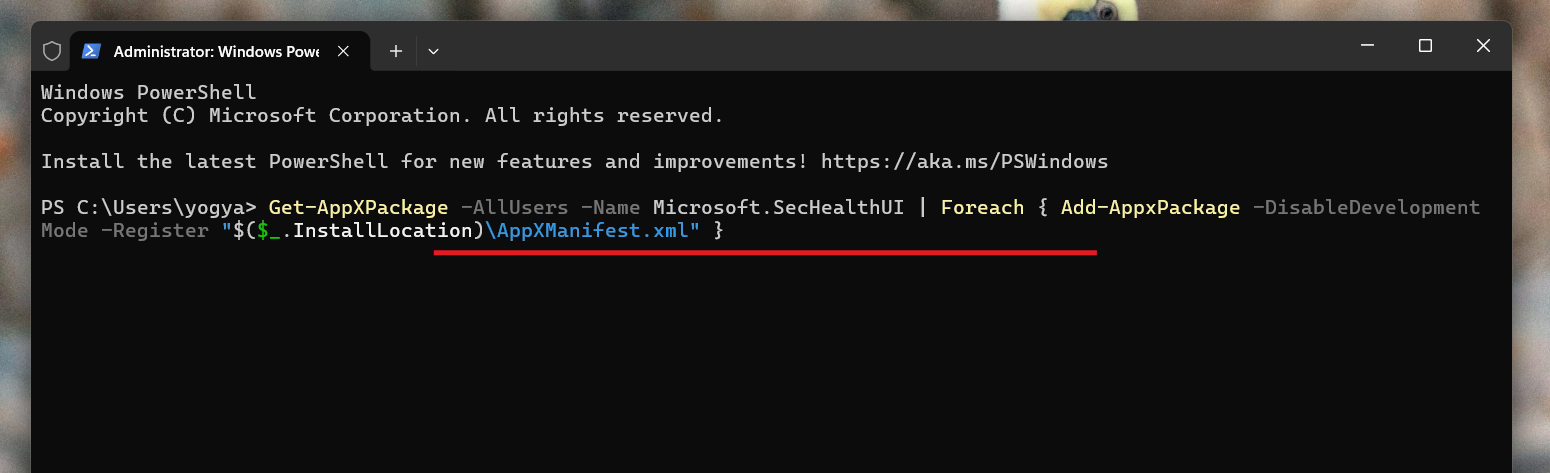
This command forces Windows to re-register the Windows Security app, refreshing the components that drive the tray icon and status updates. Repair rebuilds the app’s data without affecting your files.
Fix 2: Run System Integrity Scans (SFC & DISM)
Running Window’s built-in integrity checks often helps:
1. Open Windows Terminal (Admin).
2. Run these commands one by one:
sfc /scannow
DISM /Online /Cleanup-Image /RestoreHealth
3. After the scans are complete, restart your computer.
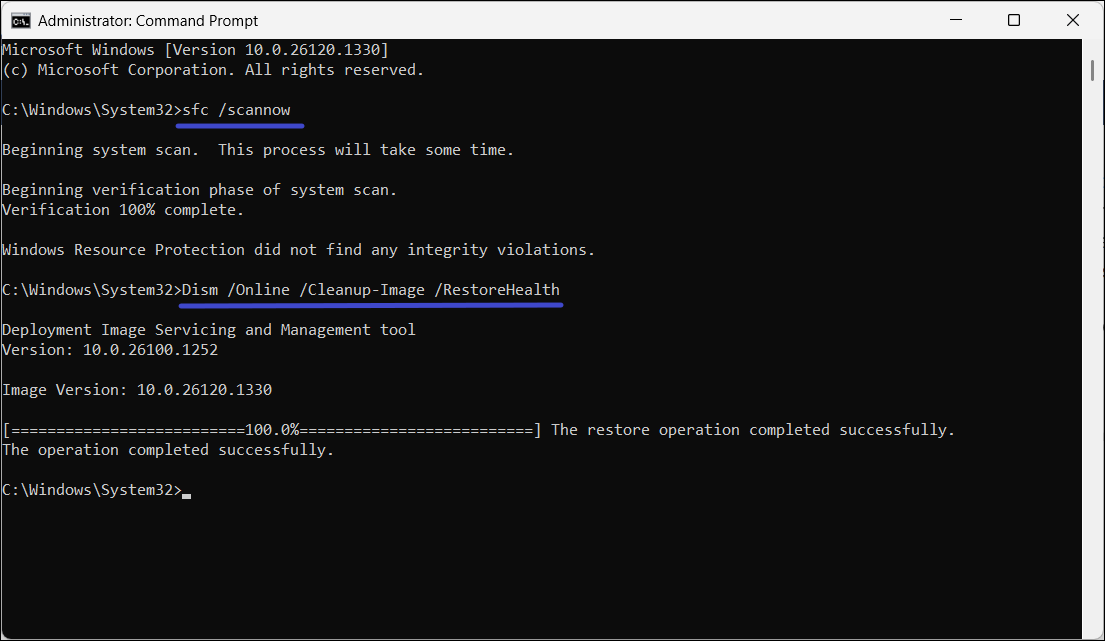
These commands resolve Windows image issues and repair damaged system files that may be causing high resource usage.
Fix 3: Check for Malware or Rogue Files
Even though SecurityHealthSystray.exe is a legitimate Windows component; malware can masquerade under the same name from non-System32 locations or misuse it to consume resources.
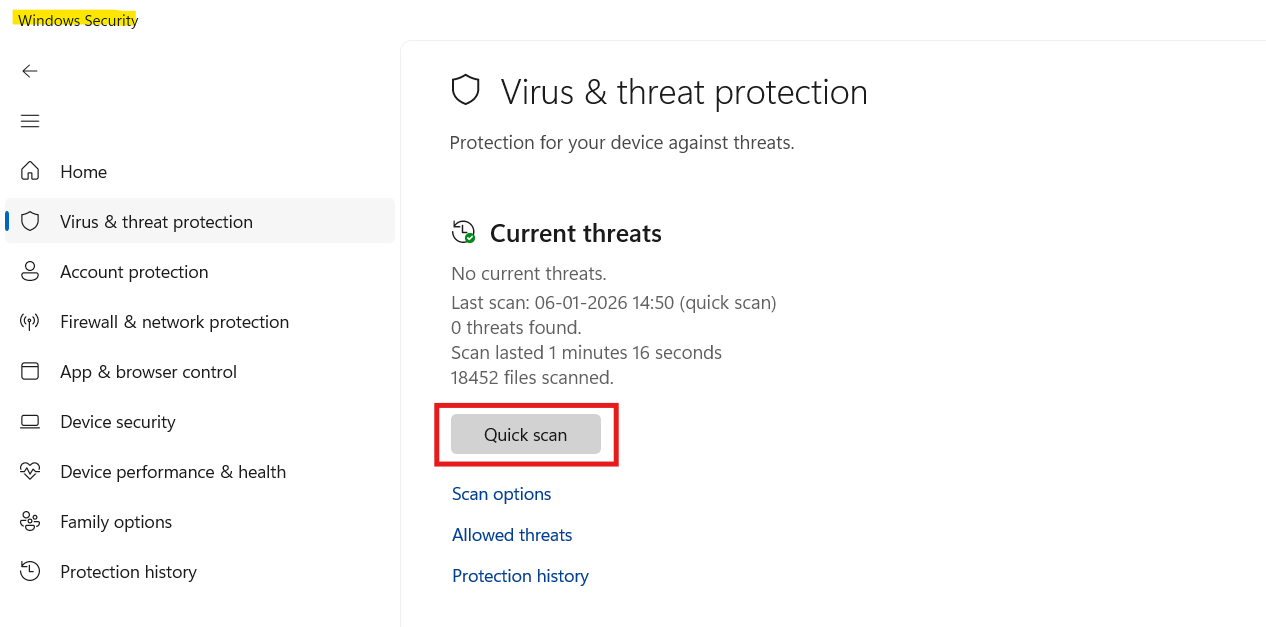
1. Open Windows Security and go to Virus & threat protection, then Quick scan.
2. If needed, run a Full scan to check for hidden threats.
3. Confirm the file’s location: The genuine SecurityHealthSystray.exe should be in:
C:\Windows\System32
If it appears in user folders, temp directories, or unusual paths, treat it as suspicious.
Fix 4: Update Windows Security App is Updated
Outdated components can miscommunicate with the OS, causing odd behaviour:
1. Go to Settings and go to Windows Update.
2. Click Check for updates and install anything pending.
3. Also, let Defender definition updates install automatically.
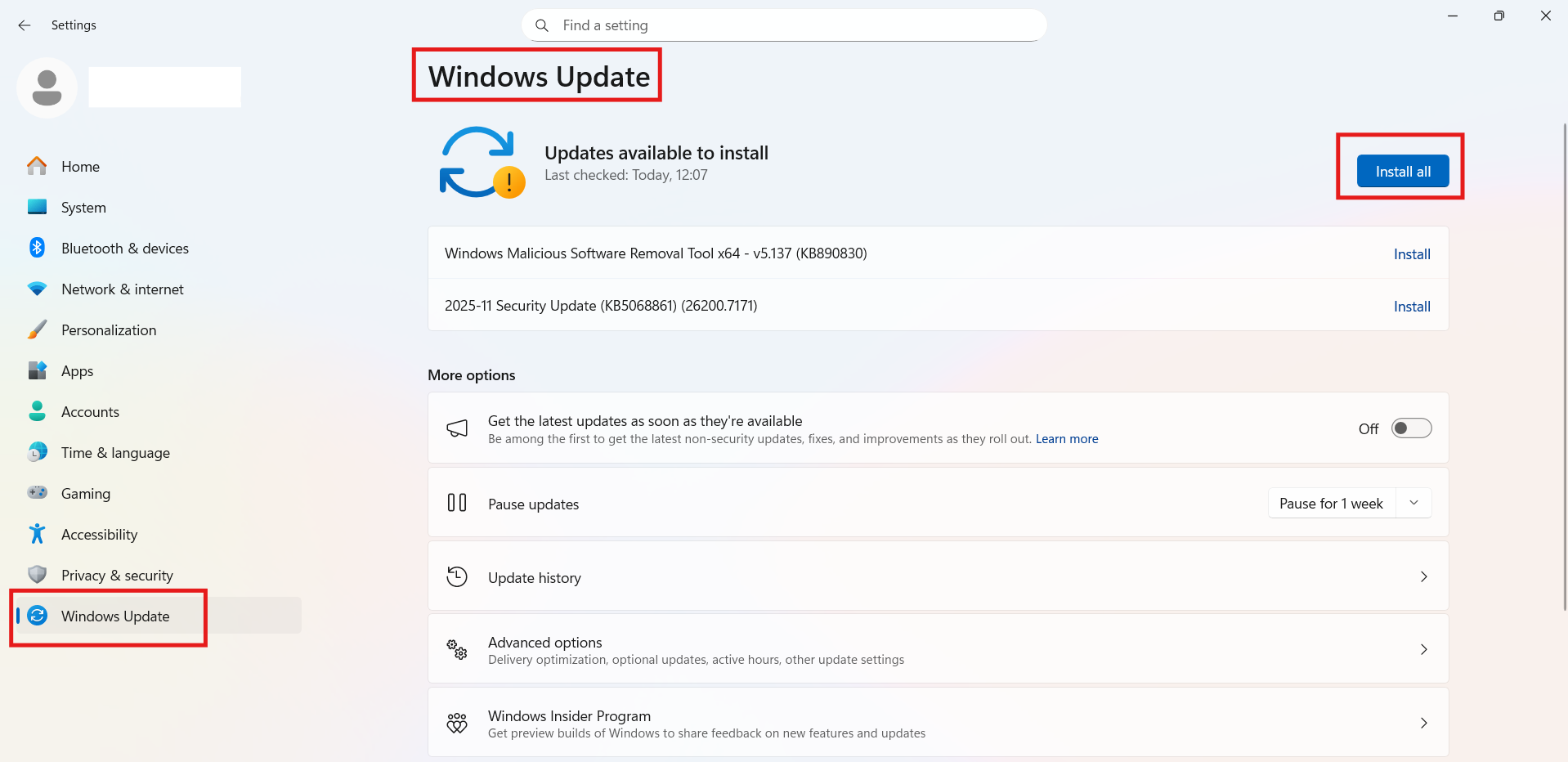
Keeping Windows Security up to date ensures bug fixes and performance improvements are applied.
Fix 5: Perform Clean Boot
A clean boot helps determine if background apps are interfering with core security processes and causing the high usage behaviour.
Some startup programs or services may trigger contention around security services:
1. Press Win + R, typemsconfig, and press Enter.
2. In the Services tab, check Hide all Microsoft services.
3. Click Disable all.
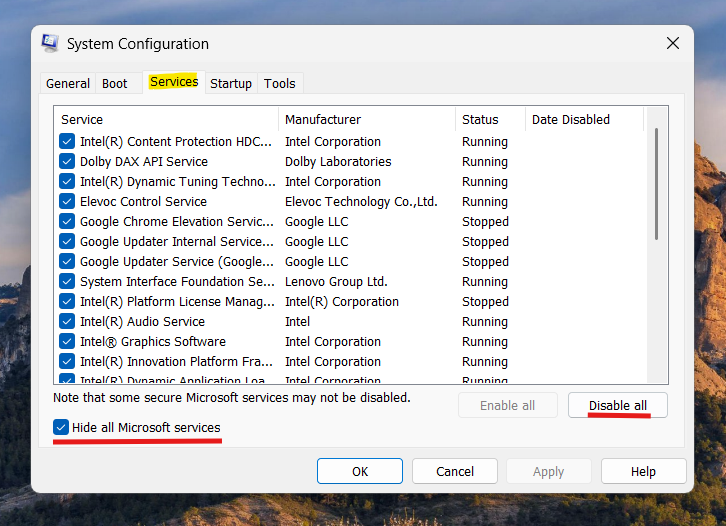
4. Then, go to Startup. Open Task Manager and disable unnecessary items.
5. Restart your PC.

Optional: Hide the Tray Icon
If high usage is tied to the UI and you just want to stop the tray process from launching:
1. Go to Settings, then Personalization. Click on Taskbar, and then Other system tray icons.
2. Turn Windows Security notification icon off.
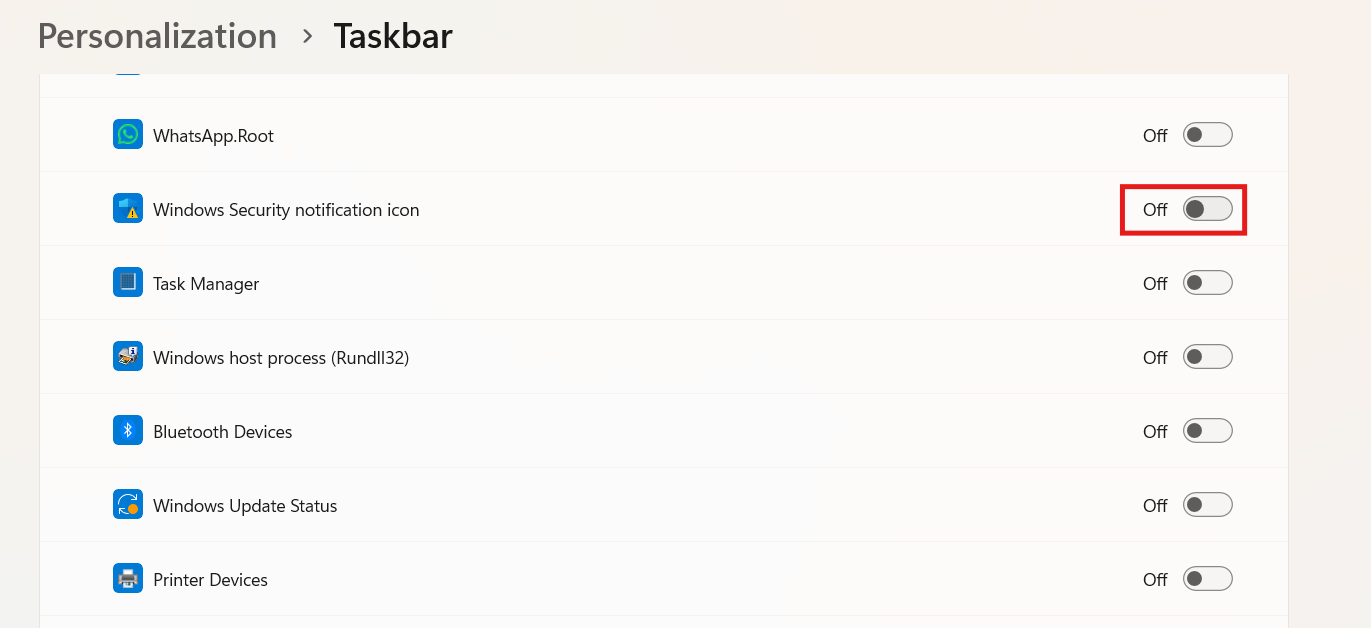
This hides the icon but does not disable core security protection, like antivirus or firewall.
Wrapping Up
SecurityHealthSystray.exe is an important part of Windows Security that helps you monitor system health. Normal operation uses minimal resources, so a sudden spike usually means background services, schedule scans, or software conflicts are triggering excessive updates. Try the steps above to restore normal usage without disabling your protections.
![Solved: 100% CPU usage in Windows 11 [2026 Fix]](https://www.kapilarya.com/assets/Drivers-768x413.png)