

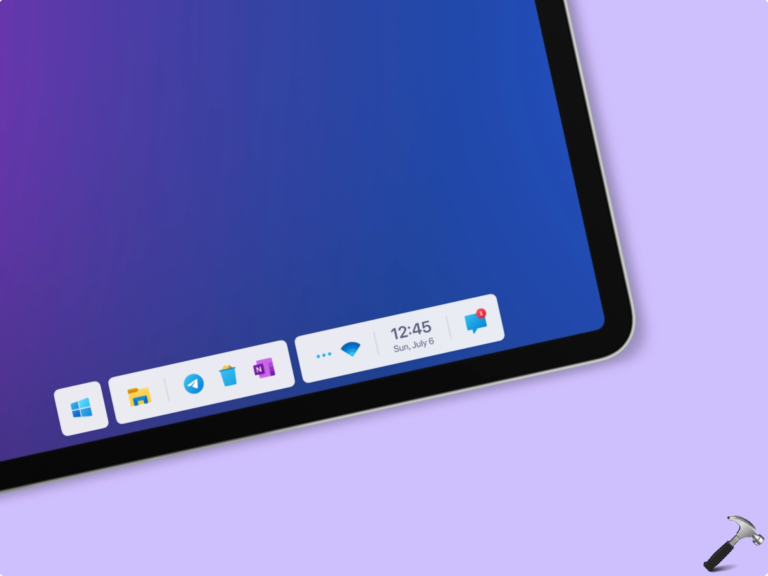
Taskbar remains the main element in your computing while being on Windows 11. By default, Windows 11 uses a midsize task bar that is sufficient to perform day-to-day operations. However, if you want more flexibility with taskbar so that you can get a better workspace, you might want to change taskbar size. Starting with the latest preview builds of Windows 11, Microsoft has added this ability. In this guide, we will learn how you can change taskbar size in Windows 11.
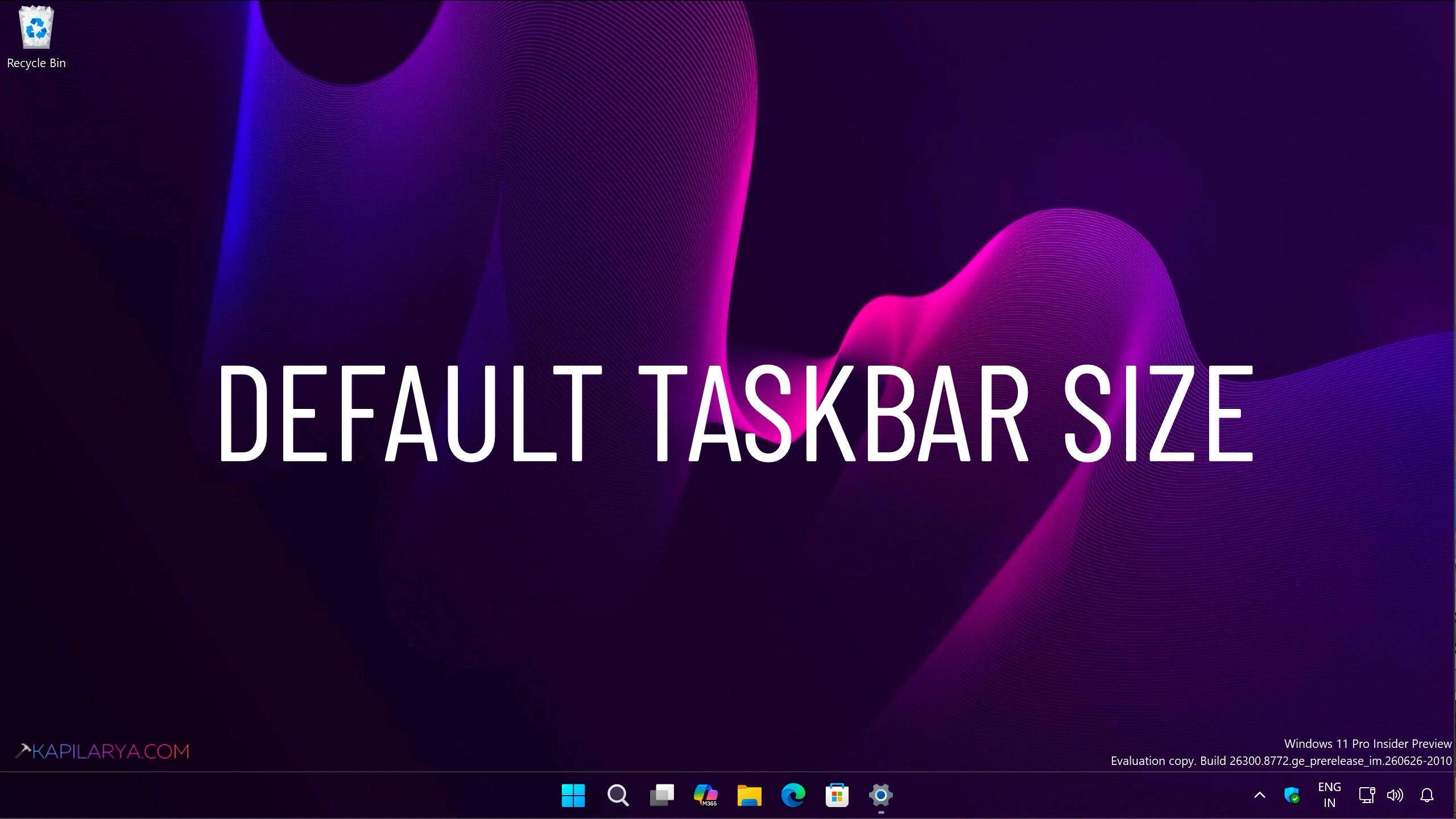
So if you’re on Windows 11 build 26300.8758 or later, you can set a different size for taskbar other than default. This allows you to change the taskbar size from default to large or small. If you are spending a lot of time on your PC, finding the right taskbar size can make the interface feel more personal and comfortable. So without wasting the time anymore, let us see, how you can quickly change your taskbar size.
Page Contents
Change taskbar size in Windows 11
Method 1: Using Settings app
1. Open Settings app on your Windows 11.
2. Navigate to Personalization > Taskbar.
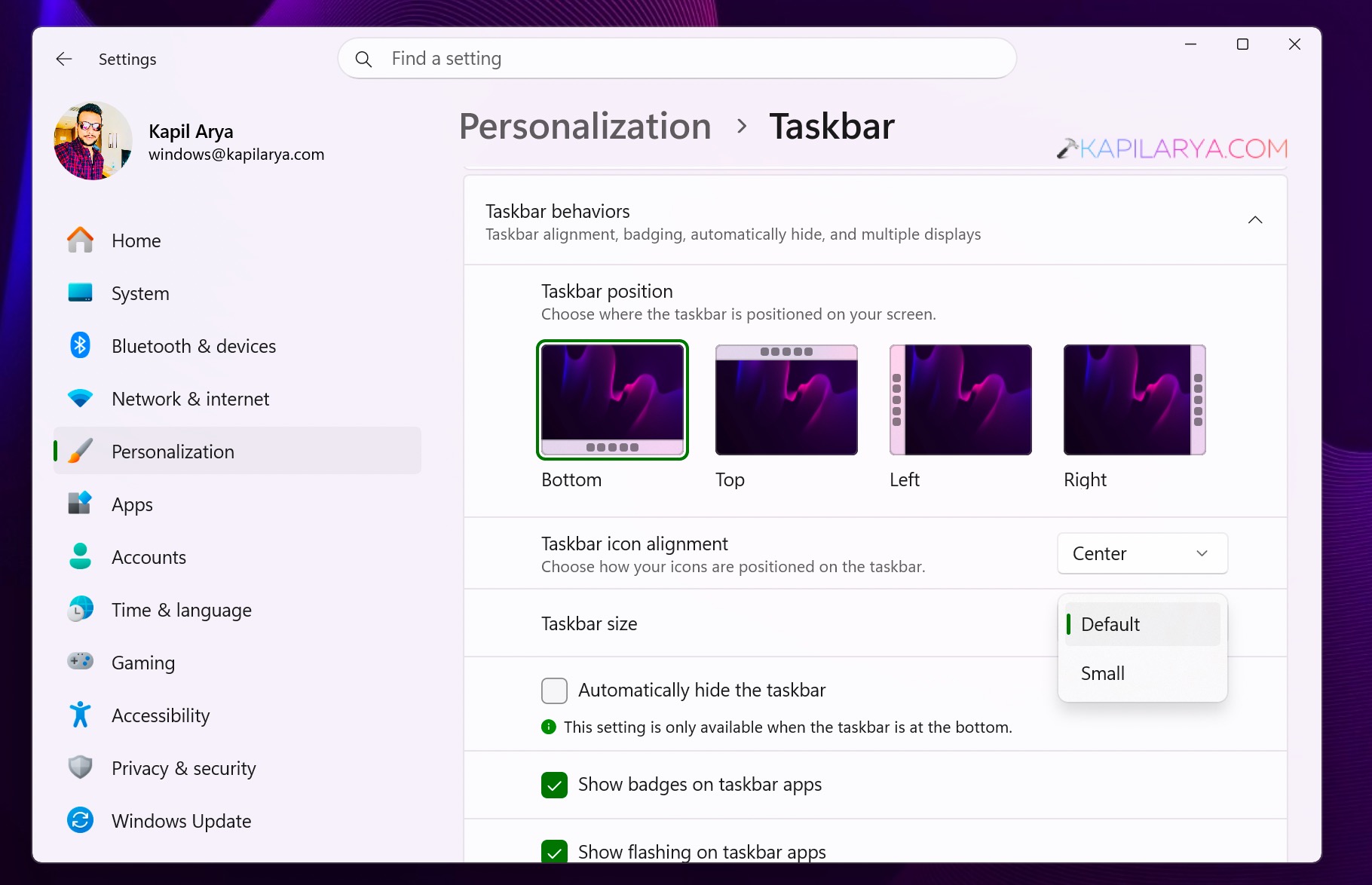
3. On that page, scroll down and expand taskbar behaviors. There you will be able to locate taskbar size as shown in the below screenshot. You can select here to settings one is Default and another is Small. The setting you change will be applied immediately.
4. You can now close Settings app and return to your work.
Method 2: Using Registry
1. Press Windows + R, type regedit and click OK.
2. In the Registry Editor window, navigate to following registry key:
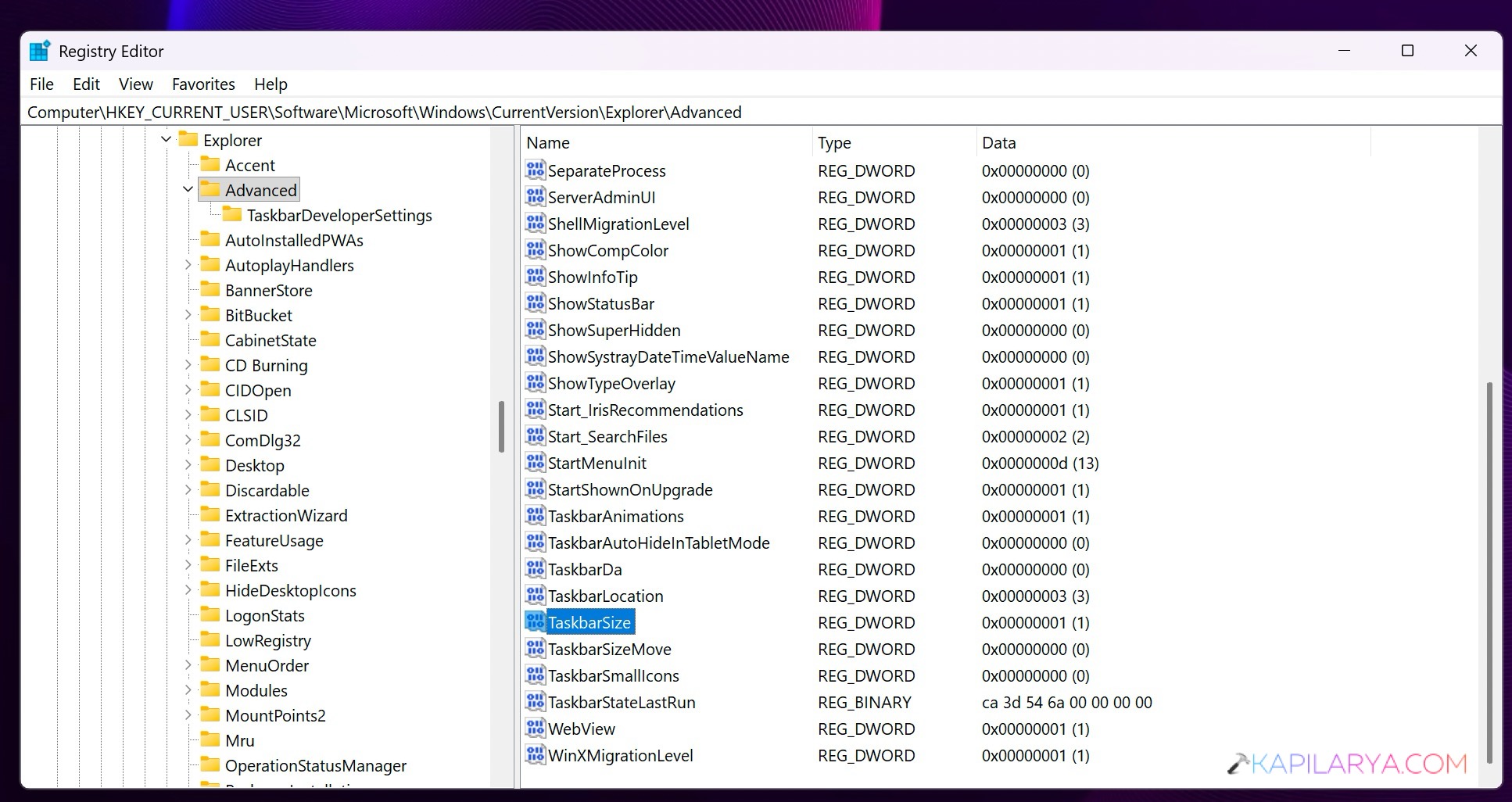
HKEY_CURRENT_USER\Software\Microsoft\Windows\CurrentVersion\Explorer\Advanced
3. In the corresponding right pain of advanced registry key, locate the registry DWORD named TaskbarSize. By default, it corresponds to Value data 0, which allows default size of taskbar. If you want the smaller taskbar size, you can set it’s Value data to 1. The taskbar size will be changed immediately, as you modify registry value.
4. After this, you can close the Registry Editor and return to your work.
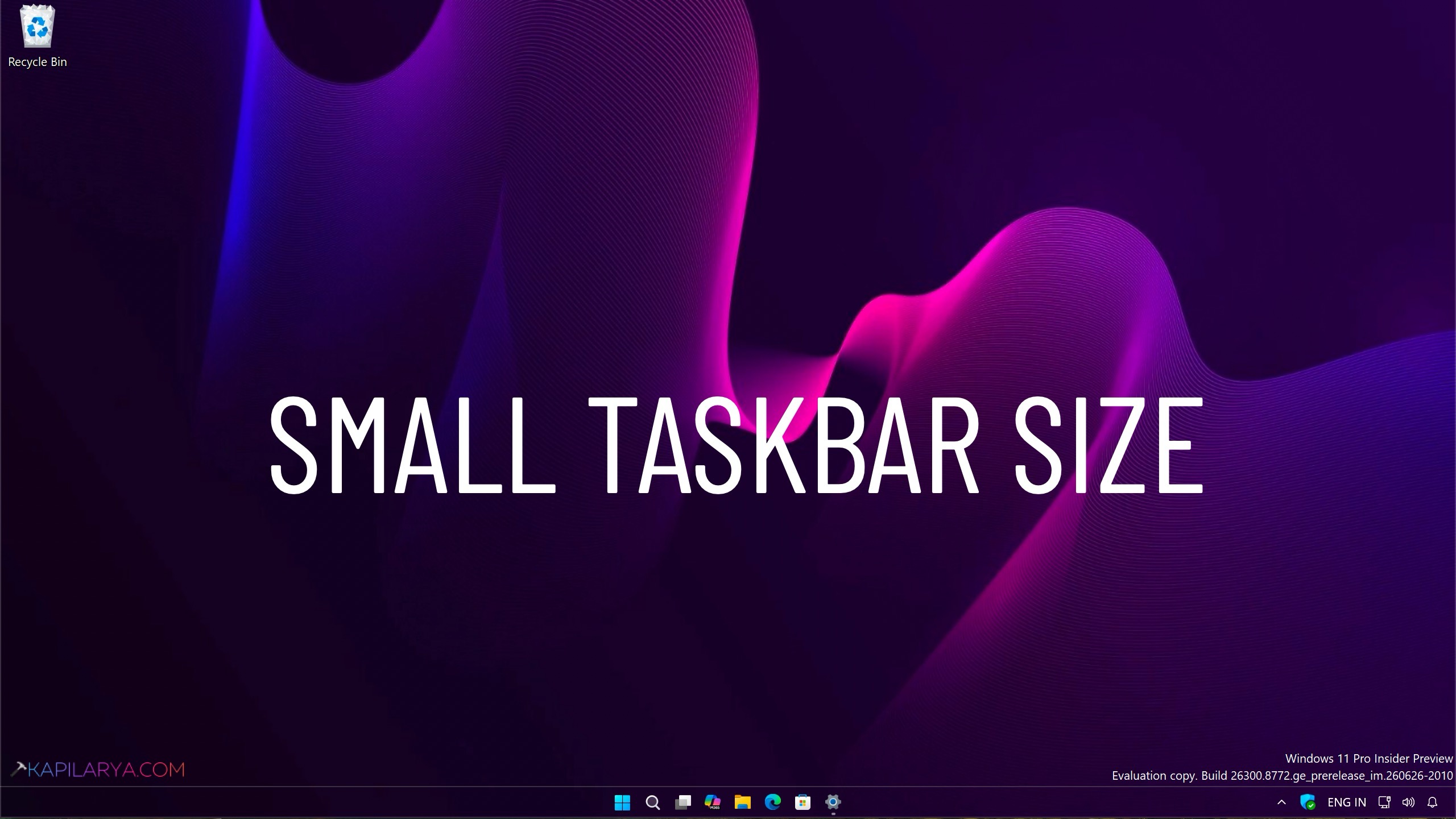
Here is the preview of a smaller taskbar size for your reference:
That’s it!




Hey, this did not work I’m on 26300.9457
Yes