

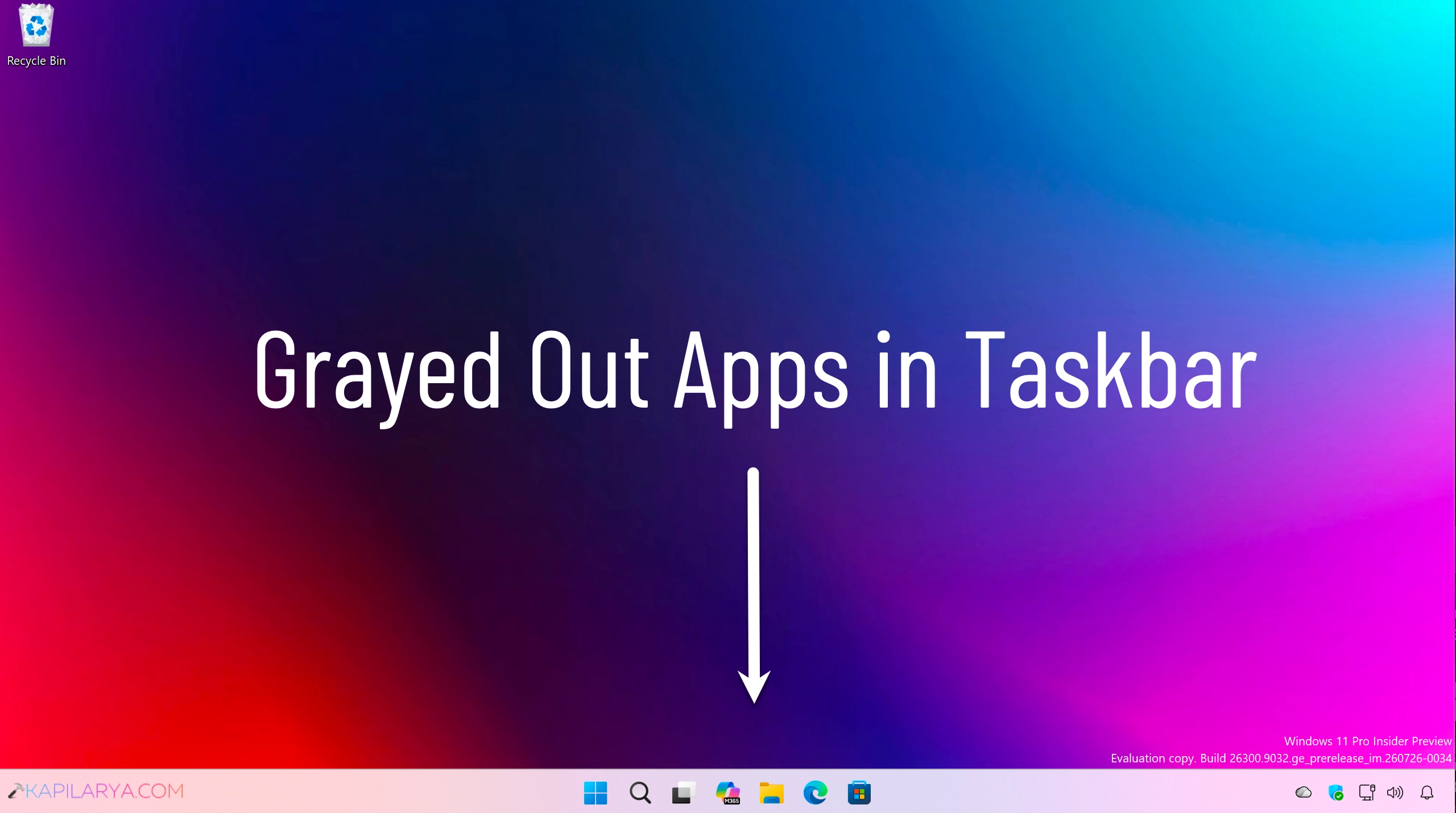
In Windows operating system, you can taskbar is a crucial graphical element. The apps most important to you can be pinned to taskbar for easy access. You can also manage certain applied operations from the right context menu for apps pinned to taskbar. If the taskbar apps are no longer working, this article may help you. In this guide, we will see how you can fix grayed out apps in Windows 11 taskbar.
Page Contents
Fix: Grayed Out Apps in Windows 11 Taskbar
Solution 1: Using Task Manager
For the specific apps that are no longer clickable, you can try to terminate or restart their app process in the Task Manager.
1. Right click on the taskbar and select Task Manager option.
2. Once the Task Manager opens, select the app process for which app icon is grayed out on the taskbar.
3. Click on the End task or Restart task.
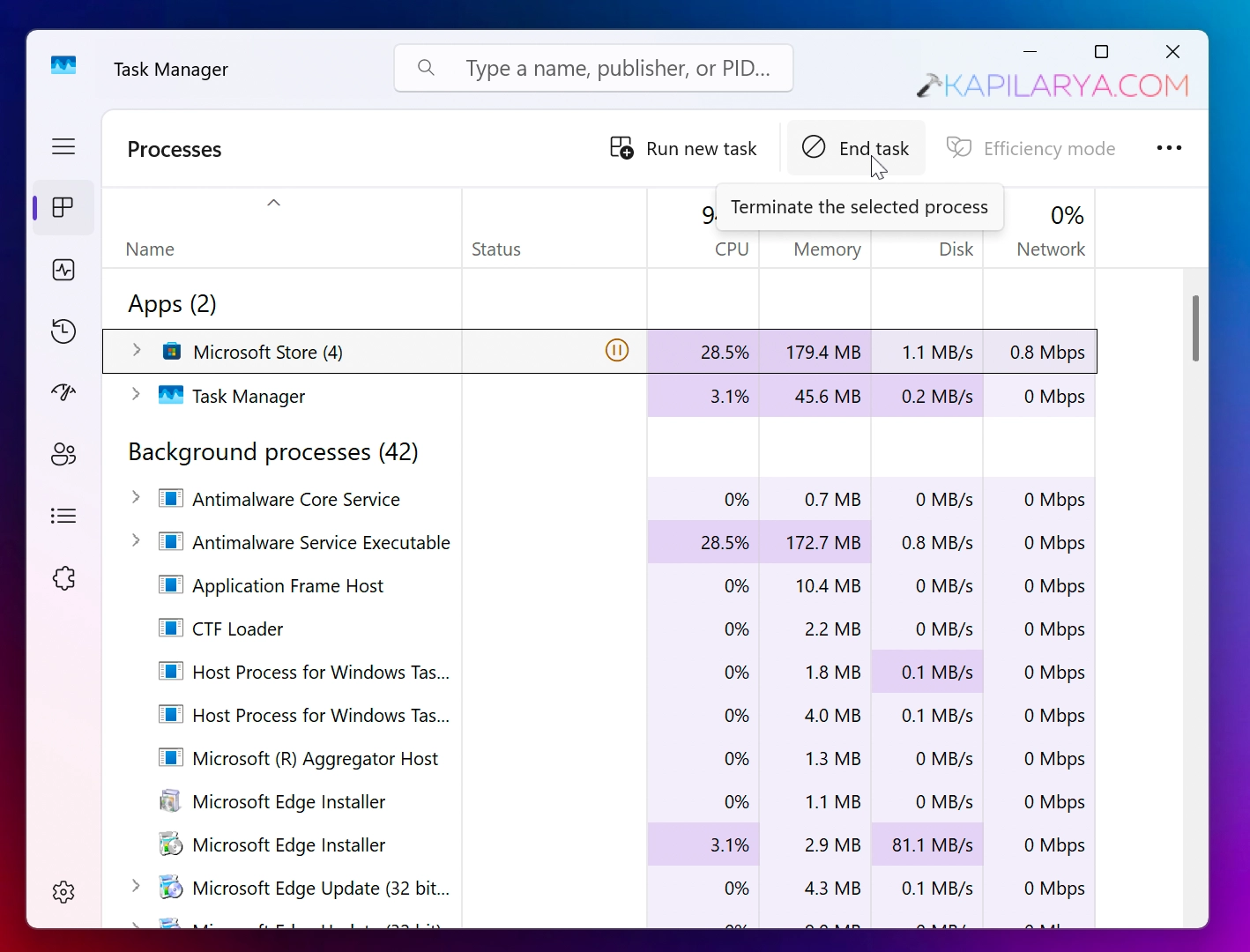
Once the process has been restarted, check the app icon and see if you can click it now.
Solution 2: Clear Icon Cache
Sometimes the apps icon cache can become corrupted. Clearing the icon cache can help you make the apps clickable on the taskbar.
1. Open the Command Prompt from as administrator.
2. In the administrative Command Prompt, type following command and press the Enter key:
taskkill /f /im explorer.exe
3. Then execute the next command:
del /a /q "%localappdata%\IconCache.db"
4. Finally, execute this command:
start explorer.exe
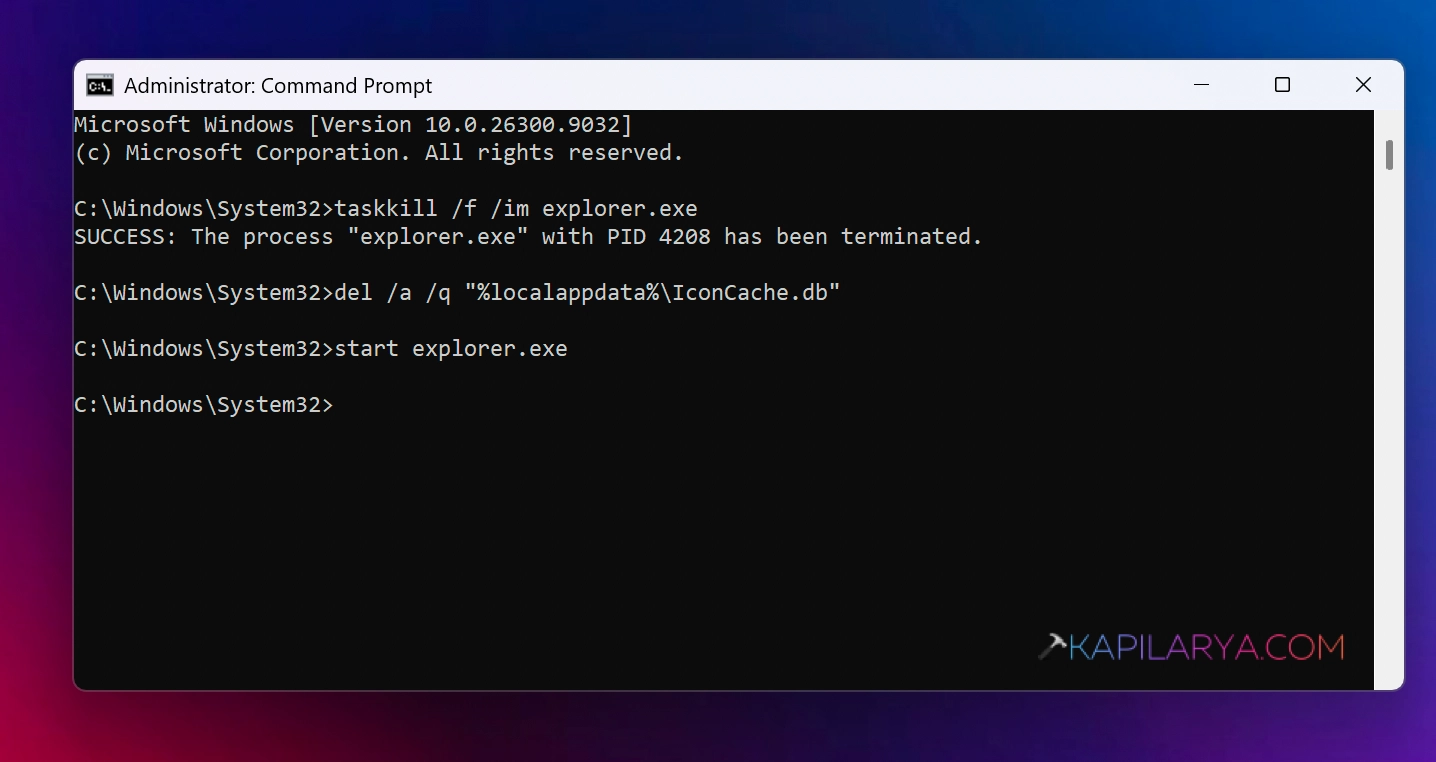
5. You can now close the Command Prompt and see if the issue is resolved.
Solution 3: Re-register Taskbar and related elements
Sometime the issue is related with the taskbar and related elements. You can use the following steps to re-register those elements.
1. Open the Windows PowerShell as administrator.
2. In the administrative Windows PowerShell, paste this command and press in enter key:
Get-AppXPackage -AllUsers | Where-Object {$_.InstallLocation -like "*ShellExperienceHost*"} | Foreach {Add-AppxPackage -DisableDevelopmentMode -Register "$($_.InstallLocation)\AppXManifest.xml"}
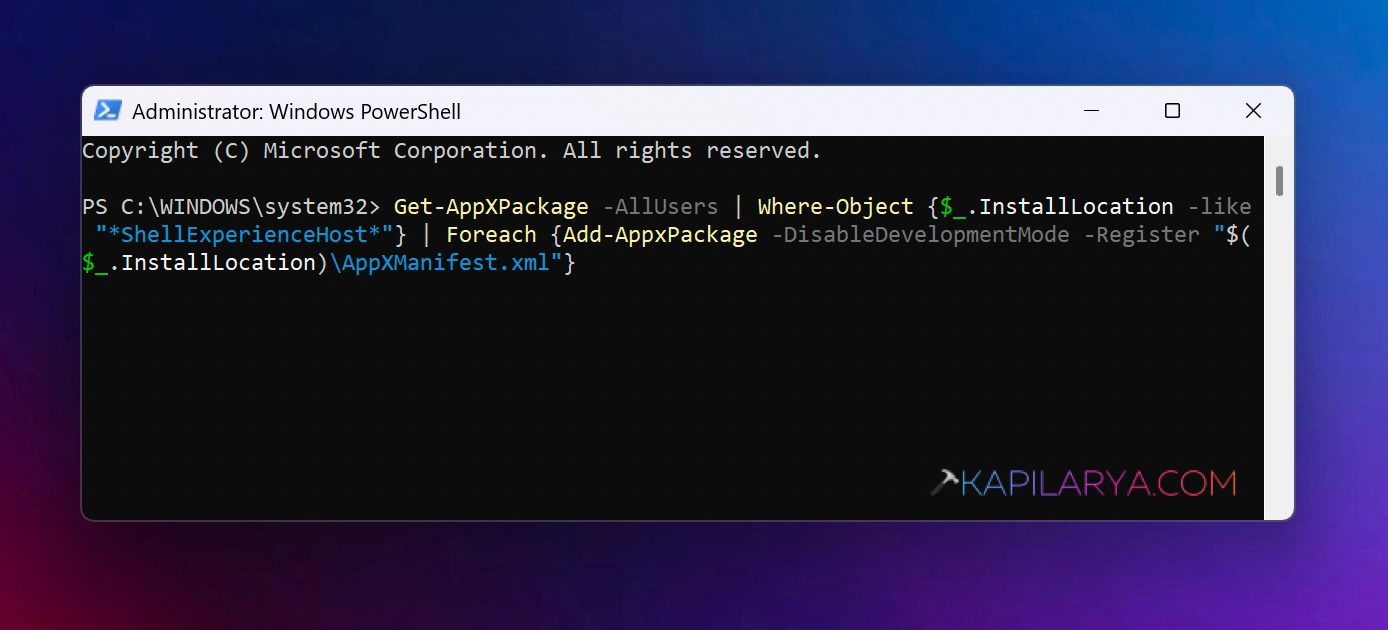
3. Once the command is executed without any red errors, you can close the administrative Windows PowerShell.
That’s it!


![Taskbar unresponsive in Windows 11 [Fix]](https://www.kapilarya.com/assets/Taskbar-3-768x577.png)
