If you have a Windows 11 laptop and the hibernation is not working, this guide is for you. Hibernation is a power option designed to use less power as compared to Sleep power option. It is mostly available for laptops and may not be available for PCs. The main benefit of the Hibernate feature is – it resumes the state where you left off your device and it uses less power. Although, it may not be as fast as the Sleep option.
Page Contents
Fix: Hibernate not working in Windows 11
In order to fix Hibernate not working on the Windows 11, here are the solutions you can try.
Fix 1: Restore Default power schemes
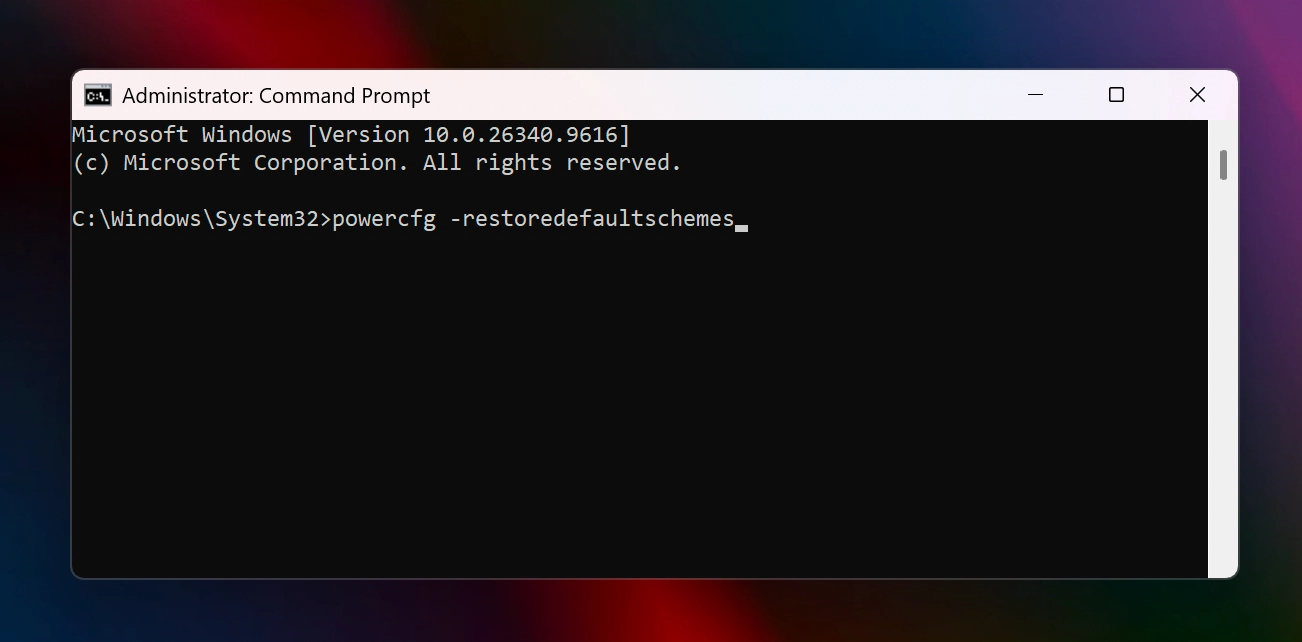
Your system may have different power plans. A power plan is basically collection of system and hardware settings collectively managing the use of power on your system. For this issue, I recommend to try resetting your power plan schemes to default by running this command in Command Prompt as admin:
powercfg -restoredefaultschemes
Fix 2: Run the Power troubleshooter
The Power troubleshooter in Windows 11 helps you to deal most of the issues with power. This built-in tool can find and fix the power related issues automatically. To run this troubleshooter, you can simply go to Settings app and try these:
1. Open the Settings app and go to System > Troubleshoot.
2. In the list of troubleshooters, locate Power troubleshooter and click Run button next to it.
3. Let the troubleshooter be working and completing the troubleshooting steps.
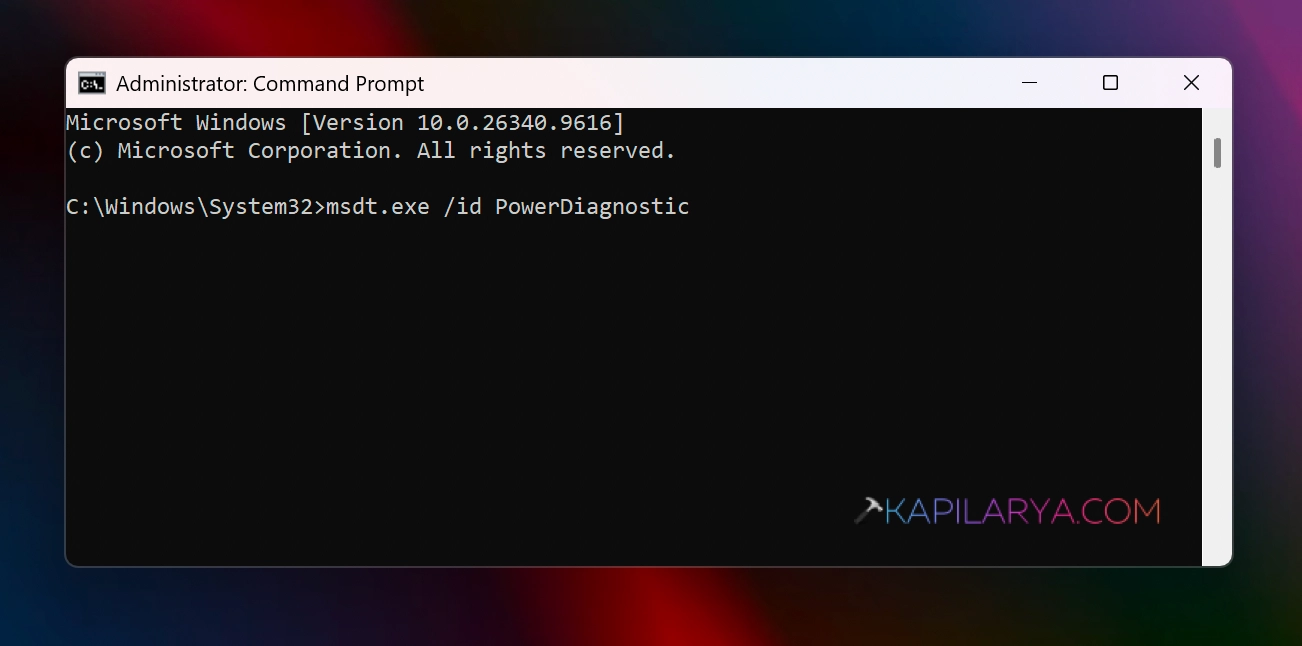
Note: If you don’t found the troubleshooter at step 2, run this command instead to launch it:
msdt.exe /id PowerDiagnostic
Fix 3: Reconfigure Fast Startup
Sometimes fast startup may conflict with the Power options and Hibernation can never remain untouched. Since you’re facing this issue, you must check if you have Fast startup is enabled. If it is enabled and you’re facing the issue try disabling it temporarily to see if the issue is resolved.
To disable fast startup, you can try the steps:
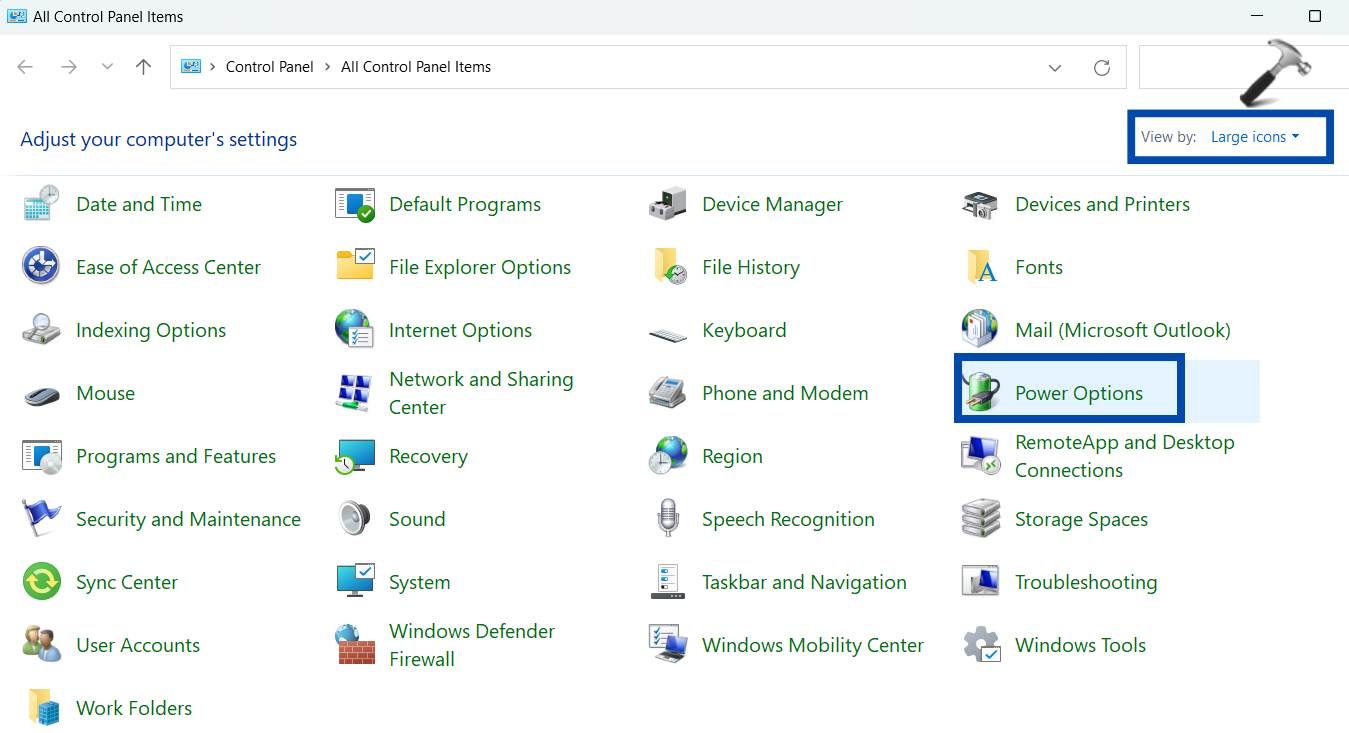
1. Open Control Panel and go to Power Options. (Set view as Large icons if you cannot find it.)
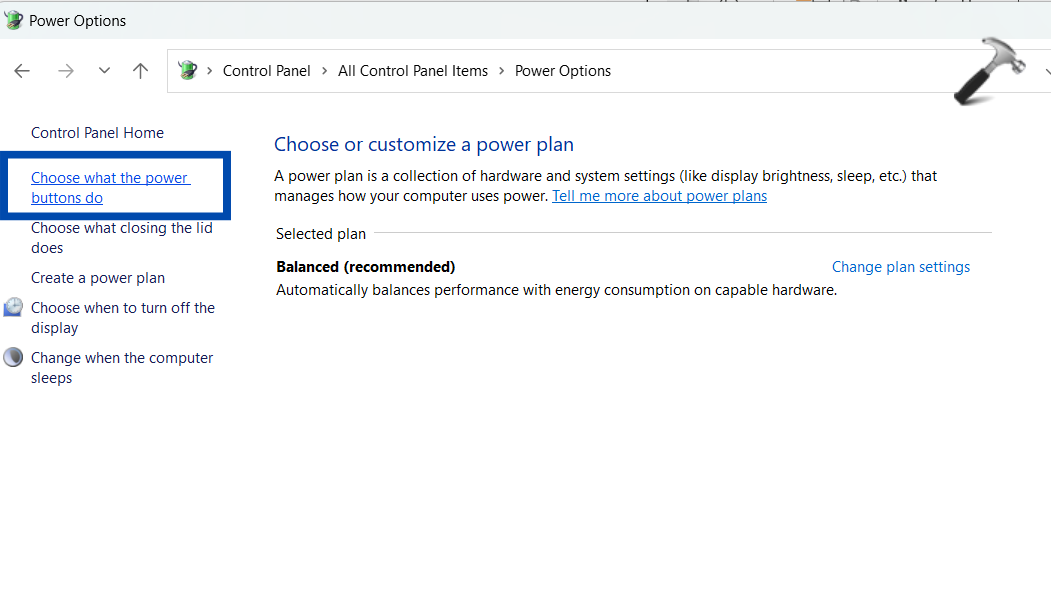
2. Click on Choose what the power buttons do.
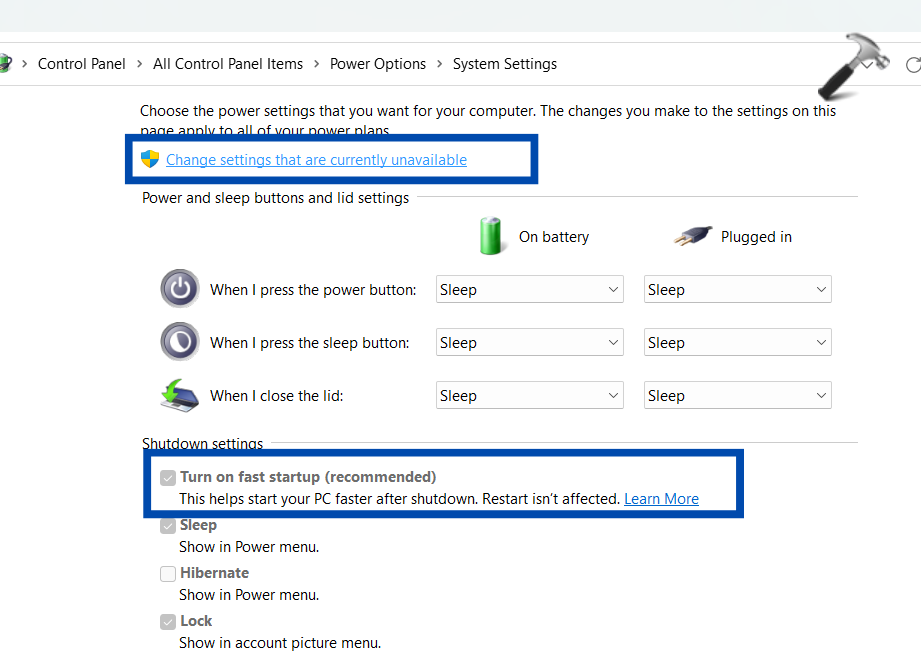
3, Here, you need to uncheck the Turn on fast startup button. In case it is greyed out, click on Change Settings that are currently unavailable. Then, uncheck the box.
That’s it!