You may fix the problem of the Task Host is stopping background tasks in Windows 11 by following this article. This is an instance of Task Host is preventing shutdown issue. If this annoying situation keeps happening every time you are trying to shut down your computer, then you have come to the right place.
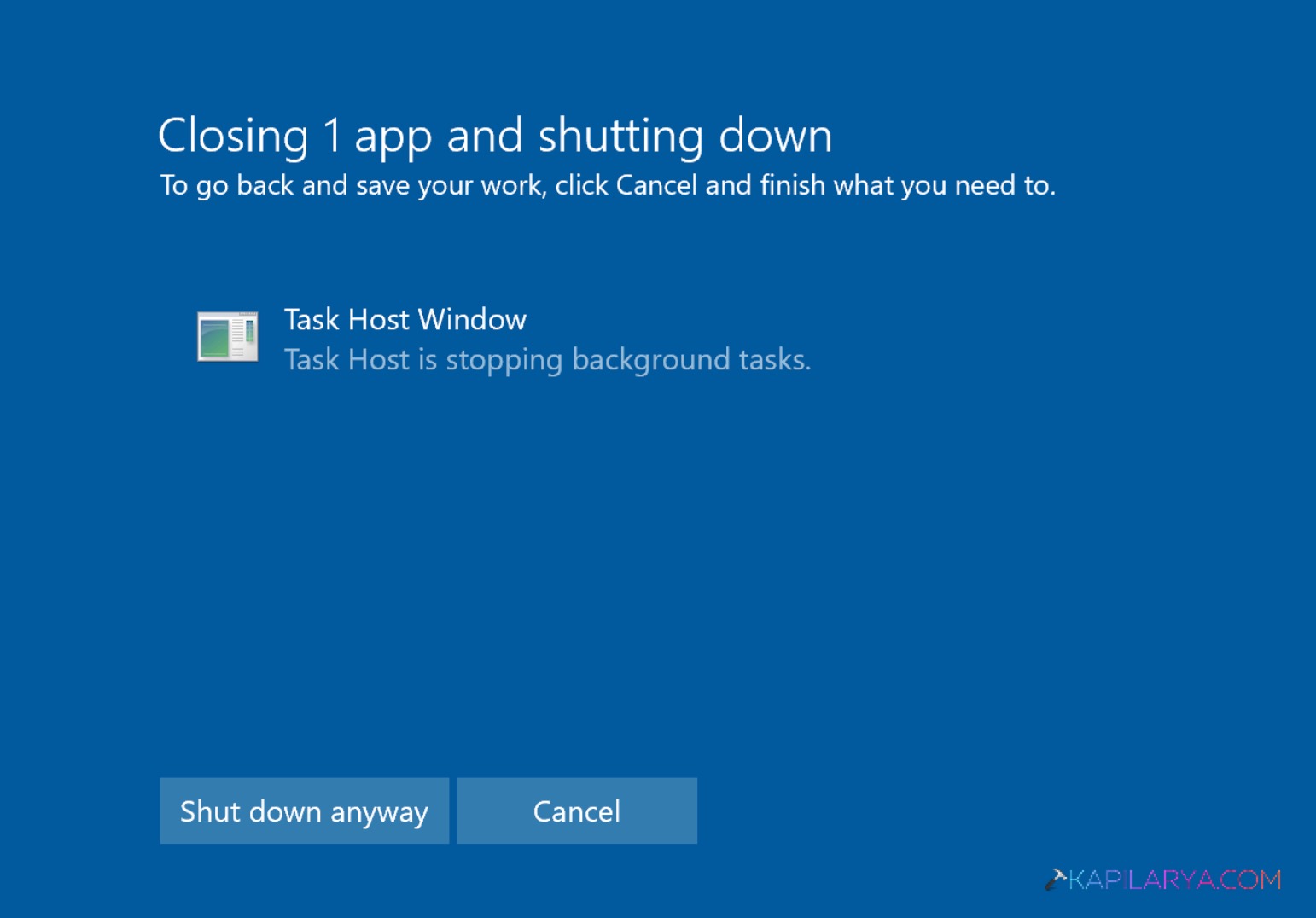
The Task Host window keeps appearing on many Windows 11 computers/laptops. The main reason behind this problem is that the background services are not closing. Because of this problem, the shutdown is not possible. In this article, we will discuss why the Task Host window keeps appearing and how to fix this problem.
Page Contents
What Causes the Task Host is stopping background tasks in Windows 11?
The Task Host window keeps appearing due to the presence of a background process. The message appearing in the window is: Task Host is stopping background tasks.
There are several reasons why this problem may appear:-
- Apps are not shutting down properly.
- Windows update problems.
- System files are not working properly.
- Microsoft Store services are running in the background.
- Fast Startup problems.
- Background installers are running silently.
Fix Task Host is stopping background tasks in Windows 11
Fix 1: Disable Fast Startup
Fast Startup speeds up your computer. However, there could be problems with shutting down the computer. The problem with the window of the Task Host could be fixed by disabling Fast Startup.
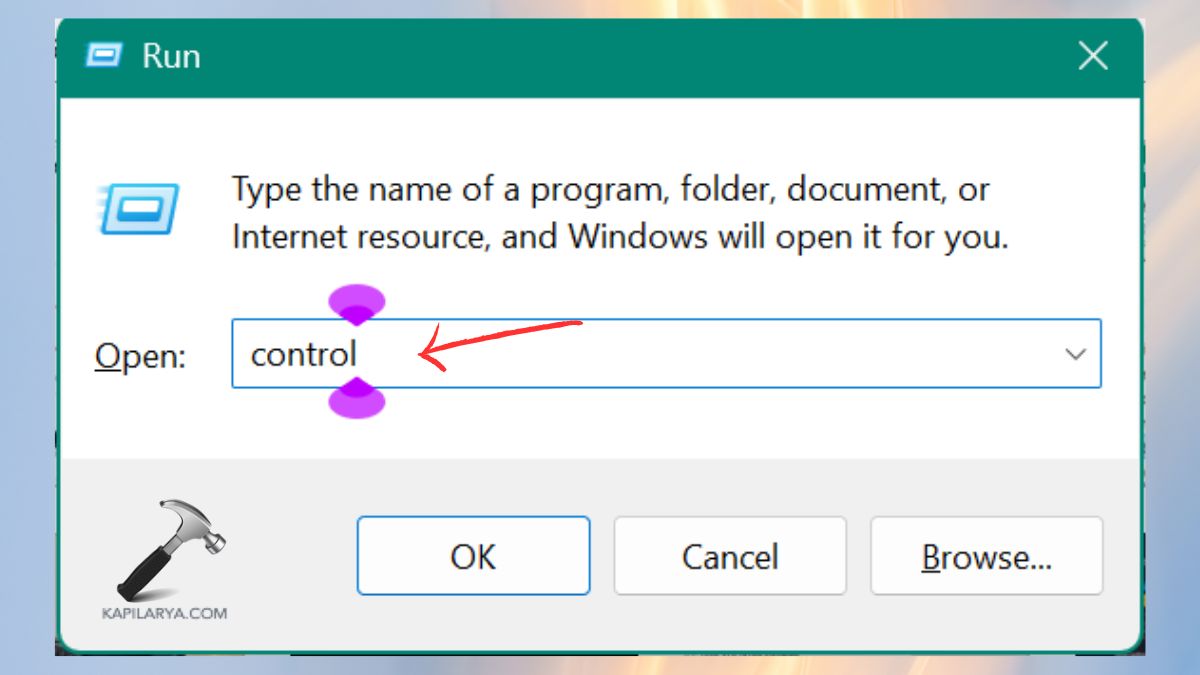
1. Hit the Windows key + R and type this and press Enter.
control
2. Click on Power Options.

3. On the left side of the window, click on ‘Choose what the power buttons does’ to modify the settings.
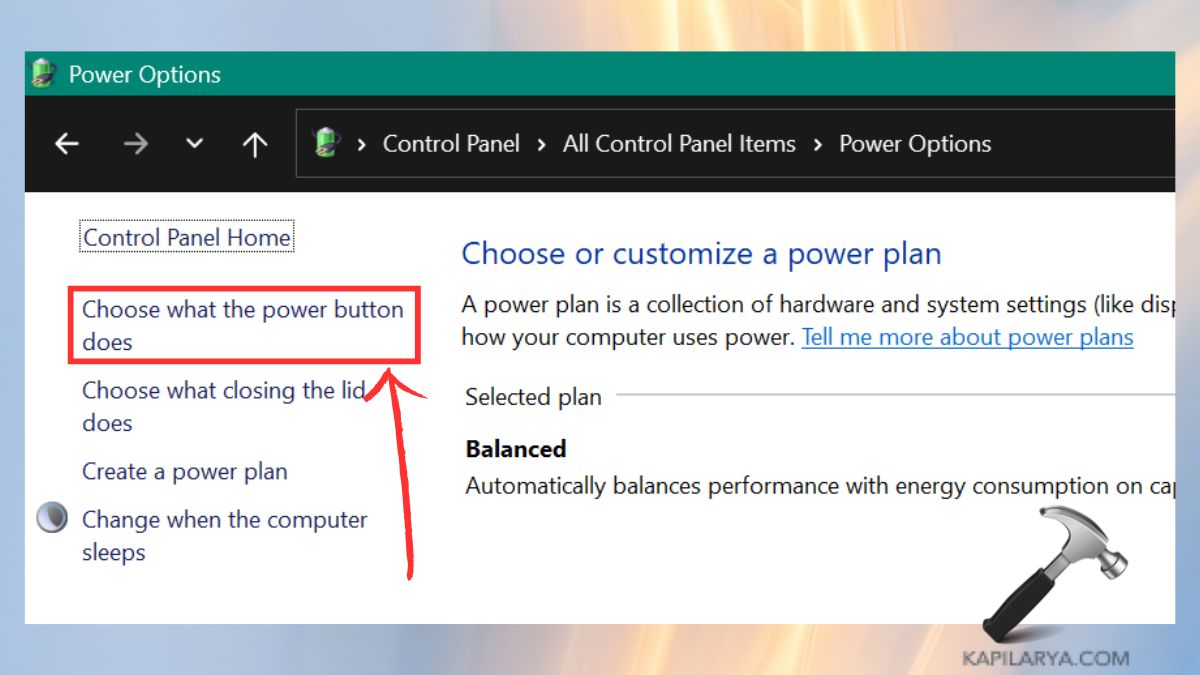
4. Click on ‘Change settings that are currently unavailable’. Uncheck ‘Turn on fast startup (recommended)’ under Shutdown settings. Click on Save changes and then click on Restart.
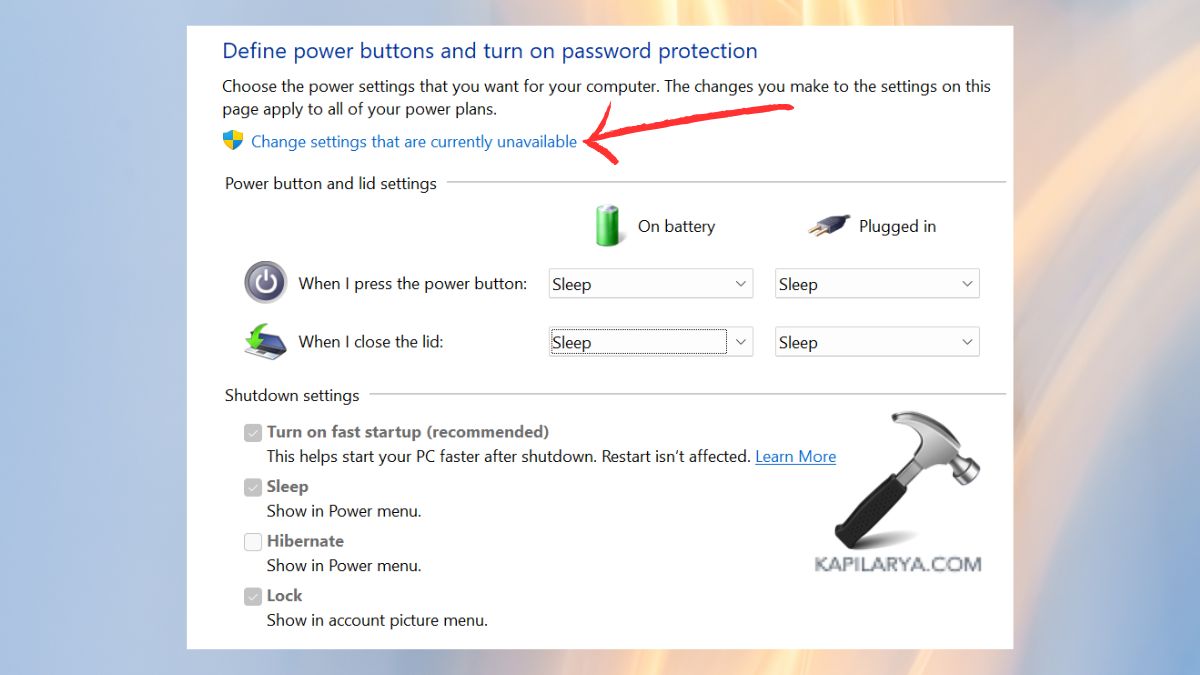
Shut down the PC again to see if the problem is fixed.
Fix 2: Check for Pending Windows Updates
If your computer is upgrading itself and you are not there to see it, then Windows might not allow you to shut down your computer. The solution to this problem is simple. You should ensure that all the upgrades that are available to be installed in your computer are being installed in your computer. This will surely solve the problem.
1. Click on Settings and then on Windows Update.
2. Select the option Check for updates and install all the updates available.

This includes optional and security updates. Try restarting your PC and see if this solves the problem. Shut down your PC again to see if the problem persists.
Fix 3: Run DISM and SFC Scans
Corrupt system files may also cause the problem of the Task Host window preventing shutdown. Running DISM and SFC will fix the problem for sure.
1. Search for Command Prompt and right-click on it to choose Run as administrator.

2. Type these commands and press Enter after each command.
sfc /scannow
DISM /Online /Cleanup-Image /CheckHealth
DISM /Online /Cleanup-Image /RestoreHealth

Restart your PC and shut it down again to see if the problem is fixed.
Fix 4: Run the Windows Update Troubleshooter
Windows Update components may also cause problems. The built-in troubleshooter will fix the problem for sure.
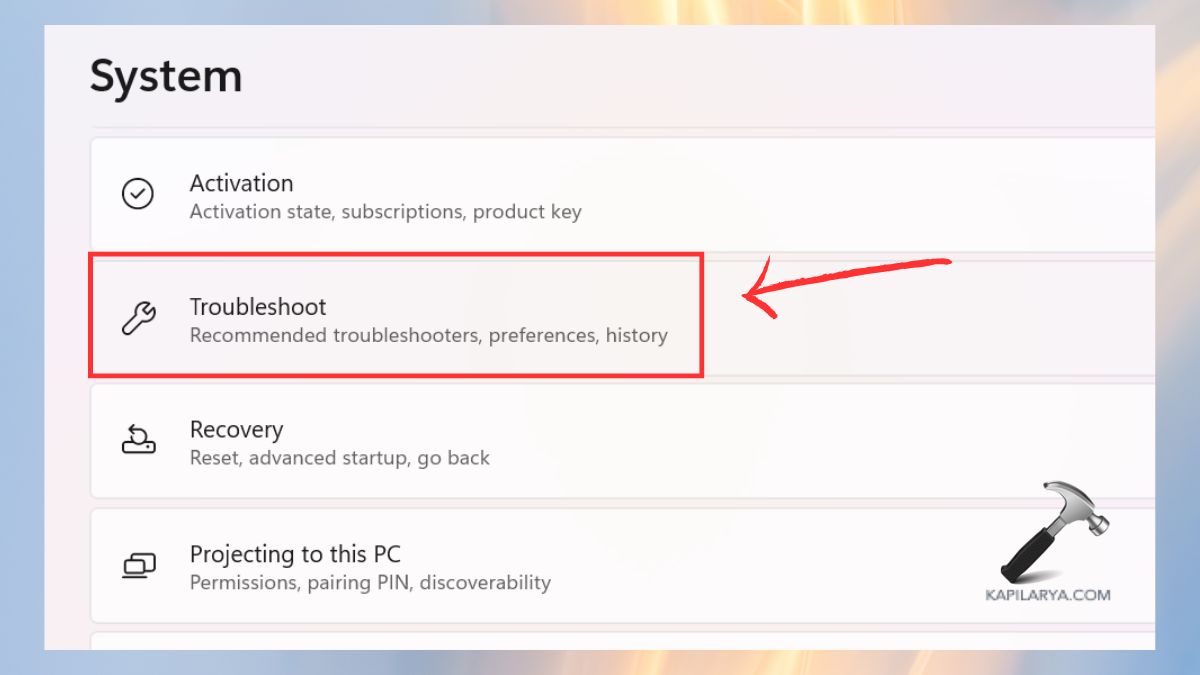
1. Click on Settings, click on System > Troubleshoot.
2. Choose ‘Other troubleshooters’.
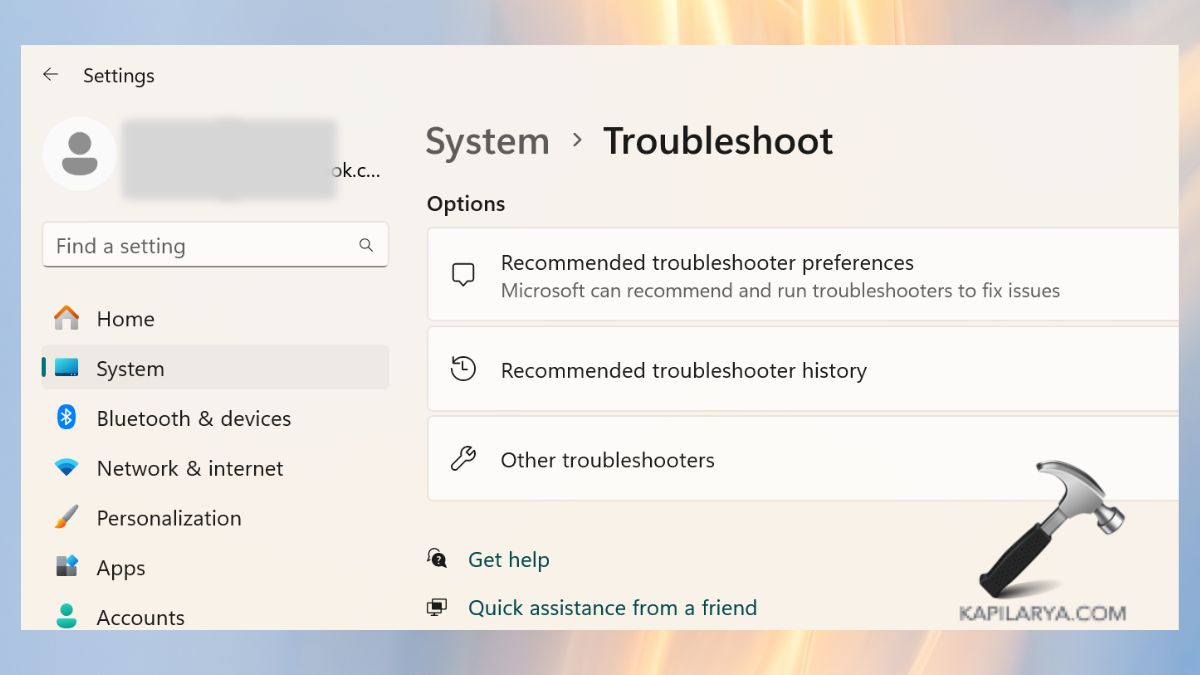
3. Tap on ‘Run’ next to ‘Windows Update’ under Most frequent.

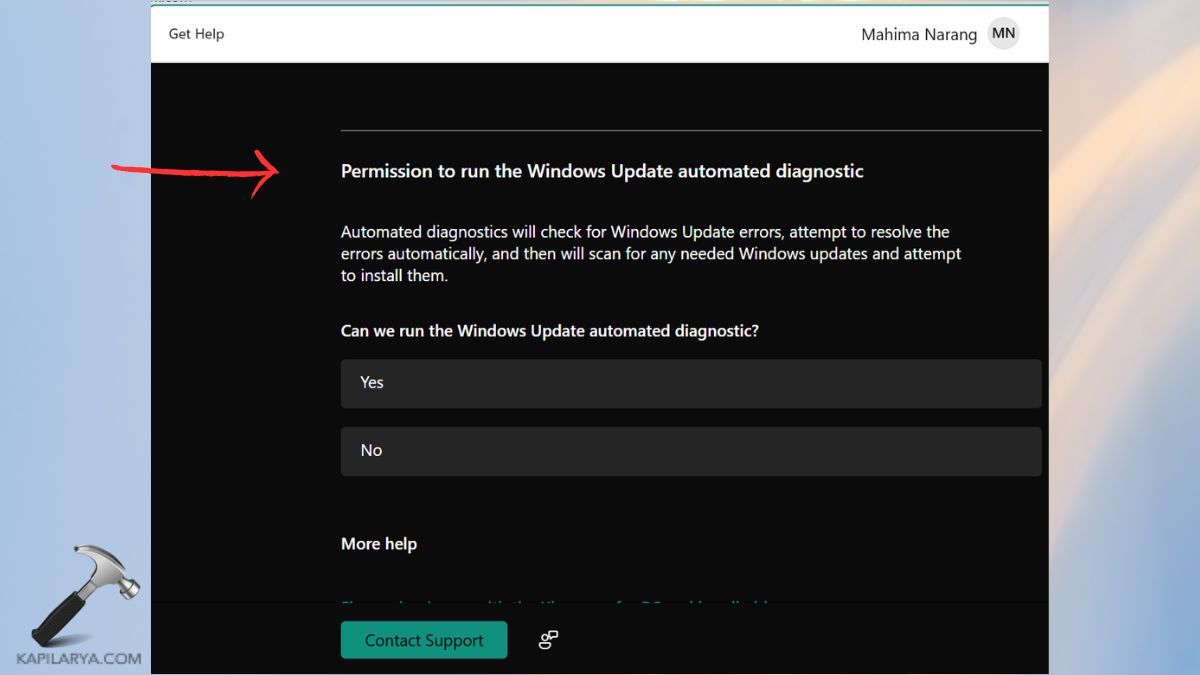
4. Choose on-screen options, once finished, reboot and shut down your PC again.
Fix 5: Restart the Microsoft Store Install Service
At certain times, these Microsoft Store apps may update in the background, which freezes the shutdown process. This can be fixed by restarting the service.
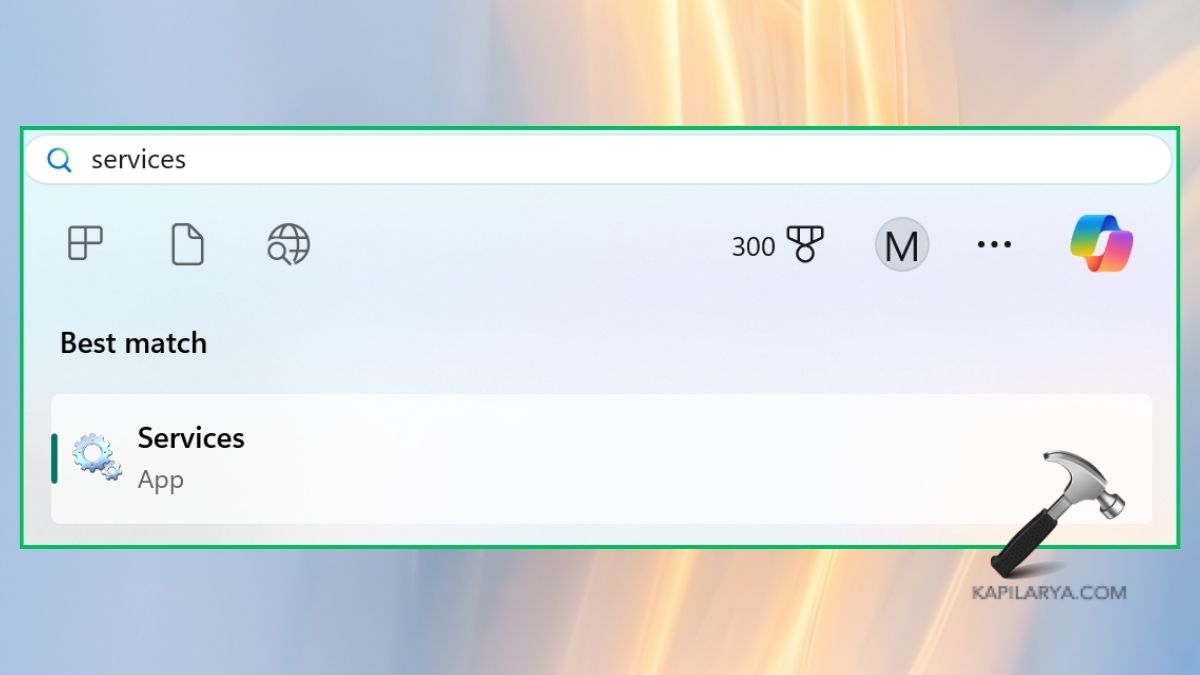
1. Press the “Win” button on your keyboard. Enter “Services” in the search box. Open it.
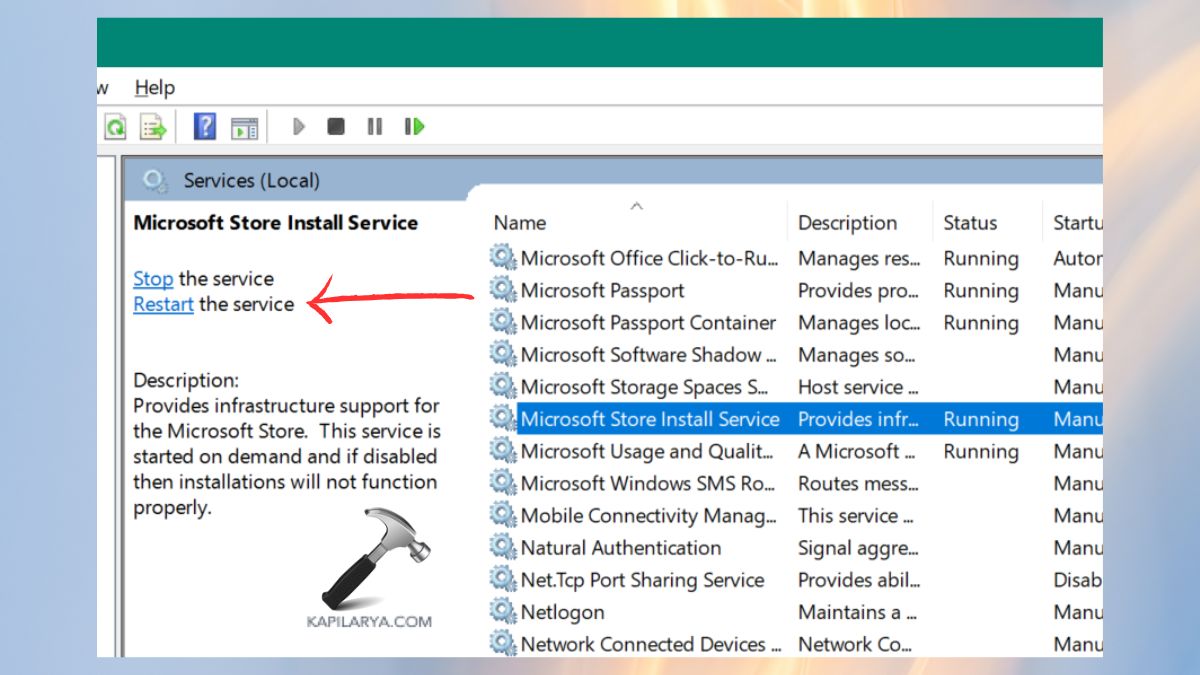
2. You can find the “Microsoft Store Install Service” in the list of services.

3. Click on it and choose “Restart” from the context menu. Click on “Shutdown.”
Fix 6: Click “Shut Down Anyway”
The “Task Host” window will appear on your screen. You can choose “Shut down anyway.”
This option is completely safe for your system. However, this is a temporary fix. You can use this option:-
- If you are in a hurry.
- No important task is pending.
- Shutdown is frozen for no specific reason.
Frequently Asked Questions (FAQs)
Is clicking “Shut down anyway” safe?
This option is completely safe for your system. However, in order to avoid this option every time you try to shut down your system, you should try the above options.
Why does the Task Host window appear repeatedly?
This option may appear on your screen due to various reasons like background apps, system file errors, updates, “Fast Startup” issues, etc.
Can outdated drivers cause this issue?
Yes, old and faulty device drivers may cause background services to freeze during shutdown.
Does disabling Fast Startup slow my PC?
The only thing that may be slightly impacted is the boot time. The rest of the things will remain the same.
That’s it!