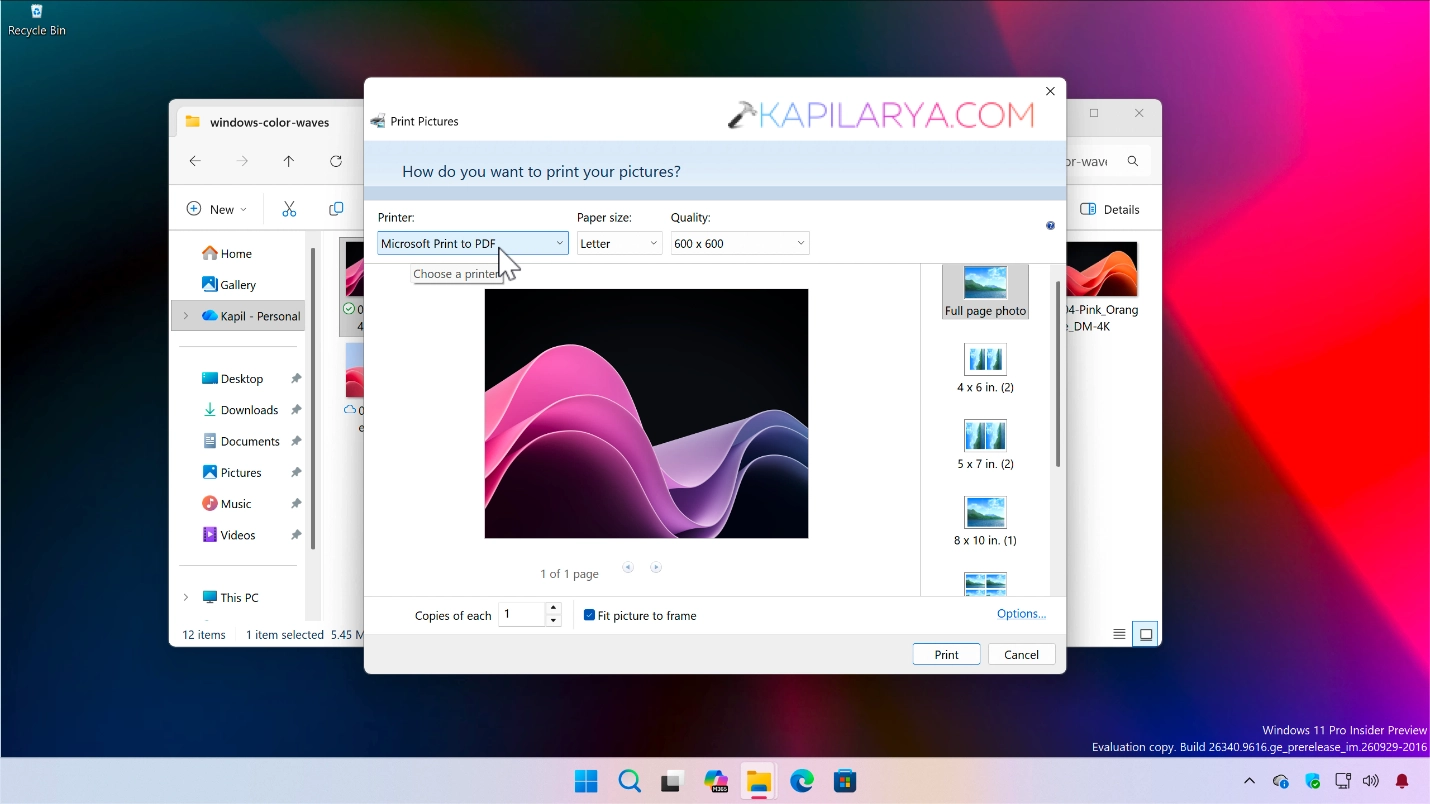
Microsoft Print to PDF is a inbuilt feature that helps you to create a PDF of a document or a file in Windows 11. With the present of this feature, it eliminates the requirement of having a separate PDF creator. You simply right click on a content and choose print and from the printer selection window, you can simply select Microsoft Print to PDF. Your PDF would be then exported once you click Print. The feature is really handy and useful but sometimes it may not work as expected. In this guide you will learn how you can fix Microsoft Print to PDF not working.
Page Contents
Fix: Microsoft Print to PDF not working in Windows 11
Fix 1: Reinstall the feature
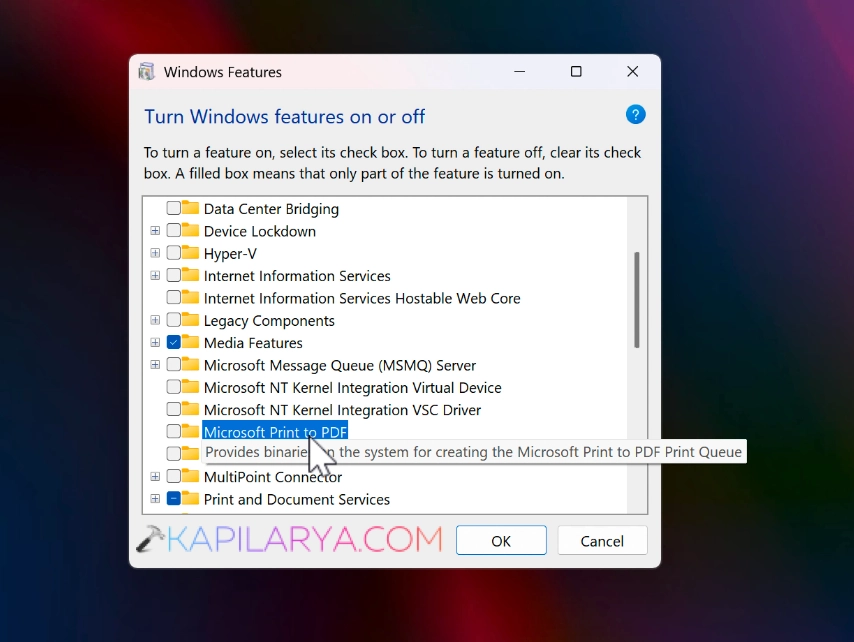
1. Click on the search icon present for the taskbar. Search for Turn windows features on or off and pick the same from search results.
2. In the list of features, choose Microsoft Print to PDF and uncheck it and then click OK.
3. Let the changes be saved and then restart your system.
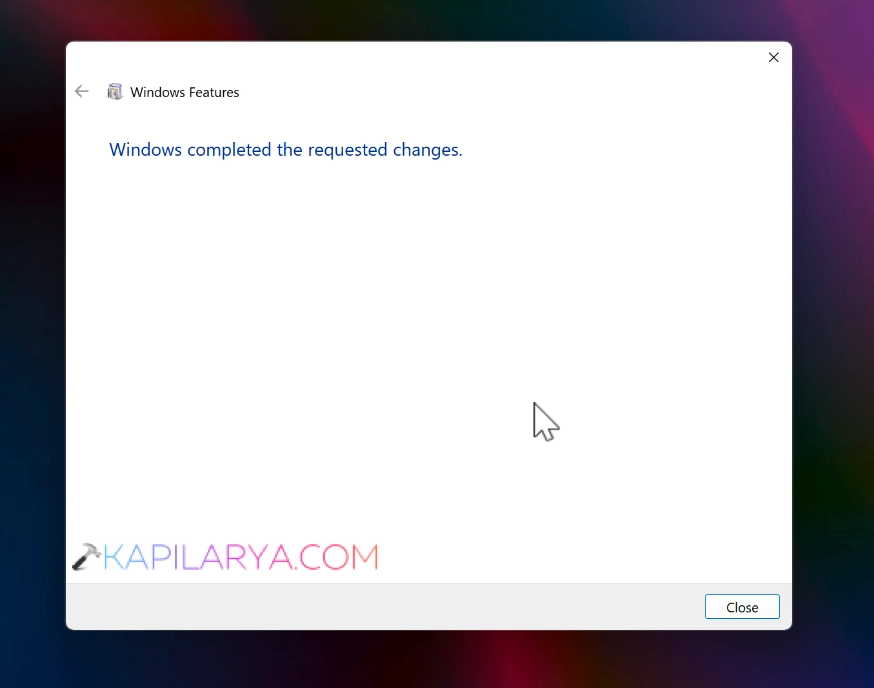
4. After restarting the system, you can re-enable Microsoft Print to PDF feature you disabled in previous steps. After this the feature should be reinstalled and see if it also resolves the issue you’re facing.
Fix 2: Set Microsoft Print to PDF as default printer
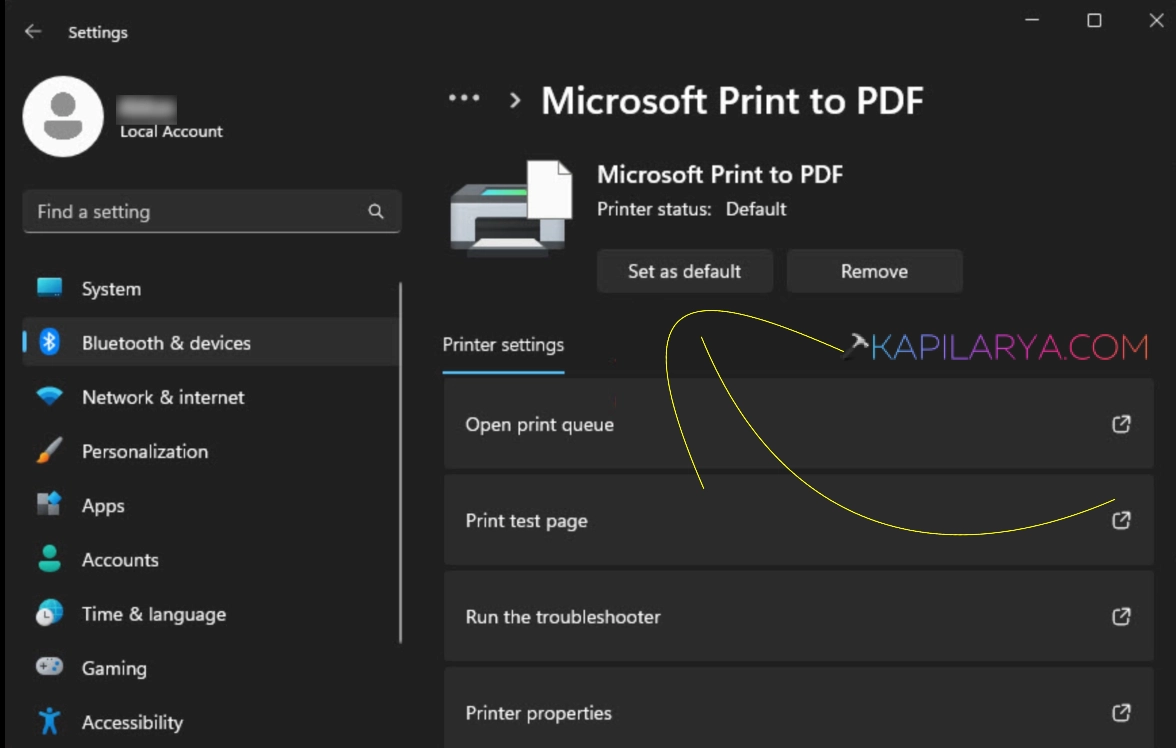
If the Fix 1 doesn’t resolve your problem, you can try setting Microsoft Print to PDF as default printer.
Open the settings app and then go to Bluetooth and devices > Printers & scanners > Microsoft Print to PDF.
Finally, click on Set as default.
Fix 3: Using Registry
This fix is a specifically dedicated to users having issues issues with output of Microsoft Print to PDF.
1. Press Windows + R and regedit and click OK.
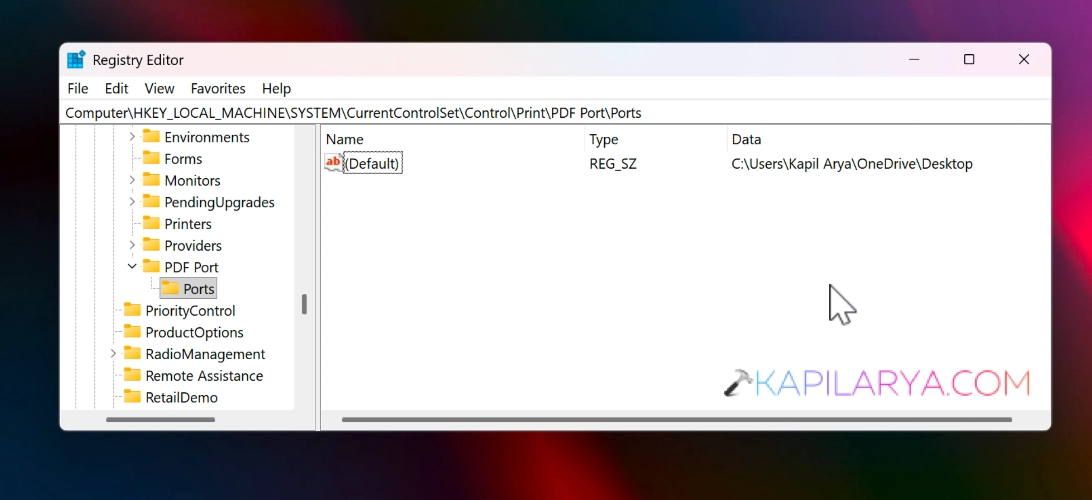
2. In the registry editor window, go to the following registry key:
HKEY_LOCAL_MACHINE\SYSTEM\CurrentControlSet\Control\Print\PDF Port\Ports
3. In the corresponding right pane, locate the Default registry string (REG_SZ). Double click on it to change it’s Value data. The Value data should correspond to the output folder of Microsoft Print to PDF. By default ,the output folder is the Documents folder. You can input here another folder or location.
4. Once done, you can close the Registry Editor and restart your system.
Video fix
If you need further assistance, you can check out this video fix as well:
That’s it!