Every single time I tried to have a shootout in Cyberpunk, it would crash on my PC for three weeks straight. During crucial moments in Valorant, when everything depended on my quick reflexes, it was running only at 20 fps, which made competitive play almost impossible for me. It turns out that the source of my troubles lay in the outdated, damaged, or missing drivers. I needed to sort them out quickly because I definitely did not have a free weekend to spend searching for drivers manually.

Page Contents
The Tool I Decided to Try
Driver Booster from IObit was recommended to me by one of my Discord community members. It is through this program that I am able to scan my PC and identify those drivers that require an update or fix. It can also repair the game components and DLL files that prevent certain titles from launching. It seemed too good to be true, but since I had tried all other options, I decided to give it a shot.
The Features That Won Me Over
Here is what stood out during my first week of using it.
A Driver Library That Is Almost Ridiculous
Driver Booster Free accesses a database that has more than 19 million registered drivers. It supports popular hardware manufacturers such as NVIDIA, AMD, Intel, and Realtek. Upon scanning my computer, it identified the precise chipset driver for my motherboard. Surprisingly, that driver had been harder to locate on the manufacturer’s own support page. Finding it so easily was one of the main reasons the program won me over.
Ease in Choosing the Driver Version
This feature caught me off guard in a good way. The driver software will automatically install the latest version and hope for the best. It has multi-version scanning; thus, I have the freedom of choosing a version that meets my needs.
When I am competing in games, I can go for a game-ready graphics driver. However, if I have any work with clients to do, then I can go for a more stable version. After all, it is my computer, and I like having the final say. For instance, I have been able to dodge a certain Wi-Fi driver.
It Repairs the Files That Can Break Games
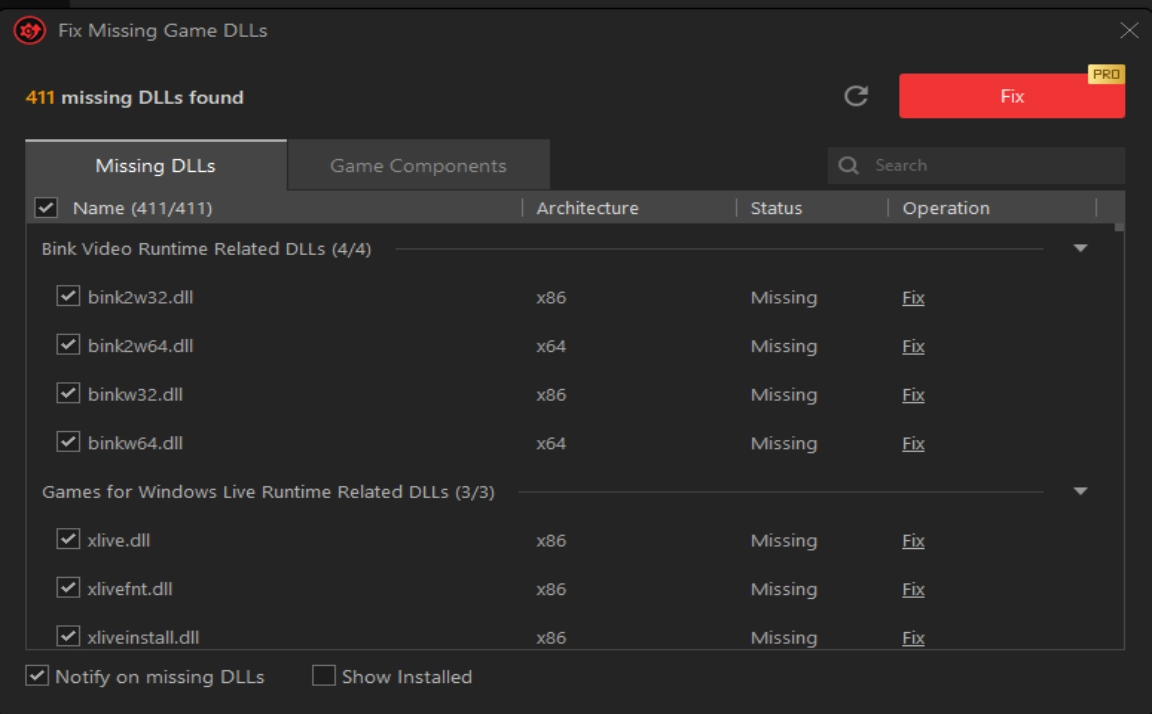
This is the feature that matters most to me as a gamer. In addition to checking drivers, the scanner can locate missing game components and DLL files. Its coverage includes more than 60 core components and over 680 DLLs. One of my older Steam games would not launch because it needed a runtime that was missing from my system. The repair was done within a minute. I did not have to search through forums, visit sketchy DLL download sites, or experiment with random fixes.
Game Boost Reduces Background Noise
It also has Game Boost. I activate this before gaming, which stops unnecessary background tasks from utilizing memory and processing power. It is not magic, and results will naturally vary between systems. However, my 1% lows became noticeably smoother in Hades II, and loading times felt slightly faster. When I combined gaming mode with updated drivers, the difference during matches was much more noticeable.
It Creates Backups Before Making Changes
Before switching drivers, the program generates a restore point and keeps the old one as a backup. The only time I had to use this function was once – after my printer driver got a mind of its own and stopped working with my computer. With a single click, I reverted to using the old driver, and all went well.
How I Set It Up Step by Step
The entire setup took one evening, and most of that time was spent waiting for the program to scan and update my system. Here is exactly what I did.
Step 1: Download Official Site
I downloaded the installer directly from IObit’s website, and the process took around two minutes. I avoided random mirror sites because they can bundle unwanted software with the installer.
The official setup did not ask any strange questions. It installed like a normal Windows program and was ready to use within minutes.
Step 2: Run the First Scan
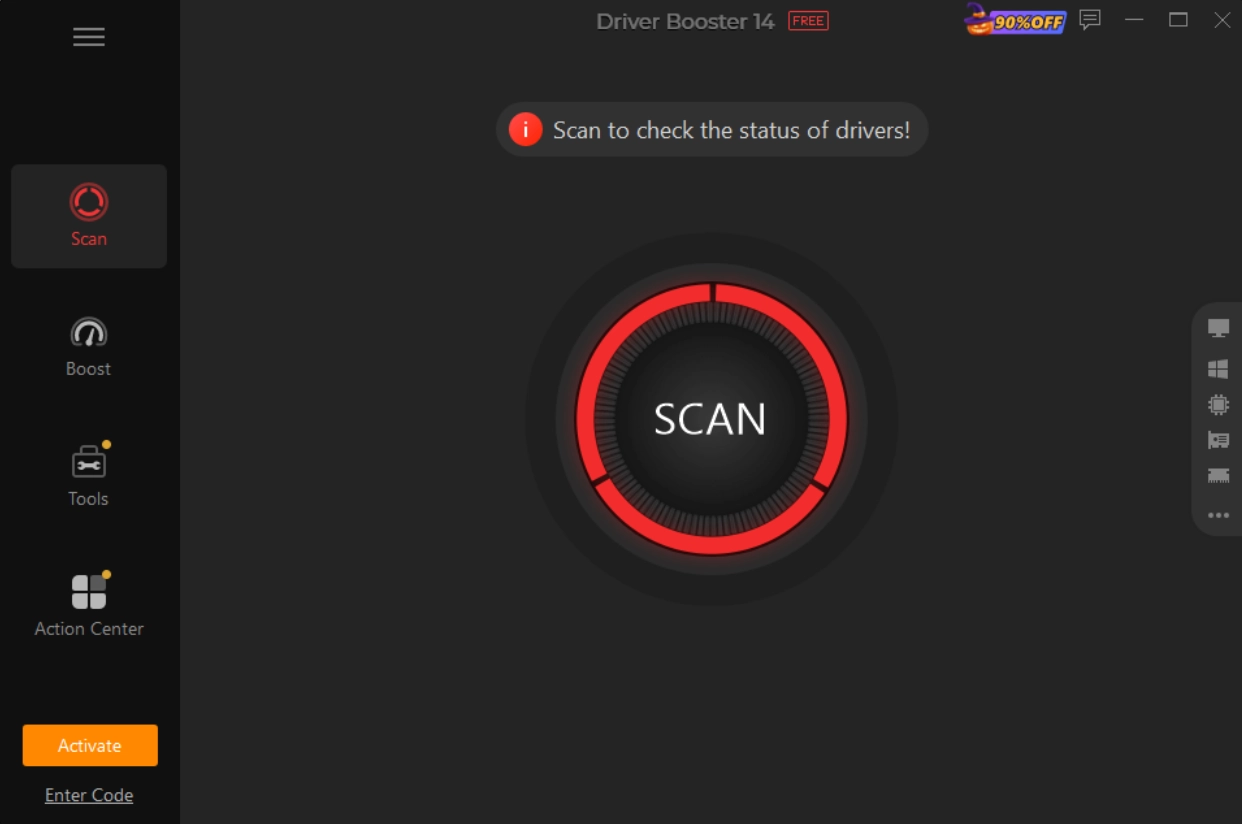
When I opened Driver Booster for the first time, it asked permission to scan my system. The scan took around 30 seconds and returned a list of 20 outdated drivers, including two marked as broken. Finding 20 problems on a PC I believed was properly maintained was both embarrassing and reassuring. At least I was now able to understand what was going on with my problems.
Step 3: Review the List Before Updating
All results were verified before updating. The game-ready edition of the driver was chosen for the graphics card. Suitable editions of audio and chipset drivers were automatically selected by the software. The whole batch was done in a few minutes. One restart later, everything became normal on my computer. The small delay in the mouse pointer movement, which went unnoticed and vanished immediately.
Step 4: Repair the Missing Game Components
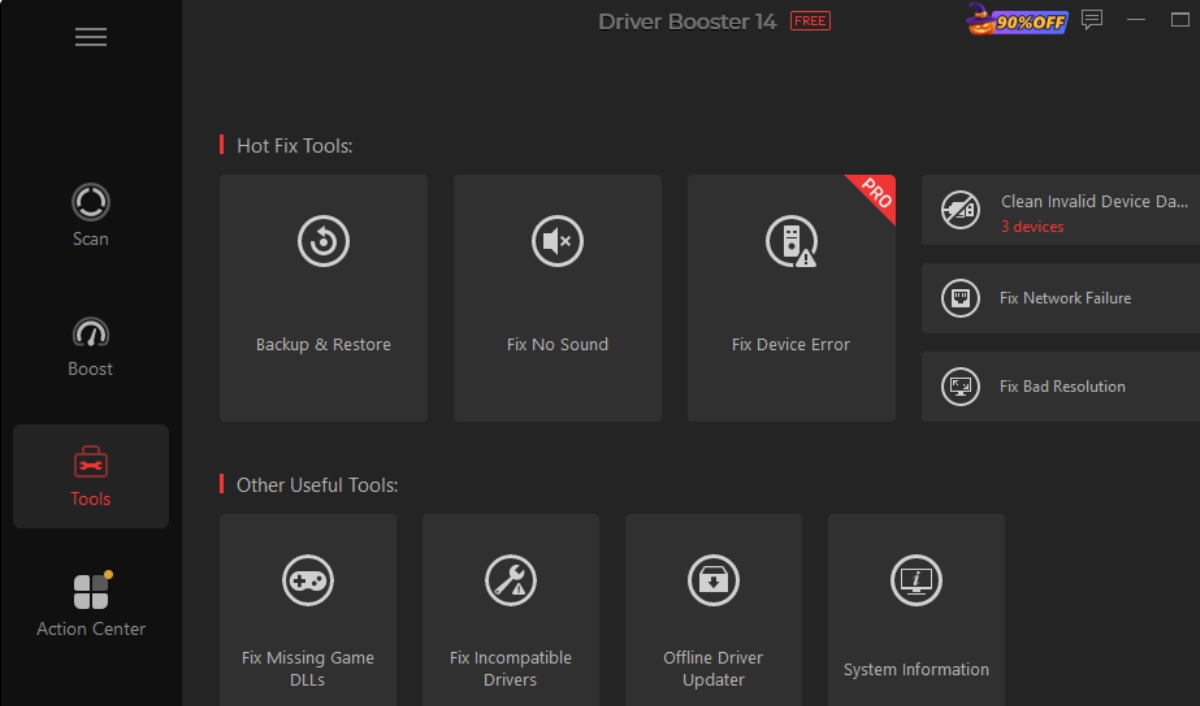
Next, I opened the Tools section and ran the game components repair feature. It found one of the missing DirectX runtime files and other DLL files associated with an old game I play with my nephew. It fixed everything with just one click. Now the game runs instantly, much to my surprise after all the work I have been doing manually.
Who Should Consider Using It
This software will be helpful to gamers, streamers, and all those who come across inexplicable crashes or lags on their computers. When other ways of solving the problem have failed, it is recommended to check the drivers.
Final Thoughts
The decision to manage my system maintenance has really improved the performance of my games. With the help of updating my system hardware and software, along with fixing broken pieces of my system, I have finally said goodbye to the annoyance of lagging frames and random crashes on my computer. Having a driver updater always takes care of the tedious job for me. If I want to have a gaming PC that works seamlessly and efficiently, then I need this tool for maintenance.