In Windows 11, the Search Highlights feature usually presents notable and interesting moments. It could show anniversaries, holidays are any other educational moment in your local region or applicable globally. You can follow our detailed guide to enable or disable the Search Highlights feature on your system.

In case if the Search Highlight feature is entirely missing on your system, here is how you can restore it.
Page Contents
Windows 11 Search Highlights missing
Fix 1: Check the search settings
First of all you need to ensure that you have Windows 11 build 22572 or later. If you have a Windows 11 build prior to this one, the option maybe obviously missing because the feature was not implemented before this build.
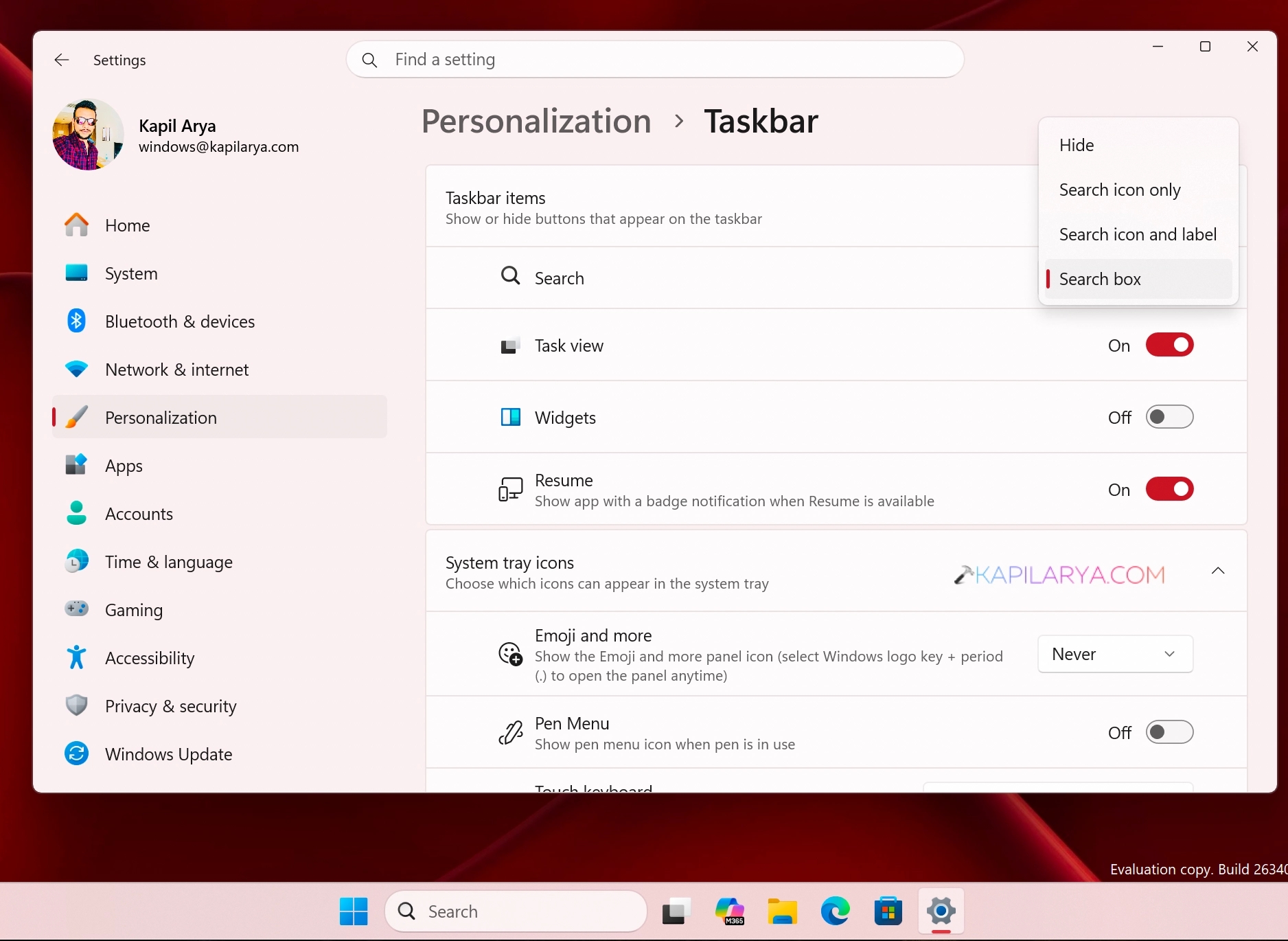
Next, you can simply do a right click on the Taskbar and select Taskbar settings.
Under Taskbar items, make sure you set the Search to Search box.
Fix 2: Restart the SearchHost.exe process
In case if you found that search box entirely blank or doesn’t show any options, you can try to restart the SearchHost.exe process.
1. Press Ctrl+Shift+Esc keys to launch the task manager.
2. In the task manager window, on the processes tab, locate and select the SearchHost.exe process.
3. Click on the End task button.

4. Now open the search box so that the SearchHost.exe process can be re-initiated.
Fix 3: Using Group Policy
You can try to configuring following Group Policy and see if that helps:
1. Right Click on the Start button and choose Run.
2. In the Group Policy Editor window, navigate here:
Computer configuration > Administrative templates> Windows Components > Search
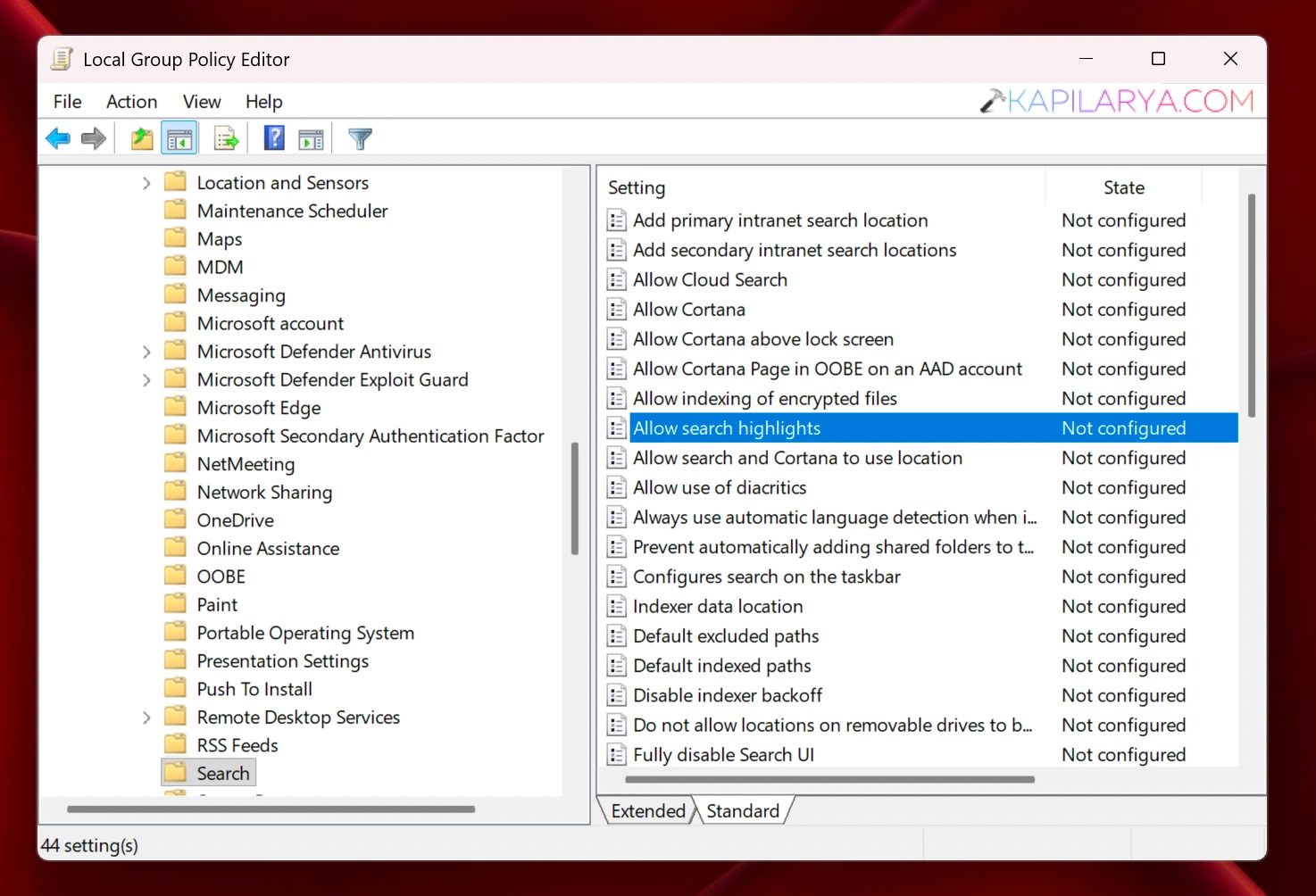
3. Locate the policy setting named Allow search highlights.
4. Just double click on the policy setting to configure it’s state. Make sure you select Enabled option here.
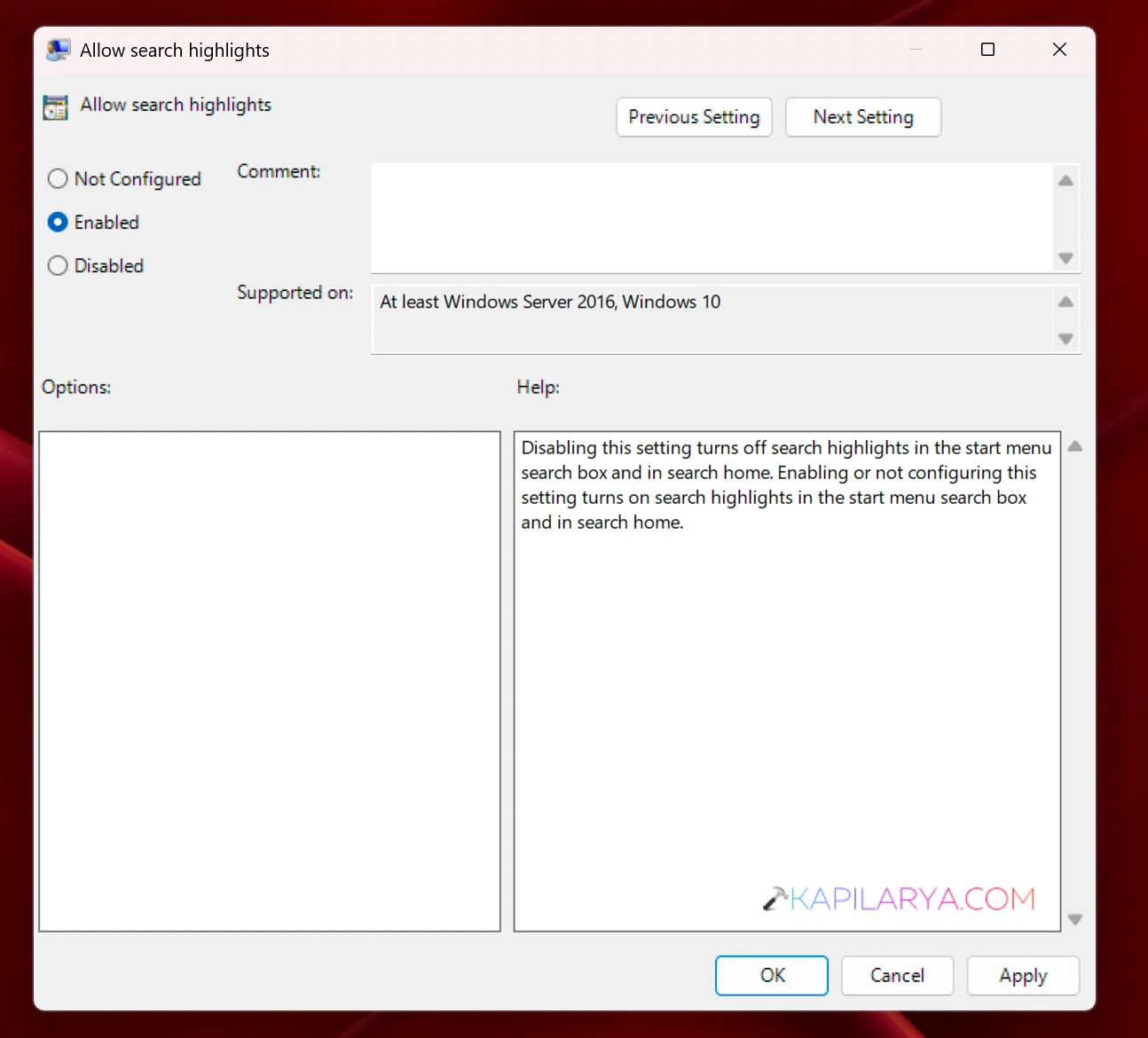
5. Click on Apply, OK and close the Group Policy Editor.
6. Simply restart your system to make the changes you have made effective.
After restarting the system, you should be able to use Search Highlights.
Let us know via your comments, if issue still persists.
That’s it!