DISM, which stands for Deployment Image Servicing and Management, is a built-in Windows 11 tool that helps repair problems with Windows images. DISM error code 0x800f0915 in Windows 11 can occur even when your internet connection is working normally. It usually happens when Windows cannot download the required repair files. An incorrect Windows installation image or an outdated repair source can also cause this problem.
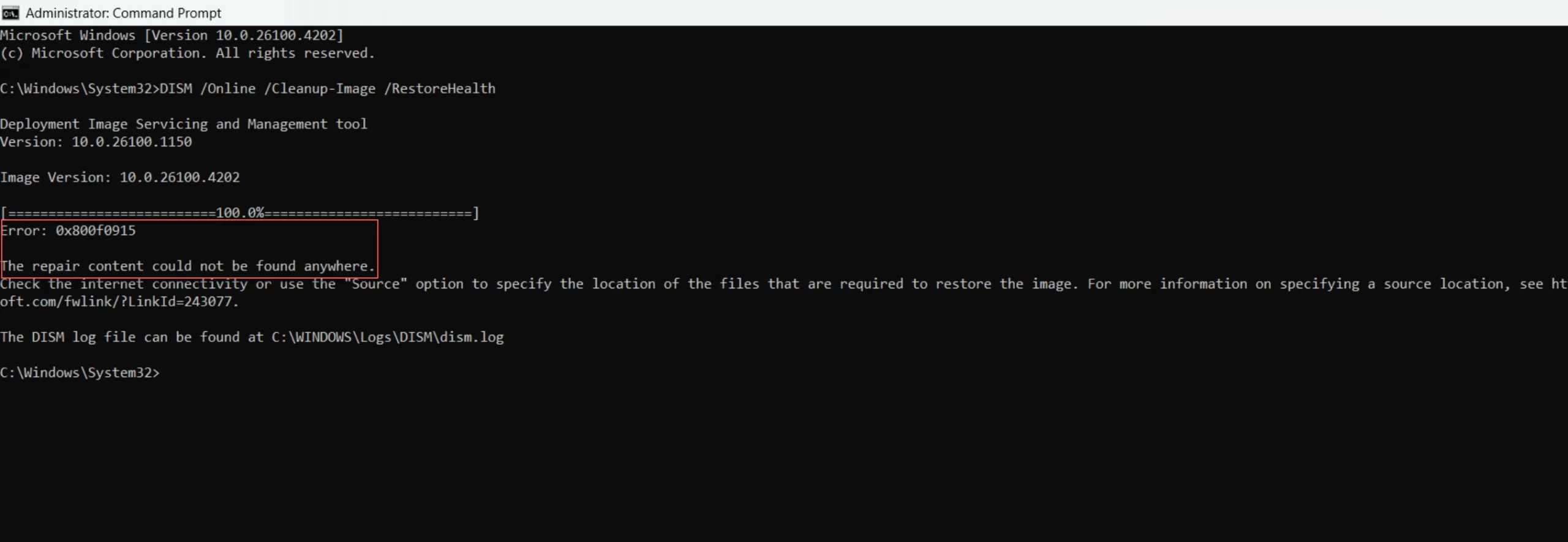
Follow the methods below to identify the problem and repair your Windows installation.
Page Contents
Fix DISM Error Code 0x800f0915 in Windows 11
Fix 1: Check Your Internet Connection to Resolve DISM Error 0x800f0915
When your Internet connection is unstable, it will be difficult for Windows to reach the required update services. In that case, the repair operation fails with error 0x800f0915.
1. First, open your web browser and visit a few websites to check your internet connection.
2. If it is not up to its potential, restart your router and reconnect your PC to the network.
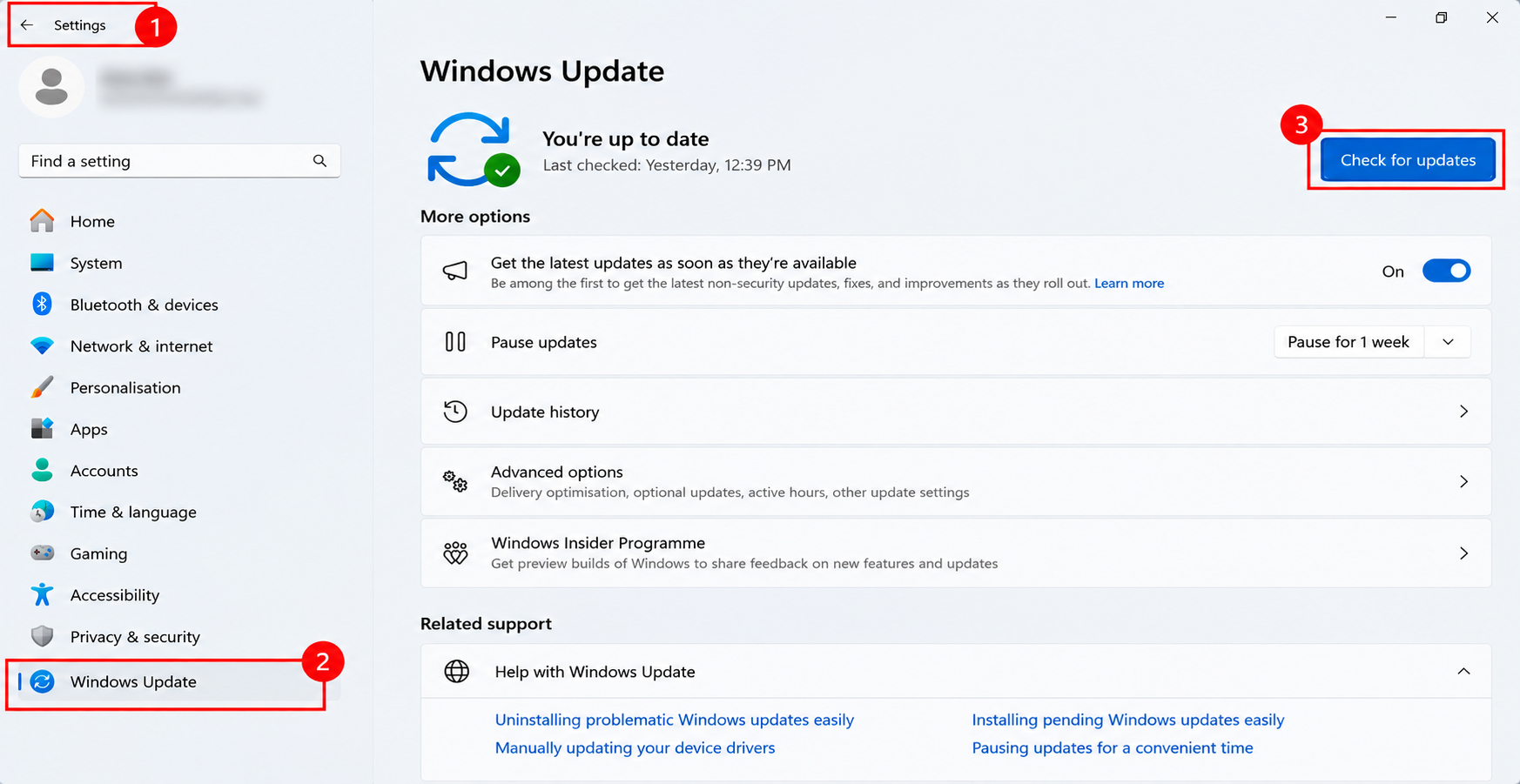
3. Then, open Settings and select Windows Update.
4. Click Check for updates and see whether Windows can download available updates.
Fix 2: Run the DISM StartComponentCleanup Command
Windows Component Store (WinSxS) contains files that are required to install updates and maintain Windows components. Outdated and superseded components can accumulate in this store over time.
So, we use the StartComponentCleanup command to remove unnecessary or superseded components and reduce the size of the Component Store.
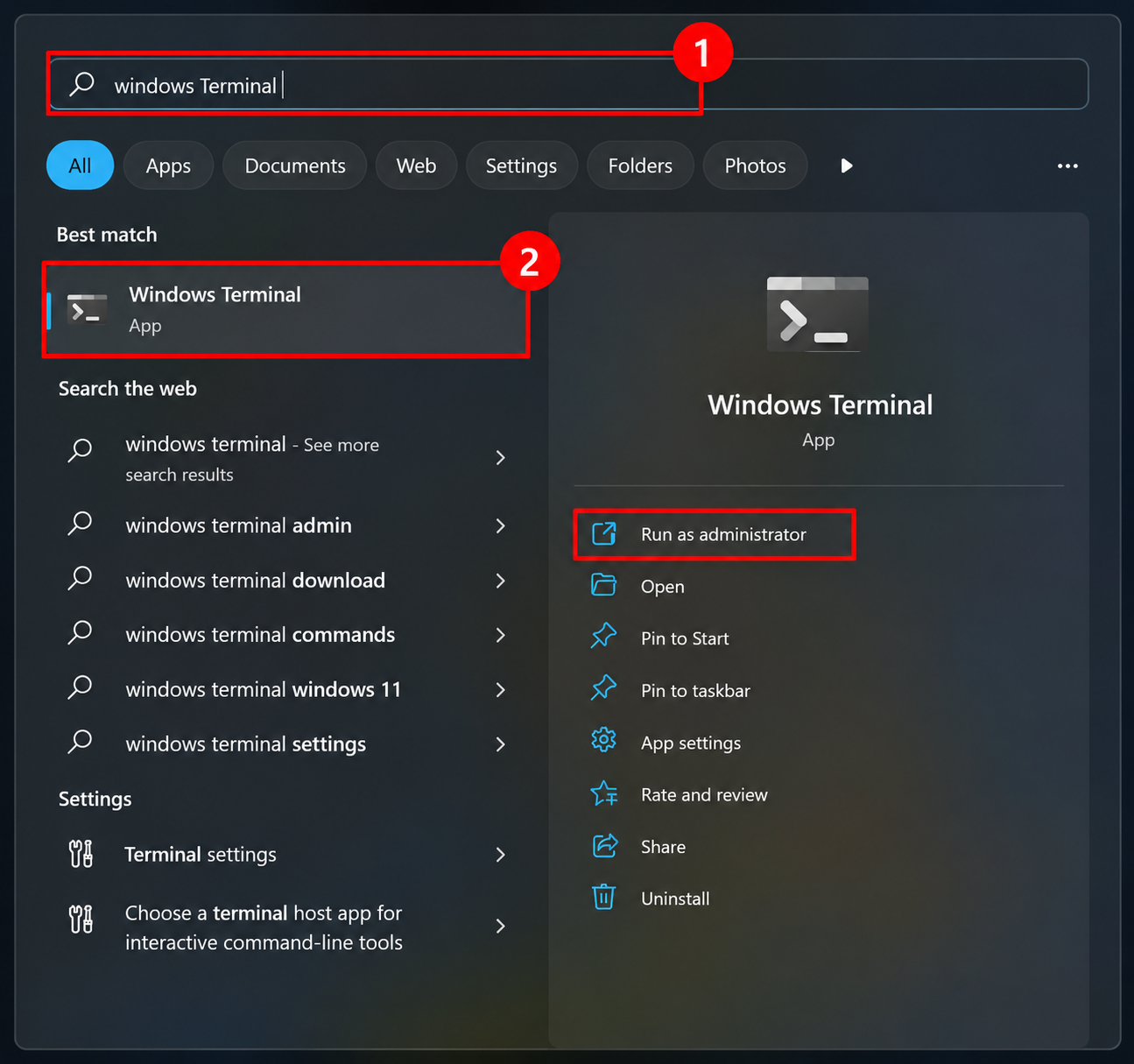
1. Right-click Start and open the Terminal in Admin mode.
2. Type and run this command:
DISM.exe /Online /Cleanup-Image /StartComponentCleanup
3. Once the operation completes, restart your PC.
Do note that this is a maintenance step and is not a guaranteed fix.
Fix 3: Use a Matching Windows 11 ISO to Fix DISM Error 0x800f0915
If DISM cannot fetch the required files through Windows Update, use a compatible Windows 11 installation image as the repair source.
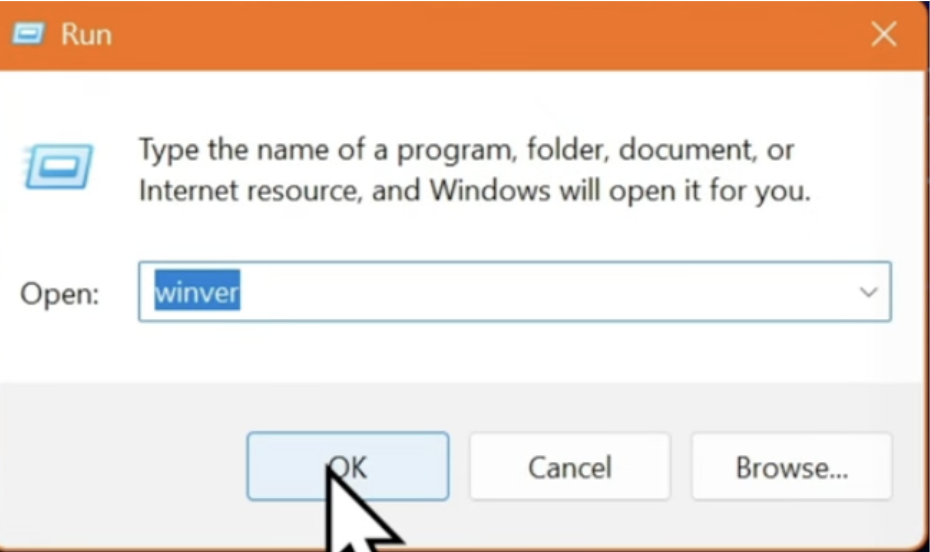
1. First, check your Windows version and build number. To do so, press Windows + R to open the Run dialog.
2. Type winver and press Enter.
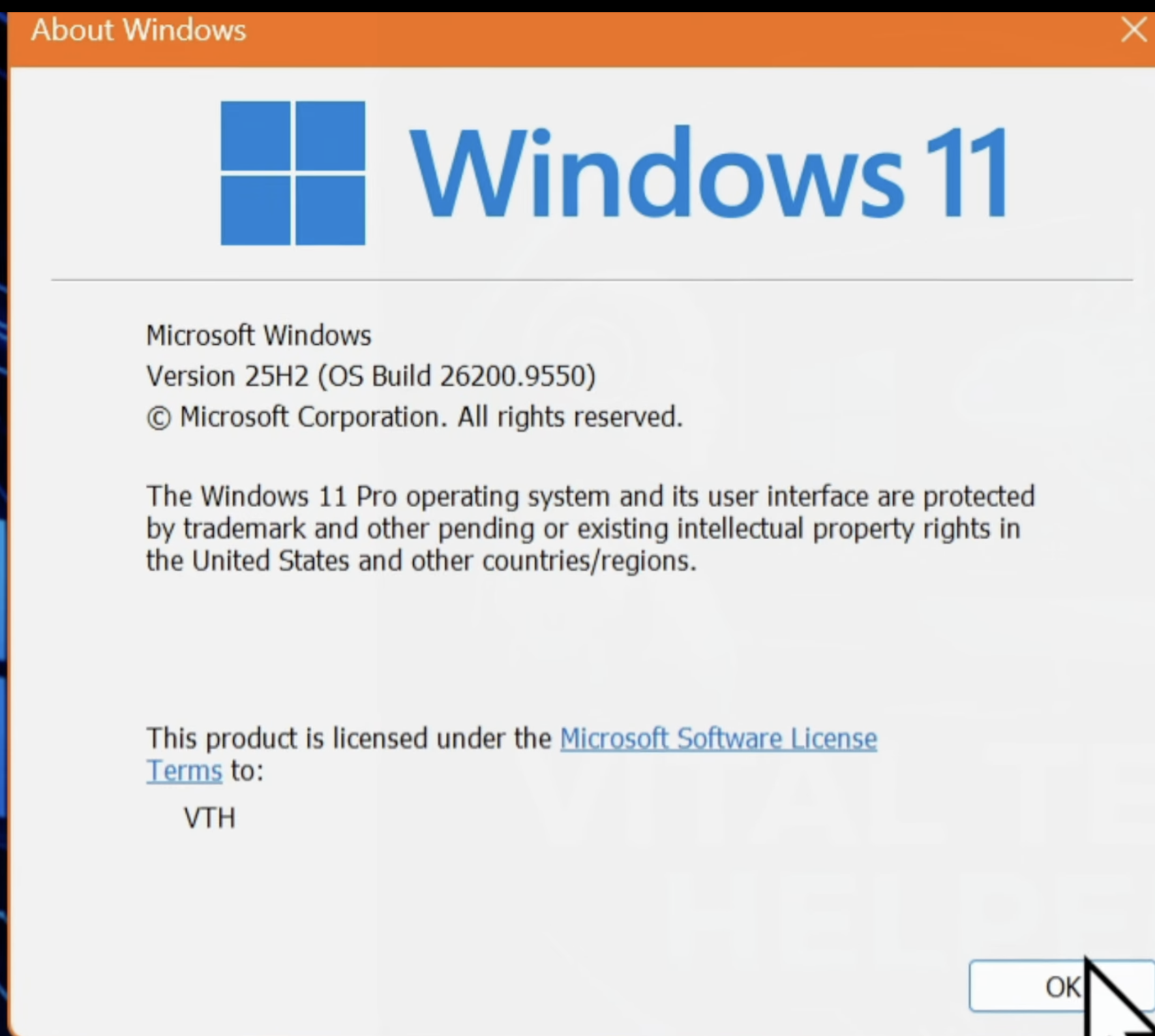
3. Note the Windows version and OS build displayed in the About Windows window.
4. Next, Download a matching Windows 11 ISO from Microsoft’s official website.
5. Once Downloaded, right-click the ISO file and select Mount.
Follow the onscreen instructions and finish the process.
Fix 4: Verify the WIM or ESD Image Index
Windows has various editions like Home, Pro, Education and so on. Each edition has its own image index. If you select the wrong index in the DISM command, Windows may not find the correct repair files. So, check the Edition first, and then start the process.
1. Right-click the Start button and select Terminal in Admin mode.
2. Using the Fix 3, you would have mounted an ISO file.
- If your mounted ISO contains an install.wim file, run the following command:
DISM /Get-WimInfo /WimFile:install.wim
- If it contains an install.esd file, run this command:
DISM /Get-WimInfo /WimFile:install.esd
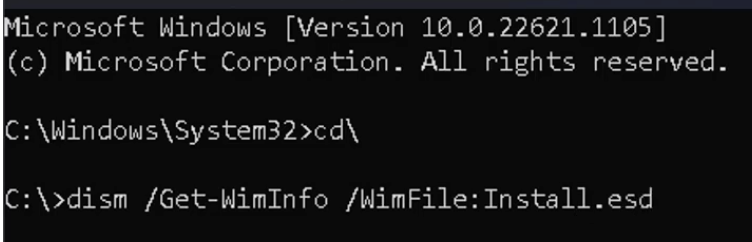
3. Wait for the command to display the available Windows editions and their index numbers.
4. Identify the index that matches your installed Windows edition.
5. After identifying the correct index, run the appropriate repair command.
For a WIM file, run the command:
DISM /Export-Image /SourceImageFile:X:\sources\install.wim /SourceIndex:6 /DestinationImageFile:C:\install.wim /Compress:maximum /CheckIntegrity
- For an ESD file, run this command:
DISM /Export-Image /SourceImageFile:X:\sources\install.esd /SourceIndex:6 /DestinationImageFile:C:\install.wim /Compress:maximum /CheckIntegrity
Replace X with your mounted ISO’s drive letter and 6 with the correct image index.
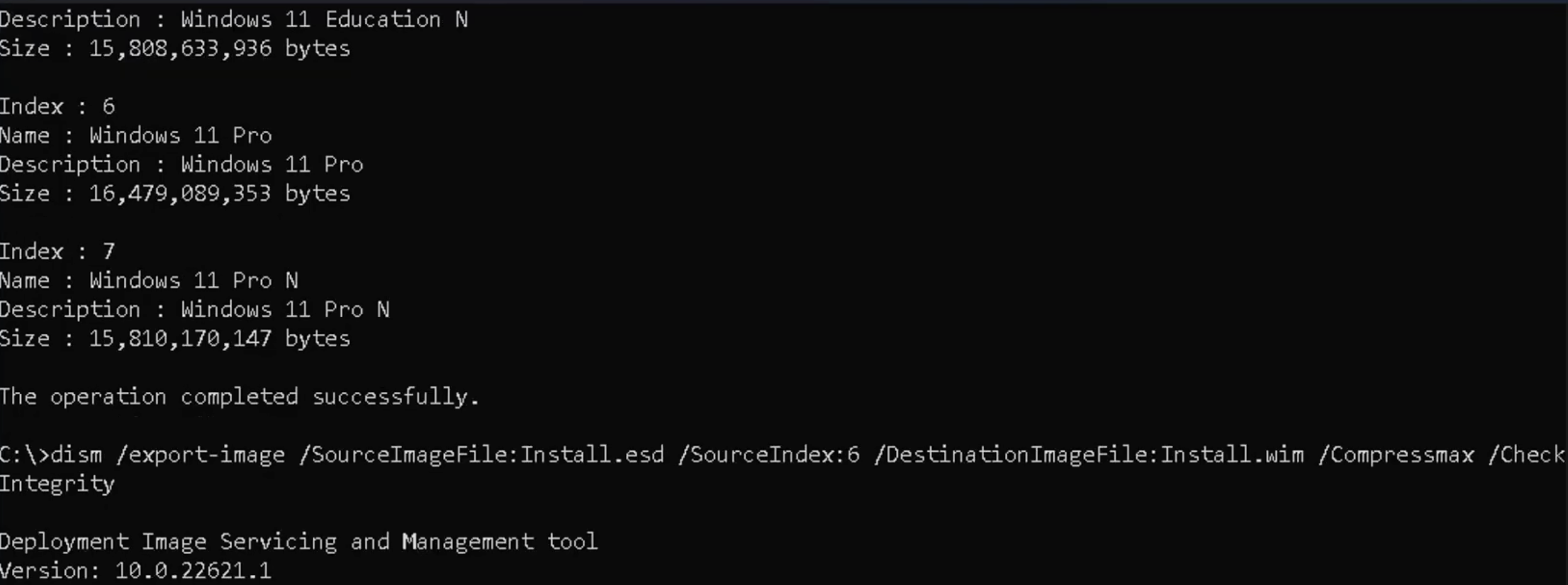
Once the process completes, restart your PC.
Fix 5: Perform an In-Place Repair Upgrade
If the previous methods do not resolve the issue, perform an in-place repair upgrade with a compatible Win 11 ISO.
1. Similar to Fix 3, open the Microsoft’s official website and download the Windows 11 ISO.
2. Then, open the mounted drive in File Explorer.
3. Double-click setup.exe to start Windows Setup.
4. Follow the on-screen instructions.
5. Once you reach the Choose what to keep screen, make sure that Keep personal files and apps is selected.
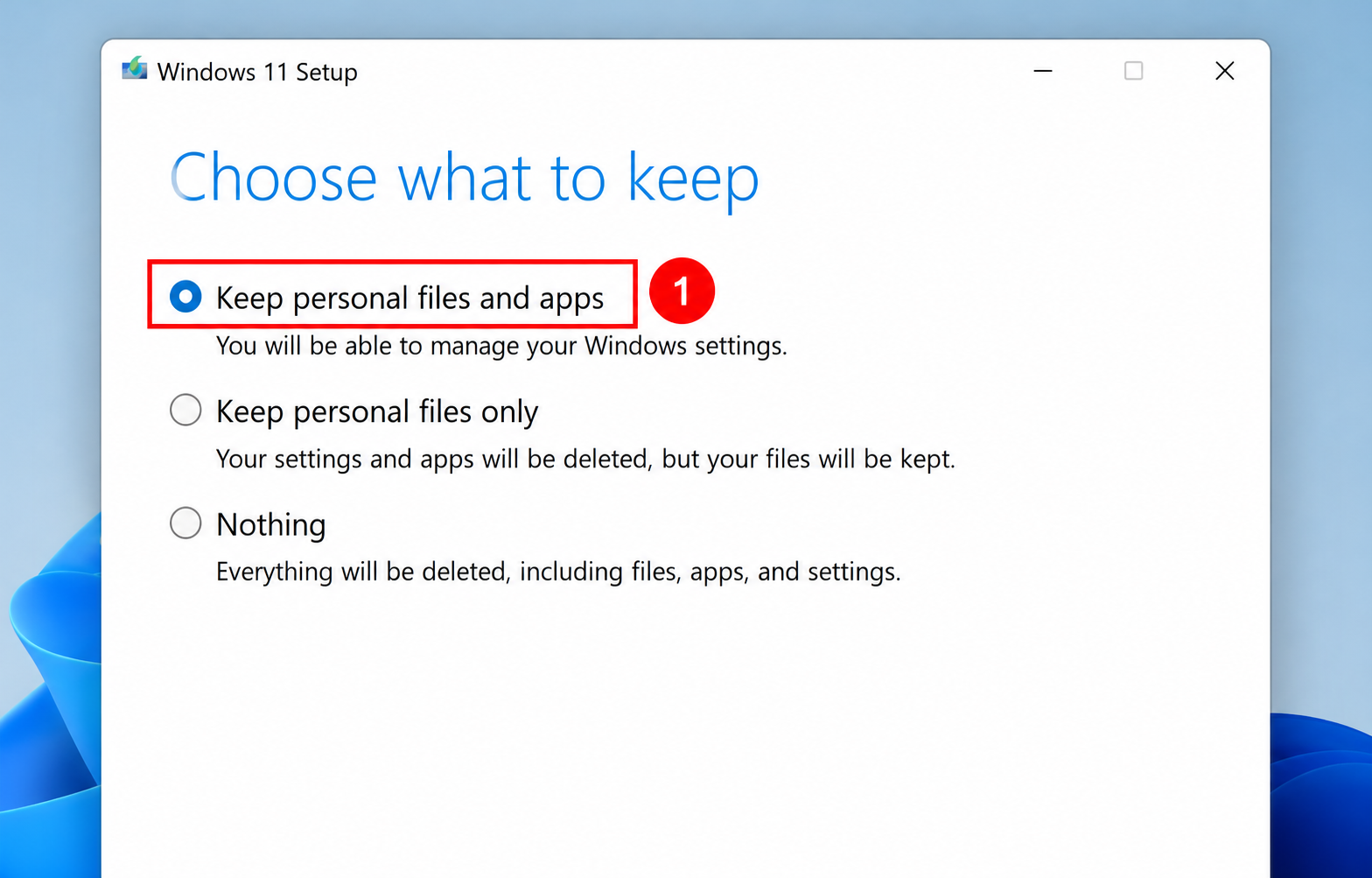
Then, Click install. Wait for Windows to complete the repair upgrade.

That’s it!