

In Windows, for many scenarios we need help and a hardcore guide to perform a new task that seems strange to us. Almost all of us refer to the knowledge base posts on internet to see the pros and cons of the same task about which we’re new to perform. In the similar way, when a software is launched, a support base to help users, is created by the software firm. If you’re using well known software, then you’ll find a support link for them inside the Programs and Features page of your Windows copy. Have a look:
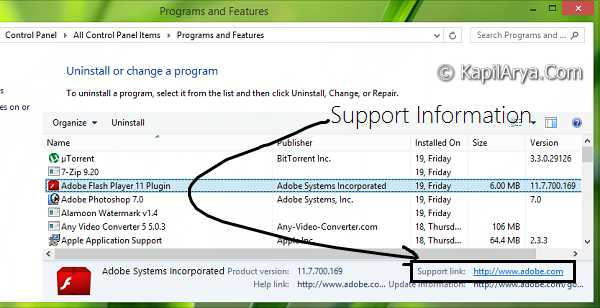
In case the software is too old and the company has ended the support for it, then the support information so provided in the above window may be useless. To prevent users from the confusion, you may want to disable such a useless support information from Windows. In this article, I’ll tell you the way to do, so here we go…
How To Disable Support Information Using Registry Editor
Registry Disclaimer: The further steps will involve registry manipulation. Making mistakes while manipulating registry could affect your system adversely. So be careful while editing registry entries and create a System Restore point first.
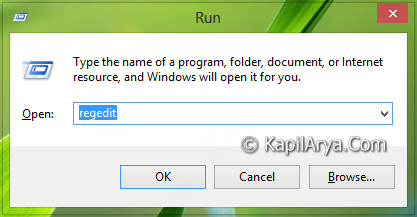
1. Press  + R and put regedit in Run dialog box to open Registry Editor (if you’re not familiar with Registry Editor, then click here). Click OK.
2. Navigate here:
HKEY_CURRENT_USER\Software\Microsoft\Windows\CurrentVersion\Policies
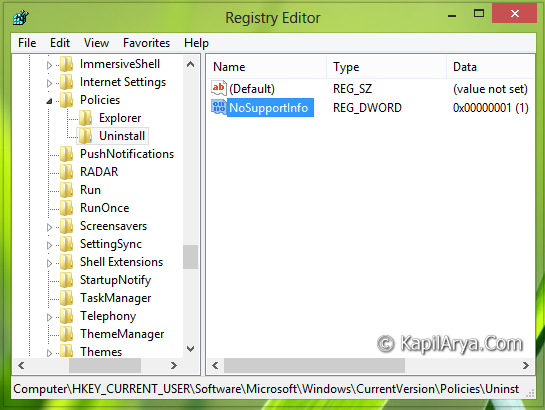
3. In the left pane of this location, create a sub-key of key Policies using Right click -> New -> Key. Name it as Uninstall. Now click on the sub-key so created and refer to right pane of resulted location. You now need to create a new DWORD value named NoSupportInfo using Right click -> New -> DWORD. Double click on same DWORD, you’ll got this:
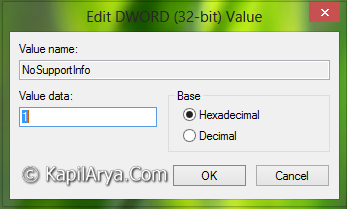
4. In order to disable support information, input the Value data equals to 1. Click OK. Close the Registry Editor. Reboot to see results.
Hope you like the tip and find it useful!







there are lot of settings in GPEDIT, u can make a new article for each of them.
this would be a goodtime pass for you admin.
post something interesting not from Gpedit.msc.
work hard ,admin
Hello Kapil,
Thanks for posting gud trick. I found that you can do this by gpo. Just go to this policy:
User ConfigurationAdministrative TemplatesWindows ComponentsWindows Installer
Enable the policy Remove the support information.
Looks Good, Cheers!
^^ Glad to know ;)
@useless, The article was created using REGEDIT not GPEDIT.MSC :P