“Tamper Protection -This setting is controlled by your administrator”, have you ever been halfway through changing your Windows Security options just to be struck with the message? It’s frustrating, right? Thousands of Windows 11/10 users experience the same problem.
The good news? You have come to the right page. These are six simple fixes that do work in this guide, and we will take you through them. The following step-by-step instructions will assist you in regaining control over your Windows Defender and Tamper Protection settings. And then shall we roll up our sleeves and remove the error “Tamper Protection – This setting is managed by your administrator”!
Page Contents
Fix Tamper Protection – “This setting is managed by your administrator”
Here are six solutions that are easy to understand.
Method 1: Reset Windows Security to Default Fix Tamper Protection
Windows Security itself becomes a little glitchy sometimes. Rebooting it is a sort of wiping it down with a rag, and that usually takes away the administrator error.
1. First, to open your Settings, press Win + I. Go to System > System Components.

2. Keep on scrolling down until you find Windows Security. Click on it and then, Advanced options.
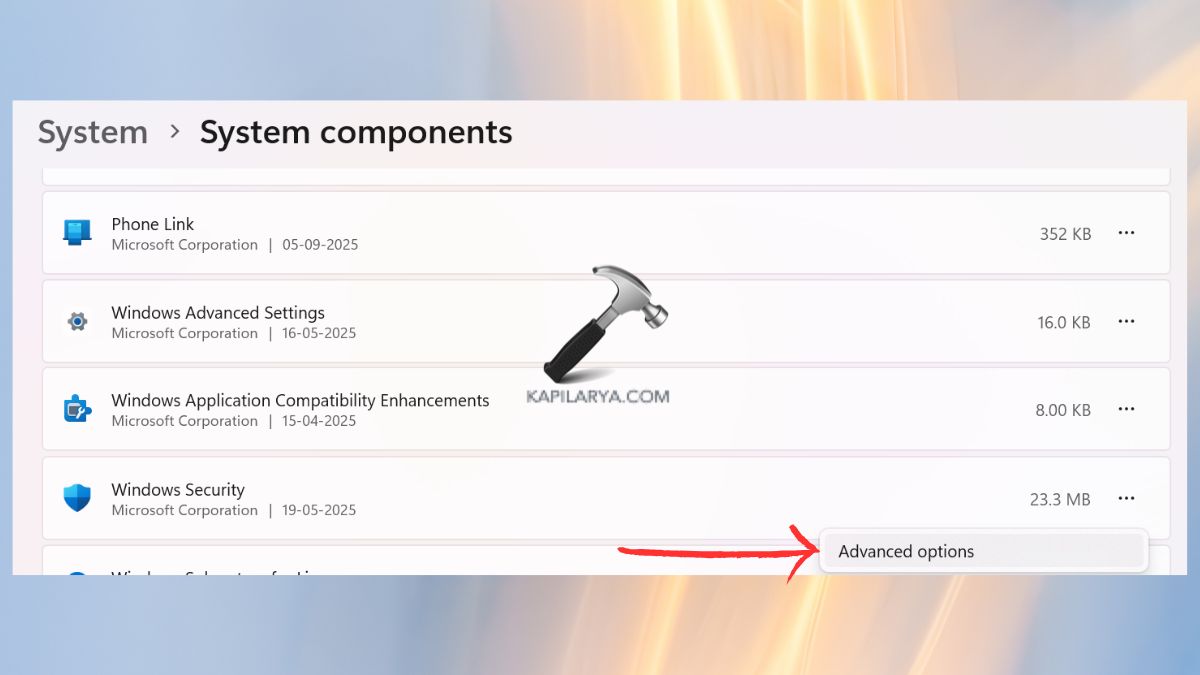
3. Go to the bottom and click the Reset button.

Once your PC has started, verify Tamper Protection once again. This simple reset works in most situations!
Method 2: Remove the DisableAntiSpyware Registry Entry
In some cases, an obsolete registry value can instruct Windows to turn off Defender functionality and effectively handcuff Tamper Protection. Hence, removing such an entry is normally a fix.
1. Click on Windows Start, enter search: Registry Editor, and open it.

2. Go to this key in Registry Editor.
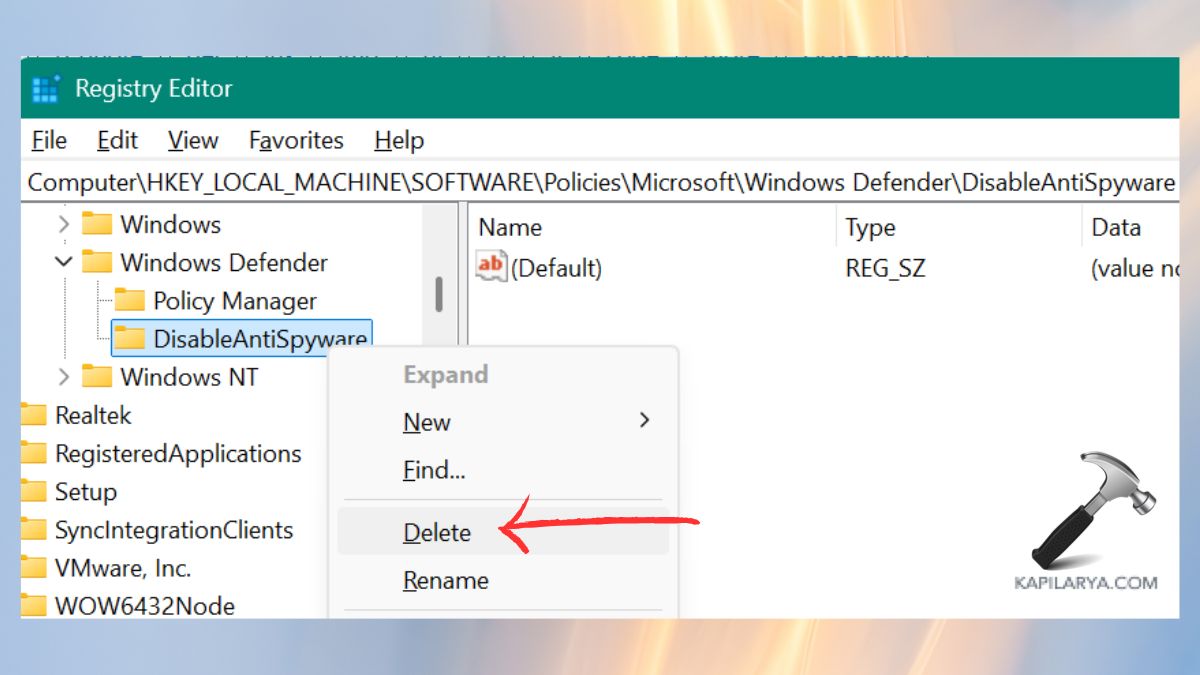
HKEY_LOCAL_MACHINE\SOFTWARE\Policies\Microsoft\Windows Defender
There should be an entry on the right which is entitled “DisableAntiSpyware”. In case it exists, right-click it and choose Delete. Then, restart your PC.
Method 3: Perform an In-place Upgrade to Fix Tamper Protection
This one might sound frightening; however, there is nothing to fret about. An in-place upgrade is a sort of upgrade that does not delete your files, applications, or settings, but only updates Windows. It restores the system and usually eliminates the hard-to-get bugs such as this one.
1. Visit the official site of Microsoft and download the Media Creation Tool (https://www.microsoft.com/en-us/software-download/windows11).

2. Boot it and select the displayed instructions until you get the possibility to save your files. Ensure that Keep personal files and apps is on. Then, select Upgrade this PC now.

Leave it to Windows to do its thing- it will take a while, but when it is ready, your system will be fine.
Method 4: Enable Tamper Protection Using the Registry
When Windows Security is greyed out, in many cases, it is possible to switch it on or off in the registry itself. This can help solve the error of Tamper Protection – This setting is managed by your administrator.
1. Once more, access the Registry Editor.
2. In it, access this path.
HKEY_LOCAL_MACHINE\SOFTWARE\Microsoft\Windows Defender\Features
TamperProtection can be found on the right pane. You can double-click it and change the Value data to “5”.

Close the Registry Editor and restart your PC. After rebooting, recheck Windows Security- you ought to be able to turn on the Tamper Protection as usual.
Method 5: Remove Third-Party Antivirus Tools
Antivirus software will often attempt to take control of the security of your system. The problem? They even deactivate or turn off the Windows Defender Tamper Protection.
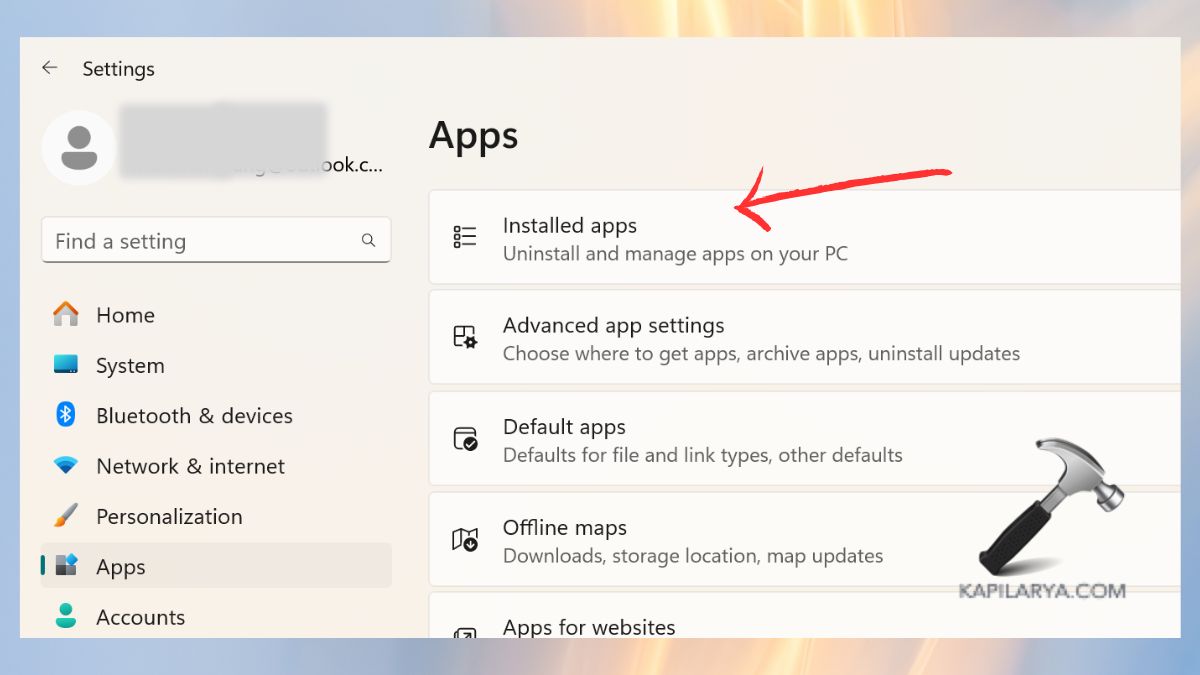
1. Click on the Settings by tapping on Win + I. Click on Apps > Installed apps (or Apps and features).
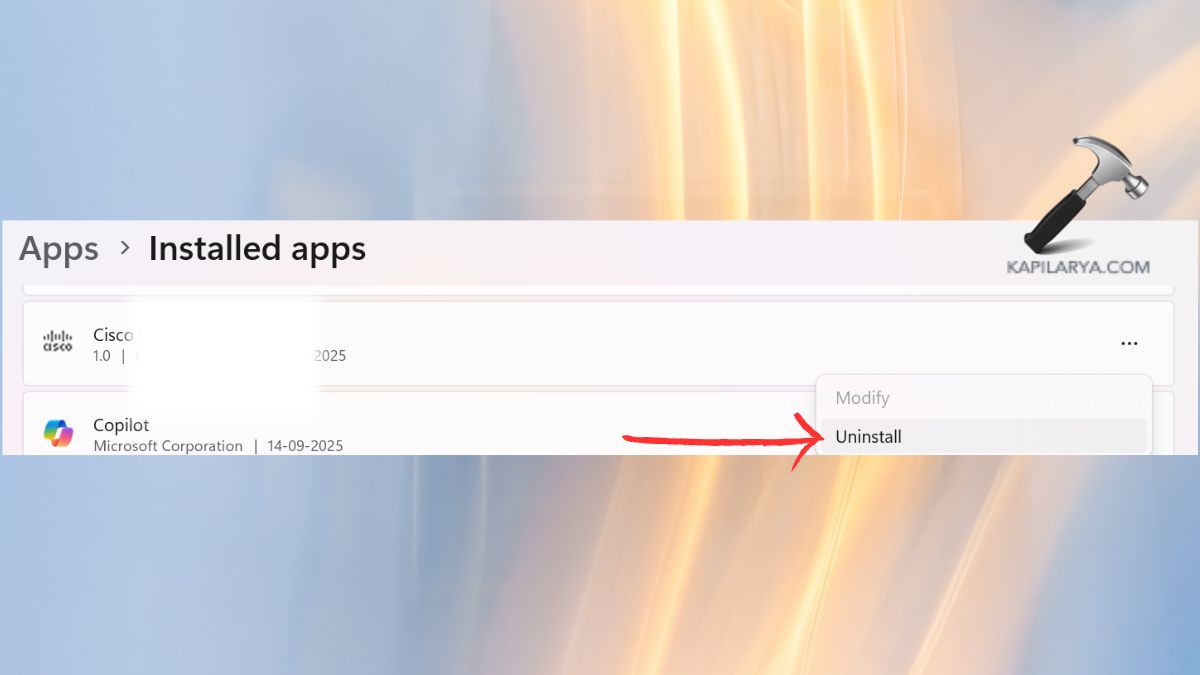
2. Go down the list and locate your antivirus program. Click on it and Uninstall. Go through the instructions on the screen and boot up your PC.
Method 6: Use Microsoft Intune to Fix “This setting is managed by your administrator” (For Enterprise Users)
When your PC is in your place of work or school, then the setting can really be under your control as an administrator. Then you will have to correct it with Microsoft Intune, or he will have to ask your administrator.
Note: If you are not the administrator, you will have to call your IT department- they will be able to do the same on your behalf.
1. Enter the Microsoft’s Intune administration center (https://go.microsoft.com/fwlink/?linkid=2109431). Now, Sign in with your credentials.

2. Click on Endpoint Security Antivirus. Select the cook up Policy and change the settings of Microsoft Defender Antivirus. Find Tamper Protection and toggle it to ON.

Frequently Asked Questions (FAQs)
That’s it!