Are you also facing the issue of MS Paint not working in Windows 11? This article has stacked up effective solutions to fix MS Paint not working in Windows 11.
Microsoft Paint is the most beloved app in Windows for simple graphic tasks. However, while starting or using the app, a few errors can pop up. MS Paint can crash, options stop working, or the scroll bar can stop working. To fix it, go through the whole article below.
Page Contents
How To Fix MS Paint Not Working in Windows 11
Method 1: Remove unsupported Fonts
1. Go to the Windows Settings and navigate to Personalization > Fonts.
2. Select the problematic font or the most recent installed font.
3. Click on Uninstall and restart the Microsoft Paint app.

Method 2: Exit the App from the Task Manager
1. In the Windows search bar, type “task manager” and click on the best match result.
2. Right-click on “mspaint.exe” and click on “End task”.

Method 3: Run the Paint App as an Administrator
If you have multiple users on your system, the MS Paint may not function properly. To fix this, here is the easiest way to open MS Paint as an Administrator:
1. Type “paint” on the Windows search bar.
2. Right-click on the best result match and select “Run as Administrator”.

Method 4: Repair the Paint app
1. Go to the Windows Settings app and navigate to the Apps section.
2. In the Installed Apps, search Paint.
3. Click on the three-dot icon on Paint and select “Advanced options”.

4. Scroll down and select “Repair”. This will repair the MS Paint app without affecting data.

Method 5: Install the Latest Windows Update
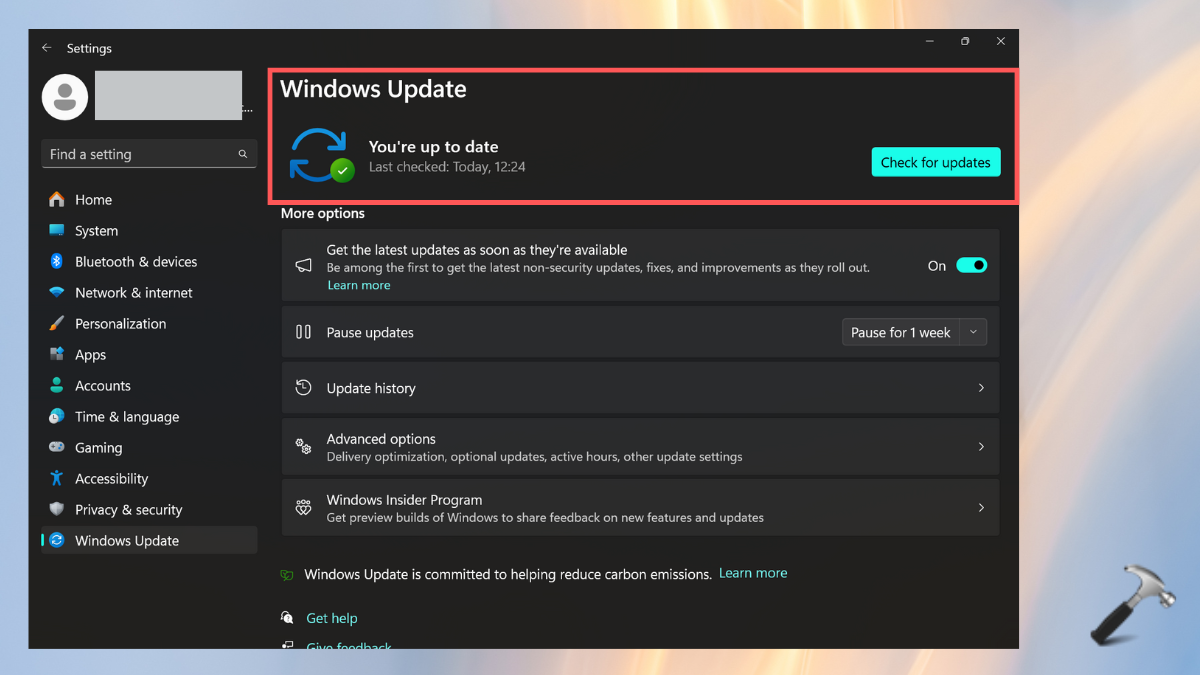
1. Go to Windows Settings and select Windows Update.
2. If there is any update, click on “Download and Install”.
3. Or, click on “Check for Updates” to check if there are any pending updates.
Method 6: Remove the SID Entries for MS Paint in the Registry
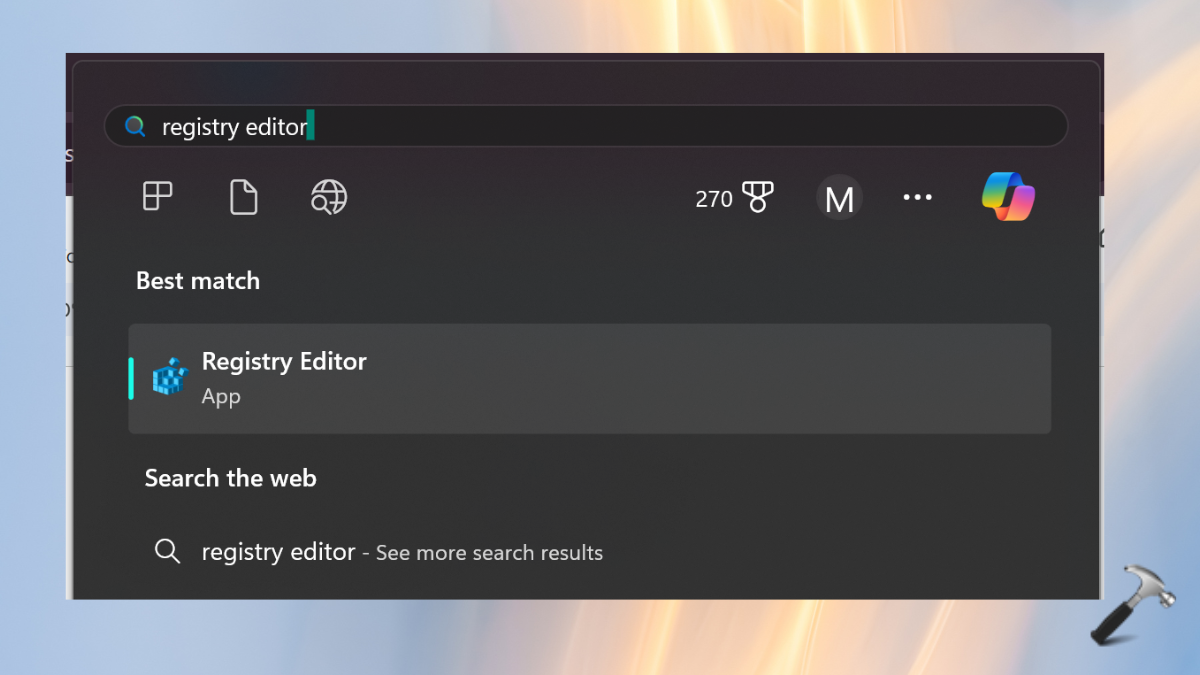
1. In the search bar, enter “registry editor” and click on best match result.
2. Tap “yes” on the message prompt.
3. Go to the below path in Registry Editor:
Computer\HKEY_LOCAL_MACHINE\SOFTWARE\Microsoft\Windows\CurrentVersion\Appx\AppxAllUserStore\S-1-5-21-532750152-3550770042-178432067-1001\Microsoft.Paint_11.2403.28.0_neutral_~_8wekyb3d8bbwe
4. Right-click on Microsoft.Paint option and click on “Delete”.

5. Now, uninstall the MS Paint app and reinstall it from the Microsoft Store.
Method 7: Reset Paint via PowerShell to Fix MS Paint Not Working
1. Type “powershell” in the Windows search bar. Right-click on the best match result of Windows PowerShell and select “Run as Administrator”.

2. Type the below command in the PowerShell and press “Enter”:
Get-AppxPackage *Microsoft.Paint* | Reset-AppxPackage

3. Now, open and use Microsoft Paint again and check if it is working.
Method 8: Uninstall and Reinstall Paint Using PowerShell
8.1 Uninstall MS Paint Using PowerShell
1. Open the Powershell as stated in the previous method.
2. Type the below command and press Enter:
Get-AppxPackage Microsoft.MSPaint | Remove-AppxPackage

8.2 Reinstall MS Paint Using PowerShell
1. Once the MS Paint is successfully uninstalled, copy & paste the below command:
Get-AppxPackage -allusers Microsoft.MSPaint | Foreach {Add-AppxPackage -DisableDevelopmentMode -Register "$($_.InstallLocation)\AppXManifest.xml"}
2. Make sure to specify the installing location in “($_.InstallLocation)”.

That’s it!