If Windows 11 Recall is not working, or it does not open when you press Win + J, there can be be two reasons. First, your PC may not be compatible with Copilot+ PCs. Second, Recall might be disabled due to Windows Updates, or other system configurations.
Using the methods mentioned below, you can try to fix the issue.
Page Contents
How to Fix Windows 11 Recall Not Working
Fix 1: Check Whether Your PC Supports Recall
Recall only works on compatible Copilot+ PCs. Check if your PC meets the hardware requirements.
1. Right-click the Start button. Select Task Manager.
2. Click on Performance tab.
3. Search for NPU in the left panel
4. Check your PC specifications against Microsoft’s current Copilot+ PC requirements.
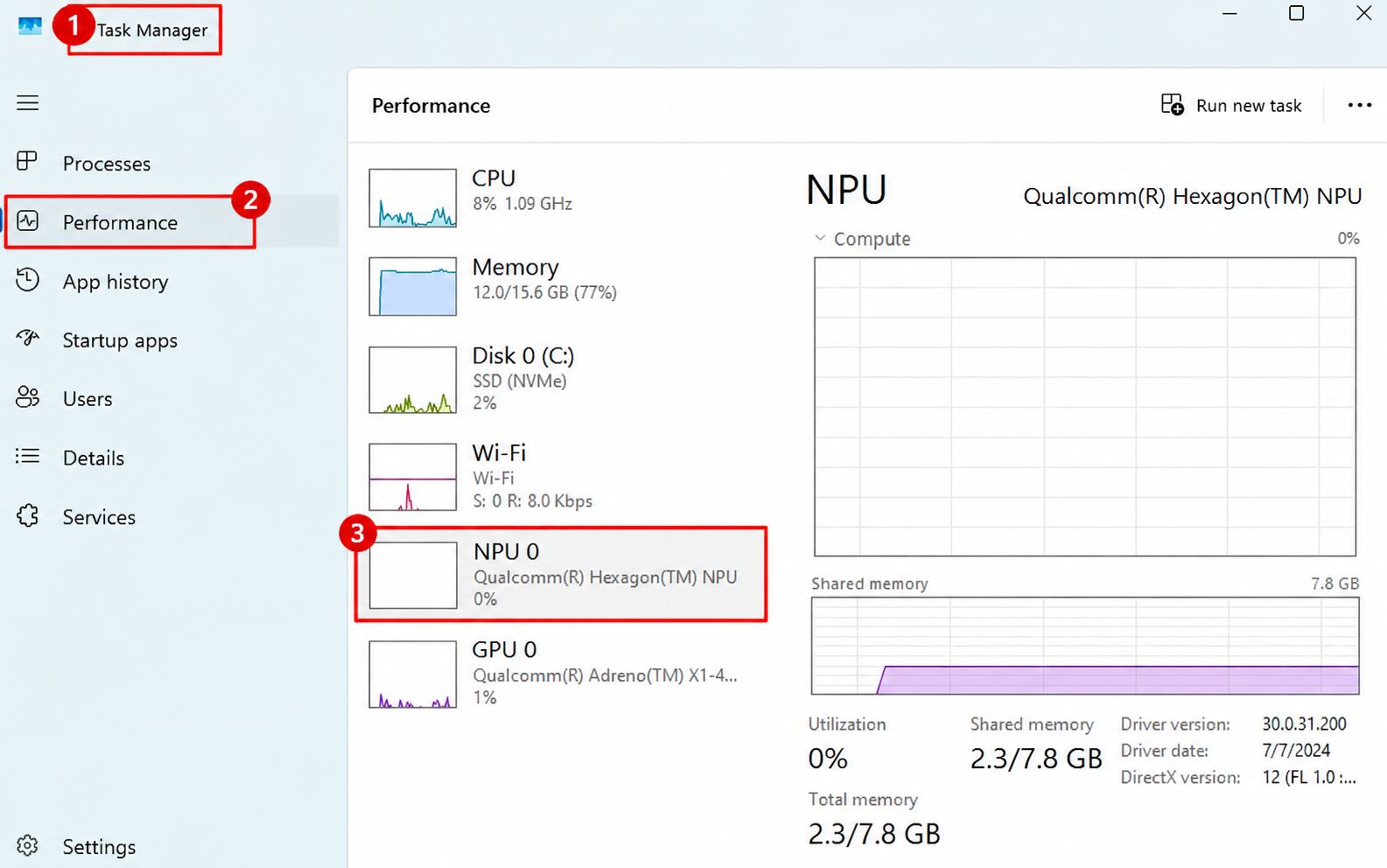
If your PC does not meet the requirements, it means that your system does not support the Recall feature.
You can check your PC’s NPU and other hardware requirements against Microsoft’s Copilot+ PC requirements (https://www.microsoft.com/en-us/windows/windows-11-specifications).
Fix 2: Update Windows
Sometimes the Windows version can create problems. Updating to the latest version helps resolve the missing features and compatibility issues.
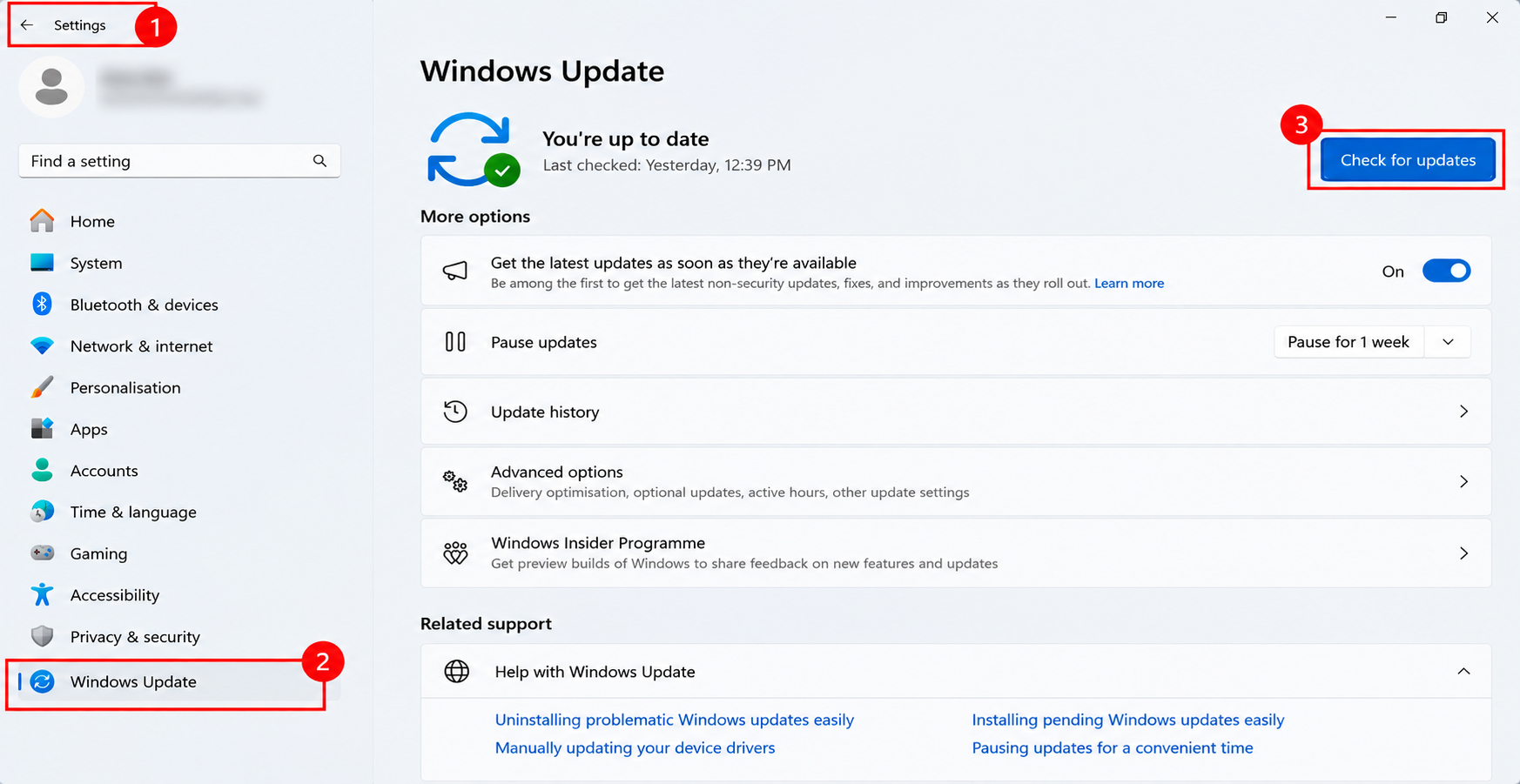
1. Open Settings.
2. Select Windows Update and click on Check for updates.
3. If any updates are available, install them and restart your PC.
Recall will now be available in your system.
Fix 3: Turn On Device Encryption
For recall to work, you need to enable your Device Encryption. Follow the steps below to do it.
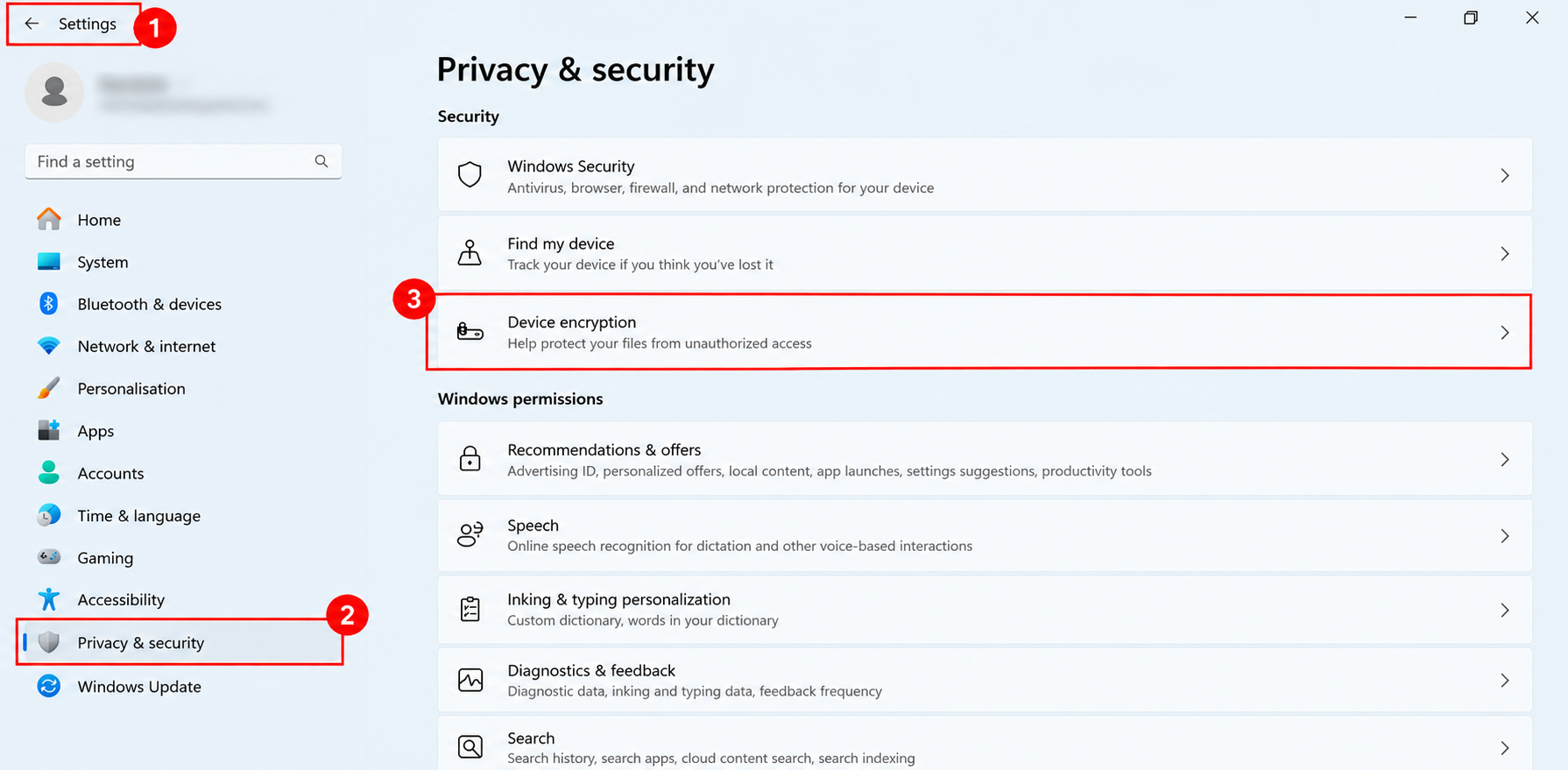
1. In Settings, select Privacy & security.
2. Open Device encryption, if available, and check its status.
3. If your PC uses BitLocker, check its status in Control Panel. Before changing any encryption settings, make sure you have your BitLocker recovery key.
4. Enable encryption and follow the instructions displayed by Windows to complete the process.
Fix 4: Free Up Storage Space
Recall needs at least 50 GB of free storage. If your system drive is running low on space, free up some storage before trying other fixes.
1. Open Settings. Select Storage.
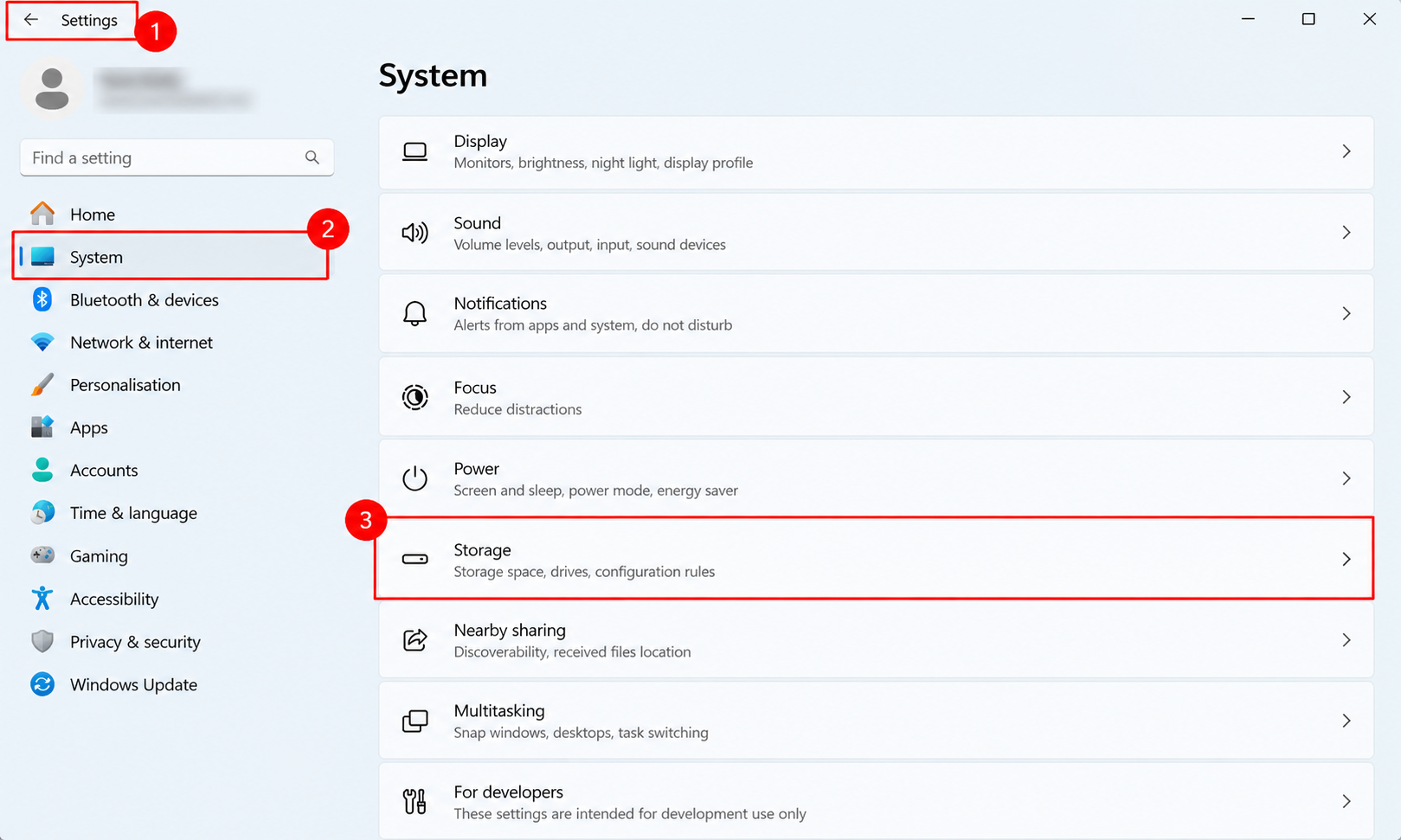
2. Check the available space on your system drive.
3. Select the files you no longer need.
4. Click Remove files and wait for the cleanup to finish. Recall will now be able to work.
Fix 5: Resume Recall Snapshot Capture
Recall may be paused, which stops it from saving new snapshots. If Recall is available but snapshot capture is not working, check its capture status and resume it if necessary.
1. Open Recall from the Start menu or by pressing Win + J.
2. Check whether the snapshot capture is paused. If it is paused, select the option to resume snapshot capture.
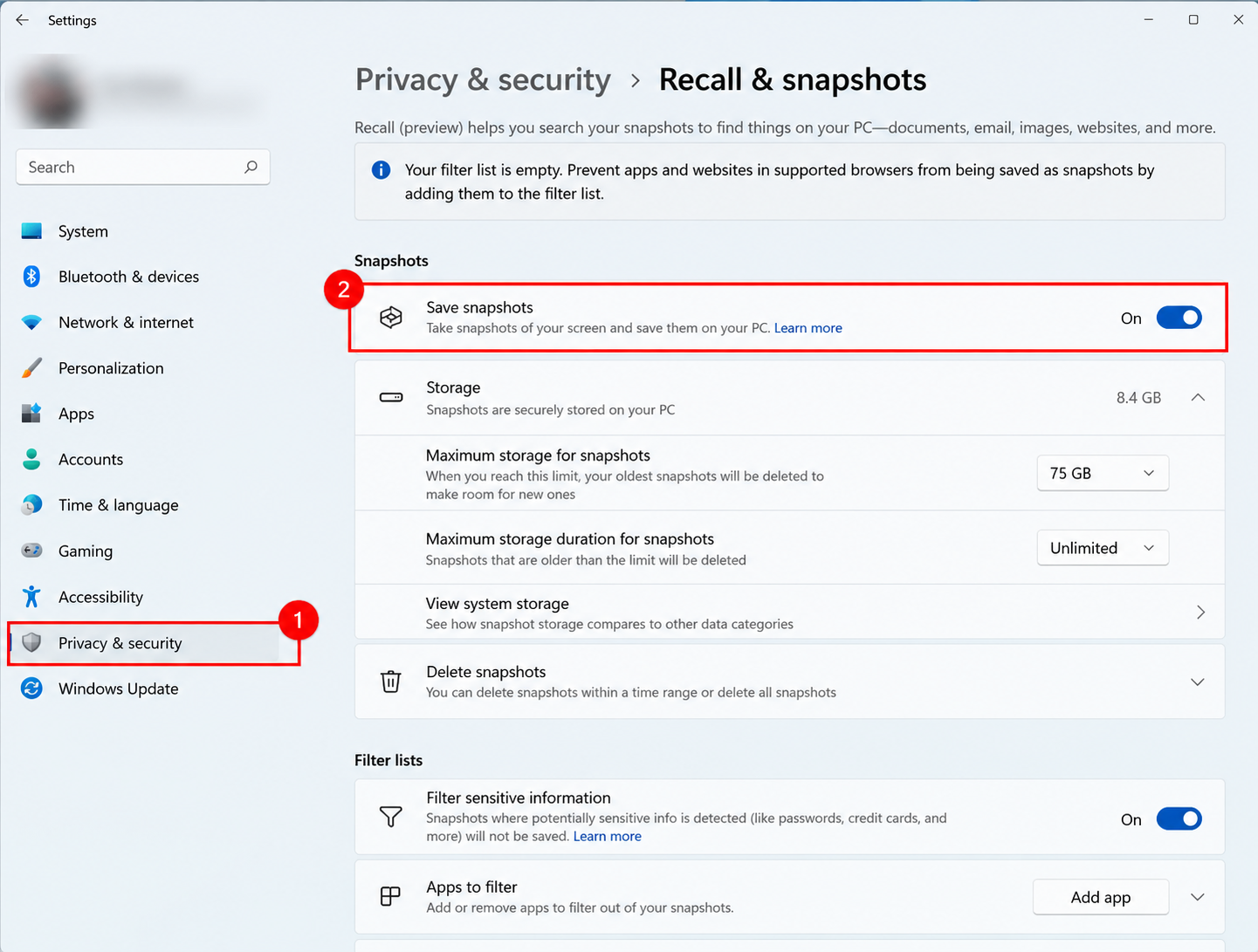
Fix 6: Turn Recall On in Windows Features
Recall is sometimes disabled in Windows Features. In such a case, check whether it is available and switch it on.
1. Open the Run dialog box by pressing Win + R.
2. Type optionalfeatures and press Enter.
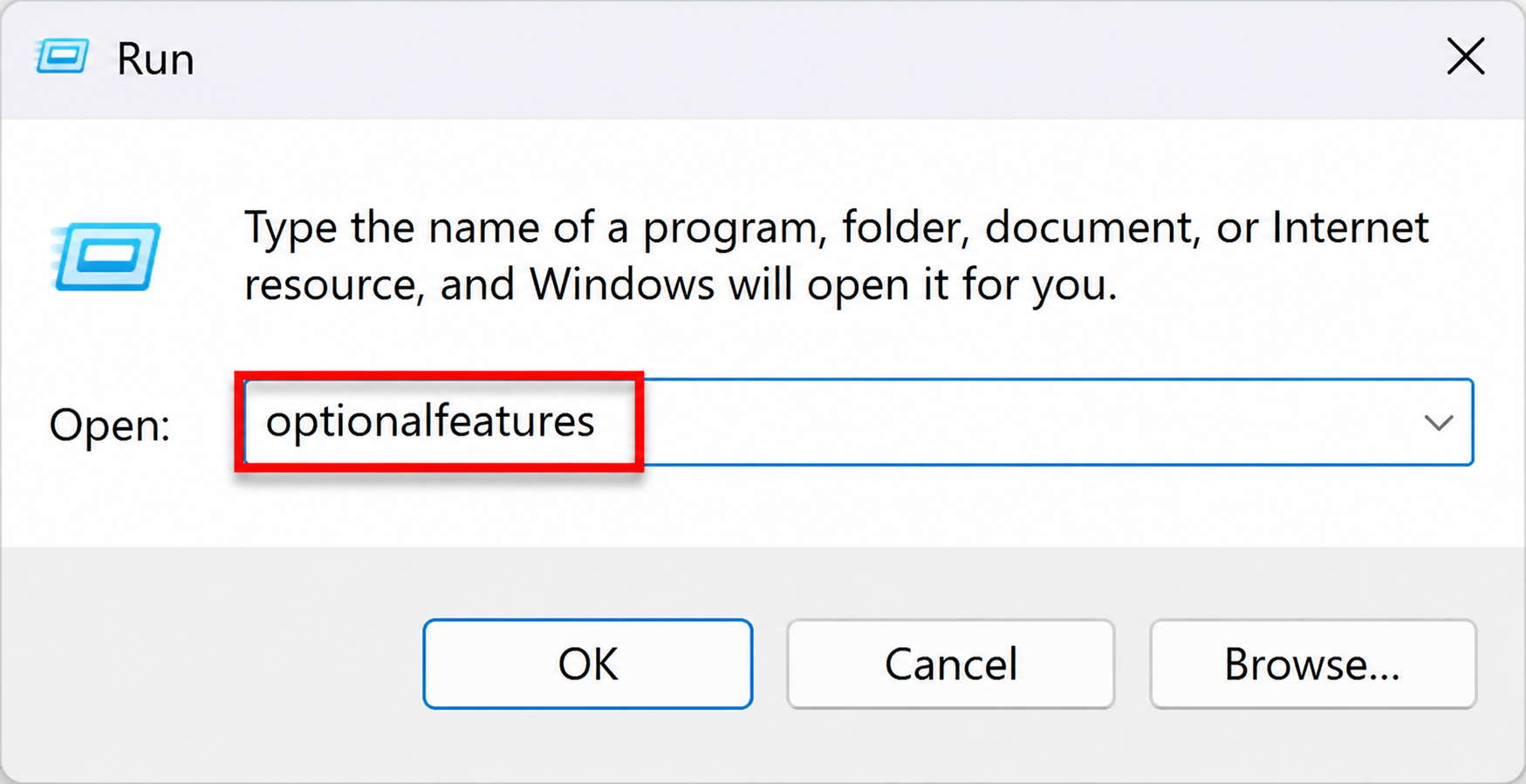
3. Look for Recall or Windows Recall in the list.
4. If it is unchecked, select the checkbox and click OK.
5. Restart your PC and check if Recall opens.
Fix 7: Update AI Components in Microsoft Store
Outdated AI components may stop Recall from working properly. Check the Microsoft Store for updates.
1. Open Microsoft Store.

2. Select Library from the sidebar. Click Get updates.
3. Install any available updates, including AI Components, if it is listed.
4. Try opening Recall again.
Fix 8: Remove Registry Restrictions That Prevents Recall From Working
Certain privacy tools changes the Windows settings to disable Recall. Check the Registry Editor to know what blocks it.
1. Press Win + R, type regedit, and press Enter.
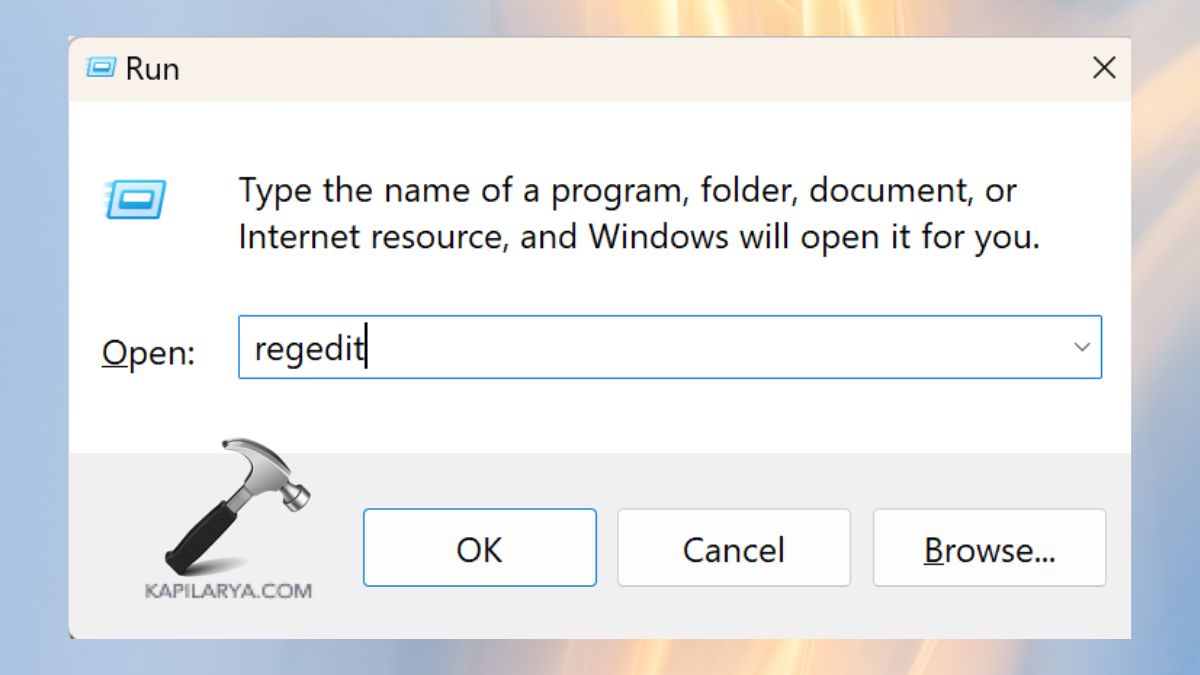
2. Navigate to the following path:
HKEY_LOCAL_MACHINE\SOFTWARE\Policies\Microsoft\Windows\WindowsAI
3. Click on DisableAIDataAnalysis.
4. Right click it and select Delete.
5. Restart your PC after correcting a confirmed restriction.
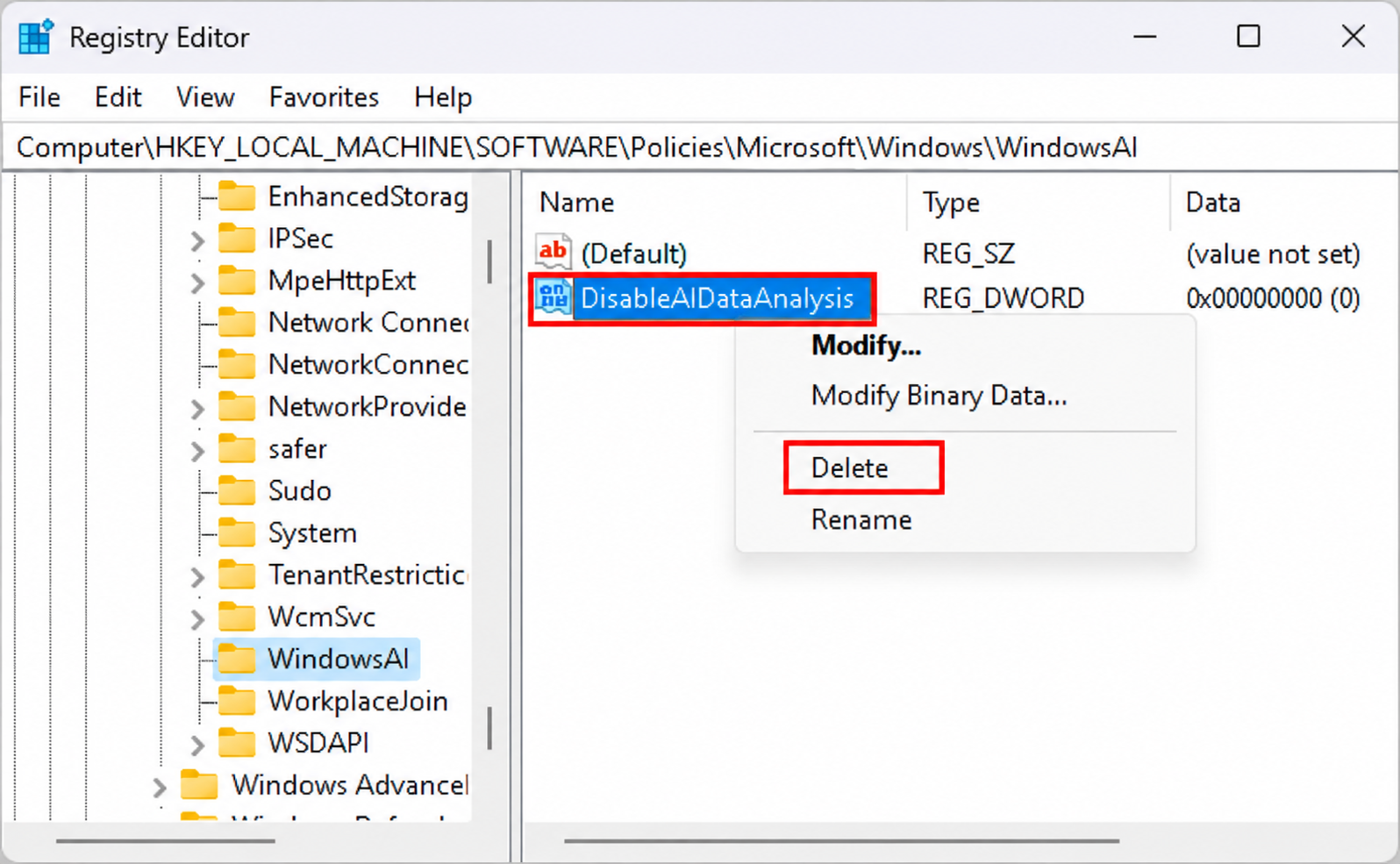
Please note that you should back up the registry before making any changes. Only delete a registry value if you have confirmed that it is blocking Recall.
That’s it!