If you’re getting No Internet, Secured on Windows 11, this article is for you. This usually means your device has established a connection to the Wi-Fi network but cannot reach the Internet. This issue can be caused due to various reasons such as incorrect network settings, DNS problems, IP address conflict, or glitch in network adapter.
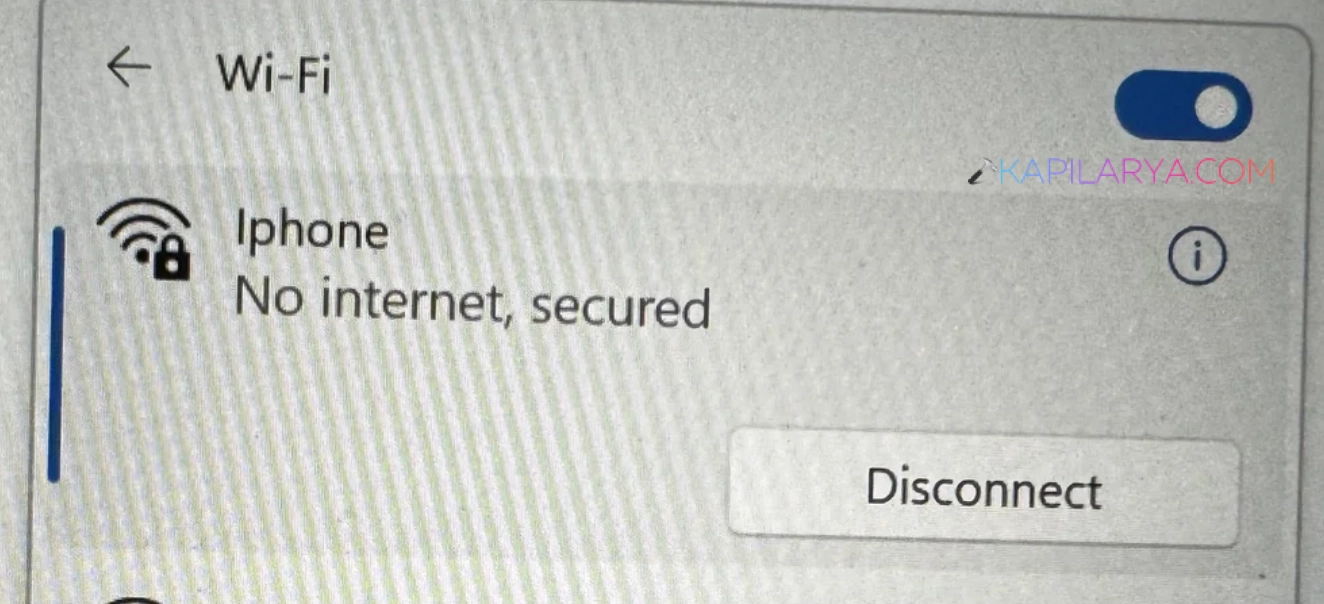
In some cases, other devices connected to the same Wi-Fi network may have internet access, while your Windows 11 PC does not. This indicates that the problem may be related to your PC’s network configuration rather than the router itself.
You can ty the following methods to restore your connection.
Page Contents
Fix No Internet, Secured Error Windows 11
Method 1: Run the Network Troubleshooter
Running the built-in troubleshooter helps in most of the cases.
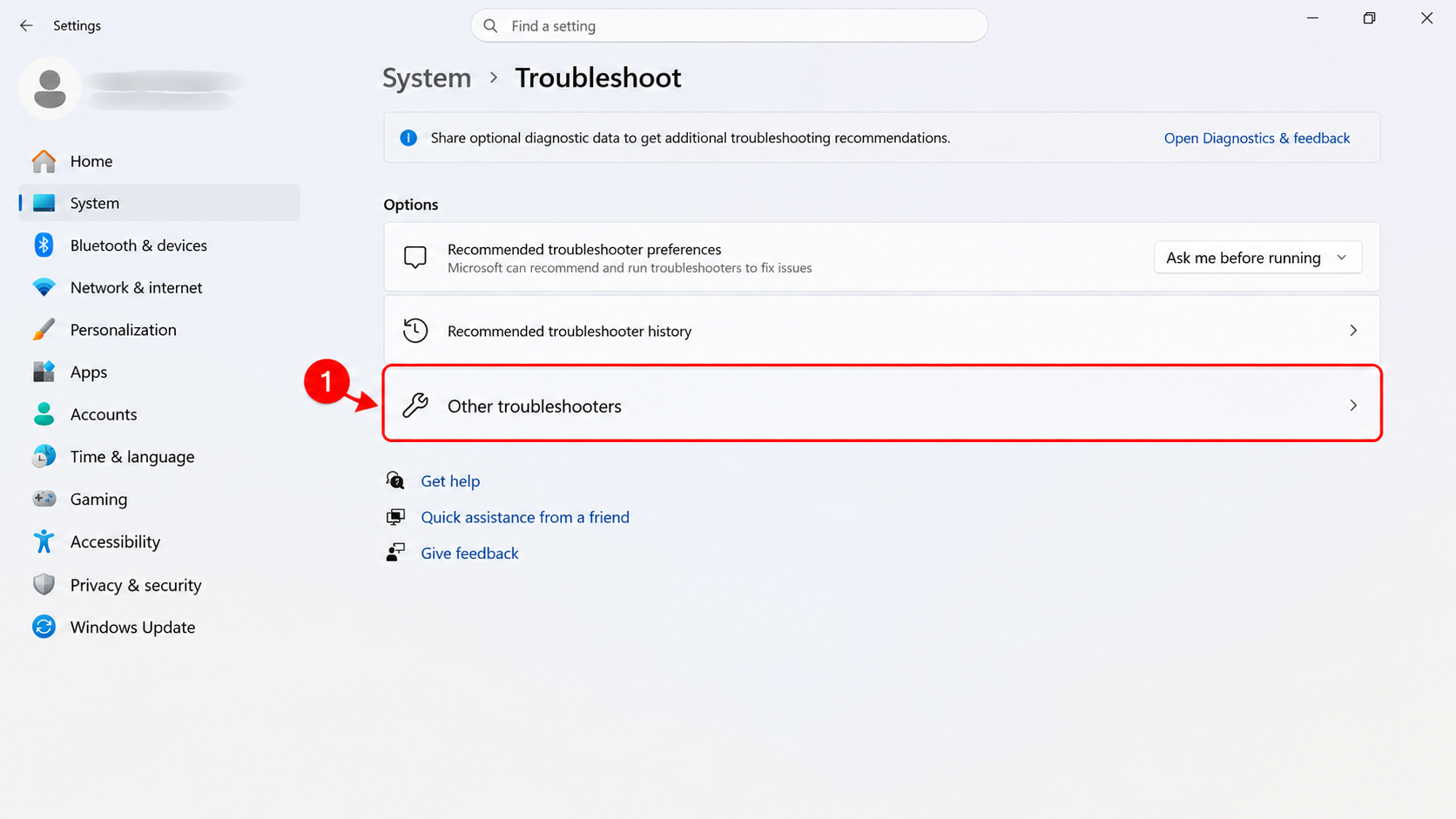
1. Open Settings > System > Troubleshoot.
2. Click on “Other Troubleshooters.”
3. Click on “Network and Internet.”
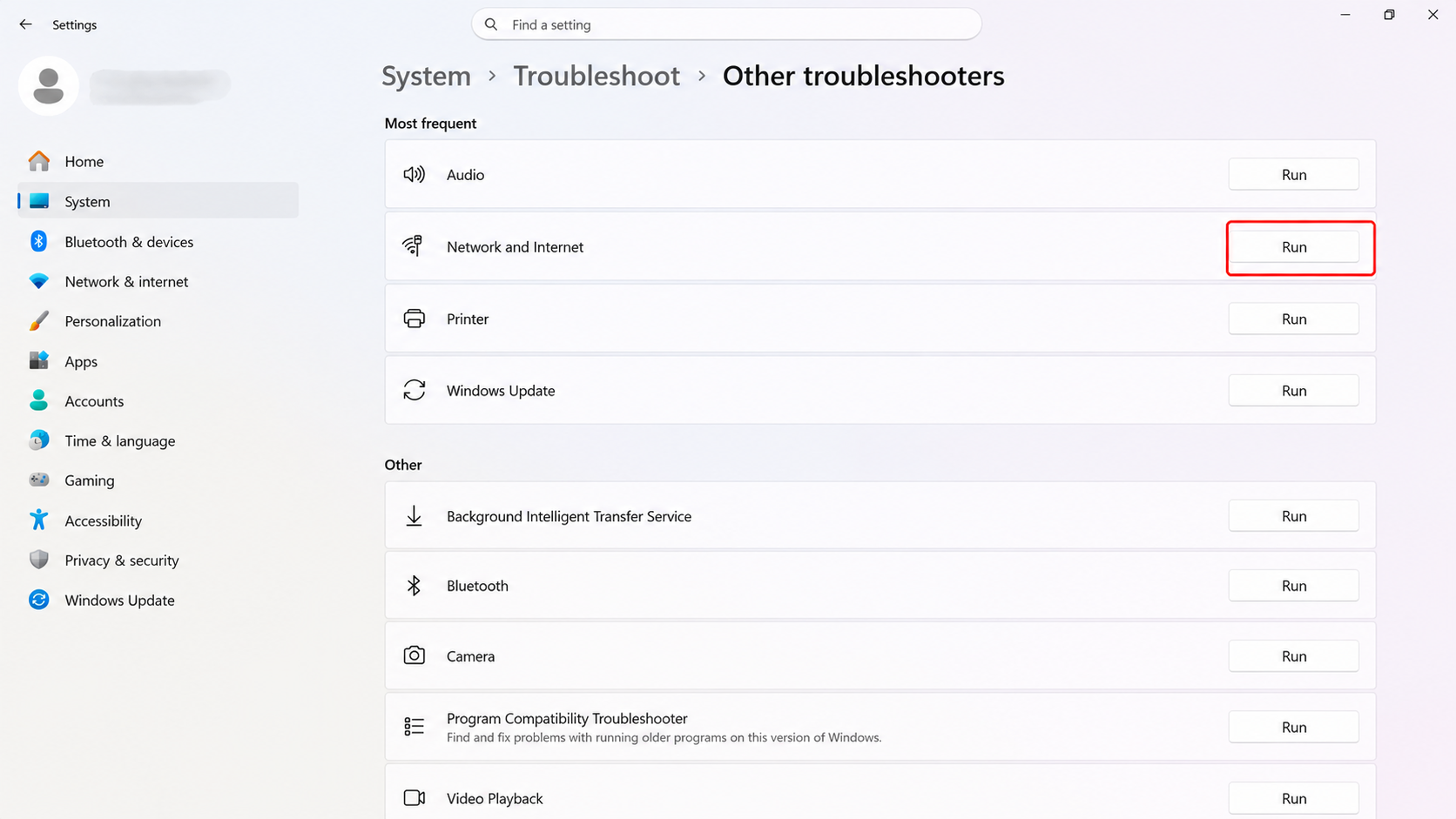
4. Next, follow the instructions by clicking Ok or Accept. This will fix the issue automatically.
Method 2: Disable IPv6
Next, you can try to disable IPv6, and see if it helps in this case.
1. Press Win+R to open the Run dialog box. Type the command ncpa.cpl
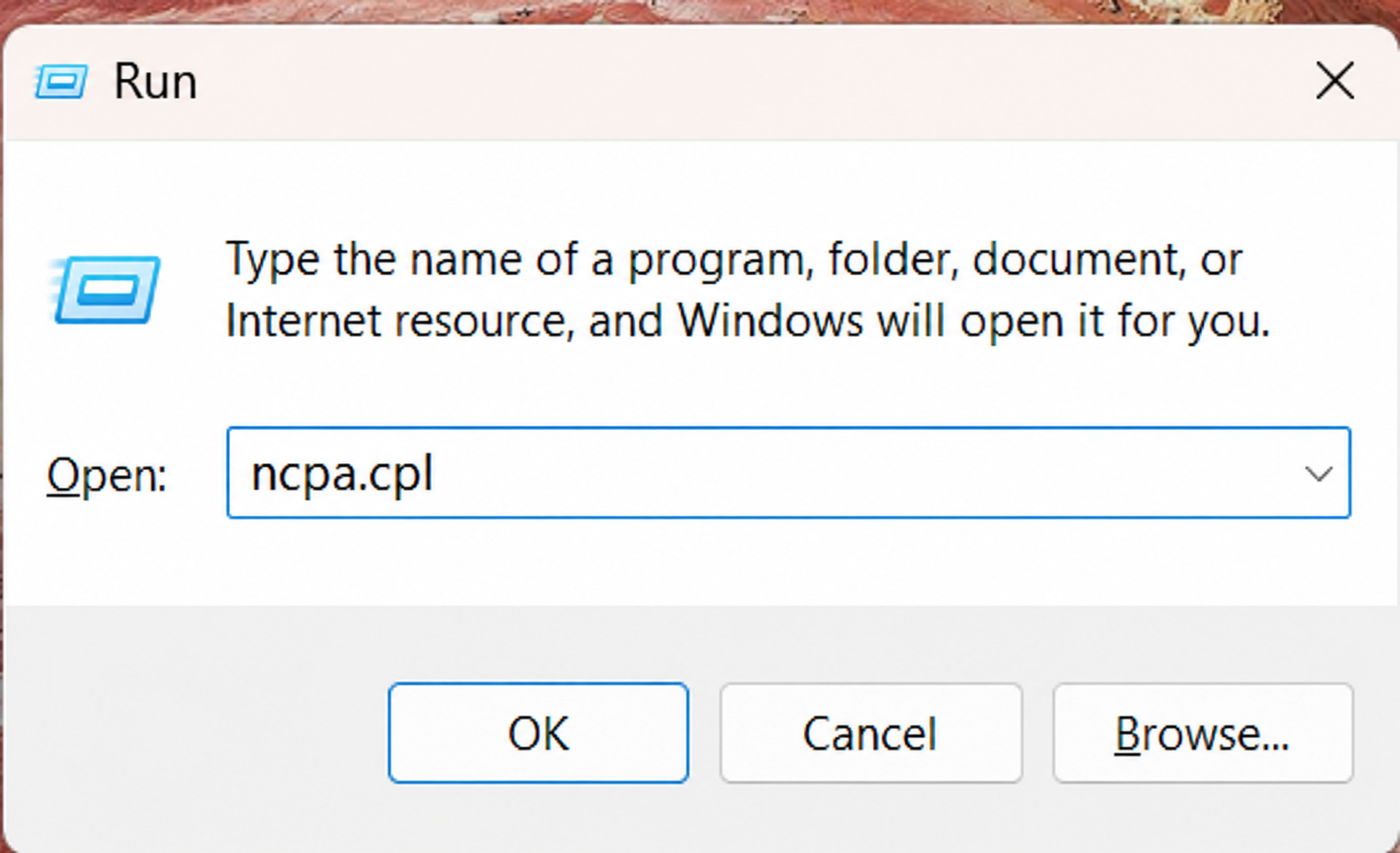
2. When you click OK, it will open a list of network connections.
3. Right click your WiFi adapter, and then select Properties.
4. Uncheck “Internet Protocol Version 6 (TCP/IPv6)”
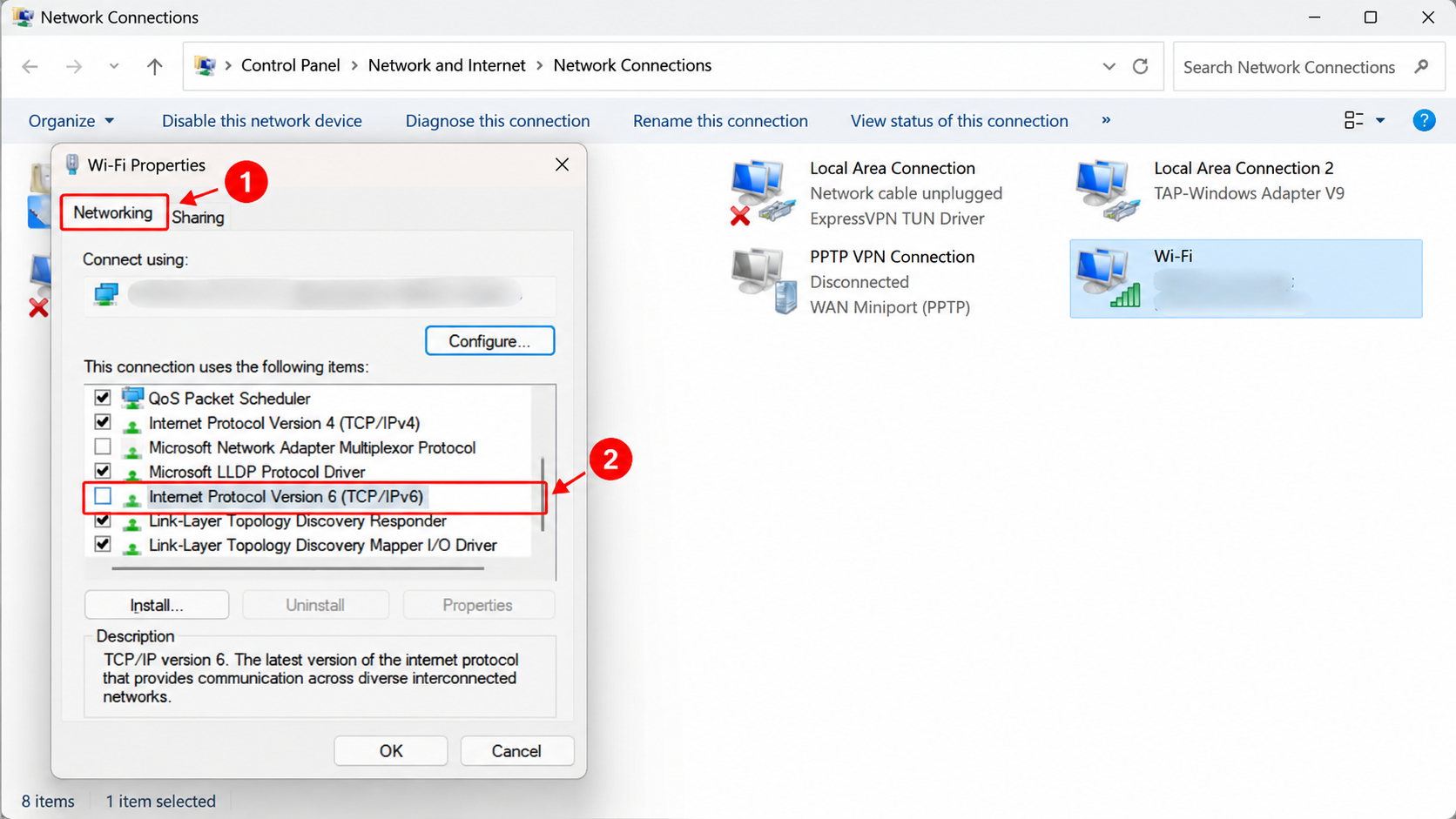
5. Click OK.
Restart your computer after this is done. It helps Windows to reinitialize its network components.
Method 3: Set DNS Manually
Another option you can try is to set DNS manually or use custom DNS servers.
1. Follow the steps from method 2 up to step 3.
2. Select “Internet Protocol Version 6 (TCP/IPv6)”. Then select properties.
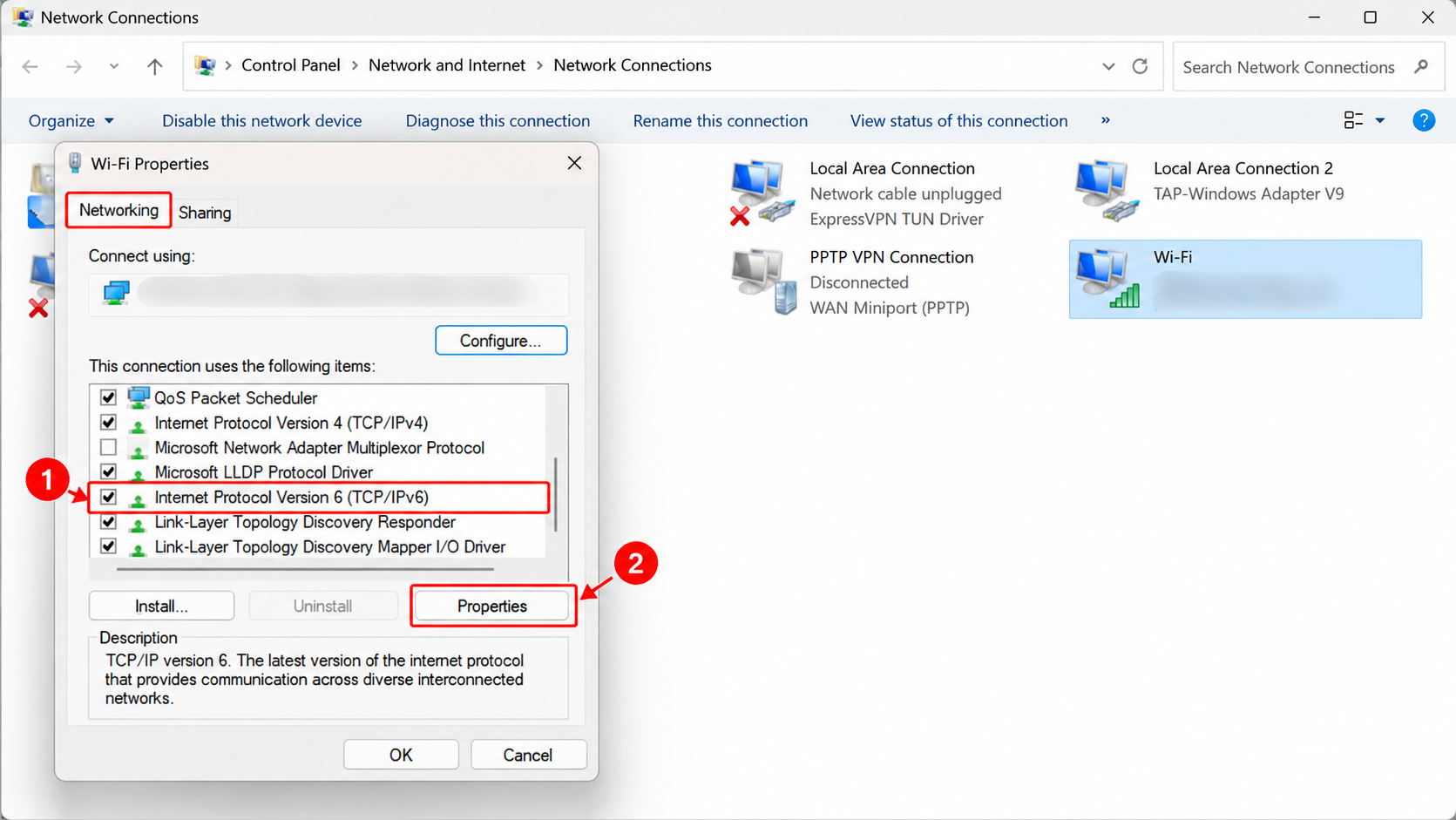
3. Select Use the following DNS server addresses and enter these values:
- Preferred DNS server: 8.8.8.8
- Alternate DNS server: 8.8.4.4
4. Click OK to save the changes and then, restart your PC.
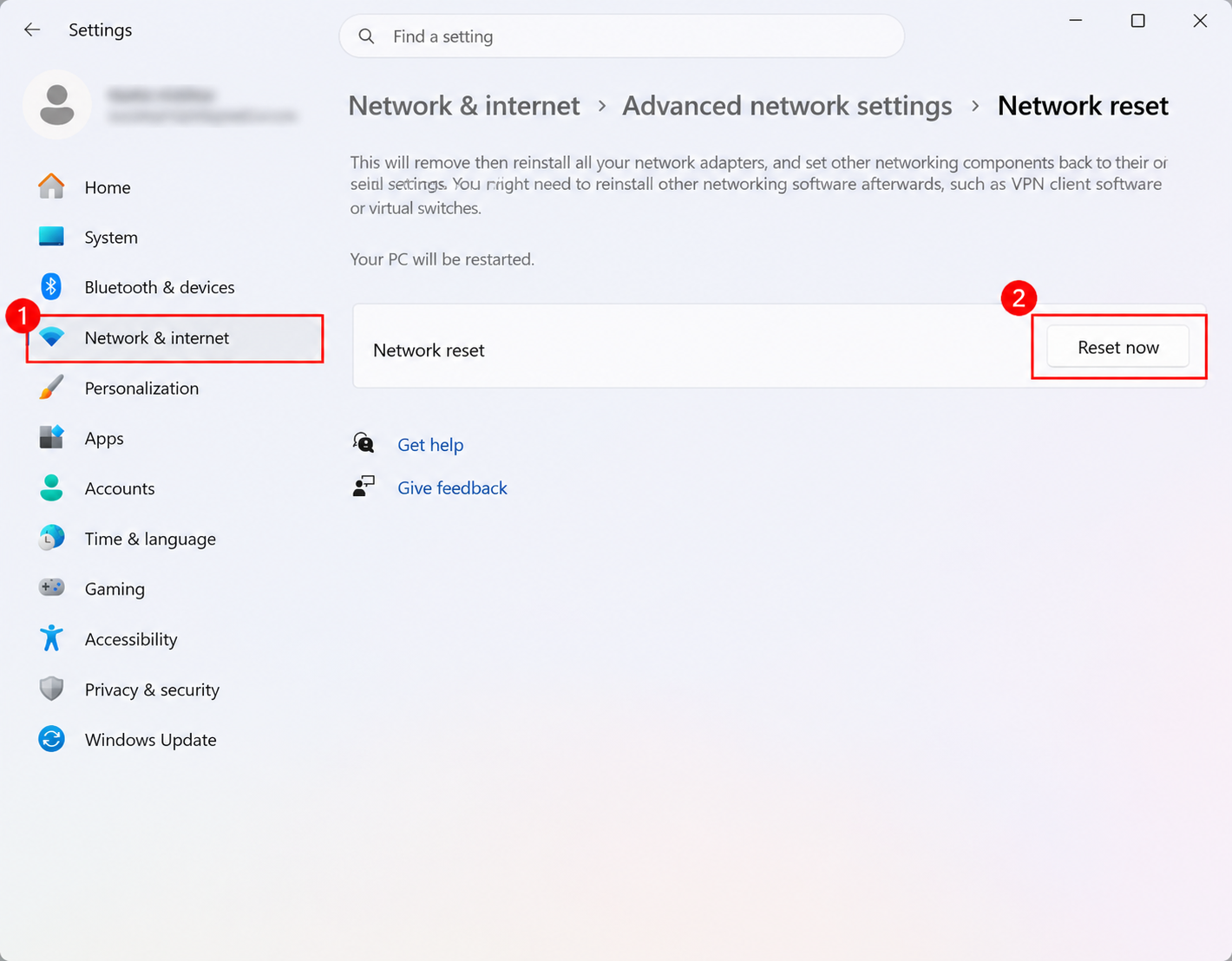
Method 4: Use Network Reset
Resetting the network to default settings may also help in this case.
1. Open Settings.
2. Select Network & internet > Advanced network settings > Network reset.
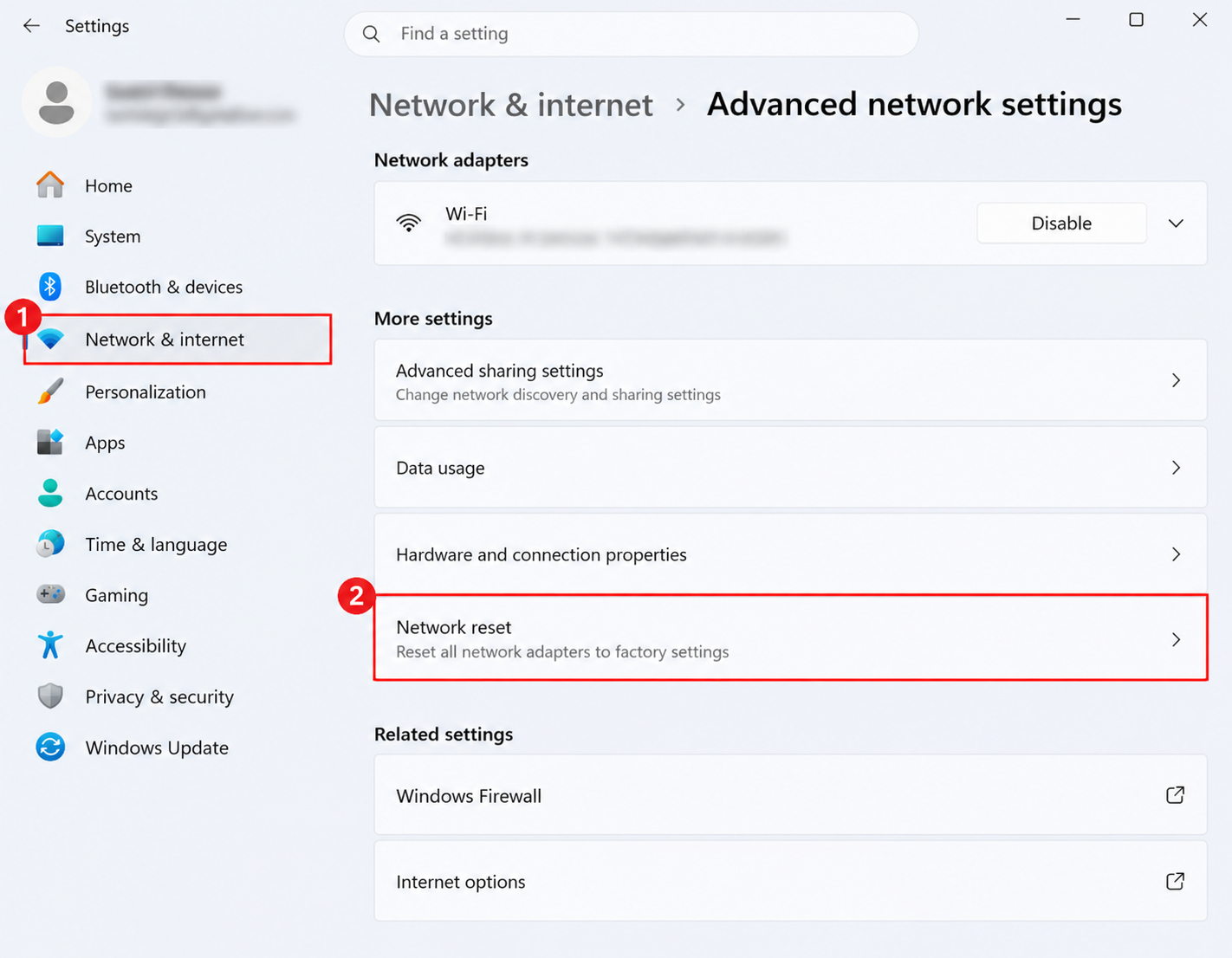
3. Click Reset now, and restart your PC.

Method 5: Release and Renew Your IP Address
Try to release and/or renew your IP so that the Internet connection can restore connectivity.
1. Follow the steps from method 3 up to step 2.
2. Press Win + X to open Terminal (Admin). If prompted, select Yes in the User Account Control window.
3. Enter the command ipconfig /release,and then press enter. It releases the presently assigned IP address for your network adapters.
4. Enter the command ipconfig /renew, and then press enter. It forces the PC to assign a new internal address.
5. Restart your computer.
If you still face the issue, do let us know via your comments. We’ll happy to help you.
That’s it!