If your mouse cursor disappears in Windows 11, the issue may be related to your touchpad settings, graphics driver, or mouse configuration. Follow the methods below to fix mouse cursor disappearing in Windows 11 and restore the pointer.
Page Contents
Fix Mouse Cursor Disappearing in Windows 11
Fix 1: Reset the Graphics Driver
1. Press Win + Ctrl + Shift + B on your keyboard.
2. It will reset the graphics driver in your Windows.
Your mouse cursor will reappear.
Fix 2: Check Whether the Touchpad Is Disabled
1. Click search icon on taskbar.
2. Type touchpad settings and then press Enter.
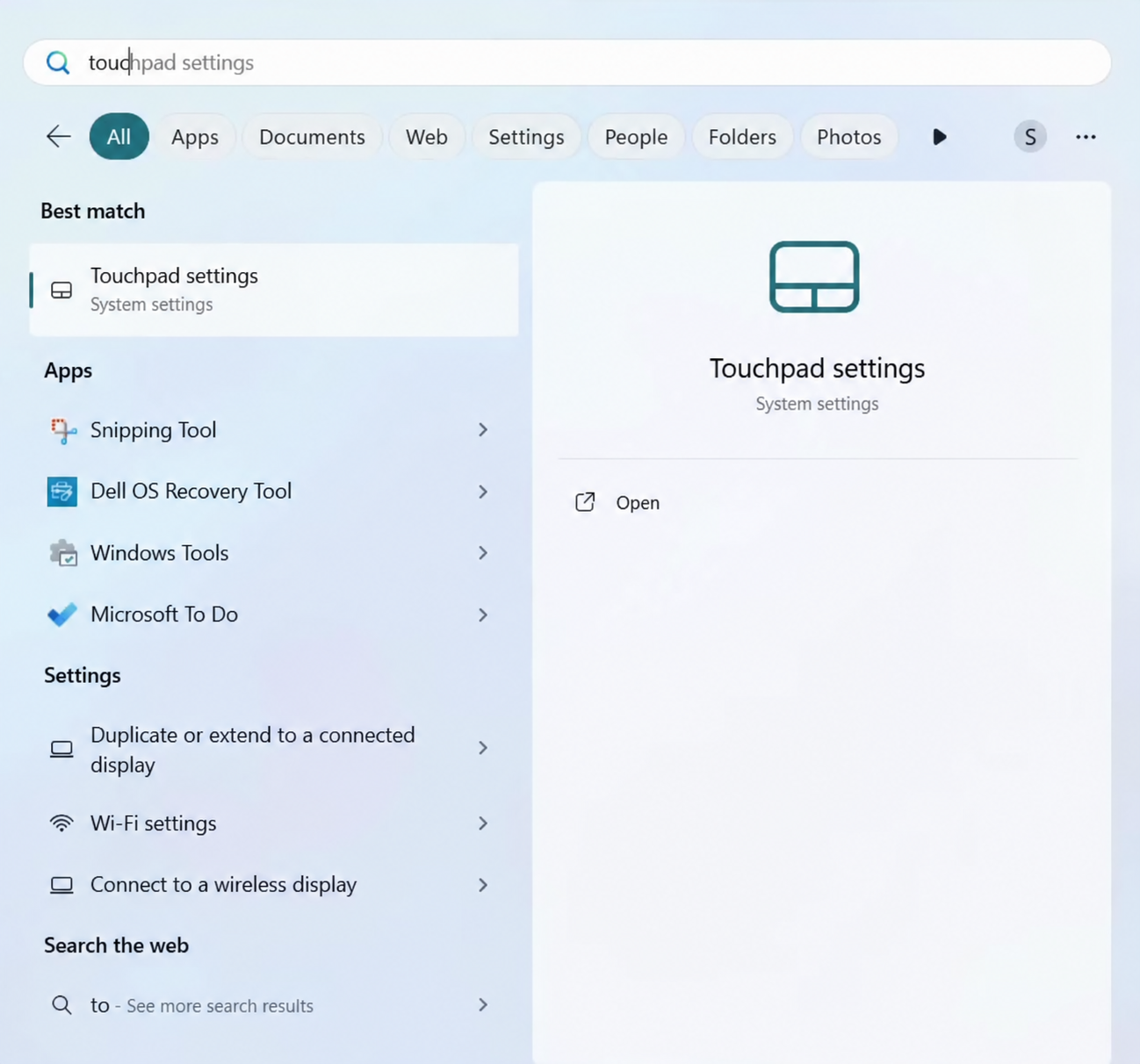
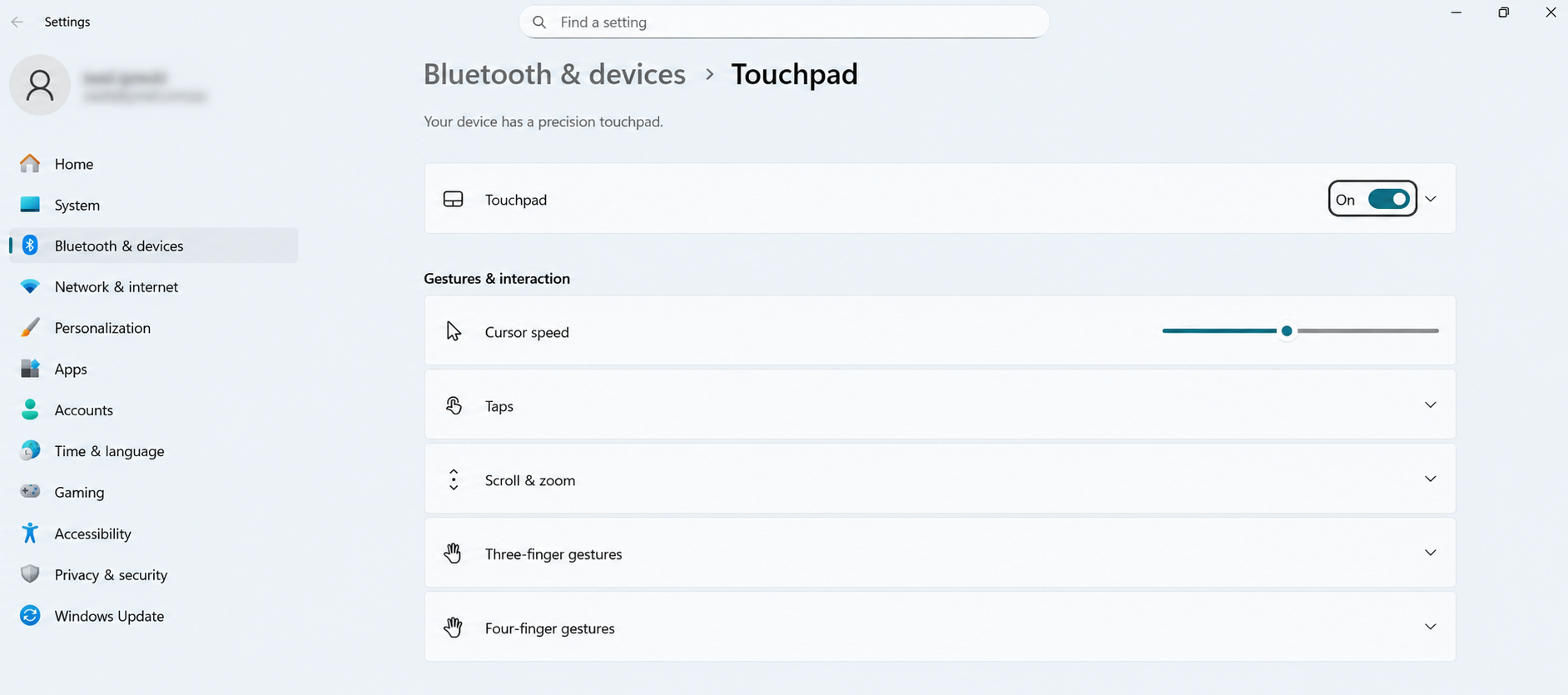
3. The touchpad must be turned on. If it is off, press spacebar to turn it on.
Fix 3: Change Pointer Options in Windows 11
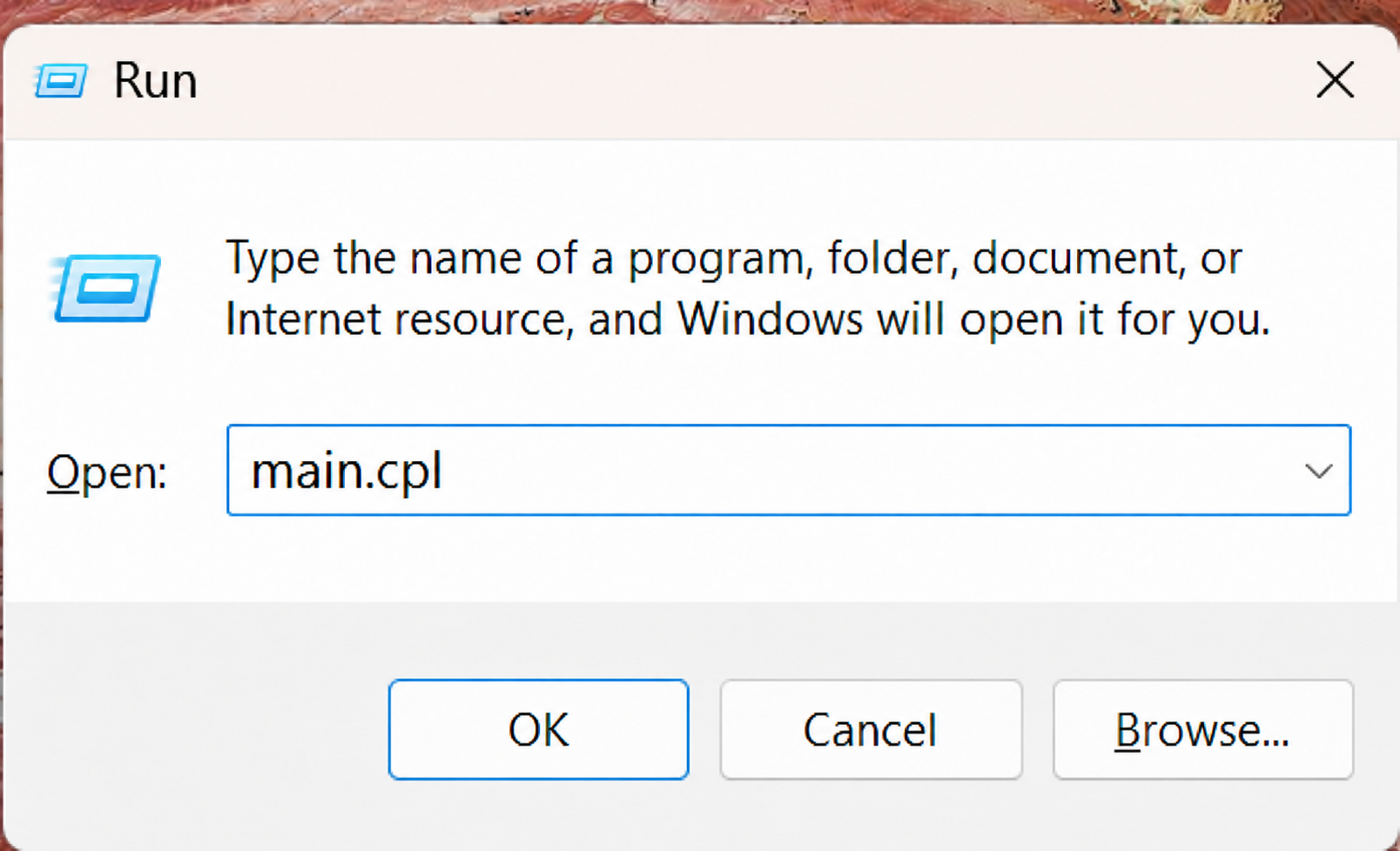
1. Press Windows + R. It will open the Run dialog box.
2. Type main.cpl and press Enter.
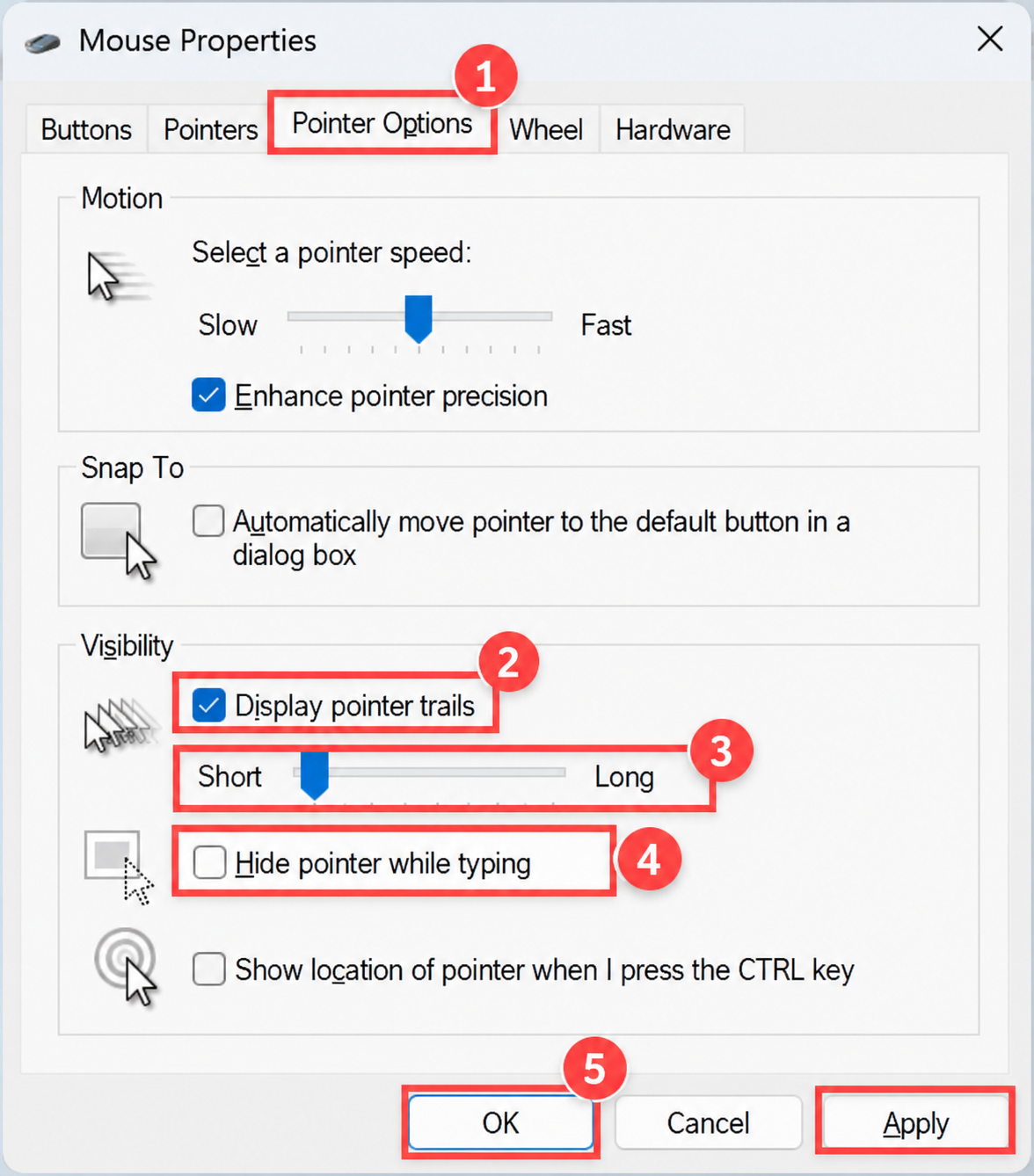
3. Press Ctrl + Tab till you select Pointer Options tab.
4. Press Tab till you reach Display pointer trails. To enable it, press the Spacebar.
5. Next, press tab to reach the trail-length slider. Using arrow keys, select the short trail.
6. Press Tab to highlight Hide pointer while typing. To select it, press the Spacebar.
7. Using Tab navigate to Apply. Press Spacebar to select it.
8. Select OK, press Enter.
Fix 4: Change Mouse Pointer Style and Size
1. Open Settings by pressing Win + I.
2. Type Accessibility. Go to Mouse pointer and touch.
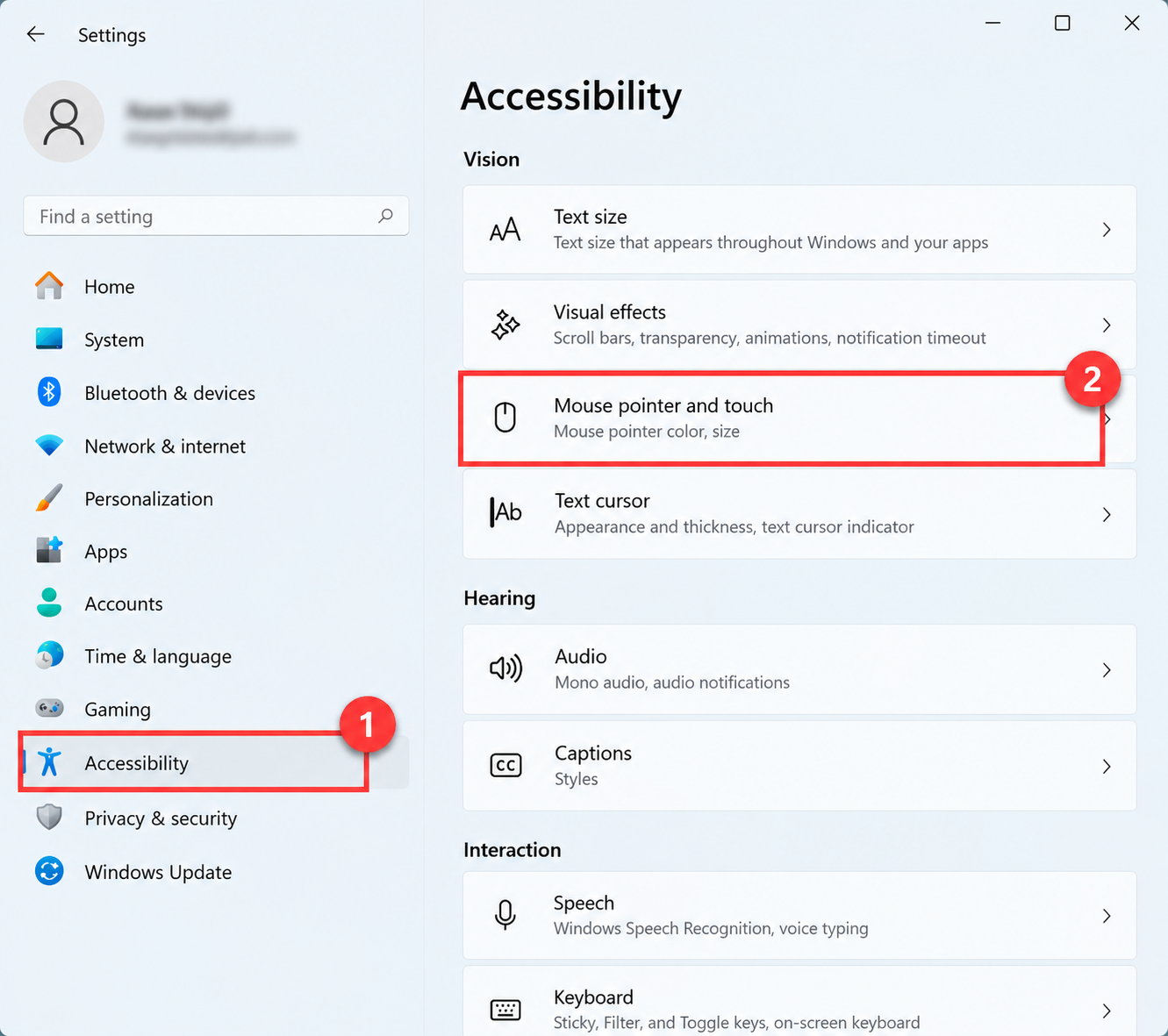
3. Under style, select the preferred Style.
4. Using tab, navigate to Size, and increase or decrease using the arrow keys.
This will resolve your problem.
Fix 5: Toggle Auto HDR to Troubleshoot a Disappearing Cursor
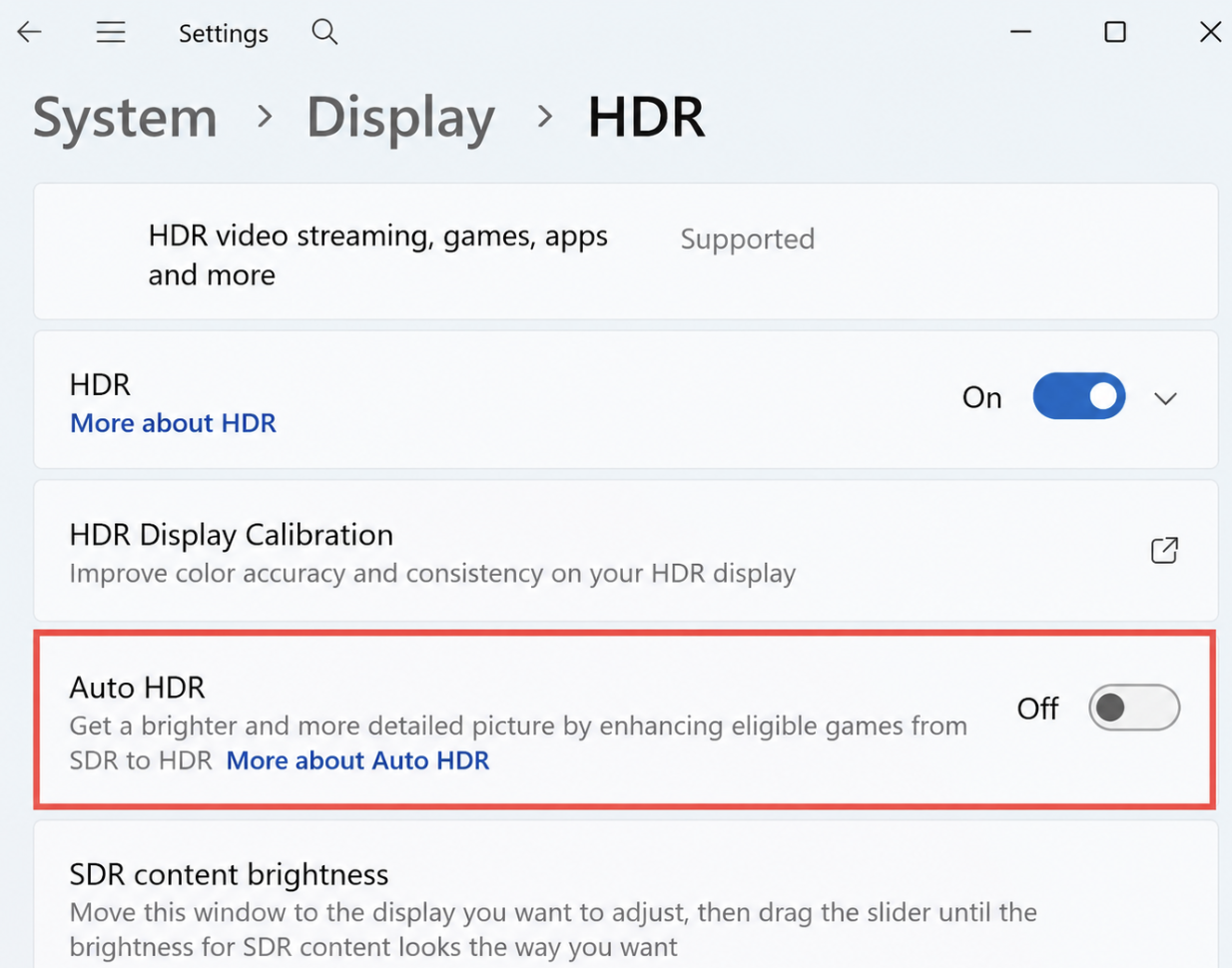
1. To open settings, press Win + I. Go to System > Display.
2. Turn Auto HDR Off.
Fix 6: Check for a Faulty Touchscreen Input
1. Press Win + X and select Device manager.
2. Press tab to reach device list.
3. Using arrow keys, navigate to Human Interface Devices.
4. To expand the category, press the right arrow key.
5. Look for HID-compliant touch screen.
6. To select it, press Shift + F10.
7. If it is available, select Disable device. Your problem should resolve.
Fix 7: Re-apply Mouse Pointer Scheme
1. Follow the steps in Fix 3 till step 3.
2. Navigate to Scheme dropdown using the Tab.
3. Using arrow keys, select a different scheme, such as Windows Black.
4. Press Tab to select Apply. Press Enter.
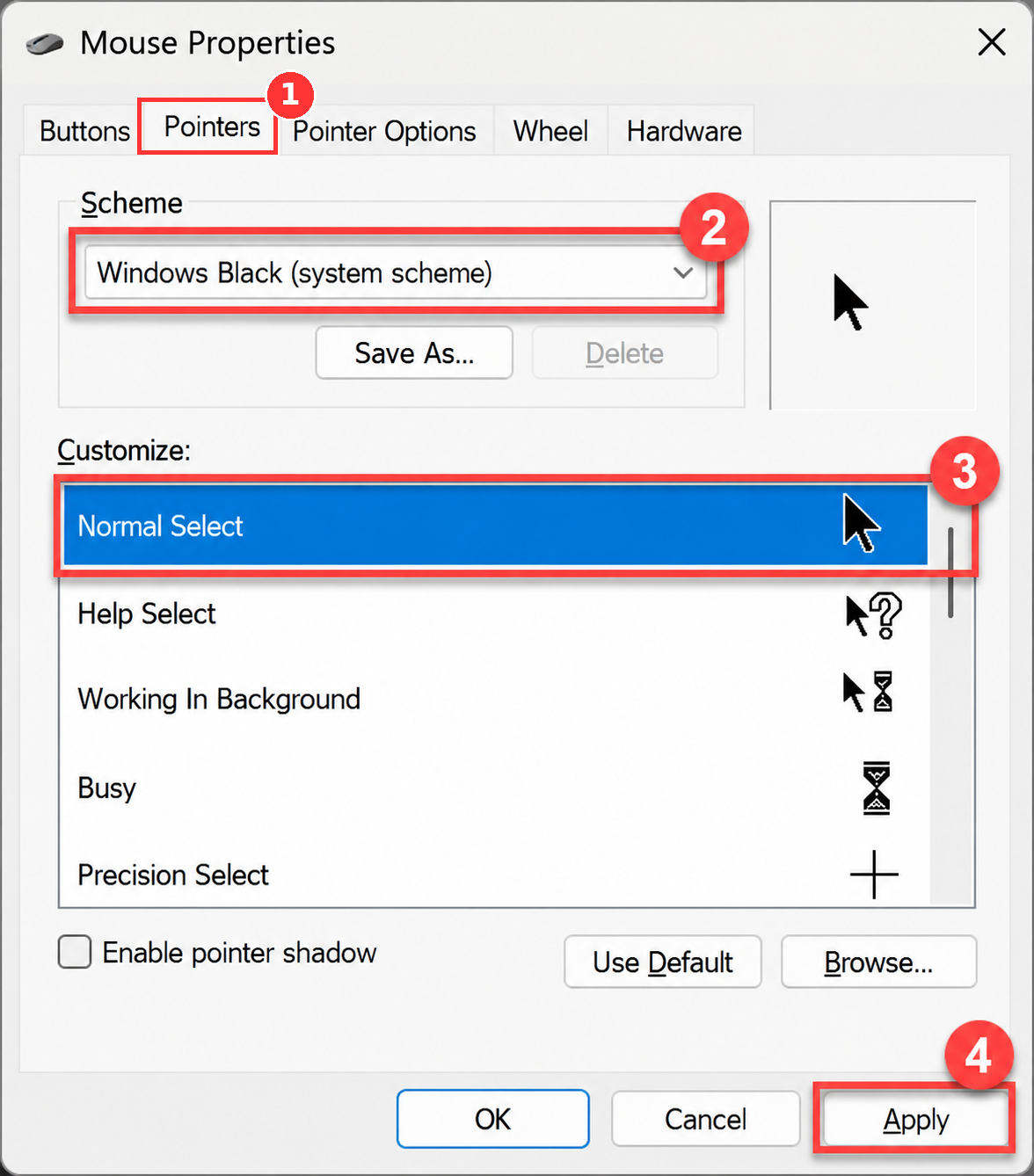
5. Using the same process, select your preferred scheme again.
Fix 8: Reinstall the Mouse Driver
1. Press Win key.
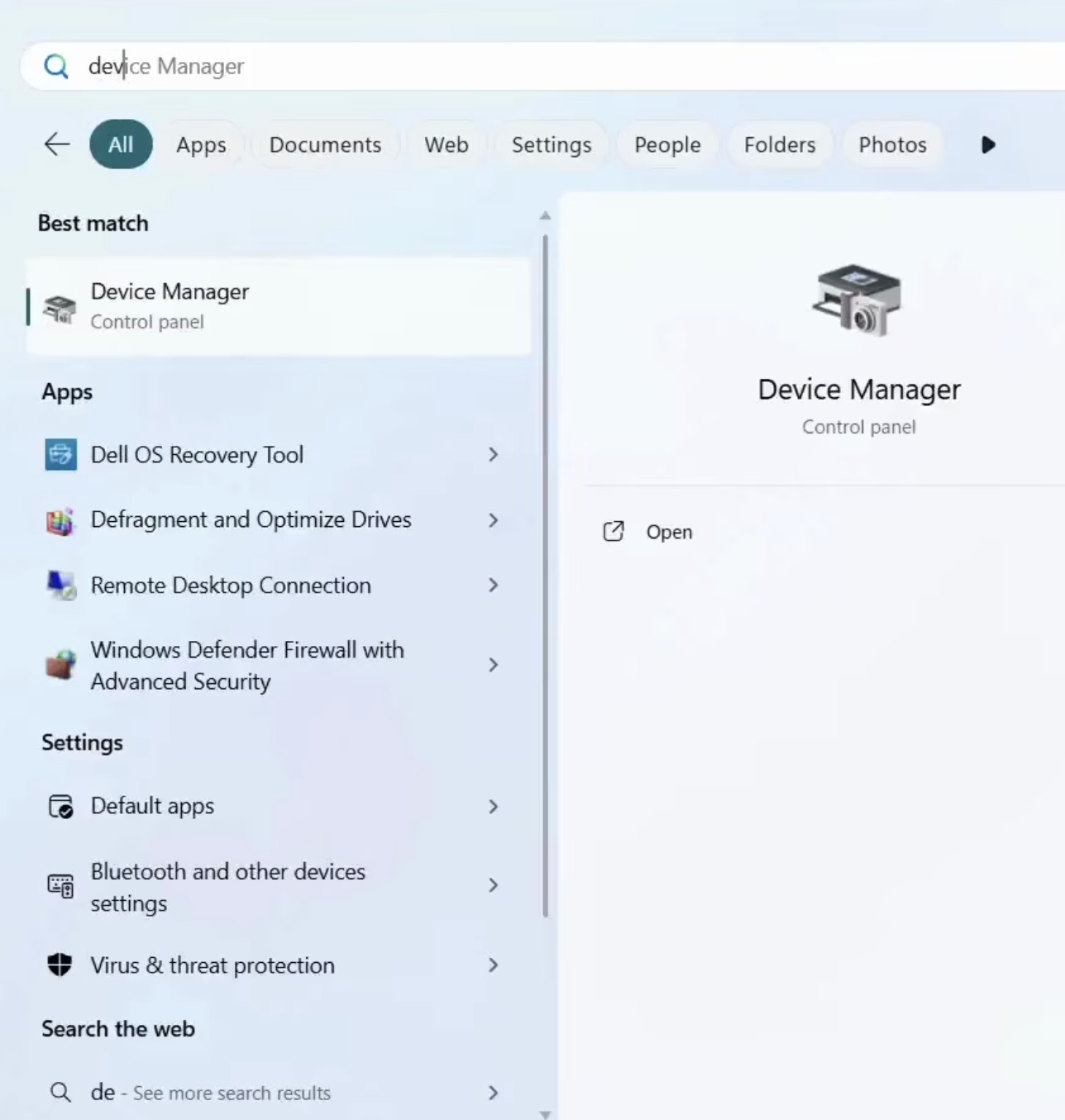
2. Type Device Manager and press enter.
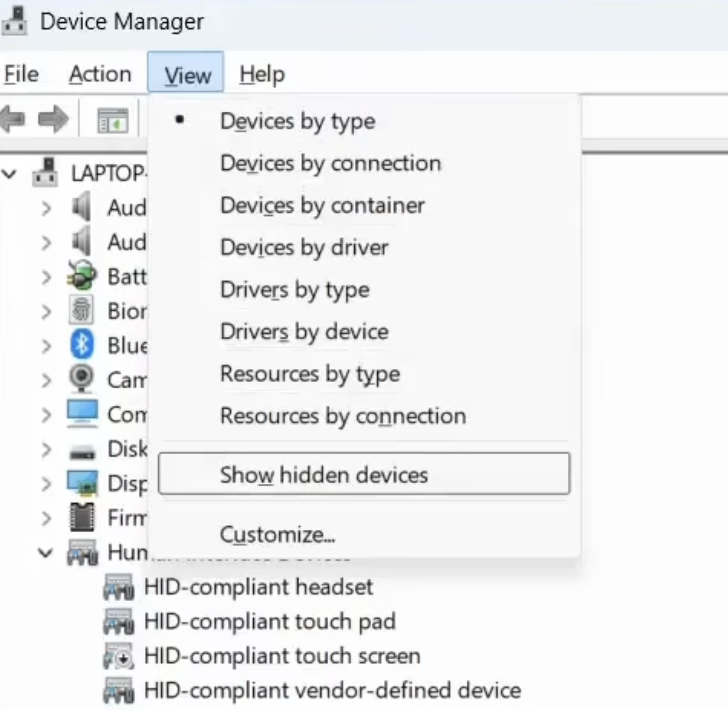
3. Type Alt + V to go to the view section.
4. Press down the arrow key to reach the “Show hidden devices.” Press Enter.
5. Press tab and down arrow key to reach “Mice and other pointing devices.”
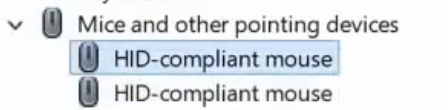
6. If you press the right arrow key, you will see a list of drivers. Now you need to uninstall them.
7. Press Enter, then press Ctrl + Tab. Reach till Uninstall device.
8. Press Enter to Uninstall.
9. Now, restart your system by pressing Win +X , then U and then R.
By doing this, your system will automatically install the latest mouse driver.
That’s it!