[TIP] Move Apps To SD Card From Phone Memory In Windows Phone 8.1

Windows Phone supports transferring apps from Phone to SD card. Learn how to move apps to SD Card from phone memory in Windows Phone 8.1, in this article.

Kapil Arya
11x Microsoft MVP · Admin
2 min read
Add as a preferred
source on Google

If your Windows Phone supports SD card, then you don’t need to erase your phone memory to make space, for downloading and installing new apps. Generally, the default Windows Phone settings are such that it saves every new stuff to Phone memory even if you’ve plugged a SD card. Due to this, the phone memory get filled earlier with addition of new stuff and card remains empty. An average user thinks that he can only install apps to phone, so he deletes the apps on verge of downloading new apps.

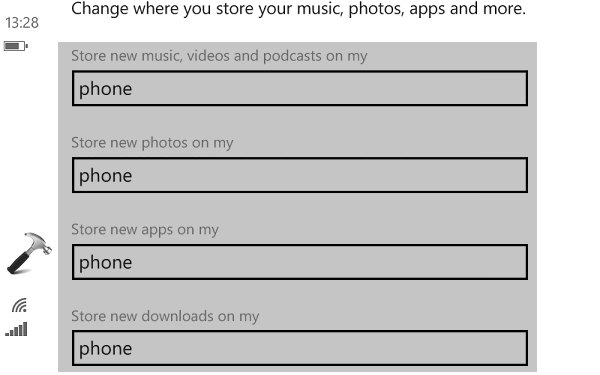
But here is something you can do in this condition. You can very easily move your installed apps to SD card which were installed on phone memory, and free up space on phone memory to get new apps installed. Or you can simply change Windows Phone settings such that all the new stuff goes directly to SD card only.
How To Move Apps To SD Card From Phone Memory In Windows Phone 8.1

Here is how you can move apps to memory card from phone:

Move Apps To SD Card From Phone Memory In Windows Phone 8.1

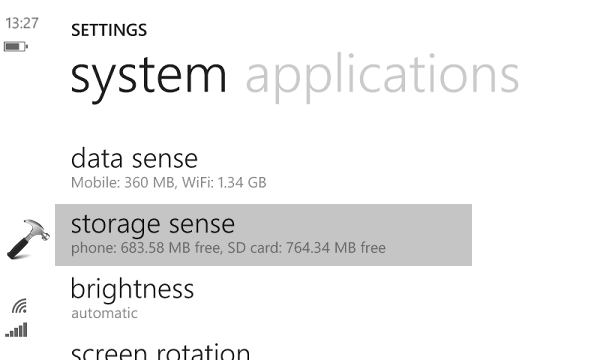
1. On the Start Screen, tap Settings app. The in the SETTINGS screen, scroll down and tap Storage sense option.
How To Move Apps To SD Card From Phone Memory In Windows Phone 8.1

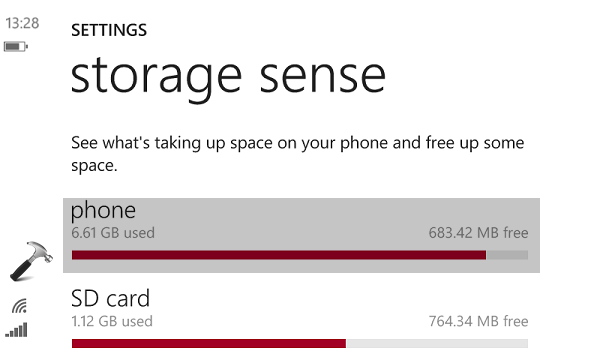
2. Next, in the storage sense screen, tap phone.
How To Move Apps To SD Card From Phone Memory In Windows Phone 8.1

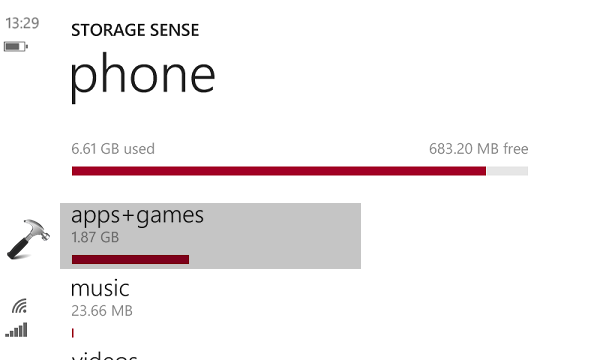
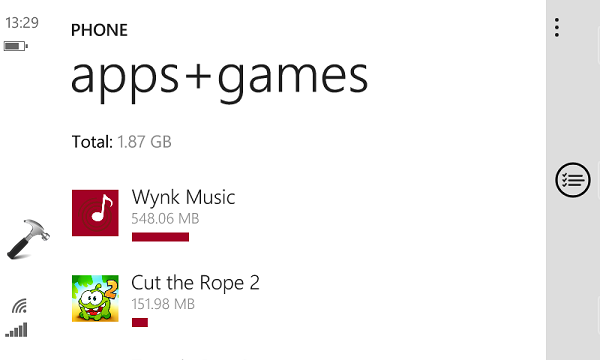
3. Moving on, then tap apps+games under phone memory.
How To Move Apps To SD Card From Phone Memory In Windows Phone 8.1

4. Now the list of your installed apps will be populated. Tap the app entry which you want to move to SD card.
How To Move Apps To SD Card From Phone Memory In Windows Phone 8.1

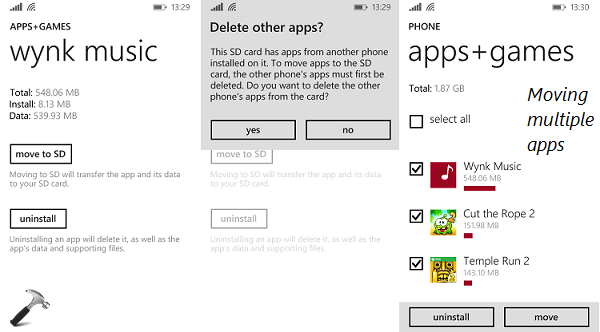
5. Finally, tap on move to SD option in next screen. You may receive following prompt at this stage:

This SD card has apps from another phone installed on it. To move apps to the SD card, the other phone’s apps must first be deleted. Do you want to delete the other phone’s apps from the card?

Tap on the yes option to do the needful. Then your app will be moved to SD card. If you want many apps to move, you select multiple apps and tap move option (as shown in third section of below screenshot).
How To Move Apps To SD Card From Phone Memory In Windows Phone 8.1

Hope you find tip useful! See this fix if apps tiles greyed out on your Windows Phone.

Share this article
https://www.kapilarya.com/move-apps-to-sd-card-from-phone-memory-in-windows-phone-8-1

Shareable URL

Article by

Kapil Arya
11x Microsoft MVP · Admin

Kapil holds Microsoft MVP title in Windows IT Pro expertise, 11-times in a row (2014-2025). He is 8-times Windows Insider MVP as well, and author of 'Windows Group Policy Troubleshooting' book. In 2015, Microsoft India accomplished him as 'Windows 10 Champion'. Being passionate Windows blogger, he loves to help others on fixing their system issues. Kapil has worked with official Microsoft Community Engagement Team (CET) on several community projects. You can subscribe him for news/updates and fixes for Windows.

Leave a Comment

Your email address will not be published. Required fields are marked *