If you’ve recently upgraded to Windows 10 Fall Creators Update, and if your apps missing after the update, this article is for you. Actually, a bunch of users have reported that after Windows 10 V1709 update, the apps they’ve pinned to Start Menu, disappeared. In this case, Cortana recommends to reinstall the apps while the Store says that the apps are already installed. However, in some cases, some of the missing apps may be reinstalled from Store.
Good thing is that Microsoft is currently aware of this issue and they’re working provided fix on it. Hopefully they will offer a patch via Cumulative Updates, so make sure you install all latest updates available to you. But how to resolve the issue as of now? Well, Microsoft has provided that temporary fix of this issue, posted in this community thread.
You can try the below mentioned fixes to currently deal with this issue.
Page Contents
FIX: Apps Missing After Upgrading To Windows 10 Fall Creators Update
FIX 1 – Reset Apps Using Settings
First thing you can try here is to repair or reset the apps. Since the apps are still existing on your system, they must be listed in Settings app for repairing. You can follow the steps mentioned in this guide to reset the apps:
How to reset apps in Windows 10
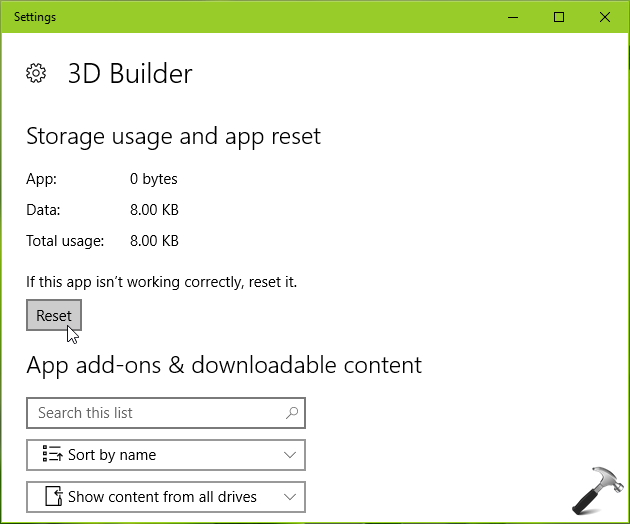
In Windows 10 V1709, along with ‘Reset’ option, you got ‘Repair’ option as well. You can use both the options and see if they helps you.
FIX 2 – Via Windows PowerShell
1. Open administrative Windows PowerShell. For this, simply right click Start Button or press  + X keys and select Windows PowerShell (Admin). You can also search for Windows PowerShell using Cortana and right click the same from results and select Run as administrator.
2. In the Windows PowerShell window, type these commands and press Enter key after each:
reg delete “HKCU\Software\Microsoft\Windows NT\CurrentVersion\TileDataModel\Migration\TileStore” /va /f
get-appxpackage -packageType bundle |% {add-appxpackage -register -disabledevelopmentmode ($_.installlocation + "\appxmetadata\appxbundlemanifest.xml")}
$bundlefamilies = (get-appxpackage -packagetype Bundle).packagefamilyname
get-appxpackage -packagetype main |? {-not ($bundlefamilies -contains $_.packagefamilyname)} |% {add-appxpackage -register -disabledevelopmentmode ($_.installlocation + "\appxmanifest.xml")}

3. Let the commands complete and close Windows PowerShell. Reboot the machine now.
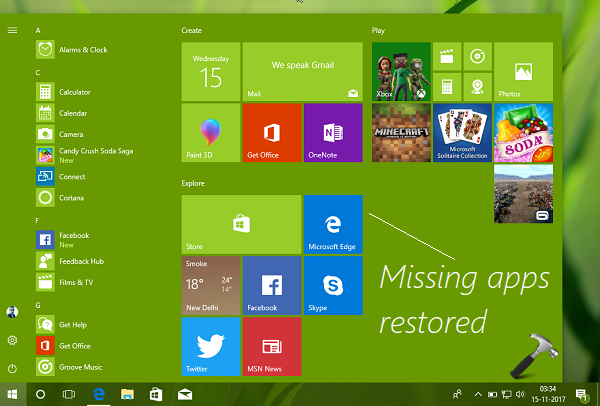
After restarting your system, the apps you were missing should appear in the Start Menu and all other places. If apps appears other places except Start Menu, you need to re-register Start Menu.
Hope this helps!