Control Panel has been part of Windows OSes for long time. With Windows 8, Settings app has been introduced to replace Control Panel. However, till latest version of Windows 10, Microsoft has continued both Control Panel and Settings app in its operating system.
Sometimes, users may feel the need to disable either Control Panel or Settings app. This is in accordance with the goal that they no longer want others to configure their system settings.
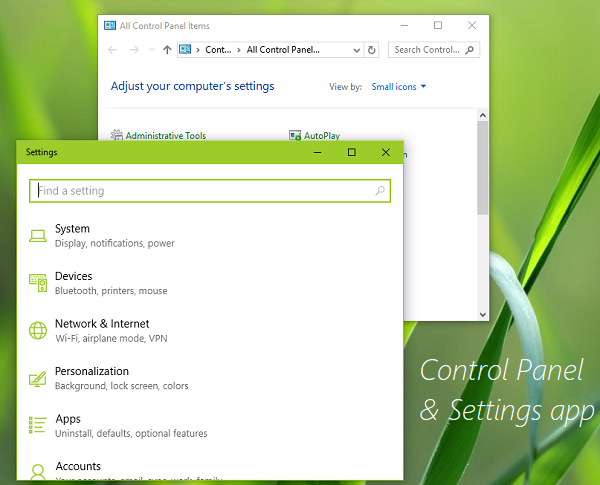
If you’re also looking to disable Control Panel and Settings app and prevent others from configuring your system, here is how you can.
How To Disable Settings App & Control Panel In Windows 10
Registry Disclaimer: The further steps will involve registry manipulation. Making mistakes while manipulating registry could affect your system adversely. So be careful while editing registry entries and create a System Restore point first.
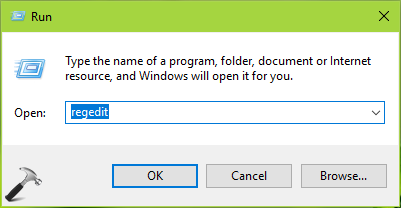
1. Press  + R and put regedit in Run dialog box to open Registry Editor (if you’re not familiar with Registry Editor, then click here). Click OK.
2. In left pane of Registry Editor window, navigate to following registry key:
HKEY_CURRENT_USER\Software\Microsoft\Windows\CurrentVersion\Policies\Explorer
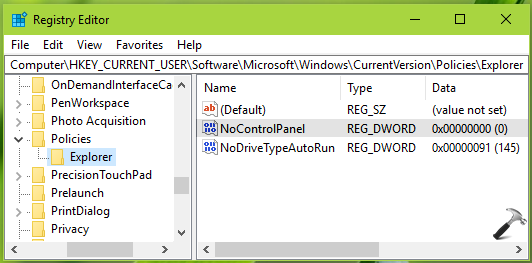
3. In the right pane of Explorer registry key, right click and select New > DWORD Value. Name the newly created registry DWORD (REG_DWORD) as NoControlPanel. Double click on same DWORD to modify its Value data:
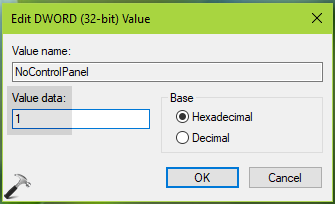
4. Finally, set the Value data to 1 and click OK. Close Registry Editor and this should immediately disable Settings app & Control Panel for your Windows 10.
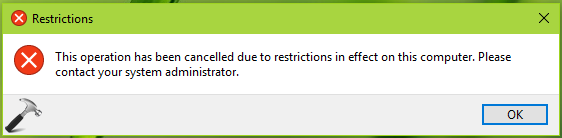
You may receive “This operation has been cancelled due to restrictions in effect on this computer. Please contact your system administrator.” message now, while launching Control Panel & Settings app may crash and will not open.
User Configuration > Administrative Templates > Control Panel, on the central machine.That’s it!