

By default, Microsoft Edge will save your browsing history, just like any other browser. You can press Ctrl + H keys to see your browsing history in Edge.
In some cases, users may need to disable saving of browsing history. If you’re researching some confidential data and you do not want others to see your browsing history, you may want to block Edge from saving your history. But there is no direct setting for this till now.

Well, the good news is that with Windows 10 build 17723 or later, Microsoft has added the ability to prevent Edge from saving user’s browsing history. So in case if you want Edge not to store your browsing history, you can try below mentioned registry manipulation.
NOTE: This registry workshop will only block Edge from saving browsing history when implemented. It will not impact earlier browsing history that is already stored in browser. If you like, you can clear that manually.
How To Prevent Microsoft Edge From Saving Browsing History
Registry Disclaimer: The further steps will involve registry manipulation. Making mistakes while manipulating registry could affect your system adversely. So be careful while editing registry entries and create a System Restore point first.
1. Press  + R and put regedit in Run dialog box to open Registry Editor (if you’re not familiar with Registry Editor, then click here). Click OK.

2. In left pane of Registry Editor window, navigate to following registry key:
HKEY_LOCAL_MACHINE\SOFTWARE\Policies\Microsoft
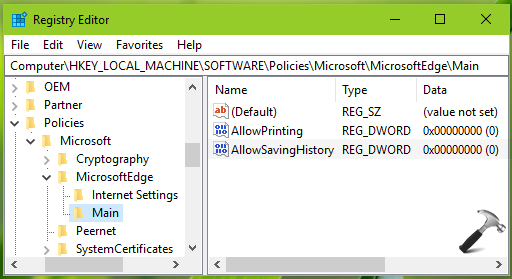
3. Right click Microsoft registry key, select New > Key. Name the newly created sub-key as MicrosoftEdge. Similarly create Main registry sub-key next to Microsoft registry key. If these registry keys already exists, skip creation of new keys. Now in the right pane of Main registry key (HKEY_LOCAL_MACHINE\SOFTWARE\Policies\Microsoft\MicrosoftEdge\Main), right click and select New > DWORD Value. Name the newly created registry DWORD (REG_DWORD) as AllowSavingHistory. Since you’ve just created the DWORD, obviously its Value data is set to 0 and it is actually required to disable saving browsing history in Microsoft Edge.
4. Close Registry Editor and reboot to make changes effective.
After restarting your system, you’ll realize that Edge is no longer saving your browsing history.
P.S. If you later want to allow saving history, simply delete AllowSavingHistory registry DWORD.
That’s it!

![[How To] Clear Address Bar History For File Explorer In Windows 10](https://www.kapilarya.com/assets/File-Explorer-6-768x512.png)
