When you install or add a new printer to your Windows, then you should be able to spot its icon in Settings app, Control Panel etc.
In Settings app, you can locate your printer at Devices > Printers & scanners.
In Control Panel, you can locate All Control Panel items > Devices and Printers.
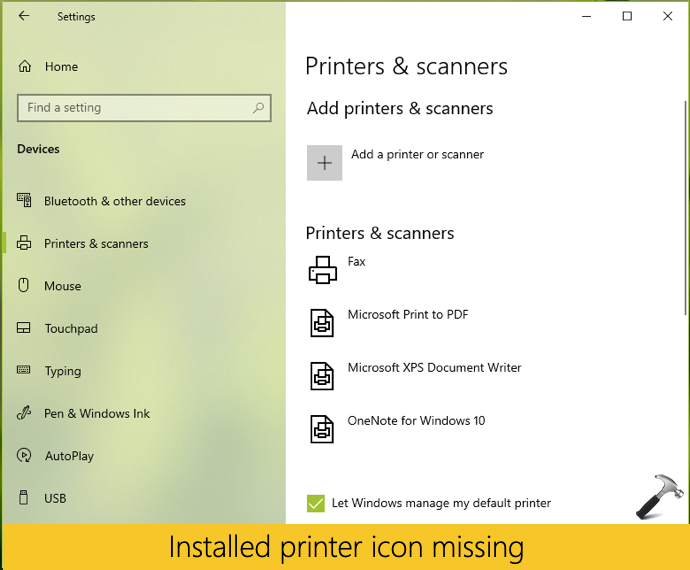
However, if you’re not able to locate your printer at above mentioned locations, then this post will show, how to fix it.
Page Contents
FIX: Printer Icon Not Showing In Windows 10/Server
FIX 1 – Using Services snap-in
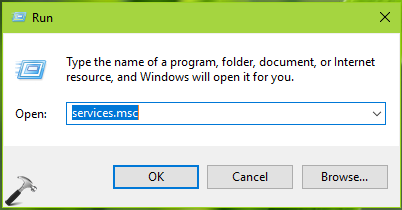
1. Press  + R and type
 services.msc in the Run dialog box, hit Enter key to open Services snap-in.
2. In Services snap-in window, start these services:
- Device Association Service
- Device Install Service
- Device Management Enrollment Service
- Device Setup Manager
- DevQuery Background Discovery Broker

3. Close Services snap-in and check if the issue is resolved.
FIX 2 – Update Printer Driver
Try updating your printer driver using these steps:
1. Open Device Manager and locate your printer driver.
2. Right click on the printer driver and select Update Driver Software.
3. Follow on-screen instructions to finish updating your printer driver.
You must also install latest updates, so in case if there are any driver updates, they gets installed.
FIX 3 – Using Registry
1. Press + R and type regedit in Run dialog box to open Registry Editor. Click OK.
2. Go to HKEY_LOCAL_MACHINE\SOFTWARE\Microsoft\Windows\CurrentVersion\Explorer\Desktop\NameSpace.

3. Right click on NameSpace registry key and select New > Key. Name the newly created registry sub-key as {2227a280-3aea-1069-a2de-08002b30309d}.
4. In the right pane of the newly created sub-key, double click on Default named registry string (REG_SZ) and change its Value data to Printers.
5. Close Registry Editor. You must now spot printer folder on Desktop.
6. Open this folder and see if your printer is listed under it. If your printer is listed, you can easily access or manage it from there.
That’s it!