Many printers connected to home or office Wi-Fi include an administrator panel that controls who can modify settings. If that panel remains protected with default credentials, other network users may gain access.

Page Contents
Set a Password for Printer in Windows 11
Therefore, setting a personal password for your printer in Windows 11 is an important step for maintaining privacy and network security. The options below cover all major brands and interfaces.
Secure the printer through its web control page
First, check whether your printer offers a browser-based management screen.
1. Find the printer’s IP address from the display menu or from Windows 11 printer properties.
2. Open any browser on your PC and type that IP in the address bar.
3. Choose Administrator Login or Sign In on the page that appears.
4. Enter the existing default password or PIN printed on the device sticker.
5. Navigate to System Settings or Administrator Settings and open the Password section.
6. Create a new strong password, confirm it, and press Save.
7. Restart the printer if prompted to do so.
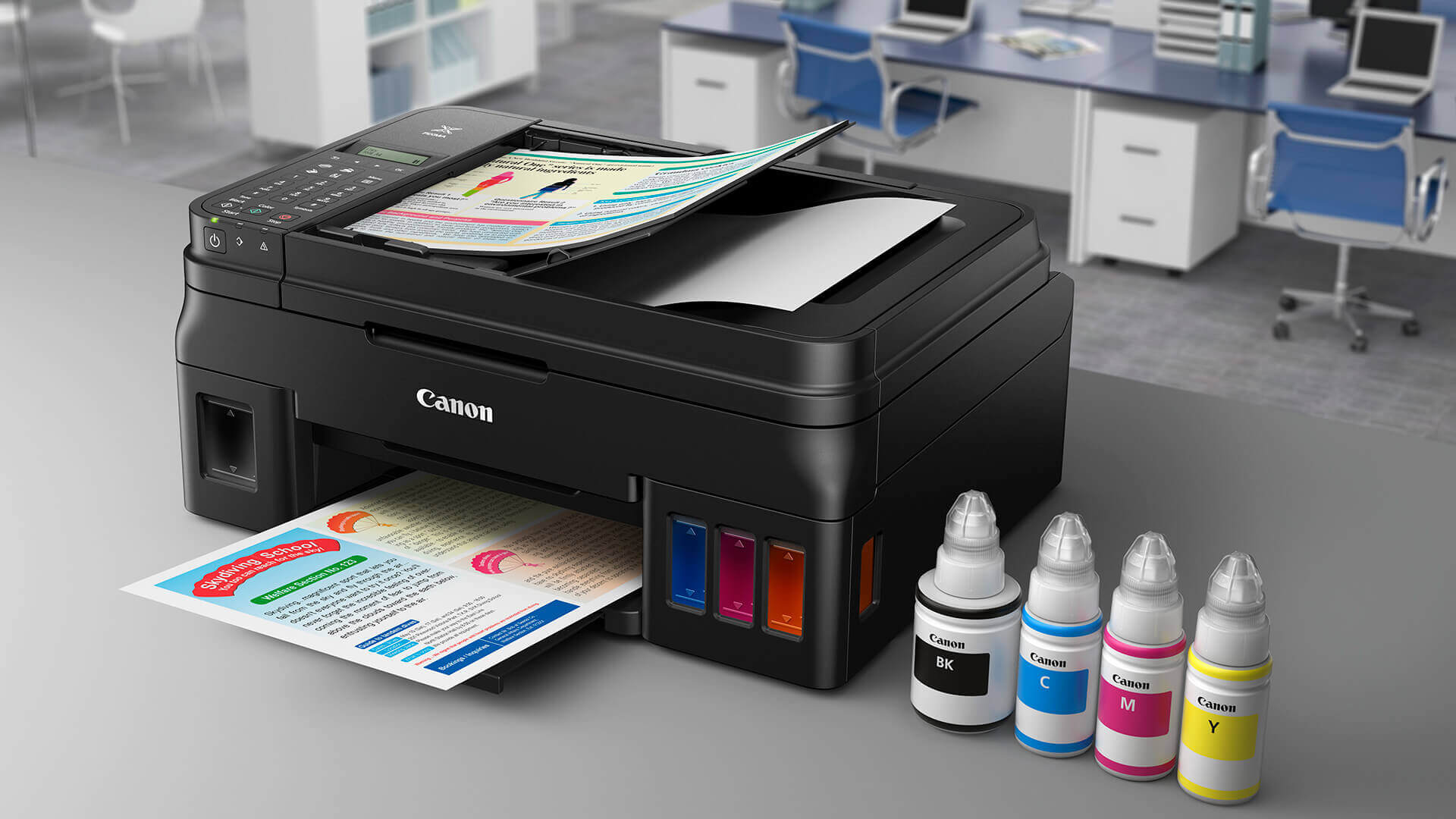
This method works with Epson, Canon, Brother, Xerox, Samsung, and several other network printers because they all rely on a built-in web server.
HP Printers: Use the official mobile application (HP Smart)
Next, HP users can take a different route using the phone app to set a Password for the printer in Windows 11.
1. Install HP Smart from the app store.
2. Add your printer inside the app while both devices stay on the same Wi-Fi.
3. Tap Advanced Settings for the selected printer.
4. The app will open the printer’s configuration page in the browser.
5. Go to Security and then Password Settings.
6. Replace the default PIN with your own password and save.
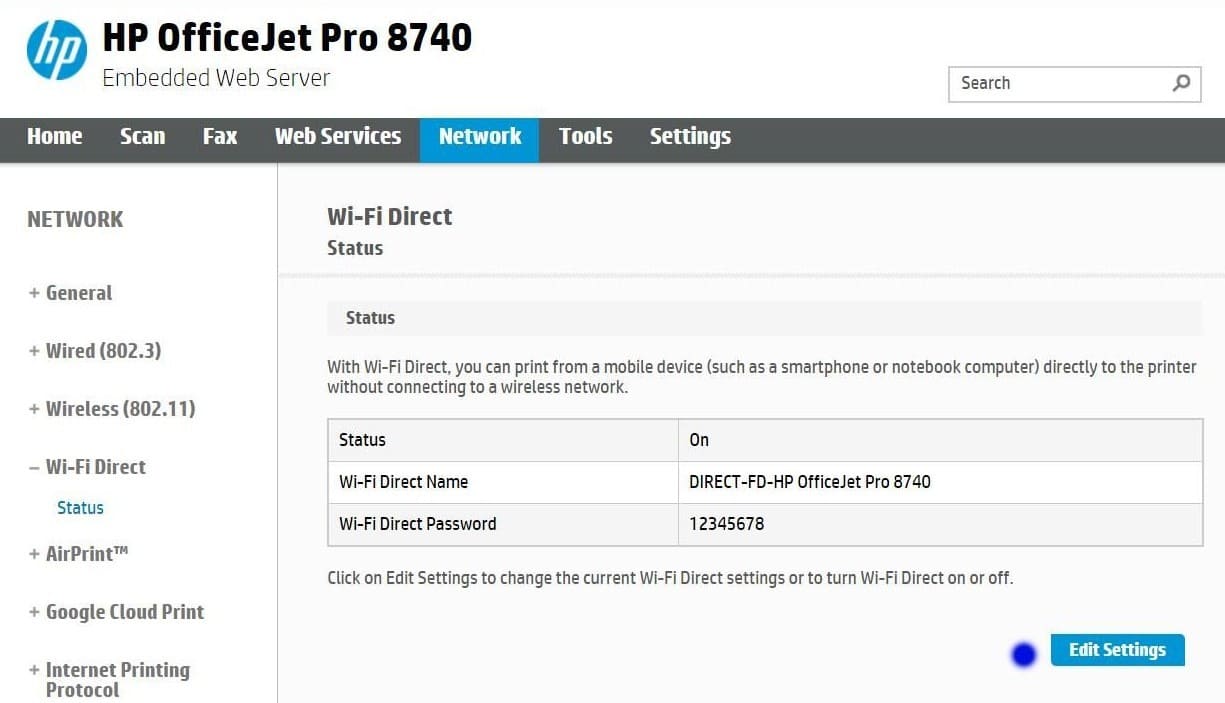
This approach feels simpler for people who prefer managing gadgets from a smartphone rather than a computer.
Canon printers: Change credentials from network UI
Canon devices provide a dedicated security menu.
1. Launch the printer IP address in a browser on Windows 11.
2. Log in with the current serial-number password.
3. Open Security options.
4. Click Administrator Password Settings.
5. Select Change administrator password, enter the new key, and confirm.
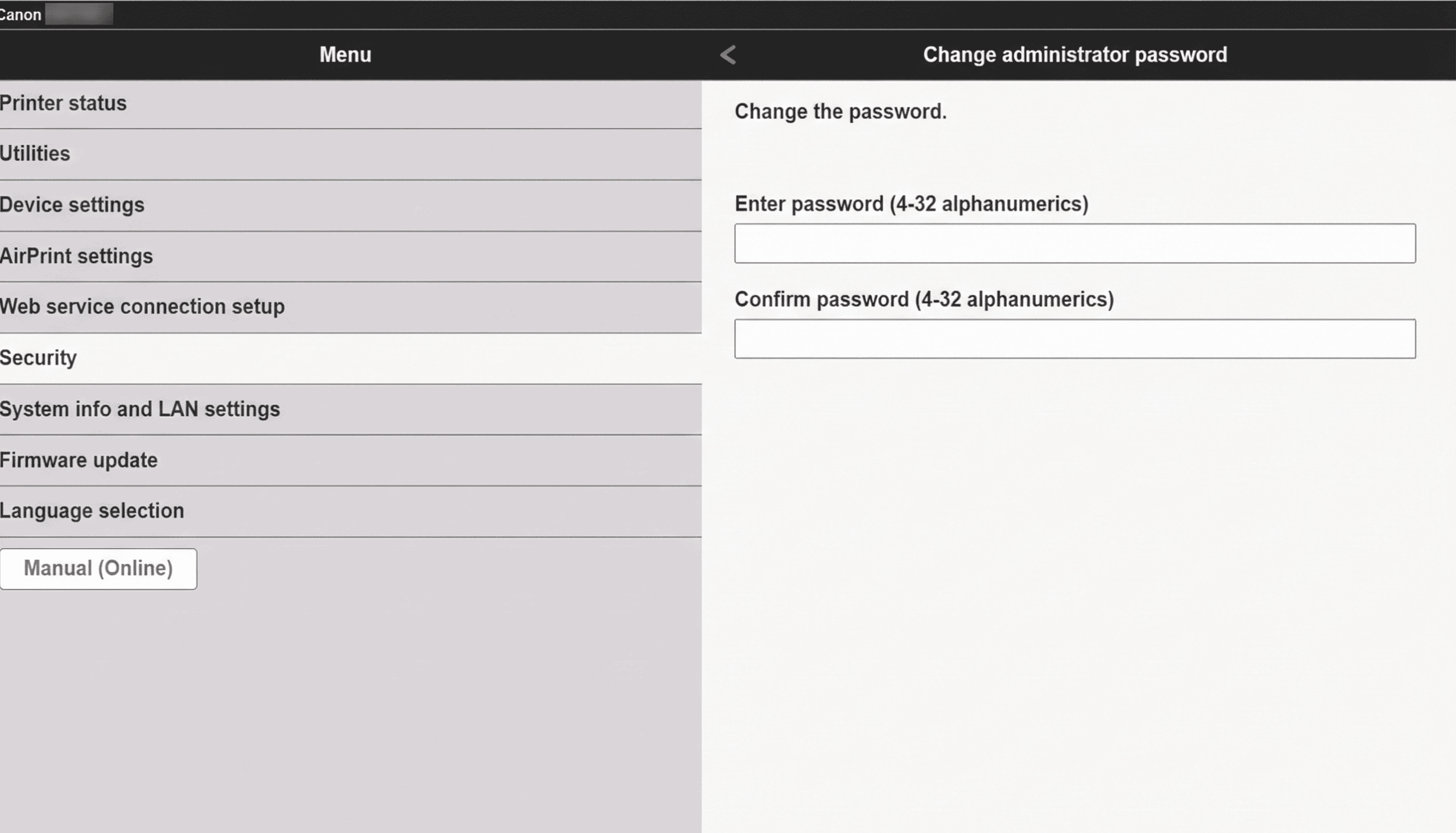
Canon’s interface labels may vary slightly, but the path to security remains almost the same.
Samsung printers: Protect access via SyncThru Web Service
Additionally, Samsung printers depend on the SyncThru platform.
1. From Windows 11, open a browser and visit the printer IP.
2. Sign in as user admin with the existing factory code.
3. Open the Maintenance or Security tab.
4. Choose the password modification field.
5. Enter and apply a fresh password.
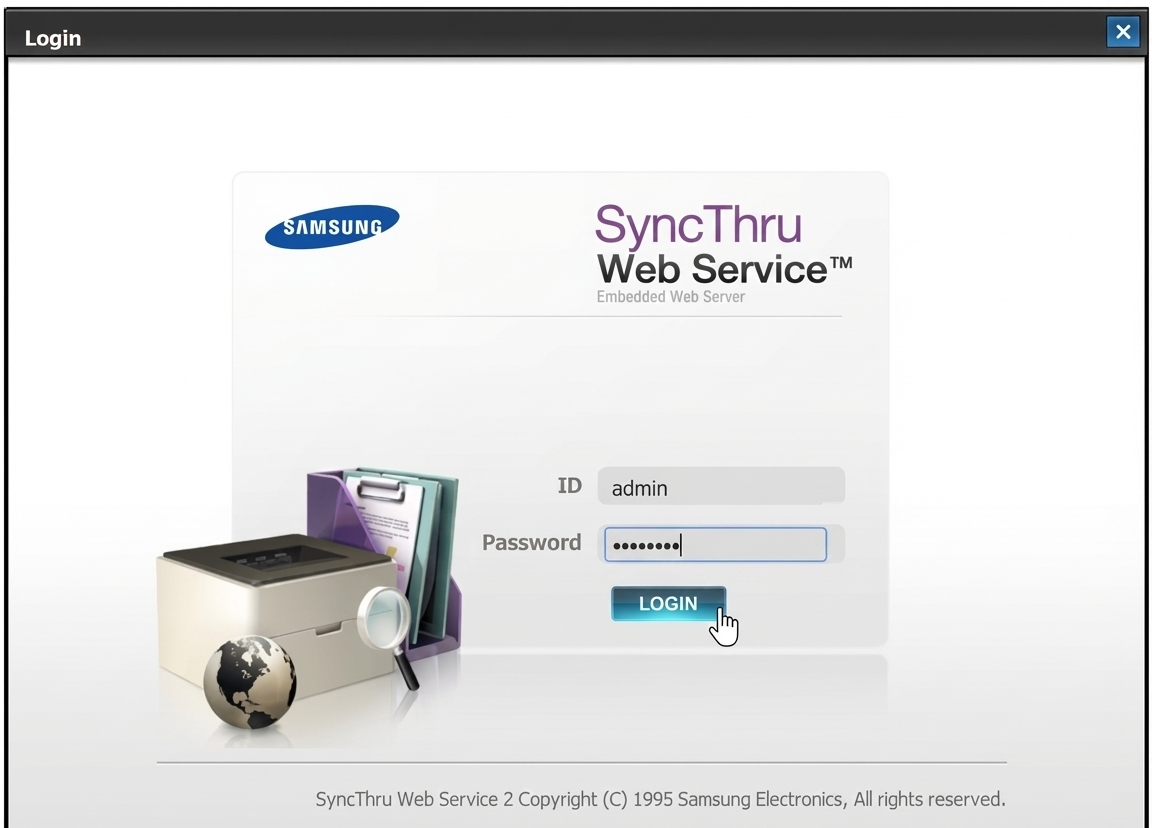
Samsung calls this environment SyncThru, yet the purpose matches other brands’ administrator pages.
Xerox printers: Set a Password for Printer in Windows 11
However, Xerox organizes the setting under user permissions.
1. Open the Xerox web portal using the device IP on a Windows 11 PC.
2. Log in with the present default.
3. Enter the Permissions area.
4. Pick the administrator username.
5. Press Change Password.
6. Type the new password twice and click OK.
This not only changes the password but also limits who can adjust rights later.
Brother printers: Modify login password from the Admin tab
Brother owners should follow these steps.
1. Visit the Brother printer status page through a browser on Windows 11.
2. Log in using the serial number as the current key.
3. Expand the Administrator tab.
4. Open Login Password.
5. Set a new password and hit Submit.
Brother panels usually respond immediately without requiring extra confirmation.
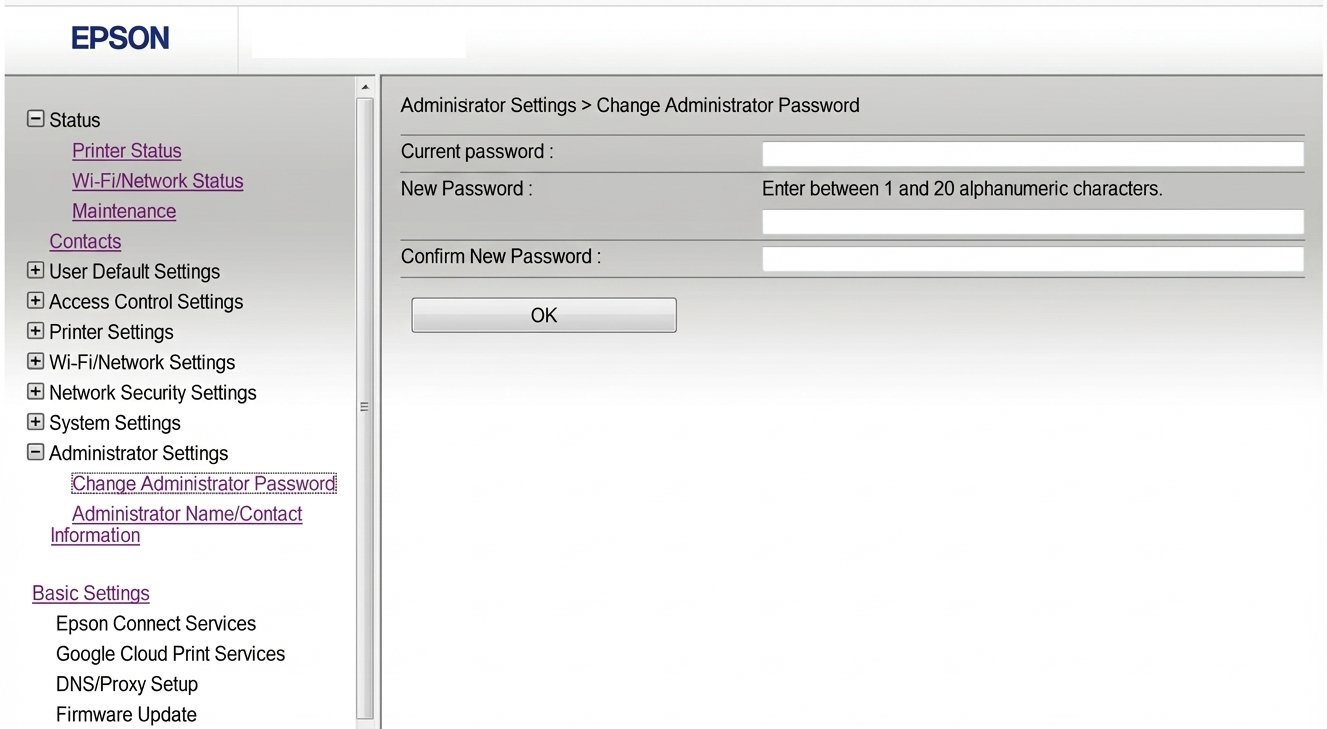
Epson printers: Set a Password for Printer in Windows 11
Epson users can also secure directly.
1. Launch the IP in the browser from Windows 11.
2. Click Administrator Settings.
3. Provide the current serial-number password.
4. Open Password field.
5. Enter a new code and save.
What to Do if the Login Fails
1. Look for a PIN or password label on the printer body; most devices print defaults there.
2. After several wrong attempts, the panel may show a lockout message; wait for the timer or contact the vendor support number displayed on the page.
3. You can also reset network settings from the printer screen and try logging in again.
Extra Ways to Strengthen Printer Security
1. Create a password with letters, numbers, and symbols, and keep it longer than 12 characters.
2. Change the Wi-Fi router password so unknown users cannot reach the printer page.
3. Place the printer on the main home Wi-Fi instead of the guest Wi-Fi if the guest network blocks admin access.
4. Update printer firmware from Windows 11 whenever a new version appears.